UI permission tests that catch real leaks in your app
UI permission tests catch hidden access leaks in buttons, lists, exports, and deep links before users reach data they should not see.
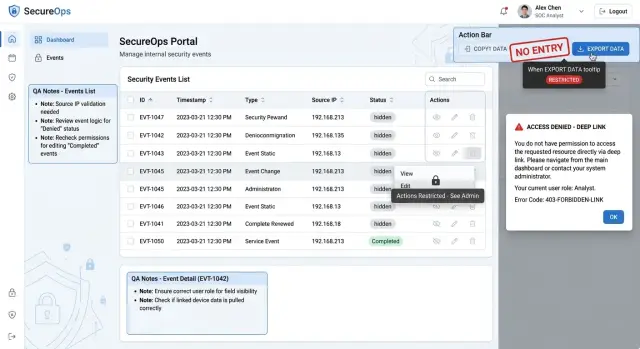
Table of Contents
Why backend checks still leave users exposed
A backend check can stop an update, delete, or export request. It does not undo what the user already saw on the screen.
If a page loads names, prices, account totals, or internal notes before the API blocks the next action, the leak already happened. That is why UI permission tests matter. Access control is not only about stopping writes. It is also about making sure the wrong person never sees data, controls, counts, or routes in the first place.
A common mistake is trusting hidden buttons. Teams remove an "Edit" or "Export" button for a limited role and assume the page is safe. But users can still paste a saved URL, open a deep link from an email, or load a page from browser history. If the screen renders first and checks later, private data can flash on screen even when the final action fails.
Lists are another weak spot. Many apps protect the details page but forget the table, search box, or summary cards. That is enough to leak customer names in a results list, order counts for another team, prices or discounts in a table row, project titles in autocomplete suggestions, or totals in dashboard widgets. None of that requires an edit. A user can learn a lot from a list view alone.
Exports and bulk actions often slip through because teams treat them like convenience features instead of security paths. A screen may correctly block one record at a time while "Export CSV" or "Select all" still pulls data for an entire account. One missed check turns a small leak into a full data dump.
The UI can also damage trust even when the backend eventually says no. If a finance page opens and shows payroll numbers for two seconds before redirecting, users notice. They can take a screenshot, copy a value, or simply learn something they should never have seen.
Good permission testing needs both layers. The backend must reject forbidden actions, and the interface must stop data from appearing at all, even for a moment. If you test only API responses, you miss the leaks real users see first.
Where UI leaks usually appear
Leaks often hide in places teams treat as harmless. The server blocks the final action, but the UI still reveals names, counts, options, or file formats the user should not know about.
Start with the obvious control layer. New, edit, delete, approve, and bulk action buttons should not flash on screen and then disappear. Even that brief moment tells users what actions exist. It also pushes them to try direct requests, saved URLs, or browser history.
Lists leak more than most teams expect. A hidden row count can reveal how many customers, invoices, or tickets exist. Status badges can expose internal states. Search suggestions can return names from records a user cannot open. Even an empty table can leak if the total says "148 results."
A few areas deserve extra attention:
- tabs that fetch data as soon as a user opens them
- side panels and preview drawers that load record details in the background
- export menus for CSV, PDF, or spreadsheet files
- bulk tools that act on selected rows a user should not see
- links from email, bookmarks, and copied browser tabs
Tabs are a common mess. A user clicks "Billing" or "Admin," and the page loads totals, account names, or audit events before the app checks the role. Teams often test the main page and miss the lazy-loaded parts.
Exports need their own checks. Many apps hide a table column on screen but still include it in CSV or spreadsheet downloads. PDF exports can leak notes, internal IDs, or full contact details. If a user can see only five rows, the export should not quietly include fifty.
Deep links cause the last group of leaks. Users reopen an old bookmark, click a link from email, or paste a saved URL into a new session. If the app renders the page shell, record title, or breadcrumb before it rejects access, you still have a leak. Good UI permission tests check the full path, not just the final API response.
Map roles and actions before testing
Permission bugs get missed when teams test screens one by one without a full map. Put every role on one page first. It can be a spreadsheet, a table in your docs, or a plain text list. The format matters less than the habit.
Write roles down the left side and actions across the top. Keep the actions simple: view, create, edit, export, delete, approve, and invite if your app uses them. If a role can do something only in one area, note it now instead of hoping the tester remembers later.
Build a simple matrix
A good matrix covers fields, not just pages. Many leaks happen because a user can open the right screen but still sees the wrong data. Mark fields that need tighter limits, such as salary, personal email, API keys, billing totals, or internal notes.
Then add the conditions that change access. Some screens behave differently by team, account, region, subscription plan, or customer status. A manager in Team A may edit only Team A records. A paid plan may unlock exports that a basic plan should never show. If you skip those conditions, your UI permission tests will look complete while missing the real weak spots.
You do not need a huge spreadsheet. A short matrix with the role name, screen or object, allowed action, restricted fields, and any extra condition such as team, plan, or account usually covers most of the risk.
Start with the actions that expose customer data fast. Exports, bulk actions, search results, record lists, and shared URLs deserve attention before low-risk actions like changing a label color or reordering a dashboard.
A support app makes the point quickly. An agent may view tickets and add notes but should not export all customer emails. A team lead may export tickets for only one team. Finance may see invoice totals while support sees only payment status. Those differences belong in the map before anyone opens the test environment.
This prep work feels slow for about twenty minutes. Then it saves hours of random clicking and catches the leaks that matter.
Test one screen step by step
Start with the weakest role that can still sign in. That is where UI permission tests usually find problems, because admin accounts hide missing checks. If a junior staff role, contractor role, or read-only role can reach too much, users will notice it long before your backend logs do.
Open the screen from the menu first. If the role should not access the page, the menu item should stay hidden, search should not suggest it, and the route should not load through normal navigation.
Once the page opens, click everything you can see. Teams often test the main button and stop there, but leaks hide in smaller controls such as action buttons in the page header, row menus inside tables, inline edit icons, status toggles, tabs that load extra data, and filters that reveal records the role should not see.
Watch for small clues too. A disabled button still leaks intent. Record counts can expose private data. A form with no save access can still show fields the user should never read.
After that, paste a direct URL to the detail page or edit page. Many apps block the menu path but forget the route itself. If the page loads, even for a second, it can expose names, prices, notes, or internal IDs before the backend rejects the final action.
Refresh the page and try again after a role change. Single-page apps often cache permission data, so the screen can look fine until a full reload forces fresh checks. If you change a test account from editor to viewer and the page still shows edit controls until refresh, that is a real bug. Users hit the same stale state in daily work.
A simple example makes this easy to spot. A support agent can open a customer profile but should not edit billing details. The menu hides the billing editor, and the save API returns 403. That still is not enough if a pasted edit URL opens the form and shows card status, invoice notes, or discount rules. The save block helps, but the leak already happened.
One screen tested this way tells you more than a large batch of shallow checks. It shows what the user actually sees, what they can click, and what they can reach when they skip the normal path.
Check lists, counts, and search results
List screens leak more than most teams expect. A blocked detail page does not help much if the table already shows customer names, emails, prices, or order counts.
Good frontend authorization testing treats the list page as sensitive data, not just a shortcut to the detail view. If a user should not access a record, the safest default is simple: the UI should act like that record is not there.
Start with counts and summaries. A badge that says "127 overdue invoices" can expose company-wide activity even if the user manages only one region. Summary totals, row counts, chart numbers, and pagination all need the same check.
A simple rule works well: compare what the user can see in the rows with every number around the list. If the table shows 24 records but the header says 2,431, something is wrong.
Search needs direct abuse tests. Search for exact names, emails, IDs, and order numbers that belong to another team. Then try partial matches, different letter case, and old saved queries. Restricted records should not appear in rows, autocomplete, recent searches, or result counts.
Sorting and filtering often expose data by accident. A hidden row may stay invisible in the default view but appear after sorting by price, filtering by status, or jumping to page 2. Test the same list with different filters, then clear them and test again.
Watch row menus closely. Teams often hide the row content but still render the action menu, checkbox, or bulk select control for records the user should never touch. That mismatch tells users that something exists, and sometimes it gives them actions they should not have.
Keep the same checklist for every list page:
- row counts and summary totals
- search results and autocomplete suggestions
- filters, sort order, and pagination
- row menus, checkboxes, and bulk actions
- empty states and "no access" messages
Empty states deserve extra care. Some apps leak more in a helpful message than in the table itself, with text like "You do not have access to Acme invoices" or "1 hidden result matched your search." That still reveals names, accounts, or pricing data.
When Oleg Sotnikov reviews startup products, list views are often where the first real leaks show up. They look harmless because nobody opened the record, but users still learned something they were never meant to see.
Try exports, downloads, and bulk actions
Exports often bypass the normal screen flow. A user may fail to open a field in the app, then get the same field in a CSV a second later. That is why UI permission tests need export checks from every place a user can start them, not only from the main list.
Start with the obvious paths. Run the export from the list page, then repeat it from a single-record page if the product allows both. Teams often wire these actions to different endpoints or different query builders, and one path leaks more than the other.
Bulk actions deserve extra suspicion. Pick a mixed set of records: some the user should manage, some they should only view, and some they should not touch at all. Then try archive, delete, assign, and export. The UI should block the action early or clearly exclude blocked records. A silent partial success is risky if the message hides what actually happened.
A downloaded file needs the same review as the screen itself. Open it and check the file name, column headers, row counts, totals, and whether the content matches the visible filters. Hidden fields sometimes appear in headers even when the cells are blank. A row count leak still tells the user something real.
Cancel and retry too. Permissions often go stale when a user changes role in another tab, loses access after login, or resumes a timed-out session. Start an export, cancel it, change the role, and run it again. Old tokens and cached selections expose a lot of data in real products.
If exports run in the background, inspect the whole flow. The toast message, email subject, job history, and completed file all need checks. A user should not see "Export finished: 2,431 payroll records" if they were never allowed to know that dataset exists.
One small example is enough. A support agent opens a customer list, selects ten accounts, and clicks export. Three of those accounts belong to another region. The safest result is simple: the app blocks the action or exports only the seven allowed records and says so plainly.
Open deep links and saved URLs
People do not always enter through the safe path your UI expects. They click an old email, open a bookmarked edit page, or paste a URL from browser history. That is where deep link permission checks often catch leaks that normal click-through testing misses.
Use a low-access account and open pages it should never edit. A saved URL like /projects/482/edit is a good test. Then swap the ID for a project from another team or account. If the page loads a title, owner name, record count, or old form values before the error appears, you already have a leak.
This matters even when the backend blocks the final save. Users can still learn who exists in the system, what records are nearby, and how your app is structured. In multi-tenant products, that small leak is often enough to expose customer names, invoice numbers, or internal notes.
A short pass for deep links should cover bookmarked edit, admin, and settings pages, IDs copied from another workspace or customer account, links from email alerts and notifications, and query params like tab=, sort=, view=, or export=.
Query params deserve extra attention. Many apps hide extra data behind tabs such as activity, billing, or audit logs. If changing tab=security or tab=members reveals counts, table headers, or empty-state text, the screen is telling the user more than it should.
One simple rule helps: the page should reveal nothing sensitive until permission is confirmed. No record name in the title, no flash of table rows, no export mode, and no prefilled form fields. If access is denied, show a neutral error state first and keep the rest of the screen blank.
This is one of the cheapest access control test cases you can add, and it finds real problems fast.
Walk through a simple example
A support agent role often looks safe in a demo. The agent can open the Orders screen, read order details, and help a customer. It looks fine until you test the smaller paths around the main flow.
Start with the obvious rule: the agent may view orders, but may not export customer emails. On the page, the Export button is hidden, so the screen looks correct. Then someone opens a saved URL from browser history, and the file download starts anyway. That is a real leak, even if the backend blocks some other export path.
The same screen can leak data in quieter ways. A search box may suggest order numbers the agent should never see. A list count can also give away restricted records even when rows stay hidden. Users notice these details fast, and they do not need admin access to learn something they should not know.
Menus create another common problem. A row menu may still show Refund for the support agent. When they click it, the app throws an error or the API rejects the request. That is still a permission bug. The user saw an action the role should never have seen in the first place.
Turn each leak into one small test with one expected result:
- When a support agent opens the Orders page, the Export control does not appear.
- When the same agent opens a saved export URL, the app blocks the download and shows no file.
- When the agent types in search, suggestions include only allowed orders.
- When the agent opens the row menu, Refund is absent, not disabled after the click.
This is why UI permission tests need more than a quick check of visible buttons. A good test walks the screen the way a real user does: list, search, row menu, saved URL, and export path. That is how you catch leaks before your users do.
Mistakes that hide permission leaks
Teams often test the two obvious cases: full admin and one basic user. That misses the messy middle, where leaks usually live. A support agent, regional manager, contractor, or read-only finance user can expose gaps that simple tests never touch.
Hiding a button is not much of a test. Many pages load data before anyone clicks anything. A user may never see the Export button, yet the page can still show private totals, customer names, or search suggestions as soon as it opens.
Bad test data makes this worse. If every record belongs to the same team, plan, or region, the screen looks correct even when the query is wrong. Mix your data on purpose. Use two teams with similar customer names, a few plans, and users from different regions so a leak is easy to spot.
A few habits create false confidence:
- checking visible controls but not the data, counts, and side panels that load on page open
- using clean demo data with no overlap between teams, plans, or regions
- testing a fresh session only and never a cached tab after logout or role change
- treating a late 403 as a pass even if the UI already showed private details
Cached screens deserve more attention than they get. If a manager opens a customer page, logs out, and signs back in with a lower role, the browser may still show old content for a moment. That brief flash is still a leak. The same goes for browser back, saved tabs, and role switching inside one session.
Late failures are another trap. If the app loads a report title, record count, column names, or the first rows and only then returns a 403, the user already learned something they should not know. Treat that as a failed test, not a partial success.
The best test runs feel a little unfair. Open pages directly, switch roles mid-session, search across mixed data, and watch what appears before the app corrects itself.
Quick checks and next steps
Start with the screens that show customer data, billing details, internal notes, or admin controls. Those are the places where a small UI leak becomes a real trust problem. A hidden button does not protect users if a saved URL still opens, a search result still appears, or an export still runs.
Good UI permission tests stay close to real user behavior. People do not only click through the menu. They use bookmarks, browser history, shared links, saved filters, and old tabs. Your checks should match that.
A short pass on every risky screen works well:
- Check whether the menu shows the screen to the right role.
- Open the direct URL in a fresh tab and see what loads.
- Test lists, counts, filters, and search results for records the role should never see.
- Try exports, downloads, and bulk actions, even when buttons look disabled.
- Repeat the same checks on any layout that changes between desktop and mobile.
When you switch roles on one device, clear cached state first. Log out, remove stored tokens, reset local storage if needed, and start a clean session. Old data can make a broken screen look safe, especially when the app keeps list results or permissions in memory.
Build coverage one leak at a time. If a user saw a hidden column, add a test for that column. If a deep link opened an account page, add a test for that saved URL. Small, specific access control test cases are easier to keep up to date than a huge plan nobody updates.
A simple order works well: review the screens that expose customer data first, then search, then exports. One missed CSV download can leak more than ten visible buttons.
If your team needs an outside review, Oleg Sotnikov at oleg.is works with startups and small teams as a Fractional CTO and advisor. A focused review of risky screens, exports, and deep links can give you a clear list of fixes and a repeatable way to catch the next leak before users do.
Frequently Asked Questions
What do UI permission tests catch that backend checks miss?
Backend checks stop forbidden actions. UI permission tests catch what users can still see before that block happens, like names, totals, tabs, buttons, and record titles.
Are hidden buttons enough to protect a page?
No. A hidden button only removes one path. Users still use bookmarks, browser history, shared links, and pasted URLs. If the screen renders first, the leak already happened.
Where do UI permission leaks show up most often?
Lists usually leak first. Search suggestions, row counts, dashboard totals, tabs that load data in the background, preview drawers, and export menus also cause trouble.
How should I test list pages and search?
Start with a low-access account. Open the list, compare visible rows with counts and totals, then search for records from another team or account. After that, change filters, sorting, and pages to see if hidden records appear.
What should I check in exports and bulk actions?
Treat every export path like a separate security check. Run it from the list view and from any record page, then open the file and check the columns, row count, totals, and hidden fields. The download should match what the user is allowed to see.
How do I test deep links and saved URLs?
Paste direct URLs to edit, admin, billing, or settings pages with a low-access role. Try record IDs from other teams too. The page should deny access before it shows a title, breadcrumb, form field, or table row.
Do I need a permissions matrix before testing?
Yes. A short matrix keeps the work focused. Map each role to screens, actions, sensitive fields, and conditions like team, plan, region, or account so you do not miss the messy middle cases.
Which user role should I test first?
Begin with the weakest role that can still sign in. Admin accounts hide missing checks because they can open almost everything. A read-only, contractor, or junior staff role usually exposes the real gaps faster.
Does a 403 error mean the permission test passed?
No. If the page shows payroll numbers, customer names, counts, or even a record title before the error, the test failed. Users only need a second to learn something private.
Where should a small team start with UI permission testing?
Start with screens that expose customer data, billing details, internal notes, and admin controls. Then test search, lists, exports, and deep links. That order finds bigger leaks sooner without turning the work into a huge project.


