Tool use latency budget for assistants that feel fast
Use a tool use latency budget to measure lookup, search, and write delays, set time limits per action, and keep assistant replies fast.
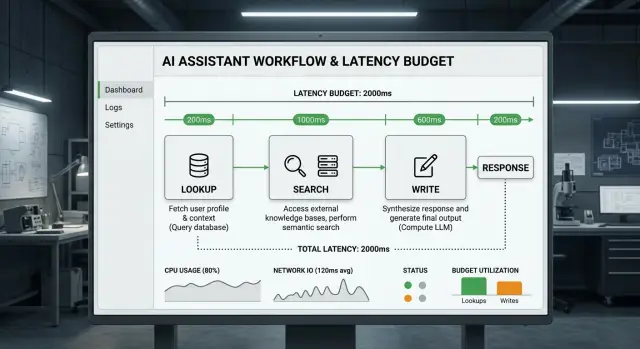
Table of Contents
Why assistants feel slow even when they're right
People don't judge an assistant by answer quality alone. They judge the wait before the answer, the rhythm of that wait, and whether the delay seems worth it.
A good reply can still feel slow if it arrives through a stop and start process. The assistant searches, pauses, reads, pauses again, then writes. Each pause looks small in a log. The user feels all of them.
That's why one clean seven second wait often feels better than six short delays that add up to less. A single pause feels like work. Repeated pauses feel like hesitation.
Small delays stack fast. One lookup adds 400 ms. A second search adds 700 more. Then the system reformats the results, sends them back to the model, and asks for another check. What looked like a few quick tool calls turns into several seconds.
The cost is not just time. It's attention. Every extra stop makes the assistant seem less sure, even when the final answer is correct. People start asking themselves, "Why is this taking so long for something simple?"
Most slow answers lose time in the same places: the network trip to a tool, the tool doing its own work, the model reading the returned data, and one more pass to turn raw output into a clean reply.
A tool use latency budget helps because it puts a limit on how much delay a task is allowed to create. A quick support question should not trigger five tool calls just because the assistant can make them.
Useful speed matters more than raw tool count. Most people prefer a good answer in three seconds over a slightly better one in nine. They also accept a longer wait when the task is obviously heavier, like checking order history or comparing several records.
The rule is simple: use tools when they change the answer in a real way. If a call adds little, it adds drag. A fast assistant feels capable. A busy assistant usually just feels slow.
Where the time goes in one answer
One reply can hide a lot of work. The user sees one message, but the system may do several small jobs before it writes a sentence.
To build a useful latency budget, split the wait into model time and tool time. Model time covers reading the prompt, deciding what to do, and generating the reply. Tool time covers everything around it: fetching data, searching documents, parsing results, and writing updates to other systems.
In many assistants, tool time is the bigger problem. The model might need 1 or 2 seconds. Tools quietly add 4 or 5 more.
Most answers come from a small set of actions. The assistant looks up one record, searches across docs or past cases, cleans up the returned data, or writes something back to another system. Each step adds delay in a different place.
Network delay is the travel time to another service and back. App logic delay happens inside your own code while it checks permissions, reshapes data, merges results, trims fields, or waits on a queue.
That split matters. A search API might answer in 400 ms, while your app spends another 900 ms reranking results and stripping useless text. If you only track total time, you miss the real source of the slowdown.
Retries and timeouts often create the worst pauses. One timeout can turn a quick lookup into a three second stall. One retry can double that. Duplicate calls are worse because they add wait without adding anything new. Two parts of the workflow ask for the same account, the system fetches it twice, and the user pays for both.
A clean trace of one answer should show every step, who started it, and how long it took. Teams often find that the assistant didn't think slowly at all. It waited on tools, repeated work, and spent extra time on defensive code that almost never needed to run.
How to set a latency budget people will notice
People do not judge speed by what your logs say. They judge it by the gap between their question and the first useful answer. A good latency budget starts with one hard target for that gap, then forces every search and lookup to earn its place.
For a normal grounded reply, 3 to 5 seconds usually feels fine. Around 8 seconds starts to feel slow unless the job is clearly heavy. If you regularly miss that target, shrink the workflow before you add more tools.
A simple budget might give the model 500 ms to read the prompt and decide what it needs, 1 to 2 seconds for one search or lookup, another 500 to 800 ms for a second tool call only if the first result is weak, and 700 to 1200 ms for the final answer.
That last slice matters more than many teams expect. If retrieval uses the whole budget, the assistant still feels slow because the user waits again while it writes. Reserve time for the answer up front, even if that means fewer tool calls.
Set limits for each action, not just the total. A search tool that sometimes takes 6 seconds will ruin the whole experience even if the average looks fine. Put a timeout on every lookup, every search, and every write step. Then log the real time each one uses.
You also need a rule for what happens when the budget runs out. Don't let the assistant keep digging forever. It should answer with the best information it has, say when certainty is low, or ask one short follow up question instead of making the user wait.
This is where teams often get stuck. They optimize for completeness, but users usually prefer a solid answer in 4 seconds over a slightly better one in 12. Oleg Sotnikov has made the same point in his work on lean AI first operations: tighter limits often force better system design.
If one reply needs three searches, a database lookup, and a long draft, the budget is telling you something. The flow costs too much for the job.
How to measure each step
Start with traces, not averages. If you want a useful tool use latency budget, time every action from the moment the assistant calls a tool to the moment that tool returns. One slow answer usually comes from one or two steps. Averages hide that.
For each step, store a small record with the tool name, start time, end time, input size, result size, task type, user intent, retry count, and final status. That's usually enough.
Size matters more than teams expect. A lookup may finish quickly on its own, but the next write step slows down because the prompt now contains a large result set. That's why you should measure each step, not just final response time.
After you collect a few hundred traces, group them two ways. First group by task type, such as lookup, search, summarize, rewrite, or final answer. Then group by user intent, such as refund request, troubleshooting, order status, or sales question.
Those two views usually expose the real delay. Search might be fine for simple requests, while troubleshooting triggers three searches, a long context merge, and a rewrite that adds almost nothing. A global average won't show that.
Review the slowest traces before you touch prompts. Read the full sequence and ask two plain questions: which step made the user wait, and did that step improve the answer enough to justify the delay? Teams often spend days rewriting prompts when the actual problem is a duplicate lookup or a cleanup pass nobody needs.
Then cut or merge weak steps. Combine searches that hit the same source. Drop write actions that only rephrase text. If you already use Grafana, Prometheus, or Loki, send these timing events there so product and engineering can inspect the same traces instead of arguing from different dashboards.
A simple way to find the delay
Start with one real question that users ask often. Repeated delays hurt more than rare ones.
Write the question exactly as a user would ask it. Don't begin with a big workflow diagram or a stack of averages. One clear request gives you a clean path to measure.
- List every action the assistant takes in order.
- Record when each action starts and ends.
- Add the times into one total.
- Mark the slowest step.
- Test a shorter path and compare the new total.
Keep the list literal. If the assistant checks account status, searches docs, queries a database, and writes a note, record all four actions separately. A single line like "looked things up" hides the real problem.
Use wall clock time, not guesses. If a search took 800 ms, write 800 ms. If the model spent 1.4 seconds deciding to call a tool before the search began, count that too. People feel the full wait, not just the database time.
A small example makes this obvious. Say a user asks, "Can you tell me why my refund hasn't arrived?" The assistant spends 300 ms choosing tools, 900 ms checking the order system, 1.6 seconds pulling payment data, and 700 ms writing an internal note. That's 3.5 seconds before the answer even starts to feel complete.
Now test a shorter path. Maybe the note doesn't need to happen during the conversation. Maybe payment data only matters if the order check shows a refund was approved. Move or remove one step, then run the same question again.
This comparison matters more than abstract tuning. If the full path takes 3.5 seconds and the shorter path takes 2.1, you've found a delay people can feel. If the answer stays just as good, the shorter path wins.
Teams usually learn one blunt lesson from this exercise: the slowest action is rarely the assistant itself. It's an extra lookup, a repeated search, or a write step that could have waited until after the reply.
A support example that feels real
Imagine a customer asking, "Why was my refund request closed, and can you reopen it?" The assistant has access to help docs and past support tickets. That sounds helpful, but the way it uses those tools decides whether the reply feels sharp or slow.
In the slower version, the assistant tries to be thorough. It searches the refund policy, then the billing docs, then old tickets with similar cases, and only then writes a response.
The timing looks roughly like this: 1.4 seconds to search refund docs, 1.7 seconds to search billing docs, 3.2 seconds to search similar tickets, and 2.6 seconds to write and revise the answer. That's about 9 seconds before overhead and extra model pauses. In practice, it often ends up closer to 10 or 11.
The answer might be correct, but it reads like a report. The user asked one question and got policy text, background, and a delay long enough to wonder whether the assistant got stuck.
Now compare that with a shorter path. The assistant makes one lookup in the ticket system. That lookup returns the ticket status, the closure reason code, and the matching policy note already attached by the support workflow. Then the assistant answers.
That version might take 2.1 seconds for the lookup and 1.4 seconds for the final answer. Total time lands around 3.5 seconds. The reply is often better too: "Your refund request was closed because it came in after the 30 day window. I can't reopen that ticket, but I can start a new review if this was a duplicate charge."
That's short, specific, and useful. If one lookup already contains the facts needed to answer, three extra searches don't make the assistant smarter. They just make it wait longer.
Mistakes that make agents look busy
An assistant can look active while wasting seconds on work that never improves the answer. Most slow replies come from a few habits that seem harmless in testing and feel painful in real use.
One common mistake is calling tools before the model has enough context. If a user asks, "Why did my invoice fail?" and the assistant instantly opens billing logs, order history, CRM notes, and help docs, it burns time on guesses. A short read of the prompt first often removes half those calls.
Another problem is running searches in sequence when one broader search would do. Teams split a simple lookup into three steps because the workflow feels careful. Users don't care how careful it looked. They care that it answered in 6 seconds instead of 16.
Writing long drafts too early creates the same waste. Some agents produce a full reply, then search, then rewrite the whole thing. That spends tokens on text the model throws away. A short outline first, followed by one focused draft, is usually faster and easier to control.
Retries need a hard limit. When a tool fails, many agents repeat the same action with the same inputs and hope the next try works. That rarely helps. Set one retry for temporary failures, maybe two if the tool is genuinely flaky, then switch plans or tell the user what blocked progress.
The last trap hides in reporting. Averages can look healthy while one slow database query or one hanging search ruins every tenth conversation. Track the median, but also track the slow end, such as p95. That's the number that shows how long the slower 5% of replies take, and users notice that delay fast.
On lean teams, this matters twice. Extra tool calls add time, and they add cost.
Before you add another tool call
Most extra tool calls don't improve the answer. They add a few hundred milliseconds, then a few more, and a simple reply starts to feel slow. Treat every lookup as something that has to earn its cost.
Start with one blunt question: does this call change what the user reads? If the reply will be the same either way, skip the call. A greeting, a short explanation, a rewrite, or a common policy answer often doesn't need live data.
Check the prompt, recent chat, and any local cache before calling another tool. Ask whether data that's a few minutes old is good enough for this task. Use the model's own knowledge for stable facts, repeated instructions, and simple formatting. Put a strict timeout on slow tools and fall back to a shorter answer when they miss it.
Cached data is often the easiest win. If a support assistant needs store hours, shipping rules, or a product setting that rarely changes, a short lived cache usually works fine. There's no reason to hit a search service every time if the answer changes once a week.
You should also be honest about what the model can answer without help. It shouldn't guess account balances or live order status, but it can handle routine wording, summaries, and common product explanations on its own. Many teams call tools because they can, not because they need to.
Slow tools need a hard stop. If a search call takes 4 seconds and only helps one request out of twenty, that's a bad trade. Users notice delay faster than they notice a small gain in completeness.
A good rule is simple: save tool calls for moments when freshness, permissions, or exact records matter. Everything else should be cheap, fast, and boring.
What to do next
Pick one workflow that happens every day. Don't start with the hardest case. Start with the one that creates the most visible delay, like order status, lead qualification, or account questions. A small fix in a busy path usually matters more than a clever fix in a rare one.
Then measure the full trip from user message to final reply. A tool use latency budget only works when you can see each step on its own. If the assistant spends 600 ms deciding, 1.8 seconds searching, 900 ms looking up data, and 2 seconds writing, the delay stops being a mystery.
A simple first pass is enough. Log when the message arrives. Log the start and end time for every tool call. Log when the model starts drafting and when it finishes. Put those numbers in one small dashboard the team checks every day.
After that, set limits for the tool actions that happen most often. Keep the limits plain and easy to remember. Maybe a cache lookup gets 300 ms, a search gets 1.5 seconds, and a write step gets 2 seconds. If one action keeps missing the target, fix that action first instead of tuning everything at once.
Cut steps that don't earn their time. Many assistants make an extra search, reread the same record, or call a second model for polish that users barely notice. If a step adds delay and doesn't change the answer much, remove it. Fast and clear usually beats slow and slightly prettier.
Teams often get stuck when the assistant works in demos but drags in production. That's usually an architecture problem, not a prompt problem. If you're dealing with that in a real product, Oleg Sotnikov at oleg.is works with startups and smaller companies on agent architecture, infrastructure, and Fractional CTO support. Sometimes an outside review is enough to spot the extra search, retry, or write step that's making a good assistant feel slow.
Frequently Asked Questions
What is a tool use latency budget?
A latency budget is a time limit for one reply. It tells the assistant how much time it can spend on reading, tool calls, and writing so a simple question does not turn into a long chain of lookups.
How fast should an assistant feel for a normal question?
For a normal grounded reply, aim for about 3 to 5 seconds from the user's message to the first useful answer. People often tolerate more time when the job clearly needs live records or several checks.
Is the model usually the slow part?
Tool time often causes more delay than model time. The model may think and write in a second or two, while searches, lookups, retries, and cleanup code add several more.
How do I measure where the delay comes from?
Start with traces for one real request and record every step in order. Log the tool name, start time, end time, retry count, input size, result size, and final status so you can see where the wait actually happens.
Why do a few small tool calls make replies feel slow?
One lookup can add a few hundred milliseconds, but several small calls stack fast. Repeated pauses also feel worse than one clean wait, even when the total time looks similar in logs.
When should I skip a tool call?
Skip a tool call when it does not change what the user will read. Common policy answers, simple rewrites, stable facts, and routine wording often do not need live data.
Why are duplicate lookups such a problem?
Duplicate calls waste time without adding new facts. They also make the assistant look unsure because it keeps stopping to fetch the same record or search the same source again.
What should the assistant do when a tool is slow or times out?
Set a hard timeout and keep retries low. If the tool still fails, answer with the best facts you already have, say where certainty is low, or ask one short follow up instead of making the user wait longer.
Can caching help without hurting answer quality?
Yes, caching often gives you an easy speed win for data that changes slowly, like store hours, shipping rules, or product settings. Use live calls for fresh records, permissions, and exact account details.
What metrics should I watch besides average response time?
Track the median so you know normal speed, but watch p95 to catch the slower replies users notice first. A good average can hide one slow search or database step that keeps ruining real conversations.


