Temperature, top p and stop tokens for real use cases
Use temperature, top p and stop tokens for extraction, drafting, and support replies so each task gets cleaner output with less editing.
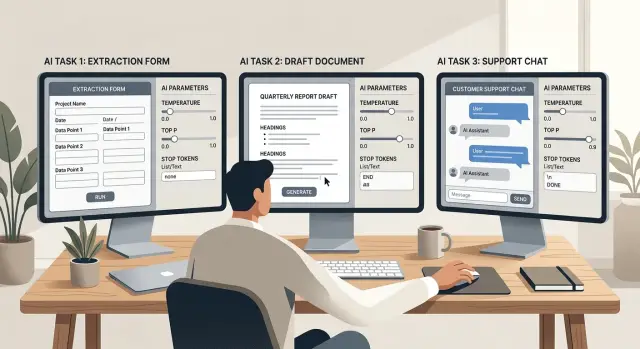
Table of Contents
Why one preset keeps failing
Teams often find one model preset that works once, then keep using it for everything. It feels neat, but it rarely holds up.
The settings that make a draft sound natural can ruin an extraction prompt. Instead of returning invoice numbers or dates, the model starts adding commentary, friendly filler, or a closing sentence nobody asked for. Flip the same preset over to customer support, and the opposite can happen. Replies turn flat, clipped, or awkward because the settings were tuned for strict output, not for tone.
That is why so much AI work ends in cleanup. The output is close enough to be useful, but not clean enough to trust. One person trims extra text from structured output. Another rewrites support replies so they sound human. A third keeps tweaking prompts when the bigger problem is the generation settings.
The issue is not the model by itself. It is the mismatch between the task and the controls. Small changes to temperature, top p, and stop tokens can shift output from strict to loose, from steady to chatty, from clean to messy.
Different jobs need different behavior. Extraction needs discipline. You want the model to stick to the source, avoid guesses, and stop exactly where the format ends. Drafting needs more room, or the writing gets stiff and repetitive. Support replies sit in the middle. They need consistency, but they also need a calm, natural tone.
A startup team might use one preset for all three because it seems simpler. In practice, that shortcut creates more work. You save a few minutes on setup and lose far more fixing outputs.
A better approach is simple: choose settings by task, not by model alone. Keep one preset for extraction, one for drafting, and one for support. That small shift usually cuts edits, reduces strange output, and makes prompts easier to maintain.
What each setting actually changes
People often treat temperature, top p, and stop tokens like one big "creativity" switch. They are not the same thing.
Temperature controls variation. Low temperature keeps the model close to the safest next word, so answers feel steady and repeatable. Higher temperature gives it more freedom, which can help with drafts but can also bring odd wording, extra detail, or tone drift.
Top p controls how large the word pool is before the model chooses. A lower top p limits the pool to the most likely options. A higher top p leaves more options in play. It can sound similar to temperature, but it acts earlier in the selection process.
Stop tokens do something completely different. They set a boundary. When the model hits the marker you chose, it stops generating.
A quick way to think about them:
- Temperature changes how bold the next choice is.
- Top p changes how many possible choices stay available.
- Stop tokens decide where the answer ends.
That last setting matters more than many teams expect. Stop tokens are useful for JSON, CSV, field extraction, chat formats with labels, or any task where extra text causes problems. A marker like "END" or "Customer:" can stop the model before it wanders into boilerplate.
If a support reply keeps rambling, a stop token might fix it faster than lowering temperature. If an extraction prompt stays accurate but keeps changing its wording, temperature probably matters more than top p. These controls solve different problems, so test them that way.
Do not change temperature and top p at the same time in your first round. If you move both, you lose the trail. Change one setting, run the same sample inputs, and see what actually improved.
How to tune extraction tasks
Extraction work needs less creativity and more discipline. If the model is pulling names, dates, totals, or tags from text, start with a low temperature, usually between 0 and 0.2. Give it a strict format, fixed field names, and a clear rule for missing values.
A plain schema usually beats a clever prompt. If you want JSON, name every field in the order you expect and tell the model to return null or an empty string when the source does not contain the answer. That one rule cuts down on invented values, which is where extraction often fails.
Imagine a startup advisor collecting intake notes and extracting company_name, team_size, current_stack, budget_range, and urgency. If those exact fields come back every time, the next step is easy. If the model starts renaming fields or adding comments, the whole pipeline gets messy.
Top p usually needs a light touch here. Keep it conservative or leave it at the default while you test temperature and prompt format first. That gives you a cleaner read on what caused the result.
Stop tokens help a lot with structured output. Put the stop token right after the last field or closing brace so the model does not drift into extra text. That prevents the common pattern where a valid JSON object is followed by a polite sentence that breaks the parser.
Before you trust an extraction preset, run a small test set and check for a few basic failure points:
- missing values that should be
null - stray text before or after the payload
- broken JSON quotes or brackets
- CSV rows split across lines
- fields the model guessed instead of extracted
If JSON keeps breaking, the prompt is often too loose. Tighten the schema, lower temperature again, and make the stop token stricter. For extraction, boring output is usually the right output.
How to tune drafting tasks
Drafting needs more room. If temperature is too low, the writing gets stiff fast. A small increase gives the model space to vary wording and sentence flow while keeping the message intact.
For most drafts, start around 0.5 to 0.7. That range often works for product updates, outreach emails, short articles, and landing page copy. If the text still sounds flat, raise it a little. If it starts adding claims you never gave it, lower it again.
Top p helps when a draft starts to ramble. A middle range, often around 0.8 to 0.95, gives the model enough flexibility without letting it drift too far. If both temperature and top p are set high, the draft can wander, repeat itself, or change tone halfway through.
Stop tokens are less common in drafting. They can cut off a sentence just when the writing is getting specific. Use them only when you need a hard stop, such as a one-paragraph bio, a headline set, or a short note that must end before a signature block.
Then edit with a cold eye. Drafting presets usually fail in familiar ways: polished filler, repeated sentence openings, tone drift, or claims that were never in the source notes.
A simple example makes this clear. If you want a short founder update for investors, the tone should be brief, warm, and direct. A preset around temperature 0.6, top p 0.9, and no stop tokens will usually do better than a single global preset shared with extraction and support work. The first draft still needs review, but it starts from a much better place.
How to tune support replies
Support replies need balance. If the settings are too tight, the model sounds scripted. If they are too loose, it starts guessing, adding advice nobody approved, or making promises your team cannot keep.
Moderate settings usually work best. In many cases, temperature around 0.4 to 0.7 gives replies that feel calm and natural without turning every answer into a style experiment. Top p can stay fairly open, but not wide open. And again, change one thing at a time so you can see what caused the shift.
The rules around the reply matter as much as the sampling settings. A good support preset usually tells the model to keep replies short, use a calm tone, ask one follow-up question if the request is vague, avoid internal notes, and never promise refunds, deadlines, or account actions unless policy allows it.
Many bad support replies are not bad because of the wording. They are bad because the model adds things nobody asked for: an unnecessary summary, extra troubleshooting steps, or a promise that sounds helpful but creates risk.
This is where stop tokens can help. If the model tends to spill into signature blocks or internal note formats, add a stop marker before those sections. If the reply gets cut off too early, remove the stop token and tighten the instruction instead.
Support is also where tone testing matters most. A preset that sounds fine on an easy question can fall apart on an angry one. Read both out loud. If the model gets too casual under pressure or too stiff on simple cases, the preset still needs work.
How to tune settings one change at a time
Most teams make tuning harder than it needs to be. They swap models, rewrite prompts, and move every slider at once. Then the results feel random.
Start with one narrow task, not a whole workflow. Pick something like extracting invoice numbers from emails or drafting first replies to billing questions. Then choose one success measure. For extraction, use exact match rate. For drafting, count how many edits a person makes before sending.
Use the same small batch of inputs every time. Ten to twenty examples is enough for a first pass if they reflect real work. Run the exact same batch several times and save every output. If the model changes its answer across runs, you need to see that before you trust the preset.
A simple loop works well:
- freeze the task, prompt, and sample inputs
- run the baseline preset several times
- change one setting only
- compare output quality and cleanup time
- keep the winner and name it after the task
That last step is easy to skip, but it matters. "Support reply - billing v1" is much better than "default low temp." Clear names make presets reusable.
Track cleanup time along with accuracy. A preset that gets 95% of fields right but takes two minutes to fix can be worse than one that gets 92% right and needs ten seconds of cleanup. Teams often judge the text and ignore the work around the text.
Write down the winning preset. Save the task name, model, prompt version, settings, and test date in one note or table. When you change the model, edit the prompt, or update policy rules, test again. Good settings do not stay good forever.
A simple example with three presets
Imagine a three-person team handling three very different jobs each day. One person pulls invoice fields into a spreadsheet, one writes blog intros, and one answers customer tickets. They started with one shared preset, and it caused small but expensive problems.
The invoice prompt sometimes added notes after the JSON. The blog intro sounded flat one day and strangely random the next. Support replies were polite, but the tone drifted and agents had to trim fluff before sending.
They fixed it by treating settings as task controls, not as a model personality.
For invoice extraction, they used a strict preset: temperature at 0.0 to 0.2, top p at 0.1 to 0.3, and a stop token such as "END_JSON" or a clear schema boundary. That kept the output stable and reduced broken imports.
For blog intros, they loosened the settings: temperature at 0.6 to 0.8, top p at 0.8 to 0.95, and sometimes a stop token like "##" so the model did not wander into the next section. The drafts still needed editing, but they felt less stiff and took less time to fix.
Support landed in the middle. They used temperature around 0.3 to 0.5, top p around 0.5 to 0.8, and a stop token before internal notes or signature blocks. That gave agents replies that stayed calm, clear, and consistent without sounding copied from a script.
The difference showed up quickly. Extraction errors dropped. Editing time on blog intros went down. Support replies became more predictable, which matters more than clever phrasing when a customer is already frustrated.
One preset looked simpler. Three presets saved time.
Mistakes that cause messy output
Most messy output has a plain cause: the settings do not fit the task.
One common mistake is raising temperature when the prompt itself is vague. If the instructions do not say what format to use, what fields to return, or what to avoid, more randomness only makes the mess bigger. Fix the prompt first. Then test the settings.
Top p creates similar trouble. Teams open it up too far, get one lively answer, and assume the preset is better. Sometimes it is. Sometimes the model is just wandering in a way that happened to look good once. For extraction and support work, that drift shows up as extra detail, changed wording, or answers that miss the exact task.
Stop tokens can quietly ruin good output too. A bad stop sequence chops off a sentence, cuts a JSON object, or ends the reply just before the useful part. This happens all the time when teams reuse the same stop markers across different tasks.
Another trap is trusting a single lucky run. One clean answer is not enough. You need a small test set with easy cases, messy cases, and edge cases. If a preset only works on the tidy inputs, it is not ready.
Prompt edits create their own problems. A preset that worked last week may fail after you add examples, change the output format, or ask for a friendlier tone. Even small prompt changes can alter how the model reacts to temperature or top p.
A few habits keep things under control:
- change one setting at a time
- test on the same sample set
- check where output drifts or gets cut off
- retest after every prompt edit
When output gets messy, the reason is usually ordinary. The prompt got loose, the settings got wider, or the stop token fired too early.
Quick checks before you ship
A preset can look fine in a demo and still fail in real work. Test it on clean input and on the kind of messy input people actually send: extra spaces, broken formatting, half-finished sentences, pasted email threads, and mixed labels.
Watch for a few failure signs first: cut-off answers, repeated lines, and lists that stop halfway through. These problems often show up when max tokens, stop tokens, and sampling settings do not match the task. A support reply that ends after "Thanks for reaching out" is obvious. An extraction result that quietly drops the last field is worse because people may not notice.
Tone needs its own check. Compare a calm request with a tense one from the same support flow. If the model gets too casual under pressure, or too stiff on simple cases, the preset is not stable yet.
A short review pass usually catches most issues:
- run at least one clean sample and one messy sample for each task
- check whether the answer stops too early or runs past the format
- look for repeated phrases, repeated bullets, or prompt echoing
- read two support cases out loud, one easy and one tense
- save the exact inputs and outputs that exposed problems
Keep a small test set and reuse it whenever you change a preset. Ten to twenty examples is enough to start. Include cases that failed before, not just the ones that looked good. That habit saves time because you stop arguing from memory and start comparing real outputs.
If your team handles support, drafts content, and extracts data from documents, keep separate test sets for each job. One shared "looks good to me" check is too weak.
Next steps for your team
Most teams get better results from a few small presets than from one "smart" default. A shared note or spreadsheet for settings cuts down on guesswork and makes reviews faster when output quality drops.
Keep it short. If a workflow repeats every week, it probably needs its own preset. Product drafting, support replies, data extraction, and internal summaries often need different settings even when they use the same model.
Your preset sheet should cover the task name, where people use it, the model and settings, one sample input, one good expected output, and one common failure to watch for. Examples matter more than long explanations. A new teammate should be able to run the sample and understand what "good" looks like in a few minutes.
Testing also needs an owner. When someone changes a prompt, switches models, or tweaks a stop token, one person should check the result against the saved examples. A simple rule works well: the person who changes the prompt runs the first test, and one teammate approves it before it goes live.
It also helps to write down why a preset exists. "Low temperature for invoice extraction because extra wording breaks parsing" is much more useful than a blank config field.
If your team is sorting out presets for product work, support, or automation, Oleg Sotnikov at oleg.is helps companies test these settings against real workflows. An outside review can be faster than spending weeks arguing about sliders in chat.
Frequently Asked Questions
Why does one preset keep failing across different tasks?
Because each task asks the model to behave differently. Extraction needs tight output and hard boundaries, drafting needs more variation, and support needs a steady human tone. One shared preset usually saves a minute at setup and costs much more in cleanup.
What is the difference between temperature and top p?
Temperature changes how much variation the model uses in the next word choice. Top p changes how many likely word options stay in the pool before the model picks one. They can sound similar in practice, but they solve different problems.
What settings should I use for extraction?
Start tight. Use temperature around 0 to 0.2, keep top p conservative, define every field in a fixed schema, and tell the model what to return when the source lacks a value, such as null or an empty string. Put a stop token right after the payload so the model does not add commentary.
How do I stop the model from breaking JSON?
First, tighten the prompt so it names every field and forbids extra text. Then lower temperature and add a stop token after the final } or another clear end marker. Also test messy inputs, because the model often breaks JSON on pasted email threads or half-structured text.
What settings work best for drafting?
Give the model more room than you would for extraction. A good starting point is temperature around 0.5 to 0.7 and top p around 0.8 to 0.95. Skip stop tokens unless you need a hard limit, like one short paragraph or a headline set.
How should I tune support replies?
Keep support in the middle. Temperature around 0.4 to 0.7 often works well, and a fairly open but not extreme top p helps the reply sound natural without drifting. Pair that with clear rules: keep it short, ask one follow-up question if needed, and do not promise actions your team has not approved.
Should I change temperature and top p at the same time?
No. Change one control at a time and run the same sample set again. If you move both at once, you will not know which change fixed the issue or caused a new one.
How many examples do I need before I trust a preset?
Use about 10 to 20 real examples for a first pass. Include clean inputs, messy inputs, and cases that failed before. That small set gives you enough signal to spot drift without turning testing into a project of its own.
Why does the output look good once and then drift later?
Teams often trust one lucky run. Then they widen the settings, edit the prompt, or swap the model, and the output starts to wander. Run the same samples several times, save the outputs, and watch cleanup time along with accuracy.
When should I create separate presets or ask for outside help?
Create a separate preset when a workflow repeats often or when people spend real time fixing the same kind of output. Name it after the job, save one sample input and one good output, and assign someone to retest it after prompt or model changes. If your team keeps arguing about settings instead of shipping, an experienced CTO or advisor like Oleg can review the workflow and set sane defaults.


