SwiftUI navigation bugs: deep links, auth, and cold starts
SwiftUI navigation bugs often show up when deep links meet login screens and cold starts. Learn route models, modal rules, and safe recovery paths.
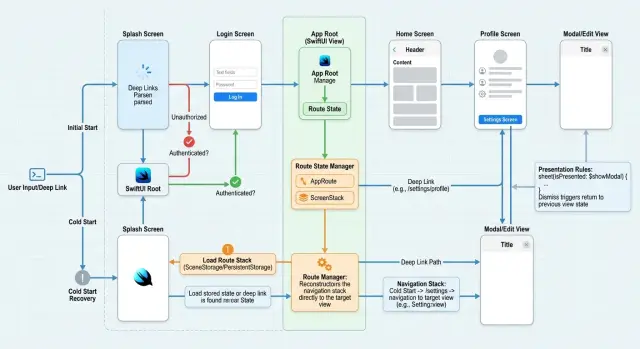
Table of Contents
Why this breaks in real apps
Many SwiftUI navigation bugs start with one bad assumption: the app thinks every user enters through the home screen. Real users do not. They tap an email link, a push notification, a shared URL, or a saved shortcut. That link often points to a screen deep inside the app, and it skips the usual path your app expects.
A normal app launch is already busy. SwiftUI builds the first view, restores state, checks auth, loads user data, and may show onboarding or a required update. If a deep link arrives during that work, your app can try to push a screen before the navigation stack is ready. The result is messy fast.
Auth makes it worse. A link might open an order detail page, but the user is signed out. Now the app has two jobs at once: ask the user to log in and remember where they meant to go. If the app pushes the target screen too early, the user sees a blank page. If it shows login first but forgets the target route, the user lands on the wrong screen after login. If both flows react to state changes, the app can bounce between screens in a loop.
Modals add another layer of trouble. A cold start can trigger a permission prompt, an update notice, a login sheet, and the deep linked destination almost at the same time. SwiftUI does not handle that kind of pileup well. One modal can cover another. One dismiss can reveal the wrong screen underneath. Sometimes the app looks frozen, but the real problem is that two parts of the app are fighting over what should appear next.
A small example shows the pattern. A user taps a billing link while the app is closed. The app opens, sees an expired session, presents login, refreshes account data, then tries to show billing before the tab view and navigation path exist. The user gets a flash of one screen, then another, then ends up nowhere useful.
The goal is simple: accept the link, pause when needed, finish auth and startup checks in the right order, and then send the user to the right place with a clear fallback if anything fails.
Model routes before you push screens
Most SwiftUI navigation bugs start before any screen appears. They start in the way the app describes where a user can go.
If each view owns its own @State flag, the app stops agreeing with itself. One screen thinks the login sheet should open. Another screen pushes a detail page. A third view resets the stack when auth changes. That is how deep links turn into loops, blank screens, or the wrong tab.
A cleaner approach is to keep one route state for the whole app. That state should describe three different things separately: the selected tab, the stack inside that tab, and any modal on top. These are not the same kind of movement, so they should not share the same flag.
enum AppTab { case home, search, account }
enum Screen: Hashable { case product(id: String), order(id: String) }
enum Modal: Identifiable { case login
    var id: String { "login" }
}

struct AppRoute {
    var tab: AppTab = .home
    var path: [Screen] = []
    var modal: Modal?
    var pendingScreen: Screen?
    var isAuthenticated = false
}
pendingScreen matters more than many teams expect. When a user opens a link to an order page from a cold start, the app should remember the intended destination even if it cannot show it yet. If the user must sign in first, keep the order route in pendingScreen, present login, then continue after auth succeeds.
Store the destination the user wanted, not only the screen they see right now. That small shift makes the app easier to reason about.
Auth should also live inside route decisions, not as a side effect scattered across views. The router checks the target route, checks auth, and chooses the next step. A product page might open right away. An account page might require login first. The rule sits in one place, so the app behaves the same whether the user taps a button, opens a notification, or launches from a link.
This model will not remove every bug, but it cuts a large share of SwiftUI navigation bugs because the app has one story about where the user is, where they wanted to go, and what must happen first.
Set clear modal rules
Most SwiftUI navigation bugs do not start with the push stack. They start when two parts of the app try to present different UI at the same time. A deep link wants a detail screen, the auth layer wants a login sheet, and an error handler wants an alert. SwiftUI usually turns that into flicker, warnings, or a screen that never appears.
Push screens and modal screens need different jobs. Push when the user moves deeper into the same task. Present a sheet or full-screen cover when the app interrupts the main path, asks for a decision, or starts a separate flow such as login, account switching, or a permission prompt.
One modal owner
Pick one place in the app that owns modal presentation. In many apps, that is the root container above tabs and navigation stacks. Child screens can ask for a modal, but they should not present it on their own. That one rule removes a lot of SwiftUI navigation bugs.
The rules should stay boring and strict:
- Only one modal can be active at a time.
- Login blocks every other sheet until it finishes or the user cancels.
- Alerts do not appear over login unless the alert explains the login problem.
- Deep links can queue a destination, but they should wait until the modal clears.
- A screen that is not visible cannot present anything.
A cold start shows why this matters. Say a user taps a link to a private invoice. The app launches, restores state, checks auth, and sees that the session expired. The root view presents login. It does not push the invoice screen yet. It stores the intended route, waits for login to finish, dismisses the modal, and then opens the invoice. If login fails, the app stays in one clear place instead of bouncing between screens.
Simple rules beat clever ones. If a login sheet, a permission dialog, and an upgrade prompt can all compete, users lose context fast. Write down which flow wins, which flow waits, and which flow gets dropped. Then keep that logic in one coordinator instead of spreading it across views.
Handle cold starts step by step
A cold start is where many SwiftUI navigation bugs begin. The app has no live navigation state yet, but the link already asks for a specific screen. If you build views too early, SwiftUI may show the wrong stack, flash the login screen, or drop the user on the home page.
The fix is simple: treat app launch like a small state machine. Read the link, decide where it wants to go, check whether the user can go there, and only then build the navigation state.
- Read the incoming URL as soon as the app launches. Do this before you push any screen from saved app state or default tab selection.
- Parse the URL into one route object. That route should include the destination and any required values, such as a project ID, invite token, or reset code.
- Check auth for that route. Some screens are public. Others need a signed-in user before they make sense.
- If login blocks access, store the route as pending. Keep it in one place, not scattered across views.
- After login succeeds, resume that exact route and clear the pending value.
A common failure looks like this: the app opens from a link to /projects/42, sees that the user is logged out, shows Login, then forgets why it opened. After login, the app lands on the dashboard. The user taps around trying to find project 42 and assumes the link is broken.
A better flow is more strict. The app reads /projects/42, turns it into route.project(id: 42), checks auth, and stores that route when login is required. After the user signs in, the app fetches the project if needed, builds the stack once, and sends the user straight to that screen.
This order matters. Parse first. Check access second. Build UI last. That one change prevents a lot of deep linking in SwiftUI bugs because your launch flow stops guessing and starts following a single route from the first second the app opens.
A simple example from a cold start
A user taps an invite link in Mail while the app is fully closed. The link points to a specific team. When the app launches, it checks for a saved session and finds none. This is where many SwiftUI navigation bugs start, because the app often tries to open the destination before it knows who the user is.
A steady flow keeps the invite target, shows login, and waits to navigate until login finishes. The app should treat the link as intent, not as an immediate screen push.
- Parse the invite link as soon as the app opens.
- Save the destination as a pending route, such as the team ID or invite token.
- Show login as the only active path.
- After login succeeds, validate the saved route and open that team screen.
That last step matters more than it seems. If the app sends the user to the home screen after login, the invite feels broken even if the login worked. People tapped a link to join a team, so they expect to land in that team.
Picture a simple case. Maya gets an invite by email, taps it, and the app opens from a cold start. She is logged out, so the app presents login right away. Behind the scenes, it stores something like pendingRoute = teamInvite(42). After she signs in, the app checks whether that invite is still valid and whether her account can open it. If yes, it goes straight to the team screen.
This also keeps your navigation state clean. You do not build a home stack, then cover it with login, then replace it again with the team screen. You build one path at a time. That usually means fewer duplicate pushes, fewer stuck sheets, and less odd back-button behavior.
If the invite no longer works, keep the app honest. Show a plain message that the invite expired or the account has no access, then offer one clear action, such as returning to the teams list or asking for a new invite. Users forgive a failed invite. They do not forgive getting dumped on the wrong screen with no explanation.
Build recovery paths that users understand
When a deep link fails, users do not care whether the bug came from auth, parsing, or app state. They care that the app still works and tells them where to go next.
Many SwiftUI navigation bugs feel worse than they are because the app gets stuck between screens, shows nothing, or silently drops the user on the wrong view. A calm fallback works better than trying to force the original route at any cost.
If the app opens a link and part of the route data is missing, send the user to one safe screen every time. That screen might be the home tab, inbox, account page, or a plain "Page not available" view with one clear action. Pick one rule and keep it consistent. Random fallback logic is how people lose trust.
Auth failures need the same discipline. If a token check fails, stop the original route, clear any protected pending path, and send the user to a known auth screen. After sign-in, retry only if the route is still valid and recent. If you keep stale route data around, the app can bounce users between login, loading, and a broken destination.
A timeout helps more than most teams expect. If you store a pending deep link during cold start, give it a short life, often 30 to 60 seconds. After that, discard it and return to a normal screen. This avoids odd cases where someone opens the app later and lands on an old path that no longer makes sense.
Short status text matters too. Users need one plain sentence on screen while the app recovers. Something like "We couldn't open that link" or "Your session expired. Please sign in again" is enough. Keep it visible until the next screen appears, or let the user dismiss it. Silent recovery feels like a glitch.
A simple example: a user taps a password reset link from email, but the token expired before the app finished loading. Instead of showing a blank sheet or looping back to launch, open the sign-in screen, show a short message, and offer one action to request a new reset email. That path is boring, but boring is good when the original route fails.
Common mistakes that cause loops and dead ends
SwiftUI navigation bugs often start with timing, not with the link itself. A user taps a deep link from email, the app launches cold, and the app starts pushing screens before it even knows whether the user is signed in. A second later, auth finishes loading, the root view changes, and the user gets bounced somewhere else.
That race creates the most annoying loop: the app opens the target screen, then replaces it with login, then forgets why the user came in. After login, the app drops the original route and sends the user to the default home screen. The user did everything right, but the app acts like the link never existed.
Another common mess comes from encoding navigation in a pile of booleans. If you have showLogin, showPaywall, showInviteSheet, and goToProject all changing at once, you no longer have one navigation state. You have a coin toss. Two flags can become true together, and SwiftUI will try to present two different paths from one event.
Sheets make this worse when you present them from a screen that may not exist yet. Say a deep link should open a document and then show a permission sheet. If the document view has not mounted, the sheet has no stable place to come from. Sometimes nothing appears. Sometimes the app falls back to another screen. Sometimes it keeps trying every time the view reloads.
A small example shows the pattern. A user opens an invite link from a cold start:
- the app stores nothing and pushes the invite screen right away
- auth finishes and swaps the root to login
- the user signs in and lands on the dashboard
- the invite route is gone
The opposite problem also shows up a lot: the app stores the pending route, but never clears it after success. Then every fresh launch replays the same deep link. Users close a modal, reopen the app, and get dragged back into the same flow again.
The fix is less magical than it sounds. Keep one route model, one place for pending deep links, and one rule for when navigation may start. Only replay a stored route when the app has the state it needs, and clear that route as soon as the user reaches the destination or cancels it.
Quick checks before you ship
A lot of SwiftUI navigation bugs only show up when the app starts in an odd state. The happy path is rarely the problem. Trouble starts when a user taps a link while signed out, returns from the background with stale auth, or opens a screen that needs data the app no longer has.
Run the same link through a short set of checks before release. You do not need a huge test matrix. You need a few cases that match how people actually use the app.
- Open the same link while signed in and while signed out. The app should land in the same final place, even if one path includes login first.
- Test from cold start, warm start, and background resume. These three states often produce different timing, especially when the app restores session data.
- Use expired tokens, revoked sessions, and missing IDs. If the link points to an item that no longer exists, show a clear message and a safe fallback screen.
- Press Back after recovery. If login, refresh, or data reload happens first, the back stack should still feel normal and not bounce users into a loop.
- Force modal conflicts. If an auth sheet is open, a deep link should not present another sheet on top of it. One modal at a time is the rule worth keeping.
Small details matter here. If a product link opens from a cold start, the app should do work in order: restore auth, validate the route, fetch what it needs, then move to the destination. If any step fails, the app should explain what happened in plain language. "This item is no longer available" is enough. Silent failure is not.
One more thing: watch for duplicate pushes. A link handler, an onAppear task, and a session observer can all try to move the user at once. When that happens, the app feels random. If your state model allows only one active route change at a time, most of those bugs disappear before users ever see them.
What to do next
Most SwiftUI navigation bugs get smaller once you stop treating them as view problems. They are flow problems. Draw the full route map on one page first: app launch, signed-out state, signed-in state, modal screens, deep links, expired sessions, and error recovery.
That drawing does two useful things. It shows where the app can go, and it shows where the app must never go. If a deep link tries to open a protected screen before auth finishes, the route map should make the next step obvious instead of leaving each view to guess.
After that, move auth and deep link rules into one coordinator. One place should decide questions like: should the app show login, should it queue the intended destination, and should it resume that destination after auth succeeds. When these rules live across several views, cold start navigation turns into a pile of small exceptions.
A short checklist helps:
- Write every route as data, not as scattered view logic.
- Define which screens can appear as modals and which must live in the main stack.
- Log every route decision, including rejected links and failed resume attempts.
- Test cold start with valid links, expired sessions, and missing data.
The logs matter more than many teams expect. If a user taps a link from email and lands on the wrong screen, you want one clear record that says what the app received, what auth state it found, and why it chose the next route. That cuts debugging time fast.
If the flow still feels tangled, get a second set of eyes on the architecture before you keep patching screens. A Fractional CTO such as Oleg Sotnikov can review the route model, auth flow, and recovery paths, then suggest a simpler setup that your team can keep stable as the app grows.
Do the route map first. Teams often skip that step, then spend days fixing symptoms instead of the actual decision tree.


