User impersonation for support with clear traceability
User impersonation for support works best when teams log every action, require a reason, and hide payment, password, and ID fields by default.
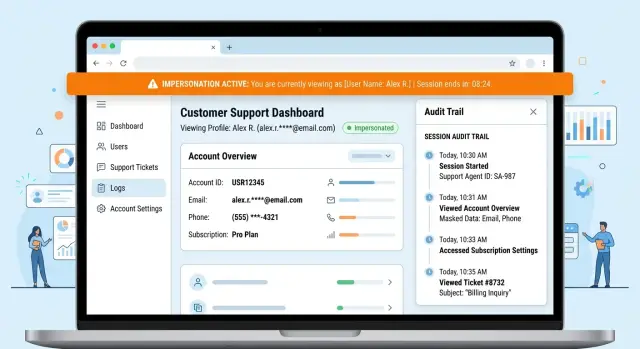
Table of Contents
Why teams use impersonation
Customers rarely describe a problem in exact terms. They say "this page looks wrong" or "the button is missing," but they usually can't tell you which setting, role, or account state caused it.
That gap matters. A screenshot shows the page, but it often misses the details behind it: permissions, plan limits, feature flags, region settings, unfinished onboarding, or odd saved data.
Without impersonation, a support agent can spend twenty minutes asking follow-up questions and still miss the cause. Impersonation lets the agent open the product as the customer sees it and check the problem directly.
It also avoids a basic security mistake. Customers should never send passwords to support. Even if they offer, support should refuse. Shared passwords create risk, break accountability, and usually add more confusion when several people touch the same account.
A controlled impersonation session is cleaner. An agent can reproduce the issue, confirm whether it's a bug or a setup problem, and guide the customer without a long back-and-forth.
A simple example shows why this works. A customer says the billing page has the wrong totals. The agent opens an impersonation session and sees that the account uses a tax setting tied to one workspace only. The customer would never think to mention that, and a screenshot would not explain it.
Speed is only part of the value. Teams also need a record of who did what. If an agent views an account, changes a setting, or tests a workflow, the system should show the person, the time, and the action.
Without that record, impersonation becomes hidden admin access. With it, support moves faster, customers get help sooner, and managers can review any session when questions come up.
What traceability should record
If your team uses impersonation, the log should answer one plain question: who did what, when, and why. If a customer asks about an unexpected change two weeks later, nobody should have to guess.
Start with the person who opened the session. Store the staff member's name or internal ID, the customer account they entered, and the exact start time. Save the end time too, even if the agent closes the tab or the session times out.
Ask for a short reason before access starts. Keep it brief, but make it required. "Checking failed invoice sync" is useful. "Support" is not.
The log should follow the whole session. Record each page the agent opens and each action they take. Reading a billing page, changing an email address, retrying a sync job, and exporting a report are not the same thing. The log should make that obvious.
The best entries read like plain notes, not machine noise. A human reviewer should be able to scan the session and understand it quickly:
- who started the session
- which account they entered
- why they entered it
- what they viewed or changed
- when the session stopped
Plain language matters. "Agent Sarah Lee changed shipping address from X to Y in account Acme Co" is easier to review than an event code with raw JSON attached. You can still keep technical detail underneath, but the first line should make sense to a person.
It also helps to separate page views from edits. Opening the subscription screen is one thing. Canceling a plan is another. Reviewers should spot that difference in seconds.
Picture a common support case. A customer says their notification settings changed after a chat with support. Clear logs show that James entered the account at 14:06, wrote "testing email delivery issue," viewed the settings page, changed one checkbox at 14:09, and ended the session at 14:11. That is enough to explain the change and check whether the action made sense.
Set limits before you build
With impersonation, limits matter more than convenience. If too many people can enter customer accounts, the feature stops helping and starts creating risk. Decide which roles can open a session before anyone writes code, and keep that group small.
Most teams do not need company-wide access. A few senior support agents may need it. An on-call engineer may need it for hard bugs. Everyone else can work from screenshots, logs, or a screen share. That boundary cuts down both misuse and honest mistakes.
Some accounts need a second gate. Billing contacts, workspace owners, and admin users can change payments, permissions, or account-wide settings. For those cases, require extra approval. That can be a second person, a manager, or a stricter workflow tied to the ticket.
It also helps to separate viewing from acting. Support often needs to see the customer problem, not change the account. If a staff member tries to refund a payment, export data, reset login details, or delete records, the system should stop the action and push it into a stricter review flow.
A few rules do most of the work:
- End inactive sessions quickly, often after 15 or 20 minutes.
- Ask staff to confirm their identity again before entry.
- Show a clear banner during the session so staff never forget whose account they are using.
- Let account owners see that support entered, with the time, reason, and staff name.
That last point matters because customers get uneasy when support can quietly step into their account. They react much better when they can open account history and see who entered, when, and why.
Good limits do not slow a support team down. They make normal help easy and sensitive access rare, visible, and deliberate.
Hide sensitive fields by default
The safest default is simple: staff should see only what they need to solve the case in front of them. If a full value is not required, do not show it.
Passwords should never appear in plain text, even to admins. The same goes for API tokens, session secrets, recovery codes, and full card data. If someone steals a screenshot or leaves a tab open, hidden fields reduce the damage immediately.
Partial values are often enough. A support agent can confirm the right account with the last four digits of a card, the last two characters of a token, or part of an email address. That gives context without exposing the full secret.
Personal ID fields need stricter rules. Passport numbers, tax IDs, national IDs, and full birth dates should stay hidden during normal support work. If a case truly requires that data, make the person request access for that case and record who approved it.
Exports need the same caution. Viewing one account in a controlled session is very different from exporting hundreds of rows to a file. During impersonation, turn off CSV export, bulk download, and other actions that move data out of the system. That closes a lot of quiet leak paths.
New fields often create problems because they look harmless at first. A team adds "backup email" or "recovery code" to a profile page, and suddenly support staff can see it during impersonation because nobody reviewed the permission rules. Treat every new field as hidden until someone checks it and decides what access makes sense.
A small example makes the point. If a customer says, "My payment method failed," the agent may need the card brand and last four digits. They do not need the full number, CVV, or billing ID document. Good masking keeps the screen useful without turning support into a privacy risk.
Roll it out step by step
Start smaller than you think. Most teams do not need account-wide access on day one. They need a safe way to solve a short list of support problems without asking customers for screenshots, passwords, or one-time codes.
Write down the support jobs that truly need impersonation. Be strict. If an agent can solve the issue by reading logs, checking account status, or viewing a safe copy of the page, do that instead.
A practical rollout usually starts with a few basic choices. Pick the support tasks that block real tickets, such as checking a failed onboarding step or reproducing a settings issue. Mark each task as read-only or edit access, and make read-only the default. Add a clear banner inside the session that shows the agent is acting as a customer, who the customer is, and what access the agent has. Then create the audit record before the session opens, not after. Log who started it, which account they entered, why they did it, and when it began.
That early log matters. If a session crashes, closes in ten seconds, or never fully loads, you still have a trace of the attempt.
Masking needs its own test pass. Teams often hide a phone number on the profile page, then forget the same data appears in a billing form, a search result, or an export screen. Check every screen the agent can reach, not just the obvious ones.
Training should be practical too. A short practice session works better than a long policy document. Give agents two or three realistic cases, such as a customer who cannot save a setting or sees the wrong invoice name. Watch where they click, what they try to edit, and whether the banner and masked fields stay visible the whole time.
Roll out the first version to a small group, then review the logs after a week. If agents keep asking for extra access, your task map may be wrong. If they solve tickets with read-only sessions, keep it that way.
A simple support case
A customer writes in because several invoices show the wrong tax rate. They expected 10%, but the system used 20%. The support agent does not ask for a password or a screen share.
Instead, the agent opens an impersonation session tied to the support ticket. Before the session starts, they must enter a reason: "Check invoice tax rate for account settings, ticket #4821." That one line gives the session context and stops random account access with no record.
The customer account opens with guardrails in place. Payment details stay masked, so the agent can confirm that a payment method exists without seeing the full card data. API secrets stay hidden too. The agent can inspect billing settings, invoice rules, and tax settings, but they cannot reveal secret values just because they are inside the account.
The issue turns out to be simple. During setup, the account kept the wrong tax rule from an older default profile. The agent changes one field to the correct rate and saves it. Nothing else in billing changes.
A good system records the full path:
- who started the session
- which ticket or reason they entered
- which account they accessed
- which field changed, from what value to what value
- when the session ended
That log matters as much as the fix. If the customer asks what changed, support can answer in one sentence. If a manager reviews access later, they can see that the agent touched only the tax setting and left sensitive data alone.
The customer gets a fast answer, the support team keeps moving, and the company keeps a clean record. That is the balance most teams want: quick help, narrow access, and a log that tells the whole story.
Mistakes that create risk fast
Most impersonation risk comes from a few boring shortcuts. Teams rarely plan to create a privacy problem. They make one small exception, then another, until nobody can say who did what.
The worst shortcut is a shared admin account. When five people log in with the same name, audit logs lose their value. If someone changes a setting, opens a customer account, or reads private data, you cannot trace the action to one person. It also makes coaching harder, because careful staff and careless staff look the same in the record.
Another common mistake starts before the session begins. An agent opens an impersonation session with no ticket number and no written reason. That turns support work into guesswork. A simple rule helps: no session starts until the system records who asked for it, why they need it, and which customer account they will enter.
Downloads create a bigger problem than many teams expect. Most support tasks need only a quick look at the account, not a full export. If staff can download files, copy large tables, or grab attachments while impersonating a customer, one support action can become a data leak in seconds. Keep this mode view-only unless a manager approves a separate export step.
Logs need attention when access fails too. Teams often review successful sessions and ignore denied attempts. That is a mistake. Repeated failed tries can show bad permissions, confused staff, or someone probing for accounts they should not open.
Field masking often breaks at the edges. A phone number or payment field may stay hidden on screen, then appear in an exported CSV, an internal email, or an automated case summary. If a field is sensitive, hide it everywhere by default.
Common warning signs show up early:
- People ask coworkers for the shared admin password.
- Agents say they will "check quickly" without opening a ticket.
- Exports leave the system with no extra approval.
- Failed access attempts pile up and nobody reviews them.
A safer setup feels a little stricter day to day. That is the point. Support stays fast, and every action leaves a clear trail.
Quick checks before launch
Run one full support session with a real ticket from start to finish. Paper reviews miss the small failures that cause trouble, like a masked value that appears in a search table or a banner that disappears after one click.
The safest launch is usually the simplest one. A support agent should enter an account for one clear reason, do the task, leave the account, and leave a clean record behind.
Before you turn it on for the whole team, run a short live test:
- Ask one support agent to open a customer account and state the reason in plain language. If the reason field invites vague text like "check issue," tighten it.
- Give the finished session log to a manager who does not build software. That person should understand who entered the account, when they entered, what they changed, and when they left without asking an engineer to translate it.
- Check masked data in every view, not just the profile page. Hidden fields often leak in tables, side panels, search results, exports, and activity details.
- Click through several pages while the session is active. The banner should stay visible the whole time.
- End the task and watch how the session closes. The system should exit cleanly, return the agent to their own account, and stop access even if they forget to click out.
One small test catches a lot. An agent might see only the last four digits of a card on the main page, then see the full value in an order history row. Or the audit logs may look fine to engineers but read like noise to a team lead who just wants to confirm what happened.
If you can, test with someone outside the build team. They notice confusing labels, missing warnings, and messy logs faster than the people who made them. Admin access controls should hold up under ordinary use, not only in a careful demo.
What to do next
Start small. Pick one support task that keeps causing confusion or back-and-forth, such as checking why a setting did not save or why a customer cannot reach a page after login.
That first flow should be narrow, boring, and easy to review. If your team can impersonate a user, see the same problem, log every click, and keep sensitive fields masked, you already have something useful.
A good first rollout is simple:
- choose one repeat support case with clear steps
- limit impersonation to a small support group
- log session start, session end, viewed screens, changed settings, and actor identity
- hide passwords, tokens, payment data, and private notes by default
- review real sessions every week and fix rough edges fast
Those weekly reviews matter because each team sees something different. Support notices where the flow feels slow. Product sees where the UI creates avoidable tickets. Security sees gaps in logs, role rules, or masking.
Keep the reviews short and practical. Look at a few real cases, ask whether the agent needed every action they used, and remove access that did not help.
Do not rush to expand scope. Add new actions only after the first workflow works cleanly and the logs tell a clear story from start to finish.
If the first flow includes five exceptions, two manual workarounds, and three hidden admin switches, stop and simplify it before adding more. Messy access rules spread fast.
A simple target is enough: solve one support issue faster, reduce customer friction, and leave records that another person can read later without guessing.
Teams usually get stuck on the details, not the idea. They debate roles, keep broad admin access, or forget that masking should stay on unless someone has a specific reason to see more.
If your team wants a practical review of roles, logs, and masking rules, Oleg Sotnikov can help as a fractional CTO. His work at oleg.is focuses on making technical operations simpler and more accountable, which is exactly what this kind of support access needs.
Frequently Asked Questions
What is user impersonation in customer support?
It lets a support agent open the product as the customer sees it without sharing login details. That helps the agent reproduce the issue, check account settings, and confirm whether the problem comes from a bug, a permission, or a setup mistake.
When should support use impersonation?
Use it when the issue depends on the customer’s actual account state, such as roles, billing rules, feature flags, or unfinished setup. If logs or a simple status check can answer the question, skip impersonation and keep access narrow.
Should support ever ask for a customer’s password?
No. Support should refuse passwords and one time codes because shared credentials create risk and blur accountability. A tracked impersonation session gives support what they need without exposing the customer’s login.
What should the audit log include?
Record the staff member, the customer account, the reason for access, the start time, the end time, and every page view or edit. Write entries in plain language so a manager can read the session and understand what happened fast.
Who should be allowed to impersonate a user?
Keep it limited to a small group, usually senior support staff and a few engineers who handle hard cases. Tie access to role rules, and require extra approval for sensitive accounts like billing owners or workspace admins.
Should impersonation be read only by default?
Start with read only. Most support work needs visibility, not account changes. When someone needs to refund, export data, reset login details, or edit billing, route that action through a stricter approval step.
What data should stay hidden during an impersonation session?
Hide passwords, API tokens, recovery codes, full card numbers, private notes, and personal ID data unless a case truly needs them. In most cases, masked values like a card brand and last four digits give enough context to solve the issue.
How long should an impersonation session stay open?
End inactive sessions quickly, often after 15 to 20 minutes, and ask staff to confirm identity again before entry. Show a clear banner the whole time so the agent never forgets they are inside a customer account.
Should customers be able to see that support accessed their account?
Yes. Let account owners see who entered, when they entered, and why. That transparency builds trust and makes follow up easier if a customer asks about a change later.
What is the safest way to roll out impersonation?
Begin with one common support case and give access to a small test group. Check the logs after real sessions, verify that masking holds across every screen, and expand only after the flow stays clean and easy to review.


