Shell scripts vs editor extensions vs server-side actions
Shell scripts vs editor extensions vs server-side actions: compare upkeep, control, and team fit so you choose the simplest option that lasts.
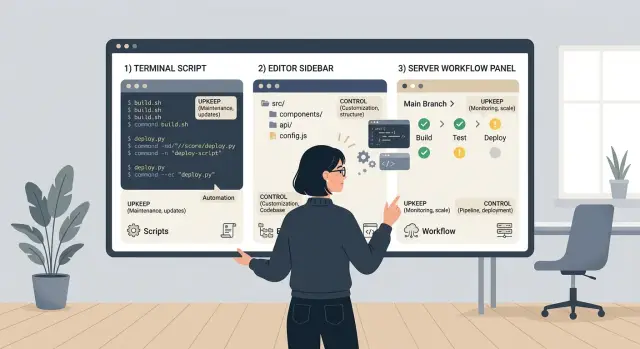
Table of Contents
The problem with extra glue
A team starts with one small task. Maybe developers need to regenerate types, check a schema, or rename files before a commit. Soon that same job shows up in three places: a shell script in the terminal, an editor command for convenience, and a CI step so nobody can skip it.
That feels harmless at first. It rarely stays small.
Extra glue code turns everyday work into a set of hidden rules. One person knows they must run ./sync-types.sh before pushing. Another relies on an editor button. CI runs a stricter version after the branch is already open. The task is the same, but the team now has three versions of the truth.
The worst part is not the code itself. It is the quiet upkeep behind it.
A helper script needs path fixes, env vars, and OS-specific tweaks. An editor extension needs settings, version support, and sometimes a fallback for people who use a different editor. A server-side action needs secrets, logs, and enough retries to avoid blocking everyone on a flaky check. None of these jobs looks big when you add it. Together, they turn into a maintenance bill.
Local fixes also drift fast across a team. One developer patches the script for macOS. Another adds a flag that only works on Linux. Someone updates editor settings and forgets to share them. New hires copy whatever works from the nearest teammate. CI then becomes the place where the real rule finally appears, usually after time is already lost.
That is why "shell scripts vs editor extensions vs server-side actions" is not really a tooling fashion debate. It is a question of upkeep and control.
More local tooling gives people speed and flexibility, but it spreads behavior across machines. More central tooling gives you one rule that everyone follows, but it usually acts later and leaves less room for personal workflow. If you choose without thinking about that tradeoff, the glue starts running the team instead of helping it.
What each option actually controls
A shell script is the simplest option. It is a text file with commands that your computer runs in order. You use it to glue local steps together, like starting services, running tests, formatting files, or calling an API from the terminal.
An editor extension lives inside the code editor. It changes what happens while someone works: a button appears, a command runs on save, a panel opens, or an inline warning shows up. It controls the developer's workspace, not the whole team process.
A server-side action runs away from the developer's laptop. It starts on a shared system after an event, like a push, a pull request, a scheduled job, or a deployment. In a setup like GitLab CI or a custom automation service, it can test code, review changes, generate files, or post results where the team can see them.
The difference comes down to where the power sits. Shell scripts control local commands on one machine. Editor extensions control behavior inside one editor. Server-side actions control shared steps after a team event.
That changes who runs the task, who edits it, and who sees the result.
With a shell script, one person usually runs it by hand. The team can keep the script in the repo, but every laptop still has its own shell, paths, and installed tools. The result usually shows up in the terminal of the person who ran it.
With an editor extension, the developer triggers it, even if that happens automatically in the background. One person or a tools team may update the extension, but every user still needs the same editor and version. The result shows up in the editor, which is great for fast feedback and weak for team-wide visibility.
With a server-side action, the server runs it the same way for everyone. The team edits one shared definition. The result appears where other people can check it, such as build logs, status checks, comments, or deployed output.
If you want personal speed, use the laptop or the editor. If you want one rule for everyone, move it to the server.
Where shell scripts fit
Shell scripts work best when a task is local, small, and easy to explain in one sentence. If a developer wants to clean generated files, rename a batch of folders, rebuild code from a schema, or run a one-off check before pushing code, a script is often the fastest answer.
That speed is the main reason teams keep using them. You can write a script in minutes, run it from the terminal, and change it the same day when the task shifts.
They fit jobs like deleting temp files, generating clients or docs from source files, checking formatting, or chaining a few local commands into one repeatable step. They are honest tools too. A shell script does exactly what it says, and you can usually read it top to bottom without much setup.
The trouble starts when a local shortcut turns into shared team infrastructure. Shells differ. Paths differ. macOS and Linux often look similar until sed, find, or file permissions behave differently. Windows adds another layer of pain with path formats, quoting, and command support.
Even on the same OS, scripts can break because one person has a tool installed globally, another uses a different version, and someone else runs the script from the wrong directory. A ten-line helper can quietly turn into a support job.
Secrets are another weak spot. Local scripts tend to pull tokens from env files, shell history, or copied commands. That is fine for a throwaway dev task, but it gets risky when the script touches shared systems, customer data, or production services.
Audit trails are poor too. If a script runs on a laptop, teams usually cannot answer simple questions later: who ran it, when, with which inputs, and what changed. For personal workflow, that may not matter. For billing changes, access updates, or data sync jobs, it matters a lot.
A simple rule helps: use shell scripts when one developer needs a quick local tool and failure is cheap. Stop using them when the task needs shared secrets, approval, reliable logs, or the exact same result across every machine.
That line shows up sooner than many teams expect. A script that saves 20 minutes on day one can cost hours a month once three operating systems, two shells, and one production token get involved.
Where editor extensions fit
Editor extensions make sense when the work starts inside the IDE and speed matters in the moment. If a developer is already looking at a file, an inline command or quick fix can save a context switch and keep the task moving.
That is where extensions feel natural. A one-click helper to generate a test stub, fix imports, add a logging block, or run a project check on the current file can be genuinely useful. The action appears where the developer needs it, not in a separate terminal window or web page.
The catch is simple: editor extensions help people who use that editor. If your whole team uses the same IDE, this can work well. If one group uses VS Code, another uses JetBrains tools, and one person lives in Neovim, the same helper turns into two or three separate builds plus docs and support for each.
Small teams often underestimate that split. A boring question usually gives the answer fast: how many editors do people actually use every day? That tells you whether an extension will save time or create quiet upkeep.
Editor APIs also change. Commands move, permission rules shift, UI hooks change, and something that worked fine last month can break after an IDE update. That means someone on the team owns the extension, tests it, answers bug reports, and keeps it current.
A good extension stays thin. Let it handle the button, menu item, or inline action, then pass the real work to a shared command or service underneath. That way, when the editor API changes, you only update the front end of the tool instead of the logic too.
A quick gut check works here. If the task depends on the current file, cursor position, or selected code, an extension probably fits. If the team mostly uses one editor and the helper saves a few minutes many times a day, that is another good sign. If the editor-specific part starts growing, you are probably building custom glue with a nice icon.
Where server-side actions fit
Server-side actions work best when a rule must apply to everyone, every time. They run in one shared place, so the team does not depend on each person setting up the right script or installing the right editor tool. If a check matters for security, releases, or data quality, this is usually the safer home for it.
This setup gives you better control. You can decide who may run an action, which branches it can touch, and which secrets it may use. You also get logs that show who triggered it, when it ran, what failed, and what changed. That matters when a release breaks at 6 p.m. and nobody remembers which local script they used.
A server action also becomes the shared source of truth. The team stops arguing about which version of a script is current or whether one editor extension behaves differently from another. The server runs the same rule for every contributor, including contractors and new hires.
It is a good fit for review gates and shared automation: blocking merges until tests pass, checking commit or pull request rules, running security or license checks, generating release notes, or deploying only after approval.
There is a cost, and it is not small. Someone has to set up the runner, store secrets safely, handle retries, watch failures, and keep the system online. That work is slower than dropping a shell script into a repo. It also adds infrastructure work, which small teams often underestimate. If the action is minor and only one developer uses it, a server workflow can be more effort than it is worth.
Still, when the rule protects the whole team, central control usually wins. If skipping the step could ship a bug, leak a secret, or break a release, put it on the server.
How to choose step by step
Start with the task, not the tool. When people debate shell scripts vs editor extensions vs server-side actions, they often skip the boring part that decides the answer: who runs the task, how often they run it, and what breaks if it fails.
A task one developer runs twice a week is different from a task every engineer hits ten times a day. The first can live with a little friction. The second cannot. Write down the trigger in one plain sentence, such as "a developer runs this before opening a pull request" or "the server runs this after each deploy." That alone removes a lot of confusion.
Then map the flow of information. Note the inputs, the output, and where the data lives right now. If the job reads local files, editor state, or uncommitted code, a server-side action may not even see what it needs. If it depends on shared secrets, audit logs, or a single source of truth, a local script is usually the wrong home.
Next, score each option on three things: upkeep over the next six months, control over the environment and permissions, and setup time for the first working version.
Keep the scoring rough. A simple 1 to 5 scale is enough. You are not building a model. You are forcing tradeoffs into the open.
Then choose the smallest option that solves today's problem. If one shell script covers the task, use that. Do not jump to an editor extension because it feels cleaner, and do not move to server-side actions just because central control sounds nice. Extra layers create extra glue, and extra glue always wants maintenance.
Set one rule for when the task should move upstream later. Move a script to a server-side action once it needs shared credentials, team-wide logs, or the exact same behavior on every machine. Move an editor extension upstream once people need the result even outside that editor.
This approach sounds plain, but it saves time. Teams that stay strict about trigger, data, and upkeep usually write less custom tooling and replace fewer pieces a month later.
A small team example
A five-person product team ships every Friday. Before each release, they do two boring jobs: collect merged pull requests into draft release notes, and run a few checks to catch obvious mistakes before code goes out.
At first, one developer writes a shell script on their laptop. It pulls commit messages, filters out noise, and builds a rough changelog in a text file. It also runs the same local checks every time: tests, linting, and a quick scan for missing version bumps. The script is a little messy, but that is fine. One person owns it, changes it fast, and uses it as a personal shortcut.
A month later, two more developers ask for the same shortcut. Now the shell script starts to feel awkward. People use different shells, paths break, and one teammate works mostly inside the editor. The team moves the release note draft step into an editor command so everyone can trigger it the same way, with the same prompt and output format. That adds some upkeep, but the tradeoff makes sense because the whole team uses it every week.
They still do not push everything into the editor. One developer keeps a local helper that rewrites commit text into a cleaner style. Another keeps a script that opens the draft in their preferred note template. Those helpers stay optional because they do not affect anyone else.
The final gate lives on the server. When someone opens a release branch or tags a version, a server-side action runs the shared checks that actually matter for the team: tests pass, required files changed, release notes exist, and the version matches the tag. Nobody can skip that step by accident, and nobody has to wonder whether a local setup missed something.
That split usually ages well. Personal speed stays local. Team shortcuts move into the editor when people ask for them. Shared rules go on the server only when the whole team must follow them every time.
Mistakes that create more work
The shell scripts vs editor extensions vs server-side actions debate usually goes wrong in a boring way: teams keep adding layers. One developer writes a local script to save ten minutes. Another adds an editor shortcut. Later, someone moves the same task to the server. Now nobody knows which path is the real one.
Local shortcuts that turn into policy
A script on one laptop feels cheap until the rest of the team depends on its output. If that script hides naming rules, release steps, or code checks, the team now has a private process owned by one person. When that person is busy, small tasks start breaking.
Editor extensions can cause the same problem. They look clean, but they only help if the team actually uses the same editor. Building an extension before the team agrees on VS Code, JetBrains, or something else is an easy way to waste time. The extension may work fine and still be the wrong place for the rule.
When everything moves to the server
Teams also push too much onto the server too early. Server-side actions make sense when you need one source of truth, permission checks, or logs for review. They do not make sense for every tiny helper. If a task only formats a file or inserts a commit template, the server adds delay, auth friction, and another moving part.
Ownership matters more than most teams admit. Every automation needs three basic things: an owner, logs people can read, and a date to review or remove it. Skip those, and dead tools stay around for months.
That is how teams end up with three tools doing the same job. A shell script sets up the project, an extension adds snippets, and a server action runs nearly the same checks again. Each tool seems harmless alone. Together, they raise tooling upkeep and make glue code control worse.
A small team can fix this fast. Pick one layer for each job, write down who owns it, and delete the copies. Cleanup is usually cheaper than one more clever workaround.
A quick check before you build
Most tooling trouble starts with a helper that felt harmless on day one. Two weeks later, one person has a different editor, another changed a script, and nobody trusts the result. A short check now saves a lot of upkeep later.
Use five simple tests before you add custom glue. If everyone needs the same result every time, keep the rule in one shared place because local tools drift fast. If the task touches secrets, deploys, customer data, or production records, do not run it from personal machines unless you have a very good reason. If the idea depends on one editor, assume part of the team will not use it or will update it at the worst moment. If one person cannot fix the thing in ten minutes, it is already too clever for a small workflow. And if the rule will change a lot in the next month, start with the lightest option that still gives enough control.
A small example makes this clearer. Say a team wants to check branch names, block risky commands, and attach release notes. If those rules must match in every case, server-side actions are usually the safer bet. If one developer just wants a quick local shortcut to rename files or run a test bundle, a shell script is often enough.
Editor extensions sit in the middle. They can feel smooth, but they only help the people who use that editor. That is fine for personal speed-ups. It is a weak place for rules the whole team must follow.
One blunt question helps more than any tool comparison: where do you want the final source of truth to live? Pick that first. Then choose the smallest tool that enforces it without creating new repair work next Friday.
What to do next
Start with one task that annoys your team every week. Pick something small but recurring, like renaming files before a release, syncing local settings, or kicking off the same checks in three different places. Put it on one page and map the full path: who starts it, what tool runs it, what can fail, and who fixes it when it breaks.
That simple map usually shows the real problem. Sometimes the task belongs in a shell script because one person runs it locally. Sometimes it belongs in the editor because the feedback needs to appear while someone writes code. Sometimes it belongs on the server because everyone must follow the same rule every time.
Then make one person own the decision. Not a group, not a vague "engineering" bucket. One owner keeps the tool from drifting, and one review date keeps it from becoming permanent by accident.
A short checklist helps:
- Write down the task in plain language.
- Mark where it runs: local machine, editor, or server.
- Name one owner.
- Set one review date in 30 to 60 days.
- Delete any older glue that now does the same job.
That last step matters more than teams think. New automation often gets added on top of old scripts, old extension settings, and old CI steps. If a shared rule replaces custom glue, remove the old layer right away. Otherwise your team keeps paying for both.
If your setup mixes AI tools, CI/CD, infrastructure, and custom workflows, the choices get messy fast. That is often where an outside review helps. Oleg Sotnikov at oleg.is works as a Fractional CTO and startup advisor on AI-first development, automation, and production infrastructure, which makes him a good fit for teams trying to cut glue instead of adding more of it.
A good next move is boring on purpose: choose one annoying task this week, assign one owner today, and put the review date on the calendar before you build anything.
Frequently Asked Questions
When should I use a shell script?
Use a shell script when one developer needs a quick local shortcut and a failure costs little. Once the task needs shared secrets, logs, approvals, or the same result on every machine, move it off the laptop.
When is an editor extension worth building?
An extension makes sense when the action depends on the file, cursor, or editor state and saves time many times a day. If your team uses different editors, keep the extension thin or skip it.
What belongs in a server-side action?
Put it on the server when everyone must follow the same rule every time. That usually covers merge checks, release rules, security scans, and anything that uses shared credentials.
How do I stop one task from living in three places?
Pick one place as the final rule and delete the copies. If people still need local convenience, keep that layer optional and let the server enforce the team rule.
What are the signs that a shell script has grown too far?
Watch for path fixes, OS workarounds, missing tools, and copied tokens. If teammates start asking for setup help or you cannot tell who ran it and what changed, the script has outgrown local use.
Should I build an editor extension for a team that uses different IDEs?
Usually no. An extension only helps people who use that editor and version, so mixed-editor teams end up building and supporting the same idea more than once.
Where should I handle secrets for automation?
Keep secrets on the server whenever you can. Local scripts are fine for throwaway dev work, but they are a bad home for production tokens, customer data, or anything you may need to audit later.
How do I choose between local tooling and central tooling?
Start with three questions: who runs it, what data it needs, and what breaks if it fails. Then choose the smallest tool that solves today's problem without creating repair work next week.
Who should own custom developer tooling?
Give it to one person, not a vague team bucket. That owner should fix breakages, review the tool in 30 to 60 days, and remove old glue that now does the same job.
Can a Fractional CTO help reduce tooling glue?
Yes, especially when AI tools, CI/CD, infra, and custom workflows all mix together. A Fractional CTO like Oleg Sotnikov can review the setup, cut duplicate glue, and move the right rules to the right layer.


