Secure admin impersonation for support teams without guesswork
Secure admin impersonation lets support fix account issues faster while approval rules, clear banners, and audit logs keep access under control.
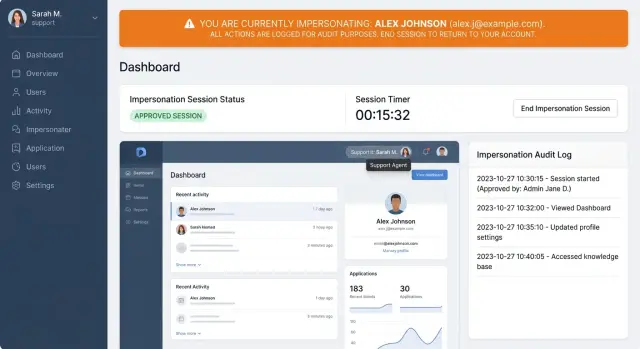
Table of Contents
Why support access gets messy fast
Support teams often need to see a real account, not a screenshot pasted into chat. Screenshots miss things: an expired plan, a hidden permission, a broken setting, or a workflow that fails only in the live account.
That need is normal. The trouble starts when teams solve it with a shared admin login or a casual "just check the account" habit.
Once several people use the same access, the trail disappears fast. You can see that someone opened a customer account, but you can't tell who it was, why they went in, what they changed, or whether anyone approved it. When a customer asks, "Who was in my account yesterday?" the answer turns into guesswork.
That's when trust starts to slip. If support can impersonate a user without any visible sign, the customer may never know someone entered their account. Even with good intent, silent access feels wrong. People expect help. They also expect clear boundaries.
A simple example shows the problem. A customer says their invoice page looks wrong. A support agent opens the account with a shared admin profile, checks billing settings, and flips a flag. The bug disappears, but nobody records the action. Two days later the customer notices a changed setting and asks what happened. The team has no clean answer.
Secure admin impersonation only works when the rules are clear before access starts. Teams need to decide who can enter an account, which cases justify it, who approves it, and what the system records every time. Without that, support access stays informal, and informal access always spreads.
The pattern is familiar. A quick exception becomes normal behavior. Soon the company has support access but no shared standard for using it. That's how small shortcuts turn into security and trust problems.
What support should see and what it should leave alone
Most support cases do not need full admin power. They need narrow access for a short time, tied to one customer account and one problem.
Start with a hard split between viewing and changing. Viewing lets an agent inspect account state, recent errors, plan status, or feature settings. Changing means anything that rewrites data, moves money, alters login state, or exposes private data outside the case.
A good default is simple. Let agents view the customer record tied to the ticket, along with logs, recent activity, and settings that explain the issue. Block password resets, MFA changes, data exports, billing edits, and any action on other customer accounts.
That last rule matters more than many teams expect. If an agent can hop between accounts during one session, small mistakes spread fast. One wrong click can affect the wrong user, and later nobody can tell whether it was part of the case or just drift.
Role alone is too broad. A senior support agent may handle many kinds of requests, but each ticket still needs its own scope. If the ticket says a customer can't upload a file, the agent should see that customer's upload settings, storage status, and recent errors. The same agent should not get export access, refund controls, or billing edits just because they have a higher support role.
Read-only access also pushes better habits. Agents first confirm what the customer sees. They gather facts. If they truly need to change something, the system should require a second step with a reason tied to the ticket. That pause prevents a lot of bad support actions.
Lean teams often prefer broad access because it feels faster. In practice, narrow access usually wins once the rules match real support work. Agents spend less time guessing, managers review fewer risky actions, and customers run into fewer surprises after a support session.
A useful test is this: does the permission help diagnose the current issue, or does it change the customer's account in a way they would notice later? If the customer would notice it later, block it by default or require fresh approval.
How approval rules should work
Start with one gate: the agent must write a clear reason before any session begins. That small step kills a lot of bad habits. It forces the person asking for access to name the customer issue, and it gives the reviewer enough context to decide whether the request makes sense.
The reason needs to be specific. "Customer can't update tax settings after a plan change" is useful. "Need access" is not. If your team uses tickets, require the ticket number too. That keeps the request tied to a real case instead of a vague favor between coworkers.
Not every request needs the same level of control. Read-only access for a small UI problem can move quickly. Higher-risk actions should stop and wait for approval from someone with the right authority.
Common approval triggers include billing changes, refunds, credits, deletes, restores, bulk edits, account ownership changes, password or email resets, MFA resets, and access to sensitive records.
Keep approval short-lived. Most support sessions do not need an hour. Fifteen to thirty minutes is often enough. When time runs out, end the session and make the agent request access again. It feels strict at first, but it stops people from leaving elevated access open while they answer chat, join a call, or switch to another customer.
Approval should also match the scope. If the agent only needs to view one customer account, don't grant access to all accounts. If they only need billing tools, don't include delete rights. Smaller scopes mean fewer mistakes.
Your audit trail should capture the full chain of responsibility: who asked, who approved, which account or records the agent could access, what actions the approval allowed, and when the session expired. If the approver narrowed or expanded the original request, record that too.
Later, when a customer asks who changed a setting, the answer should take seconds to find.
Build the flow from the ticket
Start with the support ticket, not the admin panel. When an agent launches access from a ticket, the reason stays attached to the session. You keep the case number, customer name, reported issue, and internal notes in one place instead of asking people to remember why they entered an account.
A clean flow usually looks like this:
- The agent opens the ticket and selects the customer account tied to that case.
- The system shows the exact actions allowed for that session based on the issue and the agent's role.
- The agent confirms the scope, planned start time, and planned end time. If approval is required, the approver confirms the same details before the session starts.
- The agent starts the session with one clear action, such as "Start support session." At that moment, the system creates a session ID and logs who started it, who approved it, when it began, and which ticket it belongs to.
- The agent ends the session with an obvious exit action. A timeout can close forgotten sessions, but it should never be the only way out.
That middle step deserves more attention than it usually gets. Don't show a vague label like "standard support access." Show the actual scope. If the agent can view invoices, reset a failed sync, and read account settings, list those actions plainly. If they can't change passwords or export data, say that too.
Make the start and end points hard to miss. Hidden auto-starts create confusion, and hidden auto-ends create messy records. If the problem changes halfway through, the agent should exit and start a new session with a new reason instead of stretching the old one.
That structure makes impersonation easier to trust. Support can still work quickly, but managers can review what happened and customers don't have to guess who entered their account or why.
Make the session impossible to miss
A support agent should never forget they are inside someone else's account. If the screen looks normal, mistakes follow. One wrong click or one saved setting is enough to blur the line between customer activity and support activity.
The safest pattern is simple: show a fixed banner on every page for the entire session. Don't hide it on scroll. Don't remove it on modal screens, settings pages, or message views. If a page can be used during impersonation, the banner should stay visible.
That banner should show the details that matter right away: the customer account, the agent name, when the session ends, and a clear exit button.
Keep the exit button visible at all times. Agents shouldn't have to dig through menus to leave. Put it in the banner and keep it in the same place on every screen. A small delay sounds harmless, but it's exactly how people stay in the wrong account longer than they meant to.
Color helps too. Give impersonation mode a distinct treatment from the normal product UI. It doesn't need to scream, but it should break the usual visual pattern enough that the agent feels the context on every page.
The system should also label every action taken during the session. If the agent edits a profile, adds a note, sends a message, or changes a setting, the record should say support did it while impersonating the customer. Don't let those actions look like customer activity. That creates confusion during billing disputes, bug reports, and internal reviews.
Visible banners, a persistent exit button, and clear action labels do more than warn the agent. They make the whole session easier to explain later.
What belongs in the audit trail
An audit trail should let a support lead understand a session in under a minute. If someone used impersonation to help a customer, the log should show who entered the account, why they entered it, what they changed, and when they left.
Start with the request itself. Record the support agent's name or ID, the customer account, the ticket or case number, and the reason for access in plain words. "Reset billing contact after verified request" is far better than "impersonation started."
Approval history matters just as much as the session. Save who approved the request, when they approved it, and what scope they allowed. If someone denied the request, log that too. Denied requests often explain later questions from managers or security reviewers.
Scope changes need their own entries. If an agent starts with read-only access and later asks for permission to update one billing field, the log should show that jump clearly. Don't overwrite the original scope. Keep the full sequence.
For write actions, capture the exact time, the actor, the field or setting changed, the old and new values when it's safe to store them, and the source of the action, such as ticket-guided support work.
You don't need to log every page view with the same level of detail. Focus on actions that change customer data, permissions, billing, security settings, or communication preferences.
Close the story at the end of the session. Log whether the agent ended it manually, whether the system timed it out, and whether a scope change forced re-approval. If the session moved into a different area, record that as a separate event instead of burying it inside one long entry.
Plain language beats clever formatting. A support lead should be able to read a line like "Maria changed invoice email from [email protected] to [email protected] at 14:03 under ticket 48192" and understand it immediately. If your logs need a decoder, they won't help when something goes wrong.
A simple support case
A customer writes to support after changing account settings and seeing the old values again on the next page load. They are not asking for a refund or a full investigation. They want someone to confirm what happened and fix the mismatch.
The agent checks the ticket, confirms the customer's identity, and asks for temporary access to reproduce the problem inside that account. The request names the account, gives a short reason, and sets a short time limit.
A support lead reviews the request and approves two things only: view access to the customer account and permission for one settings update that matches the ticket. The agent can't open billing, export data, or change unrelated preferences. That limit matters. Most support mistakes happen when access is broader than the task.
When the agent starts the session, the account page shows a clear banner at the top. It states that support is acting on behalf of the customer, who approved it, what actions are allowed, and when the session expires. If the agent opens another page, the banner stays there.
The agent reproduces the bug, updates the one approved setting, confirms that it now saves correctly, and ends the session. The customer gets a short note that support accessed the account to verify the issue and made one approved change.
If anyone reviews the case later, the audit trail reads like a timeline: access requested, lead approved request, session started, setting changed, session ended. That order removes guesswork. A manager can see who asked, who approved, what changed, and when the work stopped.
Mistakes that create blind spots
Impersonation breaks down when teams treat it like a shortcut instead of a controlled exception. Most failures are boring. Someone skips the reason field, reuses a team login, or leaves a session open while they move on to something else.
The first blind spot is unrestricted power. If a super admin can impersonate any customer at any time without writing a reason, nobody can tell support work from curiosity. A short explanation and an approval step add friction, and that friction is useful. It puts intent into the record.
Shared support logins create a different problem. When five people use the same account, the audit trail stops being trustworthy. You may know that "support" entered a customer account at 2:14 PM, but you don't know who actually did it. Every agent needs an individual account, even on a small team.
Session banners also fail in predictable ways. Some teams show the warning on the first page load and then let it disappear as the agent clicks deeper into the product. That's a bad pattern. The warning should stay visible on every page, in every tab, for the full session.
Time creates another hole. An impersonation session left open in a background tab for three hours is still a risk. People get distracted. They switch tasks. They come back later and forget they are still acting as the customer. Short expirations, idle timeouts, and a clear end button reduce that risk fast.
Logging only the session start is not enough. You also need a record of what happened inside the session: sensitive pages opened, settings changed, exports started, and when the agent exited. Without that detail, any investigation turns into guesswork.
A simple rule helps: if a support manager can't answer who entered, why they entered, what they did, and when they left, the controls are too weak.
A short launch checklist
A secure admin impersonation setup is only safe if the small details work every time. Before launch, test the full flow the way a real support agent would use it during a busy day, not the way a developer expects it to behave.
Focus first on the controls that prevent vague access and silent changes:
- Require a written reason before any session starts.
- Put approval in front of risky actions such as billing changes, role changes, exports, security settings, and account ownership updates.
- Keep the impersonation banner visible on every page, including new tabs and deep settings screens.
- Send every meaningful event to the log, including the reason, approver, start time, sensitive pages opened, fields changed, and the exact moment the session ends.
- Make exit simple with one obvious control that ends the session immediately.
After that, test the rules with one ordinary support task from start to finish. Something simple, like helping a customer who can't update a subscription because an old setting blocks the form, will reveal more than a polished demo.
Watch for the easy misses. Teams test approval on desktop and forget mobile layouts. They test the banner on the dashboard and miss account settings. They log changes but forget read access to sensitive pages. Those gaps turn into long investigations later.
When you add or change a rule, run the same task again. If support can't finish a normal case without confusion, the process still needs work.
What to do next
Start with the support tasks that truly need impersonation. Be strict. If a task can be solved with a read-only view, a customer screenshot, or a one-time data check from engineering, skip impersonation.
That first filter removes a lot of risk. It also stops impersonation from becoming the default answer to every support ticket.
A small first version usually works better than a complete one. Pick one or two common cases, such as checking a broken setting or reproducing a customer-facing bug, then limit what the agent can open and change. If the logs stay clear and the team uses the flow correctly, expand from there.
A practical rollout is straightforward: write down the exact support actions that need impersonation, set the smallest access scope for each one, review approvals, banners, and logs with support, engineering, and operations together, test with a small internal group, and fix rough edges before wider release.
That review matters because each group sees a different failure mode. Support knows where cases stall. Engineering knows where the product can break. Operations usually spots the places where access rules and audit records fail under pressure.
Run the first release with a small group, not the whole company. A handful of agents is enough to uncover vague approval requests, banners that blend into the page, logs that miss context, or flows that take too many clicks during a live customer issue.
If the design touches auth, billing, or infrastructure, an experienced review can save a lot of cleanup later. Oleg Sotnikov at oleg.is works as a Fractional CTO and can help tighten approval flow, session controls, and audit trails without slowing support down.
Success isn't measured by how often people impersonate users. Measure something simpler: support solves real cases faster, access stays narrow, and every session is easy to explain after the fact.
Frequently Asked Questions
When should support use impersonation at all?
Use it only when the agent needs to see the real account to diagnose or confirm an issue. If a screenshot, read-only view, or one-time check from engineering solves the case, skip impersonation.
Should support have full admin access by default?
No. Most cases need narrow, short-lived access tied to one customer and one ticket. Full admin power creates mistakes, weakens trust, and makes review harder later.
What should stay blocked unless someone approves it?
Block actions that change account ownership, passwords, MFA, billing, refunds, exports, or unrelated settings unless the case truly needs them. If a customer would notice the change later, require fresh approval or keep it off by default.
What should an access request include?
Ask the agent to name the customer issue in plain words, attach the ticket number, pick the account, and request the smallest scope that fits the task. "Need access" tells reviewers nothing and leads to sloppy approvals.
How long should a support session last?
Keep it short. Fifteen to thirty minutes works for most support work. When time runs out, end the session and make the agent request access again instead of leaving elevated access open in a background tab.
Why start impersonation from the ticket instead of the admin panel?
A ticket gives the session context from the start. The reason, case number, customer, notes, approval, and session record stay connected, so managers do not need to guess why someone entered the account.
What should the impersonation banner show?
Show the customer account, the agent name, when the session ends, what actions the agent can take, and a clear exit button. Keep that banner visible on every page so nobody forgets they are inside another person's account.
What belongs in the audit trail?
Log who asked for access, who approved it, which account they opened, the reason, the allowed scope, when the session started, what changed during the session, and when it ended. Write those entries in plain language so a support lead can read them fast.
What mistakes usually break this process?
Shared logins, vague reasons, broad permissions, banners that disappear, long-lived sessions, and logs that only record the start all create blind spots. Once those shortcuts become normal, trust drops and reviews turn into guesswork.
How can we roll this out without making support slow?
Start small with one or two common cases, give agents the smallest scope for each one, and test the full flow with real support tasks. If your setup touches auth, billing, or infrastructure, an experienced CTO can review the rules and logs before you roll it out wider.


