Remote kill switches for mobile releases that limit damage
Remote kill switches for mobile releases let teams turn off a broken signup, payment, or feature fast while they wait for app store approval.
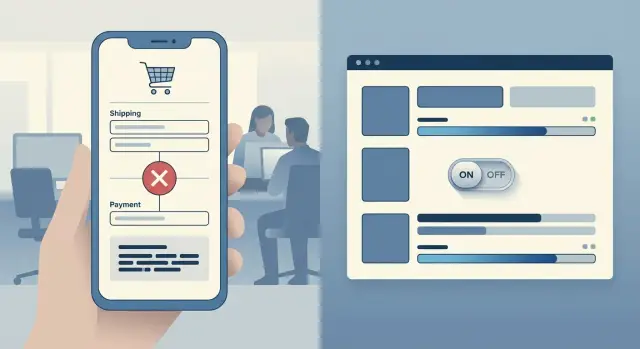
Table of Contents
What goes wrong after release
A mobile release can look fine in testing and still fail as soon as real users arrive. The first serious problem usually is not a full app crash. More often, one important path breaks: new users cannot finish signup, a payment page loops, or login rejects valid accounts.
That kind of bug spreads fast. If you launch a campaign at the same time, people keep hitting the same broken step. Support fills up, reviews turn negative, and the team starts guessing how many sales or leads disappear every hour.
The timing makes mobile incidents worse. On the web, a team can patch a bad flow and deploy again in minutes. On mobile, the fix often has to go through app store review. That can take longer than the outage you can tolerate. A small bug can sit in front of every new user while you wait.
It does not take much to ruin a launch. A checkout update might ship with one bad discount rule. The app opens, browsing works, and testers miss it. Then real customers reach payment, get stuck, and leave. One mistake now hits marketing, revenue, support, and trust at the same time.
The same pattern shows up in signup, subscription upgrades, referral rewards, and any flow that depends on a new API response. Users do not care whether the fault came from mobile code, backend logic, or a config change. They only see an app that does not work.
That is why a mobile rollback plan needs to exist before release day. If app store review delays are longer than your outage window, waiting for approval is not recovery. It is just lost time while users keep failing on the same screen.
What a remote kill switch does
A remote kill switch is a simple rule on your server that tells the app whether a risky action should stay open or close. The app checks that rule before it starts the flow. If the rule says "off," the app blocks that path and shows a safe fallback.
The fallback can be plain. You might send people to a status screen, show a support message, or route them to an older screen that still works. The goal is not to make the broken feature look polished. The goal is to stop damage quickly while the rest of the app keeps working.
This matters when a bad release slips through and app store review takes too long. You cannot wait hours or days if one screen causes failed payments, bad data, or crashes. A server-side release control gives you a brake you can pull without waiting for every user to install a new build.
A good switch usually guards one narrow path, not the whole app. That keeps the response precise. If login is fine but checkout fails for one payment method, turn off that payment step. If profile editing breaks image uploads, close uploads and leave profile viewing alone.
Good early targets include checkout and subscription steps, signup flows tied to third-party services, and new screens that write data back to your server.
This is not a full rollback. It is a targeted stop that contains damage, buys time, and protects trust while your team works on the real fix.
Where to add switches first
Start with the parts of the app that can lock people out, take money, or damage records. If one of those breaks, waiting for app store review is too slow.
Signup and login usually deserve the first switch. A bad auth release can block every new user and can log out existing ones. Put a control around new identity providers, passwordless login, social sign-in, and account linking so you can fall back to the older path.
Payments come next. Any checkout, plan change, coupon rule, or subscription update that touches billing needs a fast off button. The same goes for paywall tests and renewal prompts. If a pricing bug charges the wrong amount, every extra minute creates more cleanup.
Then look at flows that depend on outside services. A new fraud check, tax service, shipping quote API, or document scan can fail even when your own code is fine. Add a switch that bypasses the new dependency, hides the entry point, or sends users to a safer default.
New experiments need protection too. Limited rollouts feel safer than full launches, but they still change copy, timing, and screen order in ways that break real behavior. This is where mobile feature flags help. You can turn off the experiment without pulling apart the whole release.
A simple order works well. Start with account access and recovery. Then cover checkout and subscriptions. After that, protect actions that create, delete, or overwrite user data. Next, handle new third-party integrations and user experiments.
A small example makes the idea clearer. Say you ship a new subscription screen that talks to a new billing service. Add two controls, not one. One switch hides the new screen. Another stops charge attempts and sends people back to the older purchase flow. Separate controls give you room to limit damage without taking down more of the app than necessary.
How to build the control step by step
Build the first switch around risk, not convenience. If a bad release can block checkout, login, account creation, or paid actions, start there. Do not begin with tiny visual tweaks. A broken settings screen is annoying. A broken payment flow hurts the business the same day.
Keep the first version small. Pick three to five flows that would hurt most if they failed. Give each one a clear name such as checkout_enabled or signup_enabled. Anyone on the team should be able to read the name and understand what happens when it changes.
The app should fetch switch values at launch, then check again during normal use. Refresh on a timer, when the app returns to the foreground, or right before a risky action starts. If you only check at startup, people who already opened the app can still walk straight into the broken flow.
The fallback matters as much as the switch. If checkout turns off, send the user back to browsing and show a short message. If a new upload flow breaks, route people to the older flow if you still have one. Do not leave them on a blank screen or an endless spinner.
Keep each switch narrow. One switch should control one user action, not half the app. Teams often build one giant "safe mode" flag and then hesitate to use it because the side effects are hard to predict.
Store the last known switch values on the device too. If the app cannot reach the server for a moment, it can still follow the latest rule it received. That small detail often decides whether the control works on a messy release night.
And test every switch before you submit the build. Flip each one on and off in staging and on a real device, not only in local code.
A simple example from a live release
A team pushes a new payment screen on Friday afternoon. Testing looked fine, and the first orders go through. An hour later, support tickets start piling up. Shoppers using one card type tap "Pay," wait a few seconds, and hit an error.
That kind of bug hurts twice. You lose sales right away, and app store review will not save you quickly enough. A new build might take hours or longer. Meanwhile, people keep reaching the broken checkout.
Instead of waiting for a new version, the team flips a server-side control and turns off the new checkout path for everyone, or only for the affected group if the app supports that level of targeting.
The app checks that setting on launch or just before payment starts. Once the switch changes, the app stops sending shoppers into the new screen. It either sends them back to the older checkout flow that still works or shows a short message and asks them to try again later if no safe fallback exists.
The first option is far better when you have it. An older flow that feels a little clunky is still better than a clean new screen that fails at the last step.
A good incident response stays boring. One person confirms the pattern in logs and payment events. Another flips the switch. Support gets a short note so they can answer customers clearly. Then the team watches payment success rates for the next few minutes.
After that, they fix the payment call, test the card type that failed, and ship a proper update. Only when the numbers look normal again do they turn the new path back on.
Rules for a switch you can trust
Kill switches only help if they fail in a safe way. Start with the default state. If the app cannot reach your server, decide what users should see. For risky flows like payments, account deletion, or a new sync path, the safest default is often off. For a simple read-only screen, on may be fine.
Pick that behavior before release day. If you wait until an outage starts, people guess, and guesses create more damage.
A switch also needs a small blast radius. Name it after the user action it stops, not after an internal codename. disable_new_checkout is clear at 2 a.m. phoenix_flag is not.
Limit who can change a switch, and make the rule simple. Many teams do well with one person making the change and another confirming it. That takes a few extra seconds, but it can save hours of cleanup.
Every change needs a record. Log the time, who made the change, what the old value was, what the new value is, and why they changed it. A short reason like "checkout errors after payment step" is enough.
Old switches create their own mess. After a release settles down, review the switches you added for it. Delete the ones that no longer protect a real risk. Dead switches clutter the code, confuse whoever is on call, and make testing harder than it needs to be.
Mistakes that make outages worse
A bad release rarely turns into a full outage because of one bug alone. Teams make it worse when their control system is too vague, too slow, or too hard to use under stress.
The first common mistake is one giant switch for the whole app. It feels safe when you build it, but during a real incident it hides too much at once. If checkout fails, you should not have to shut off account settings, search, and onboarding too.
Another miss is checking the switch only when the app starts. That helps new sessions, not the people already inside the broken screen. If a user opened the app five minutes ago and then hits the bad flow, a startup-only check does nothing.
Fallbacks matter just as much as the switch. If you disable a payment step and leave users on a blank page, you have only changed the shape of the outage. People need a clear next step, even if it is simple.
Bad names cause problems too. In an emergency, nobody wants to guess whether flow_v2_disable means "turn this off" or "disable the off state." Plain names win.
One more mistake slows every decision: no owner on call. When nobody owns the switch, engineering waits for product, product waits for support, and support waits for leadership. Minutes disappear.
A switch people trust usually has narrow scope, live checks during use, a safe fallback, names that still make sense at 2 a.m., and one person who can act without calling a meeting. Boring is good here. During an outage, boring tools save more users.
Quick checks before you ship
A kill switch only helps if the app can pick up new values fast. If users need to force close and reopen the app, you lose time you probably do not have. Test the fetch path on a real device and make sure the app refreshes switch values during normal use.
Each switch also needs a safe user experience. If you turn off checkout, login, or a promo flow, the app should not drop people onto a blank screen or a generic error. Show a plain message and give them another path when you can. "Payments are temporarily unavailable. Please try again later" is much better than a spinner that never ends.
Before release, run one short drill with the team:
- Flip one low-risk switch in staging or a limited production test.
- Confirm the app updates without a restart.
- Check that the fallback screen or message appears as expected.
- Make sure support can see which flows are off right now.
- Write down who can approve an emergency change.
That support view matters more than teams expect. When customers start reporting problems, support should know in seconds whether you disabled purchase flow, signup, or a new feature. A simple internal dashboard is enough if it shows the switch name, current state, and when someone changed it.
Approval rules should stay plain and clear. Pick one owner for release hours, one backup, and one small record of every emergency change. Even a shared note with time, reason, and approver is enough for a small team.
A switch you never tested is just hope with a label.
What to do right after you flip it
When you flip a kill switch, the release is not fixed yet. You have only stopped more users from hitting the bad path, and now you need proof that it worked.
The first ten minutes matter most. Move fast, but keep the work orderly so the team does not create a second problem while chasing the first.
Start by checking the app yourself. If the failure came from a checkout button, test checkout. If it came from a bad onboarding step, run through onboarding on both a fresh account and an existing one. Teams often stop after changing the switch in the admin panel. That is too early.
Then verify the change reached real users, not just one test device or one account. Tell support exactly what changed, what users may notice, and what workaround is safe to suggest. Support should not have to guess.
After that, watch the numbers. Look at the metric that broke first, but do not stop there. A bad signup flow can reduce payment starts. A hidden payment option can cut revenue without creating new errors. For the next hour, keep one person on dashboards and one person on incoming reports.
Prepare the store update next, but keep the patch small. Fix the real issue. Skip cleanup, refactors, and nice-to-have changes. Calm engineering saves time here.
Before people move on, write down the trigger, the exact switch you used, the time you flipped it, and what happened after. A short note is enough. Later, that note will tell you whether the switch fired for the right reason and whether your rollback plan needs work.
Next steps for a small app team
A small team does not need switches for every button in the app. Start with the flow that would hurt most if it broke, such as login, checkout, signup, or a payment handoff. One switch that works under pressure is better than ten half-finished controls nobody trusts.
Keep the first version small. Put the switch in a simple admin screen, protect it well, and name it in plain language. If your on-call lead wakes up at 2 a.m., they should know what to turn off in seconds.
A good first pass is simple: pick one risky flow, add one server-side switch, show the current state clearly in your admin panel, log every change, and test the off state before each release.
After that, review real releases instead of guessing future problems. If a feature never causes trouble, it may not need a switch. If the same area keeps breaking, add control there next. Teams get into trouble when they build a giant flag system before they know where their release risk really sits.
Keep the tool small enough to use. The control panel should answer three questions fast: what is on, who changed it, and what happens if you turn it off. That is enough for most small apps.
A short release review helps too. After each launch, spend ten minutes asking what failed, what almost failed, and whether one switch could have cut the damage. That habit keeps the system tied to real incidents instead of theory.
If release controls keep getting messy, outside help can save time. Oleg Sotnikov, through oleg.is, advises startups and small teams on app architecture, release safety, and AI-driven development workflows. That kind of support makes sense when one bad release already costs more than fixing the process.
Done well, a kill switch system stays small, clear, and easy to trust. That is the real goal.
Frequently Asked Questions
What is a remote kill switch in a mobile app?
A remote kill switch is a server-side setting that tells the app to stop a risky flow, like signup or checkout, without waiting for a new app version. The app checks the setting and routes people to a safer fallback instead of the broken screen.
When should I use a kill switch instead of waiting for a hotfix?
Use it when one flow breaks and store review will take longer than you can afford. If users cannot sign up, log in, or pay, turning that path off fast usually saves more than waiting for a patched build.
Which parts of the app should get kill switches first?
Start with flows that can block access, charge money, or corrupt data. Login, signup, checkout, subscription changes, and any new write action to your backend usually belong at the top of the list.
Does a kill switch replace feature flags or rollbacks?
No. A kill switch contains damage, but it does not fix the bug. Feature flags help you manage rollout, and a rollback or patch still handles the real problem after you stop users from hitting it.
How often should the app refresh kill switch values?
Refresh values at launch, when the app returns to the foreground, and right before a risky action starts. If you only check once at startup, people who already opened the app can still walk into the broken path.
What should users see when a switch turns a flow off?
Show a plain message and send them somewhere useful. If checkout is off, return them to browsing or an older purchase flow. If no fallback exists, tell them the feature is temporarily unavailable instead of leaving them on a spinner or blank screen.
What default should I choose if the app cannot reach the switch server?
For risky actions, defaulting to off usually makes sense if the app cannot reach the server. That choice blocks more damage during an outage. For a read-only screen, leaving it on can be fine if the screen does not create bigger problems.
Who should be allowed to flip a kill switch?
Keep the group small and clear. One person should have authority to change the switch, and another person should confirm when possible. Also log who changed it, when they changed it, and why they did it.
What mistakes make kill switches fail during incidents?
Teams run into trouble when they use one giant app-wide switch, check values only at startup, or name flags in a confusing way. Trouble also grows when nobody owns the decision during an incident or when the off state has no real fallback.
How can a small team add kill switches without building a huge system?
Pick one painful flow, add one server-side control, build a simple admin screen, and test the off state on a real device before release. Keep the first version small enough that your on-call person can understand it at 2 a.m. without guessing.


