React table permissions: one policy layer for all actions
React table permissions often break when rules sit inside cell renderers. Use one policy layer so row actions, bulk actions, and exports stay in sync.
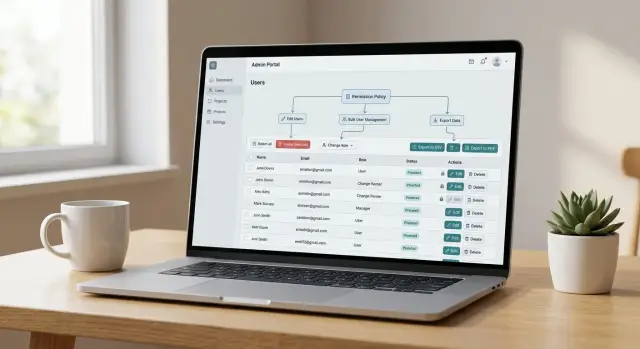
Table of Contents
Why tables drift out of sync
A table often starts with one small permission check inside a cell renderer. If the user can edit, show the button. If not, hide it. That seems fine when the screen has a few columns and one or two actions.
Then the page grows. Someone adds a bulk toolbar. Someone else adds a row menu, an export button, a details panel, and a shortcut in another part of the screen. Each piece gets its own little rule, written at a different time by a different person.
That is where drift starts. The row may hide "Delete," but the bulk menu still lets the same user delete those records. The details panel may block "Approve," but a quick action above the table still allows it. Export may include fields that the visible table tried to protect. The screen looks consistent at first glance, but the rules do not match.
React table permissions usually break for a simple reason: cell renderers know about one button in one spot. They do not know the full policy for the page. They answer "should I show this control here?" when the real question is broader: "can this user do this action on these records anywhere on this screen?"
The problem gets worse as rules pick up more conditions. Role checks are only the start. Soon the rule also depends on record status, ownership, team, plan level, feature flags, or whether the item is locked by another process. One developer checks role and status. Another checks role and ownership. A third copies the first check but forgets the status rule. Nobody notices until a user hits the wrong path.
Users feel the mismatch fast:
- A button disappears in one row but the same action still works somewhere else.
- Bulk actions let people select records they cannot actually change.
- Export includes data that other parts of the screen treated as restricted.
- The server rejects an action after the UI appeared to allow it.
That last case does the most damage. People stop trusting the table. They do not know whether a disabled button means "never," "not for this row," or "try it somewhere else." When a screen sends mixed signals, users assume the product is unreliable, even if the backend rule is correct.
A table should not invent permission rules as it renders each cell. It should read one shared decision and apply it everywhere the same action appears.
What one policy layer should decide
A good policy layer answers the same permission questions for every action on the screen before any cell tries to render a button. That keeps React table permissions consistent across row menus, bulk actions, export buttons, keyboard shortcuts, and any other trigger you add later.
The table cell should not know why a user can archive one record, edit another, or export only part of the list. Cell code should ask for an answer and render it. The rule itself belongs in one place.
The policy answers
For each action, the policy layer should return a small, plain result that any part of the UI can use:
- should the action be visible at all
- is the action allowed right now
- if it is not allowed, what short reason should the UI show
- does the action apply to this row, these selected rows, or the whole filtered result
- can the row be selected for bulk actions
Those answers sound similar, but they are not the same. Visibility is about whether the user should even see the action. Allowed is about whether they can use it now. Disabled state is the middle ground: the action appears, but the app blocks it because of row state, plan limits, approval status, or another business rule.
That split matters. A finance admin may see "Export" on every report screen, but the button might stay disabled until they choose at least one approved record. A support agent may never see "Delete" at all. If both rules live inside random cells, the page drifts out of sync fast.
Keep the business logic outside the table code and return simple booleans or small objects. For example, a policy function can answer things like canEdit, showDelete, disableArchiveReason, canSelectRow, and canExportSelection. That shape is easy to reuse in a toolbar, a context menu, a footer summary, or an export dialog.
Simple outputs beat clever abstractions. Most teams do better with a policy result that reads like plain English than with a deep permission engine that only one person understands.
If you want one test for this section of the screen, use this: can the table cells, the bulk action bar, and the export flow all ask the same policy function and get the same answer for the same row set? If not, the rules still live in the wrong place.
A simple example that shows the problem
A common React table permissions bug starts with one harmless-looking check inside a cell renderer. The row looks right, so the screen feels correct. Then a user clicks a bulk action or exports data, and the rules change under their feet.
Picture a People table with three roles:
- Admin can edit, deactivate, and export every employee.
- Manager can work only with people on their own team.
- Viewer can read limited data and cannot change anything.
Now say a manager opens the table. Each row has an "Deactivate" button in the Actions column. Inside that cell renderer, the code checks whether the row belongs to the manager's team. If it does not, the button disappears. On screen, this seems fine. The manager sees the button for Sales employees and does not see it for Support or Finance.
The trouble starts when the table also has checkboxes and a bulk "Deactivate selected" action in the toolbar. That toolbar often uses a different rule. Sometimes it only checks the current user's role and forgets to inspect each selected row. The manager can select ten rows, including people outside Sales, click the bulk action, and the app sends all ten IDs to the server. The row button said "no," but the bulk action said "yes."
Exports break in a similar way. The table may hide rows that the manager should not see, or it may hide salary and personal fields for viewers. If the export code builds a CSV from the raw dataset instead of the same permission rules, the file includes rows and columns the screen already hid. The page looked safe. The downloaded file was not.
This is why React table permissions go out of sync so easily. The cell renderer decides one thing, the toolbar decides another, and the export code makes a third decision. Users notice the mismatch fast because tables put single-row actions, bulk actions, filters, selection, and exports on the same screen.
When one screen can say three different things about the same record, bugs stop looking like bugs. They look random. That is usually the moment a team realizes the rules do not belong inside the cells at all.
How to move the rules step by step
Start by pulling every input that affects permissions into one place. Use the current user, their role, and the row state that matters, such as ownerId, status, lockedAt, or archived. If cells fetch bits of this data on their own, two parts of the same table will disagree.
Then write one small policy function for each action. Keep each function narrow: canEditInvoice, canDeleteInvoice, canExportInvoice. Each one should answer a single question and return data, not JSX and not component state.
A plain result shape makes this much easier to test. Return something like { allowed: true } or { allowed: false, reason: "paid invoice" }. You can feed the function fake users and fake rows in a test and compare the object it returns without mounting a table.
A clean move usually looks like this:
- Build one input object from the signed-in user and the row data.
- Run the policy functions when you prepare rows for the table.
- Store the results next to each row, such as
rowPolicy.deleteandrowPolicy.export. - Read those same results in cells, bulk action toolbars, and export code.
- Turn on debug logging for odd cases so you can see why a rule blocked an action.
The shared result matters more than the function names. If a row action checks one rule but the bulk toolbar checks another, you still have the same bug in a different place. Cells should not decide permissions on their own, and the export path should not invent its own version later.
A small example makes the benefit obvious. Say a manager can archive draft orders but cannot archive shipped ones. If the cell renderer hides the Archive button for shipped rows but the bulk action only checks the user role, users can still select shipped rows and archive them in bulk. When both parts read the same policy result, the row menu and the bulk toolbar agree every time.
Logging helps when a case feels random. When someone reports, "I could export this yesterday," log the inputs and the decision: role, ownership, record status, action name, allowed, and reason. That kind of log usually points to the mismatch in minutes.
React table permissions get much less fragile when every action reads the same policy result.
How to wire the whole screen to the same rules
Tables get messy when each part of the screen makes its own permission decision. The row menu checks one thing, the bulk toolbar checks another, and export skips the rules completely. Users notice fast. They see an action in one place, then get blocked in another.
A better setup is simple: run one policy for each row, keep the result with that row, and let every action read from it. React table permissions get easier to trust when the screen stops guessing.
For each row, the policy should return plain answers such as canEdit, canDelete, canExport, plus one short reason when an action is blocked. That result should travel with the row data, not live inside a cell renderer. Then the row menu can show only valid actions, or disable one action with the exact reason the rest of the screen will use.
The same rule should drive these places:
- the row action menu
- the bulk action toolbar
- the export flow
- the confirm dialog or error message
Bulk actions need special care. Users often select 20 rows before they click anything. If the app waits until the API call to discover that 6 rows are not allowed, the screen feels broken. Check the selected rows first with the same policy result you already have. Then either block the bulk action up front or continue with only the allowed rows and say exactly what happened.
A short message works better than a generic error. "6 rows were skipped because archived orders cannot be canceled" is enough. People can fix the selection and move on.
Exports should work the same way. Do not let the export button pull raw table data and decide later. Build the export set from rows that already passed canExport. If some rows fail, tell the user how many were left out and why. That matters even more when the table mixes records with different states, owners, or account types.
One reason string per blocked action keeps the screen consistent. Use the same wording in the disabled menu item, the tooltip, the bulk action warning, and the export message. If your policy returns reason codes instead of full text, map each code to one sentence in the UI layer. That keeps the rules clean and the language friendly.
When a rule changes, you update one policy and the whole table changes with it. Row menus, bulk actions, and exports stop arguing with each other.
Mistakes that create hard-to-find bugs
Many table permission bugs do not look like permission bugs at first. A row action disappears, but the export still includes restricted fields. A bulk action stays enabled for records the user should not touch. The screen feels random because each part makes its own decision.
One common mistake is hiding a button in the UI and calling that "done." If the server does not check the same rule, anyone can still trigger the action through a saved request, a script, or a stale client state. The button is only a hint to the user. The server must still decide.
Another problem starts when teams copy the same rule into every column file. It feels quick for a week, then one file checks canEdit, another checks mayEdit, and a third uses a role name directly. Small differences pile up. Months later, one table row behaves differently from the bulk menu, and nobody knows why.
Rules get messy when UI state leaks into them
Permissions should answer one question: "Can this user do this action on this record?" They should not also depend on random screen details like whether a row is expanded, whether a checkbox is selected, or whether a modal is open.
A user role and a loading spinner are not the same kind of input. When code mixes them together, bugs hide in edge cases. For example, a selected row may unlock a bulk action even though one of the selected records should stay blocked.
Exports often cause the worst surprises. Teams spend time checking visible buttons, then let the export code read raw data before policy filters run. That creates a quiet leak. The table looks safe, but the CSV tells a different story.
A simple rule helps here:
- Use one policy layer to decide allowed actions
- Use the same policy layer for row actions, bulk actions, and exports
- Keep server checks separate from UI state
- Keep policy names identical across the app
Naming matters more than people expect. If one part of the screen asks for delete_order and another asks for remove_order, you now have two rules whether you meant to or not. Bugs like that survive code review because both names sound reasonable.
This shows up a lot in fast-moving product teams. Someone adds a quick action in a cell renderer, someone else adds export logic later, and both ship with different checks. Oleg Sotnikov often pushes teams toward one shared policy layer for exactly this reason: the code gets easier to trust, and strange permission gaps stop slipping into production.
Quick checks before you ship
A table can look right in a quick demo and still fail the moment a real user clicks around. The safest last step is to pick a few rows and walk every action path by hand: row menu, bulk bar, keyboard shortcut, confirm modal, and export. If one path says "allowed" and another says "blocked," your rules still live in more than one place.
React table permissions usually break in the edges, not the obvious path. A single row test matters, but mixed selections matter more. That is where hidden rule differences show up fast.
Use a small test set that includes normal rows, locked rows, archived rows, and at least one row the user should only view. Then run these checks:
- Try one row through every action entry point. If "Edit" is hidden in the cell menu but still works from a bulk toolbar or shortcut, the screen is out of sync.
- Select a mixed set of rows. For example, choose three editable records and one restricted record. The table should either block the action with a clear reason or handle only the allowed rows in a way the user can understand.
- Check empty and near-empty states. A disabled button should tell the user why it is disabled. A blank export, a grayed-out action, or a missing menu item should not feel random.
- Compare exports with action rules. If users cannot open or update certain rows, your export should not quietly include those rows or extra fields they cannot access on screen.
- Read every error message out loud. "Action failed" tells the user nothing. "You can archive only rows you own" is much better, and it also helps your team spot a rule mismatch faster.
One small scenario catches a lot of bugs: select five rows where two are allowed, two are blocked, and one is already in the target state. Then test bulk update, bulk delete, and export. That mix often exposes off-by-one counts, wrong disabled states, and confusing confirmation text.
Watch the counts in the UI too. If the toolbar says "5 selected" but the confirm dialog says "3 items will change," the screen needs to explain why. Silent filtering makes people think the app lost data.
A good final check is simple: the same user, the same rows, the same result no matter where they click. If that holds, your policy layer is probably doing its job.
What to do next
Pick the table that creates the most noise first. Look for the one that causes support questions, odd user reports, or repeated debates inside the team. That table usually has permission rules scattered across cell buttons, row menus, bulk actions, and exports.
Start small. You do not need to rebuild the whole screen in one pass. Move one action at a time into shared policy code, then point every part of the UI to that same decision.
A simple order works well:
- List every action on that table, including row actions, bulk actions, exports, and hidden shortcuts.
- Write one policy function for one action, with the same inputs every time.
- Replace the check in the cell renderer first, then reuse it in the toolbar, menu, and export path.
- Remove old inline checks as soon as the shared rule works.
This is where many teams slip. They fix the visible button, but leave the bulk action logic untouched. A user can still select 50 rows and trigger something the row menu would have blocked. Export code often has the same problem because it lives far from the table UI.
Test those two paths before anything else. If you only have time for a few tests, cover bulk actions and exports first. They touch more records, cause bigger mistakes, and often skip the checks people see on screen.
Keep the tests plain. Use a few realistic roles, a few record states, and a few actions people actually use. For example, check whether a manager can edit one row, edit many rows, and export the same filtered set. If those answers differ, your policy still lives in more than one place.
React table permissions get much easier to reason about when one rule decides every action on the screen. The code gets simpler too. New actions stop turning into copy-paste permission checks.
If your team keeps finding edge cases or cannot agree on where the rules belong, an outside review can save time. A Fractional CTO like Oleg can look at the permission flow, product rules, and screen architecture, then suggest a cleaner setup without turning the app upside down. That kind of review helps most when the table already affects billing, operations, or customer data.


