React print PDF export libraries for invoices and reports
React print PDF export libraries help teams ship invoices, filtered reports, and safer downloads across Chrome, Safari, and awkward browser print rules.
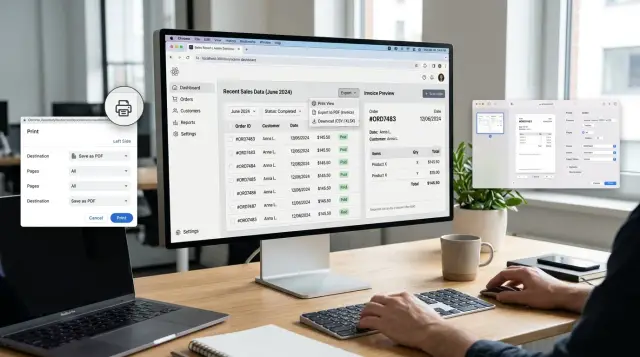
Table of Contents
Why this problem keeps coming back
Teams often hear the same request: "Can users export this?" That sounds simple, but it usually means different jobs hiding under one word. One person wants a clean print button for a receipt. Another wants a PDF invoice with fixed page numbers and a logo in the same spot every time. Someone else wants CSV or Excel so they can sort, edit, and send the data around.
That gap is why React print PDF export libraries keep coming up every few months. The request looks familiar, but the output is not. A finance team cares about page size, totals, and a stable layout. An operations team usually cares more about getting filtered rows out of a table without losing columns or date formats.
A small example makes the problem obvious. Say a user filters an orders screen to "last 30 days" and clicks export. If they expect a spreadsheet, they want raw data they can change. If they expect a PDF, they want the current view to look tidy, with headings, totals, and sensible page breaks. Those are two different products, even if the button text says the same thing.
Browsers make it messier. Print headers, margins, page breaks, background colors, and paper sizing do not behave the same way in Chrome, Safari, and Firefox. A layout that looks fine on one machine can shift on another, especially when tables run long or a row lands near the bottom of a page.
That is why teams keep choosing the wrong library at first. A library that works well for short receipts may struggle with long filtered lists. One that produces decent printable HTML may not give you the strict, repeatable invoice layout accounting expects. The request repeats because the word stays the same, while the actual job keeps changing.
What users usually ask for
Most people do not ask for an "export flow." They ask for a result they can trust. When someone clicks Print or Download, they expect the file to match what they just reviewed on screen.
That usually starts with a clean print view. Users want the page they are looking at, but without sidebars, filters, edit buttons, sticky headers, or anything else that makes sense in the app and looks messy on paper. For an invoice, they want the company details, line items, tax, and final total. They do not want the rest of the dashboard.
The next ask is even stricter: a PDF that looks the same every time. This matters most for invoices, quotes, and monthly reports. If page breaks shift, fonts change, or totals slide onto a second page, people notice fast. A React invoice PDF flow only feels finished when support stops hearing "it looked different on my machine."
Users also care about scope. If they filtered a table to show only overdue invoices, one region, or one customer account, they expect the export to keep that exact subset. They do not want the full dataset dumped into CSV or XLSX just because the backend had more rows available.
A few requests come up again and again:
- Print only the content area, not the app shell
- Export the rows that match the active filters
- Keep totals and date ranges the same in the file and on screen
- Preserve column order so finance teams can compare versions quickly
Consistency matters more than fancy output. If the app shows 24 rows, the export should show 24 rows. If the screen total is $12,480.50, the PDF and CSV should match that number exactly.
That is why teams keep revisiting React print PDF export libraries. The hard part is rarely the button itself. It is making print, PDF, and spreadsheet output behave like one coherent feature instead of three separate ones.
Packages worth shortlisting
Among React print PDF export libraries, the main difference is what you export: the live page, a separate PDF layout, or plain data.
If your invoice or report already looks right on screen, react-to-print is often the easiest start. It prints an existing React component, so your team does not have to rebuild the same layout twice. This fits invoices, order summaries, and simple reports where the print view is close to the normal page and CSS can hide buttons, filters, tabs, or sticky headers.
@react-pdf/renderer solves a different problem. You create the PDF from components instead of capturing the browser DOM. That takes more work up front, but it gives you steadier output when users download files and share them outside the app. For React invoice PDF work, this is usually the better fit when page breaks, headers, totals, and fixed sizing need to stay consistent.
jsPDF with html2canvas is the quick option. It takes a snapshot of what the user sees and turns it into a PDF in the browser. That can be enough for a filtered dashboard, a one page receipt, or an internal report someone needs right now. It gets shaky with long tables, small text, and anything that should stay selectable or searchable.
For exports that users open in Excel or import into another tool, SheetJS and Papa Parse cover most cases. SheetJS makes real spreadsheet files, so it works well for finance teams, invoice line items, or larger reports with typed columns. Papa Parse is lighter and great for CSV export when someone wants the same filtered rows they see in the app.
Blob downloads or FileSaver handle the last step: saving the file cleanly in the browser. That sounds minor until Safari names a file badly or a download silently fails.
A practical shortlist looks like this:
- Use react-to-print when the screen already matches the print view.
- Use @react-pdf/renderer when the PDF must look the same every time.
- Use jsPDF with html2canvas for fast visual snapshots.
- Use SheetJS or Papa Parse when users really want data export, not a document.
- Use Blob downloads or FileSaver to trigger reliable saves.
No single package wins every case. Browser print quirks, invoice rules, and filtered table exports pull in different directions, so the right choice depends on what users do with the file after they click "Export".
How to choose the right path
Most React print PDF export libraries solve one of three jobs, not all three. That is why teams get stuck. They pick one tool, then users ask for a different kind of export a month later.
Use browser print when people want a paper copy or the browser's "Save as PDF" option. This path is often enough for invoices, packing slips, order summaries, and simple reports. You can build a print-only layout with CSS, hide buttons and filters, and let the browser do the rest. It is quick to ship, but the final result may shift a little between Chrome, Safari, and Edge.
Pick a generated PDF when the file must look the same everywhere. That matters for invoices sent to customers, signed documents, and reports that finance teams store for years. A generated PDF gives you tighter control over page breaks, margins, headers, and totals. It usually takes more work, but it cuts down on "why does this look different on my laptop" complaints.
Choose CSV or XLSX when users need to sort, edit, filter, or paste the data into another tool. A filtered table is a good example. If someone exports a sales view to keep working in Excel, a PDF is the wrong file. Give them rows and columns they can actually use.
A simple rule works well:
- Print for paper-like output and fast delivery
- PDF for fixed layout and repeatable files
- CSV or XLSX for editable data
Check a few boring details before you commit. They cause more trouble than the library itself.
- Font support, especially for invoices with symbols, non-Latin text, or branded typefaces
- File size, because embedded fonts and large images can turn a 2-page export into a heavy download
- Offline needs, if users must export without a server round trip
- Browser behavior, since print CSS and page breaks still vary more than most teams expect
If the export needs to look perfect in every case, use a generated PDF. If users mostly want a quick copy for paper or "Save as PDF," browser print is usually the shortest path.
A simple invoice flow
A clean invoice setup starts with a separate React component for the printable layout. Put only invoice content inside it: seller details, customer details, line items, tax rows, totals, notes, and payment terms. Keep edit buttons, filters, tabs, date pickers, and form inputs outside that area.
That separation saves time later. Inputs often print with odd borders, and fixed toolbars love to sneak onto the page. Plain text prints better than live UI.
A React invoice PDF setup also works better when print and download share the same data, but not the same screen chrome. Use one data object for the invoice, then render it in a print view and, if needed, a PDF view. Users get a clean page, and your team avoids two versions with different totals.
Add a small set of print rules and keep them boring:
- Set page margins that match the invoice layout.
- Hide navigation, buttons, helper text, and empty fields.
- Keep totals, tax lines, and payment details together near the end.
- Control page breaks so line items do not split in ugly places.
Print alone is not enough for every case. Some users want a file they can attach to email, upload to accounting software, or save for audit records. Give them a PDF fallback that uses the same invoice data. If the printed page and the PDF show different numbers, support tickets start fast.
Test one realistic invoice before you call it done. Use a customer name with two lines, a long product title, several items, a discount, and more than one tax line. Then test a second invoice that spills onto page two. That is where totals drift, headers overlap, or tax rows end up alone at the top of a new page.
A good final check is simple: compare the on-screen totals, the print preview, and the downloaded PDF. If all three match on a short invoice and a multi-page invoice, you are in good shape.
Example: exporting a filtered view
A support agent opens the orders screen, sets the date range to April, filters payment status to "Paid", sorts by "Newest first", and hides two internal columns. When they click Export or Print, the file should match that screen exactly. If the app includes rows the agent cannot see, people lose trust in it fast.
The safest approach is to treat the current table state as the source for export. That means the export uses the same filtered rows, the same sort order, and only the columns that stay visible on screen. If the agent moved "Customer" before "Amount" in the table, the file should keep that order too.
A small set of values usually controls the whole flow:
- the filtered row IDs in their current order
- the visible column list
- the active date range and status filters
- the chosen format, such as print or PDF
This also fixes a common support issue. Many teams rebuild the export from the raw dataset, then wonder why the file includes old orders, hidden fields, or a different sort. Reusing the live table state avoids that mismatch.
File names deserve more care than they usually get. A vague name like orders.pdf creates clutter after a week. A better name is something like orders_2025-04_paid.pdf or orders_2025-04-01_to_2025-04-30_paid_newest.csv. Users can find the right file later without opening five almost identical exports.
Wide tables need a warning before print. If the current view has too many visible columns for a portrait page, say so before the browser opens the print dialog. A short note is enough: "This table may split across pages. Try landscape mode or hide a few columns first." That one sentence prevents a lot of "the PDF cut off my data" tickets.
If you need both behaviors, split the actions clearly. Use one button for "Export visible rows" and another for "Export all filtered rows". That wording removes guesswork, and support agents usually pick the right one on the first try.
Browser quirks that break clean output
Browsers do not print the same page in the same way. A layout that looks fine during development can shift, clip, or open the wrong window once a user tries to save a PDF or print an invoice.
Safari causes trouble early. It often handles print timing differently, especially when your app opens a new window or iframe and calls print() too fast. If the content has not finished rendering, Safari may print a blank page, stale data, or a half-styled document. A short delay can help, but a better fix is to wait until the print view and fonts are ready before you open the dialog.
Chrome has a different habit. It can shrink layouts that depend on viewport width, responsive breakpoints, or screen-sized containers. A table that looks fine in the app can come out tiny on paper. Print styles work better when you give the content a fixed width, simpler spacing, and fewer screen-only wrappers.
Long tables often fail for a boring reason: many app shells use overflow: hidden or overflow: auto. On screen, that keeps panels tidy. On paper, it can cut off rows after the visible area. If users export a filtered table from React, test the exact filtered state in print mode with overflow removed and full height allowed.
Fonts cause quieter bugs. A late web font can change line breaks, push totals onto the next page, or make invoice columns stop lining up. If alignment matters, wait for document.fonts.ready or use a system font in print.
Sticky headers also break clean output. They can overlap rows, repeat in odd places, or disappear after page one. In print CSS, switch sticky elements back to normal static blocks.
A short check catches most browser print quirks:
- Test Safari and Chrome separately.
- Print a long invoice, not just a one-page sample.
- Check output before and after fonts load.
- Turn off sticky elements and scroll containers in print styles.
These bugs rarely show up with demo data. They show up with an 8-page invoice, a wide filtered report, and a user who clicks "Print" before the page finishes rendering.
Mistakes that lead to support tickets
The worst bugs usually start with one bad idea: using the same export path for invoices, table downloads, and browser print. Those outputs look similar on a planning board, but they behave differently in real use. An invoice needs stable layout and legal details. A filtered table export needs the exact rows the user sees. A print view needs CSS that survives browser quirks.
Many React print PDF export libraries can cover one or two of those jobs well. They get messy when a team forces all three into one shared component and then keeps adding exceptions.
Separate the jobs before bugs pile up
A common ticket sounds like this: "I changed the date range, but the export still shows last week's data." That happens when the export reads stale state, cached results, or default query params instead of the active filters on screen. If users sort, search, or narrow results, the export should use that same final state.
Invoices break in a different way. Teams often generate them as screenshots because it feels quick. The file opens, so everyone moves on. Then finance tries to copy an invoice number, search text, or select an address, and none of it works. Screenshot PDFs also look soft on print and often create bigger files than needed.
Locale bugs cause quieter damage, but they still create support work. A total of 1,234.56 means one thing in the US and another thing in many EU contexts. Dates, decimal separators, and currency symbols need rules, not guesswork. If your app supports more than one market, hardcoded formatting will bite you.
Edge cases find the cracks fast
The first users who hit trouble are usually not power users. They are the ones with unusual data.
- An empty report should say there is no data, not export a blank broken page.
- Long customer names should wrap cleanly instead of pushing totals off the page.
- Large datasets should paginate, stream, or move to a server export job.
- Filter chips, hidden columns, and grouped rows should match what the user expects.
- Page breaks should split rows sensibly, especially on invoices and reports.
A small realistic test catches most of this. Create one invoice with a long company name, one report with no rows, and one export with 50,000 records after a filter change. If those three cases work, your release is usually in much better shape.
Quick checks before release
Most export bugs hide in the last 10 percent. A report can look fine in your own browser, with your fonts and sample data, then break for a customer who prints from Safari on a Mac or Edge on Windows. If you are comparing React print PDF export libraries, judge them with real output, not only demo screenshots.
Run the same document through a small set of tests before you ship:
- Print in Chrome, Safari, and one Windows browser such as Edge. Safari often handles margins and page breaks differently, and Windows print dialogs can change scaling without warning.
- Switch between A4 and Letter. A layout that fits one page on A4 can push totals onto a second page on Letter.
- Try a short dataset and a long one. Ten rows checks spacing. One thousand rows checks memory use, repeated headers, and whether the app freezes while it builds the file.
- Apply filters, then verify every subtotal, grand total, and row count against the filtered result. Users notice wrong numbers faster than bad styling.
- Open the export on another machine that does not have your local dev fonts installed. If text wraps differently, table columns shift and invoices can spill across pages.
Do one human check with a realistic case before release. Create an invoice with enough line items to cross a page break, add a discount and tax, filter the view to one customer, then export it. Read the file like a customer would. Can they see the invoice number, dates, totals, and page count without zooming or guessing?
This part feels repetitive, but it cuts support tickets fast. Most React invoice PDF issues come from small gaps between browser behavior, paper size, and live data, not from huge coding mistakes.
What to do next
Pick one export flow and make it boring before you make it broad. Most teams try to support print, PDF, and spreadsheet export for every screen at once. That spreads the work and hides the actual problems. Start with the case users ask for most often, usually invoices or a filtered report they send every week.
Map each request to the output it really needs. Print works when users want a fast paper copy or a quick save to PDF from the browser. A fixed PDF fits invoices, receipts, and reports that must look the same for every customer. Editable export fits tables that people will sort, clean up, or combine with other data later.
A short planning pass saves rework:
- list the screens that need export
- mark each one as print, fixed PDF, or editable export
- pick the highest-volume case first
- note browser limits before choosing a package
- keep success checks plain, like correct totals and clean page breaks
Keep export code separate from the page UI. That one choice prevents a lot of support tickets. If the invoice layout lives in its own component or template, you can change margins, page breaks, or totals without touching the main screen. The same rule helps with filtered tables. Build the export from the filtered data, not from whatever happens to be visible in the DOM.
If you are comparing React print PDF export libraries, test them with your hardest real case, not a tidy demo. Use a long invoice, a filtered table with hidden columns, and a browser that handles print badly. Weak spots show up fast.
If those flows start to touch product structure, browser edge cases, or a larger export plan, Oleg Sotnikov can review the approach in a short CTO consultation. A quick outside check is often enough to stop a messy export feature from turning into a permanent maintenance job.


