React form state for long screens: local, reducers, libraries
React form state gets hard on long screens with drafts, conditional fields, and live checks. Compare three patterns and pick one that stays readable.
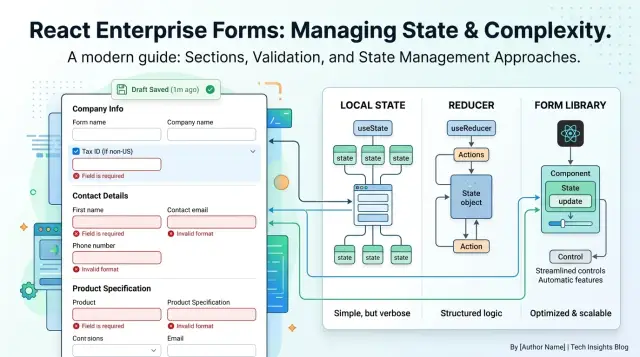
Table of Contents
Why long form screens get messy
A long business form rarely stays small. It starts with ten fields: name, team, budget, dates. Then someone adds approval notes, file uploads, tax details, region rules, and a few "only show this when..." blocks. After a few product cycles, one screen can hold 40 or 80 inputs, and every new rule can affect three others.
The trouble is not just what users can see. Hidden sections still leave data behind in state unless the code clears them on purpose. A user can switch "vendor type" from "new" to "existing," hide a whole panel, and still submit old values from that panel. The screen looks clean, but the data is not.
Live validation adds another layer of churn. One keystroke may update the field value, error text, touched state, derived totals, and whether the submit button is disabled. If the whole screen rerenders on every change, people feel it. Typing starts to lag, dropdowns flicker, and bugs hide inside timing issues.
Draft restore and autosave make things even messier. A saved draft might come from an older version of the form, with fields that no longer exist or rules that changed last week. Autosave can also store half-finished data at the wrong moment, such as before a dependent field resets. When the user comes back, the form may reopen in a state no one expected.
React form state gets hard on these screens because the form is not just a list of inputs. It is a small system with memory, rules, side effects, and data that changes shape while the user is still typing. That is why simple code often feels fine on day one, then turns brittle once conditionals, drafts, and live validation pile up.
What local state, reducers, and libraries change
Your React form state can live in three very different places, and that choice changes how the whole screen behaves.
With local state, each field usually keeps its own value in the component with useState, or you keep one plain object and update it field by field. That is quick to write and easy to read on day one. A name input changes its own value, an email field changes its own value, and you move on.
The trouble starts when fields depend on each other. If selecting "company purchase" should reveal billing fields, clear personal-only fields, and trigger live validation, that logic often ends up spread across event handlers and effects. The form still works, but the rules live in too many places.
A reducer pulls those values into one state object and updates them through actions. Instead of every input deciding what else must change, the reducer can say: when purchase type changes, reset these fields, keep this draft value, and recompute these errors. That gives you more control, especially on long screens with sections that appear and disappear. You pay for that control with more setup and more code to maintain.
Form libraries change the job again. The field values still live somewhere central, but the library manages registration, touched state, dirty state, validation, and often better rerender control. On a large screen, that matters. If one checkbox changes, you do not want fifty unrelated fields to wake up and render again. A good library can keep updates narrow and make drafts, async checks, and conditional forms less repetitive.
The tradeoff is simple. Local state is fastest now. A reducer is slower now, but it keeps behavior predictable later. A form library saves time once the screen has enough moving parts that you are solving the same form problems over and over.
Field count alone is a poor guide. A ten-field form with dependencies, draft restore, and live validation can need more structure than a thirty-field form with mostly independent inputs. Pick the pattern based on how much state changes together, and how often those rules will grow.
When local state is enough
For React form state, local state still works well when the screen is long but each part behaves on its own. A screen can have many fields and still stay simple if each section mostly minds its own business.
That usually means short forms, or long screens made of small isolated blocks. A contact card, shipping section, or approval note can keep its own state without trouble if changes in one block do not keep changing rules in three others.
Keep the state close to the inputs that own it. If a date picker only affects one scheduling panel, store that value in the scheduling component. If a notes box only feeds a character counter and a draft save for that box, keep it there too. You avoid lifting state too early, and you cut a lot of rerenders from the rest of the page.
One detail matters a lot: group related values. Ten separate useState calls for ten fields often look tidy on day one, then turn into a chore. A small object per section is usually easier to read and update.
For example, a budget section can work well with one local object:
const [budget, setBudget] = useState({
  amount: "",
  currency: "USD",
  needsApproval: false,
  note: ""
})
That shape makes sense because those fields move together. The user edits one section, the section updates, and the rest of the form stays calm.
Local state starts to crack when rules spread across the screen. If checking one box changes required fields in two other sections, triggers live validation, updates draft status, and resets hidden inputs, the code gets messy fast. You will see duplicate checks, event handlers that do too much, and small bugs when one rule changes and another does not.
A good test is simple:
- one section owns the data
- validation stays near that section
- few fields depend on far-away fields
- saving drafts does not need a global map of every change
If those points stay true, local state is often the cleanest choice.
When a reducer gives you more control
Local state starts to creak when one field change triggers three other updates. A reducer helps because every change goes through one function. You keep form values and UI behavior together: field data, open sections, touched flags, draft status, and reset rules.
That matters on long screens. If a user switches a request from "software" to "hardware," the form may need to hide license fields, clear stale values, show shipping inputs, and update validation. With scattered useState calls, that logic often ends up split across click handlers and effects. A reducer puts the rule in one place, so the branch is easier to read and much easier to test.
Use plain action names. FIELD_CHANGED, RESET_SECTION, LOAD_DRAFT, and UNDO_LAST_CHANGE may look boring, but boring is good here. Each action says why state changed. When a bug shows up, you can trace the path instead of guessing which handler quietly changed something.
Conditional forms get safer too. A hidden section should not keep old values that sneak into a submit payload later. In a reducer, you can make that rule explicit: when a toggle turns off a branch, clear the branch and its errors at the same time. No hidden side effects. No surprise data hanging around.
Drafts are another place where reducers pay off. Loading a saved draft usually means more than restoring input values. You may also need to reopen the right panels, restore temporary choices, and decide whether live validation should run right away or wait for the next edit. One LOAD_DRAFT action can handle the whole move.
Undo is easier for the same reason. You can keep a small history of previous states and roll back with one action. That is hard to do cleanly when state lives in many separate hooks.
A reducer will not fix rerenders by itself. It does make React form state more predictable, and that makes it easier to split a large screen into smaller parts without losing control. For a short form, this is extra work. For a long form with conditions, drafts, and live validation, it often saves real time.
When a form library earns its place
A library starts to pay off when React form state stops feeling like normal component state. If the screen has 40 or 50 fields, live validation, save as draft, and sections that appear only after certain choices, hand-built state code gets tiring fast.
The first win is boring work you no longer write yourself. Good libraries handle field registration, dirty and touched state, blur tracking, and common validation flows without a pile of custom handlers. That saves time, but it also cuts small bugs, like an error showing too early or a field losing its value after a section hides.
Rerenders matter more than feature lists. Some React form libraries keep updates close to the field that changed. Others make the whole form repaint on every keystroke. On a long internal screen with totals, conditional panels, and async lookups, that difference is easy to feel.
Dynamic fields and arrays separate the useful tools from the annoying ones. A serious form often needs line items, repeated contacts, uploaded files, or nested sections that users can add and remove. The library should keep stable row state, preserve drafts when needed, and clear hidden values when that is the safer choice.
A quick review tells you a lot:
- One field change should not repaint the whole screen.
- Added rows should keep stable IDs and error state.
- Validation should work on change, blur, and submit.
- Hidden sections should behave predictably in drafts.
- Custom inputs should fit without awkward wrappers everywhere.
Some libraries look great in demos and then fight your screen design. You notice it when a custom date picker, a pricing table, or a conditional approval section needs three extra adapters just to behave like a normal input. At that point, the tool is not saving time.
Pick the library that disappears into the form. If your team can build the screen the way users need it, while keeping rerenders under control, the library earned its place.
How to choose a pattern step by step
Good React form state choices start with the screen, not the tool. A long form gets messy for specific reasons: fields depend on each other, rules repeat across sections, drafts need to survive refreshes, or live validation fires too often.
Start by writing down the hard parts on one page. Do not list every field. List the behavior that makes the screen hard to reason about: section toggles, cross-field rules, server defaults, autosave, and restore from draft.
Then count how many branches the form really has. A screen with two or three conditional sections is very different from a screen where one answer changes half the page. Also note whether the same rule shows up in several places. Shared rules often push you away from scattered local handlers.
A practical path looks like this:
- If most fields are independent and the conditionals are light, use local state.
- If many updates must stay in sync, move the rules into a reducer.
- If the form has lots of fields, touched state, errors, dirty checks, and schema validation, use a form library.
- If users can leave and come back, decide early whether draft data lives in component state, app state, or storage.
- Build a quick test screen before you commit to the pattern.
Drafts matter more than many teams expect. If a user can spend 20 minutes on a screen, losing progress is a product problem, not a small bug. For a short internal form, local state plus a save button may be enough. For a long workflow with restore, review, and partial submission, a reducer or library usually holds up better.
Before you settle on anything, test the screen the way people actually use it. Type quickly into several fields. Turn sections on and off. Restore a saved draft. Trigger live validation while values change. If the UI lags, errors flash in the wrong place, or hidden fields keep stale values, the pattern is too loose for the job.
Pick the smallest approach that handles those tests cleanly. Extra machinery slows teams down. Too little structure does the same, just later and with stranger bugs.
A realistic example: procurement request form
A procurement request form looks simple until the rules pile up. One person enters vendor details, line items, currency, delivery date, cost center, and a short reason for the purchase. Then the screen starts changing based on the total, the category, and who approves it.
Say the request stays under $5,000. The form only needs manager approval and a planned delivery date. Once the total goes over $5,000, a new section appears for finance review, quote uploads, and a note that explains why this spend cannot wait. If the purchase is software, you might also show security and license fields. This is where conditional forms get noisy fast.
Local state can still handle tiny parts of the screen, like whether a date picker is open. I would not use it for the whole form. Too many fields depend on each other. Change one line item and you may need to recalculate totals, show an approval section, clear an old approver, and run validation again.
One clean split
A reducer works well for the business rules. It can handle actions such as "add item", "remove item", "load draft", "change budget code", and "recalculate total". That keeps the logic in one place instead of scattering it across input handlers.
A form library helps with the repetitive parts: registering fields, tracking dirty state, showing errors, and handling touched inputs. For React form state on long screens, this mixed setup is often easier to live with than picking only one pattern.
Autosave should feel boring. Save a draft after a short pause or when the user leaves a field. If a manager closes the tab halfway through, they should come back to the same line items, the same visible or hidden sections, and the same approval path.
Live checks matter most where people make costly mistakes. The form can flag a delivery date in the past, catch a grand total that does not match the sum of line items, and require the right approval fields when the amount crosses a budget rule. If those checks run close to the data model instead of inside random components, rerenders stay under control and bugs are easier to trace.
Mistakes that cause rerenders and bugs
Long screens usually break for boring reasons, not exotic ones. A procurement request form with 40 fields, conditional sections, draft save, and live validation can feel slow even when the code looks clean. Most of that pain starts with state shape and update timing.
A few mistakes show up again and again:
- Teams keep one giant form object and replace large parts of it on every change. Then typing in a single notes field makes budget rows, approver pickers, and attachments rerender too. Split state by section, or update only the small slice that changed.
- Teams validate the whole form on every keystroke. Users feel the lag right away, especially on older laptops. Validate the field the user touched, then run wider checks on blur, section change, or submit.
- Teams hide fields but keep old values alive. If a user turns off "Needs legal review," clear the legal contact and legal notes, or mark them inactive before submit. Hidden data should not quietly travel with the form.
- Teams put local errors and server errors in one blob. That makes error handling fragile. A local rule like "amount is required" and a server reply like "cost center is closed" should live in separate places.
- Teams let autosave race with manual edits. Save request A starts, request B starts later, then A finishes last and writes stale data back into the draft. Use request ids, timestamps, or cancel older saves.
These bugs happen with every React form state approach. Local state does not prevent broad updates. A reducer does not fix stale hidden values by itself. A form library does not protect you from bad autosave rules.
One habit helps more than people expect: test one field at a time. Type quickly into a text box while autosave runs. Toggle a conditional section on and off. Trigger a server error, then fix the field locally. If the screen flickers, loses input, or restores old values, the state model still needs work.
Quick checks before you ship
A long form can look done and still break in small, expensive ways. A short manual pass catches most React form state problems before users find them. Type slowly, then type fast. Watch for lag, flicker, and fields that reset when nothing around them changed.
Use the screen like a real user would, not like the person who built it.
- Type in one field and watch the rest of the screen. If large sections rerender on every keystroke, the state likely sits too high or updates too broadly.
- Open a conditional section, fill it out, close it, then open it again. Make sure the values follow the rule you chose: keep them, clear them, or save them in a draft.
- Save a draft and restore it after a full reload. Dates, arrays, and nested objects often come back in the wrong shape.
- Trigger a few errors, then add or remove rows if the form has repeated fields. Error messages must stay attached to the right input, not to a list position.
- Submit the form and compare the payload with what the user can actually see. Hidden fields often send stale values, and that causes quiet bugs later.
One small example: a requester selects "hardware," which opens shipping fields. They switch to "software," and the shipping block disappears. If your submit data still includes the old shipping address, the UI and the data now disagree. Users feel that as a trust problem, not a technical one.
This final pass does not take long. Ten careful minutes before release can save hours of bug reports, support messages, and awkward data cleanup.
Next steps for your team
Do not rewrite the whole screen because one part hurts. Pick the section that causes the most bugs, the most support questions, or the most developer friction. Refactor that slice first, then watch what changes in bug count, review time, and typing lag.
Most teams do better when they write a few plain rules before they touch code. Decide who owns each piece of state, when validation runs, and what counts as a draft. If one field only affects its own input, keep it local. If several fields change together, use one reducer or one form tool API. If validation slows typing, move part of it to blur or submit.
A short checklist is enough:
- Keep server data, draft edits, and UI-only flags in separate buckets.
- Write one rule for conditional fields: hide, clear, or keep old values.
- Decide which errors show on change, on blur, or on submit.
- Measure render count on the slowest part of the form.
- Test typing on a real form with realistic data.
That last point matters more than debates about React form state in the abstract. Open the screen that people actually use. Paste a long address, toggle a few conditionals, save a draft, reload, and type fast. If the cursor stutters or whole sections flash, the form still does too much work per keystroke.
Use simple measurements. React DevTools Profiler can show which fields rerender on every change. A basic timer around validation can show whether one rule takes 2 ms or 80 ms. Numbers like that make the next decision easier. They also stop endless arguments about local state vs reducer React patterns or whether React form libraries are helping.
If your team keeps hitting the same form problems, a short review with Oleg Sotnikov can help you choose a cleaner setup before you burn more time. He works as a Fractional CTO and startup advisor, and he has spent years fixing architecture choices that looked fine early on but became painful once real users, drafts, and live validation entered the picture.


