Queue age alarms that catch trouble before users complain
Set queue age alarms that spot backlog growth, stuck workers, and dead letter spikes early, so your team fixes delays before customers notice.
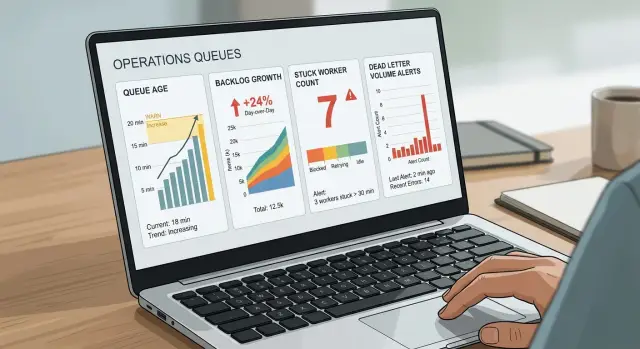
Table of Contents
Why CPU charts miss queue trouble
A queue can be unhealthy while servers look calm. CPU shows how hard a machine is working. It does not show how long work has been waiting.
That gap matters more than many teams expect. A worker can sit idle between polls, use little CPU, and still leave jobs waiting for minutes. If those jobs send emails, build reports, or sync customer data, people notice the delay long before anyone sees a scary infrastructure graph.
One slow worker can jam the line. A job blocks on a slow API, a database lock, or a retry loop with long timeouts. The process still looks alive, so a basic health check passes. CPU stays flat. Newer jobs stack up behind the slow one and queue age keeps rising.
Retries hide trouble too. A failing job can try again for hours with a pause between attempts. That pattern uses little compute, so the charts stay quiet while the queue gets older and fresh jobs wait longer.
Customers feel that delay in simple ways. A password reset arrives late. A daily report shows up after the meeting. An order status takes too long to update. These failures do not start with high CPU. They start with work entering the system and not moving fast enough.
That is why queue age alarms catch trouble earlier than raw machine charts. If the oldest message keeps getting older, users are getting closer to a bad experience. If the backlog grows while worker throughput stays flat, the problem is already real.
CPU still matters when a machine is truly overloaded. But if you want alerts that match what customers feel, start with time in queue. Then add backlog growth alerts, stuck worker monitoring, and dead letter queue alerts around it. That gives you a clearer picture of whether the system is healthy or only quiet.
What users notice before your team does
Users rarely say, "your workers are saturated" or "the backlog is growing." They say the order email never came, the report is still loading, or the import finished an hour later than expected. People notice waiting time, silence, and broken promises.
That gap is easy to miss. A system can look calm on a server dashboard while the queue behind it gets older every minute. CPU may sit at a normal level, but users still feel the slowdown because the work that matters to them is stuck in line.
Order confirmations are a good example. A customer pays, sees the charge, and expects a message right away. If that email job sits in a queue for 12 minutes, they do not care that the app server stayed under 40 percent load. They think the order failed, and some of them try again.
Imports create the same problem in a different way. If you promise that a CSV upload will finish in five minutes, people plan around that. When one slow job blocks many smaller jobs behind it, the queue grows quietly and the promised finish time stops meaning anything.
Bad deploys make this worse fast. One worker release with a hidden bug can stop background jobs from moving even if the rest of the system still answers requests. Support then hears "my invoice never generated" or "my data still says processing," not "worker 3 stopped acknowledging messages."
Dead letters are often where users lose patience. A failed retry, then another, then a silent move into the dead letter queue means the task did not just slow down. From the user's point of view, it disappeared until someone checks it.
This is why queue age alarms work better than raw machine charts for early warning. They track the delay users actually feel. If you alert on oldest message age, backlog growth, stuck workers, and dead letter volume together, you catch trouble while it still looks small from the infrastructure side.
Metrics to watch together
A queue rarely fails in one obvious way. Many teams watch queue length, see a number that looks normal, and miss the part users feel first: waiting. Good queue age alarms start with oldest message age, because it shows how long the oldest job has been sitting without finishing.
Queue length still matters, but only with context. A queue with 2,000 fast jobs can be healthy. A queue with 40 jobs can already hurt users if the oldest one is 12 minutes old. Age shows pain sooner than raw volume.
It also helps to compare incoming jobs with completed jobs each minute. If new jobs keep arriving faster than workers finish them, backlog growth is real. When oldest age rises at the same time, you know the delay is no longer a brief spike.
Worker counts tell you why this happens. Track how many workers actively pull jobs, and track how many stop making progress. A worker can stay online but stop finishing work because it is stuck on one bad job, waiting on a slow database, or retrying the same task again and again.
Retries and dead letter volume need their own view. A small retry bump during a deploy may be harmless. A sudden retry spike usually means a dependency broke, a payload changed, or one worker path is failing hard. Dead letters matter even more, because those jobs often will not recover without human action.
Split all of this by queue. If image processing is busy all afternoon, it can hide the fact that password reset emails stopped moving. Separate alerts for each queue keep one noisy job type from masking a smaller but more urgent failure.
The best alert usually combines a few signals at once: oldest message age stays above normal for several minutes, incoming jobs stay higher than completed jobs, active workers drop or stuck workers rise, and retries or dead letters jump above the usual range. That mix cuts noise and points your team toward the cause, not just the symptom.
Pick thresholds that match real delays
Start with the moment a user notices the wait. A payment confirmation that sits in a queue for 45 seconds can trigger repeat clicks and support messages. A cleanup job that runs 20 minutes late after midnight usually does not matter. Good queue age alarms start with that user facing delay, not with whatever number looks neat on a chart.
Set two limits for each queue. The warning level should fire early enough for someone to check the trend and fix it without panic. The urgent level should fire when people are likely blocked or the backlog is about to snowball. If both limits fire at the same point, you lose time you could have used to prevent a noisy incident.
Customer facing queues need tighter limits than batch work. Password resets, checkout events, signup emails, and jobs that finish a screen action should have very little slack. Internal sync jobs, report generation, and bulk imports can wait longer, especially during quiet hours when slower processing has little business impact.
A rough rule works well. Put the warning at about half the delay a customer notices. Put the urgent alert at the point where support tickets or failed retries start to appear. Change the numbers by queue purpose instead of forcing one threshold across everything.
For example, if users start asking questions when emails arrive after two minutes, a warning at 60 seconds and an urgent alert at two minutes is reasonable. If a nightly import can drift for 25 minutes without harm, give it a looser threshold and avoid waking someone for a harmless bump at 3 a.m.
Thresholds go stale fast. Review them after releases that change worker logic, after traffic jumps, and after product changes that add more messages per user action. A queue that looked healthy last month can become too slow after one busy launch.
When limits match real waiting time, alerts stay quiet until they actually matter.
Set alerts step by step
Start with the queue itself, not the server around it. CPU can look calm while work piles up quietly, so build your alerts around delay, worker health, and failed messages.
Write down every queue you run and the wait time users can live with before they feel the delay. A password reset email may need to move in seconds. A nightly export can wait much longer. Then, for each queue, record its normal wait time and its "this feels broken" time. Create an alert on oldest message age. Add a worker floor alert so someone gets paged when the active count drops below a safe minimum for a few minutes. Watch dead letter volume over a short window, such as five or 10 minutes. Then test every alert on purpose by pausing a worker, slowing a dependency, or routing a few bad messages into the dead letter queue.
Queue age alarms work best when each alert includes a first action. The on call person should know what to check before opening five dashboards: whether workers are still pulling jobs, whether the oldest message age is still rising, whether dead letters jumped, and whether a recent deploy lines up with the problem. If age rises and workers are down, restart workers or page the owner. If dead letters jump, inspect one failed message and look for the shared error.
Keep the first version simple. A few clear queue age alarms with tested thresholds catch more real trouble than a wall of raw system charts.
A simple example from an email queue
A small shop puts two kinds of email into one queue: receipts after checkout and password reset messages. On a normal day, each job sits there for a few seconds, a worker picks it up, and the customer gets the email almost right away.
Then one worker loses database access. The app can still accept orders, and the queue server still looks healthy. CPU stays normal, memory stays flat, and a basic infrastructure dashboard gives the team no reason to worry.
The trouble shows up in the queue first. New email jobs keep coming in, but the broken worker cannot finish them. It retries, fails again, and leaves more work behind. The oldest message stops being 10 seconds old and starts aging fast.
- 9:00 - queue age is under 15 seconds
- 9:07 - oldest message reaches 90 seconds
- 9:15 - queue age passes 3 minutes
- 9:22 - queue age hits 6 minutes
- 9:25 - dead letter volume starts rising as retries run out
Customers do not care that CPU looks fine. They care that a password reset email arrives six minutes late, or never arrives at all. For receipts, a short delay may be annoying. For login problems, it feels broken.
This is where queue latency monitoring helps most. If you pair it with backlog growth alerts, stuck worker monitoring, and dead letter queue alerts, the pattern is easy to catch. The age alarm fires while the team still has time to fix the worker, restore database access, and drain the queue before support tickets pile up.
A practical rule for this shop is simple: alert if the oldest email job stays above 90 seconds for five minutes, and send a higher priority alert if dead letters rise at the same time. That catches a service problem, not just a busy minute.
Good queue age alarms warn you when customer trust is about to slip. That matters much more than a calm CPU chart.
Mistakes that create noisy alarms
Most bad alerting starts with one lazy rule: page when queue length crosses a fixed number. That sounds sensible, but queues often grow during normal traffic bursts and then drain a few minutes later. If you alert on length alone, people learn to ignore the page.
Queue age alarms usually work better because they measure delay, not just volume. A queue with 20,000 fresh jobs may be fine. A queue with 200 old jobs may mean users are already waiting.
Another common mistake is using the same threshold for every queue. That rarely matches reality. An email queue can tolerate more delay than a payment queue, and a background image resize job is different again.
If every queue pages at the same age, count, and retry limit, two things happen. Slow queues page too late, and less urgent queues page too often. Teams then mute alerts instead of fixing the setup.
Retries create another source of noise. A worker fails, retries the same job, and your system sends the same page again and again. After the third or fourth repeat, no one reads the alert closely.
A better alert groups repeated failures into one incident and updates it as the backlog grows. If the system must page again, it should wait long enough to signal that something changed, not just that the same retry loop is still running.
Give the alert a first action
Many alerts are noisy because they tell you nothing useful. A page that says "queue high" forces the on call person to guess what to do first, and that slows the response.
Add one short note with the first checks: confirm whether workers are still pulling jobs, check the age of the oldest message, look at retry count over the last few minutes, inspect dead letter volume, and pause new releases if failures started after a deploy.
Dead letters deserve their own warning. Teams often ignore them because the main queue still looks healthy. Later, lost work shows up as missing emails, skipped webhooks, or silent data gaps. By then, users have noticed and the trail is colder.
A small amount of dead letter monitoring is often enough to catch this early. If dead letters rise while workers keep retrying and queue age climbs, that is a real problem. One clean alert with those signals together beats ten CPU pages every time.
Quick checks before you turn alerts on
A noisy alert is annoying. A vague alert is worse, because it wakes someone up and still leaves them guessing.
Before you turn anything on, inspect each queue the way an on call engineer and a support teammate would see it. Each alert should answer three questions: what broke, where it broke, and who owns it. Make sure every queue has an age alarm, not only a depth alarm. Message count can stay flat while wait time keeps growing. Make sure your team can tell a stuck worker from a slow queue. A stuck worker often shows no completions at all, while a slow queue still moves, just too slowly. Put the queue name, worker or service name, and owner in the alert text.
Next steps for a calmer setup
Pick the one queue that hurts customers first. For many teams, that is password resets, checkout emails, billing jobs, or order updates. If you start with ten queues at once, you will likely end up with a pile of alerts nobody owns.
Then look backward before you build anything new. Review the last month of slowdowns, retries, failed jobs, and support complaints. Put those moments on the same timeline so you can see what users felt, how long the delay lasted, and which signal showed up early.
Start small. Alert when the oldest message stays above a user visible delay. Alert when the backlog keeps growing long enough to matter. Alert when workers stop completing jobs even though new work still arrives. Alert when dead letter volume rises above its normal level.
That small set tells a much clearer story than CPU alone. A server can look calm while customers wait 20 minutes for an email that should take 30 seconds.
After a week or two, tighten the limits based on real patterns. If one alert fires every morning and nobody cares, change it. If support tickets arrive before the alert, lower the threshold. Good alerts get sharper with use.
If your team keeps running into the same queue problems, Oleg Sotnikov at oleg.is works as a fractional CTO and startup advisor and can review worker design, infrastructure, and alerting setup. A second set of eyes often cuts alert noise faster than another round of dashboard tweaks.
Keep the whole setup small enough that your team will maintain it next month, not just admire it today.


