Product setup checklist that becomes an automation spec
A product setup checklist can become your first automation spec when you define inputs, outputs, and exception reasons for each manual step.
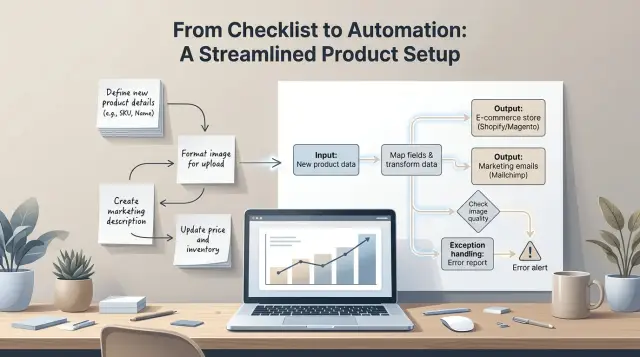
Table of Contents
Why setup work breaks so often
Setup work usually fails before anyone notices. Teams assume the process is simple, so nobody writes it down in one place. A few steps live in chat, a few sit in old tickets, and the rest stay in one person's head.
That works until someone else has to do the same job. Two people can set up the same customer account, project, or workspace and still make different choices. One adds default permissions. Another skips them. One checks billing first. Another fixes it later. Both think they followed the process.
On day one, those differences look minor. A week later, support deals with the fallout. A customer can't log in, the wrong plan is active, or a report pulls bad data because one field was filled in differently. The setup looked finished, but it left loose ends behind.
Scripts and prompts fail for the same reason. Automation needs clear rules. If a step says "set up the account normally" or "use the usual defaults," software has nothing firm to follow. A prompt will guess. A person might guess too, but people can repair mistakes on the fly. Software just repeats them faster.
Small teams feel this more than they expect. When one experienced person handles setup, speed hides the mess. The process seems fine because that person knows all the unwritten exceptions. Once the team grows, more people touch the work, or someone tries to automate it, the missing details show up all at once.
A product setup checklist helps because it forces plain language. What starts the step? What should exist when it ends? What should stop the flow? If you can't answer those questions, the work still runs on habit, not a real process.
Most setup problems are not dramatic. They start as tiny gaps at the beginning and turn into repeat support work later. That is why setup breaks so often.
What to put in the checklist
Start with the smallest unit of work you can name. If one line hides two actions, split it. "Create account" and "send welcome email" should not sit on the same line, because one can succeed while the other fails.
Each row should describe one action in plain language. Start with a verb. "Verify billing email," "create workspace," and "assign plan" are easier to review than vague notes like "account setup."
A good checklist also shows what kicks off the step. That might be a sales rep, a support agent, the customer, or a system event. If nobody knows what starts the action, automation often stalls before it begins.
Next to each action, track five things:
- who starts it
- what data, login, file, or tool it needs
- what result proves the step is finished
- whether a person must approve or choose something
- what can stop the step
The "needs" field matters more than most teams expect. A step may look easy until you notice it depends on a signed contract, a pricing tier, admin access, or a value copied from another tool. Write those dependencies down now, not after a failed run.
Be strict about what "done" means. "Customer is set up" is too loose. "Workspace exists, owner can log in, and the correct plan is active" is much better. Clear finish lines make testing easier and reduce awkward handoffs.
Human decisions need their own note, even if they seem obvious today. If someone checks fraud risk, approves custom pricing, or picks a region, write that down. Also note what happens when they say no, ask for changes, or do not respond.
A simple test works well: hand the checklist to a new team member. If they can follow each line without guessing, you are close. If they stop to ask, "Which tool?" or "Who decides this?" the checklist still has gaps.
Turn each step into a simple spec
A checklist helps people remember the work. An automation spec helps people do the work the same way every time. For each manual action, write down exactly what goes in, what should come out, and what can make the step stop.
That sounds small, but it changes the whole job. A vague line like "create account" becomes something a teammate, script, or AI agent can follow without guessing.
Write the input first. Use the actual source data, not a summary from memory. If the step needs a company name, billing email, plan type, and region, list those fields exactly as they appear in the form, CRM, or intake sheet.
Then write the output in plain words. Avoid shorthand unless everyone uses it the same way. "Customer account exists in the admin panel and the welcome email is queued" is much better than "account done."
Every step also needs a stop reason. Maybe the billing email is missing. Maybe the domain is already in use. Maybe the selected plan does not allow that feature. These exception reasons are where most manual setup steps slow down, so capture them early.
When a step stops, someone has to decide what happens next. Record that person or role. It might be sales, support, finance, or the customer. If nobody owns the decision, the work sits in limbo and people patch it with side messages.
Keep source data separate from notes. Source data is the factual input you can trust and reuse. Notes are context, guesses, or one-off comments. Mixing them causes bad automation because the system cannot tell whether "use old invoice address" is a confirmed field or a temporary remark.
A simple row can look like this:
- Input: signed order form, admin email, selected plan
- Output: active account with the right permissions
- Stop reason: email already belongs to another workspace
- Decision owner: support lead decides whether to merge or create a new account
- Notes: customer asked for launch by Friday
This is where a product setup checklist becomes real workflow mapping. If two different people can read the row and do the same thing, you are close to something you can automate.
Use a format you can reuse
A reusable format saves time on the second setup, not just the first. If your checklist changes shape every time, nobody trusts it, and automation gets harder than it should be.
A simple table works well because it forces clear thinking. You do not need anything fancy. A short template in a doc, sheet, or ticket is enough if every row means the same thing.
Use five columns: Action, Input, Output, Exception reason, and Notes.
Start each row with a verb. Write "Create customer record," "Send welcome email," or "Assign billing plan." Verbs make the work concrete. They also make gaps easier to spot. If a row starts with a noun like "Customer profile," people often argue about what it means instead of what they do.
Keep the normal path separate from exceptions. Put the expected flow in one block, top to bottom. Then list exception cases below it with a reason for each one. That keeps the main setup readable and stops rare edge cases from swallowing the whole document.
Field names matter more than most teams expect. Use stable names such as customer_email, plan_id, or tax_country instead of copying screen text like "Email address" or "Choose your plan." Screen labels change. Field names should stay steady across docs, prompts, code, and handoffs.
Leave space for notes from real runs. That is where the checklist becomes useful instead of decorative. A note might say, "Customers often send the wrong tax number" or "Sales sometimes skips the billing contact." Those small comments usually explain why an automation fails in week one.
If you follow one rule, make it this one: use the same format every time. After five or six real setups, your template will start to show patterns. Those patterns are what you automate.
How to map one flow step by step
Choose one setup flow that happens often and causes small delays when people do it by hand. Repeated work gives you cleaner patterns, more edge cases, and a better return on the time you spend mapping it.
A checklist becomes useful when it follows real work, not the version people describe from memory. Sit with the person who does the task and watch the whole flow from the first request to the final handoff.
Do not only record clicks. Record decisions.
When someone pauses to ask, "Do I use the default plan or a custom one?" that pause matters more than the button they press next. Automation usually fails at decision points, not at obvious actions.
For each step, note what starts it, what information the person needs, what choice they make, what result they expect, and why they stop or ask for help.
That last part often gets missed. If a team member says, "I can't finish this because the billing contact is missing," save that exact reason. Those exception reasons tell you what your form, workflow, or prompt must handle later.
Mark every field that changes from one case to another. Fixed values are easy. Variable fields create most of the mess.
A short note works fine: company name changes every time, tax region changes sometimes, access level changes by contract, support tier changes by plan. This helps you separate defaults from inputs instead of mixing them together.
Keep the first draft rough. The goal is accuracy, not polish. If the person jumps between tools, copies values from an email, or checks a spreadsheet before moving on, capture that too.
Then review the draft with the same person who does the work. Ask where new staff get confused, where they double-check things, and which exceptions happen often enough to matter. People usually remember the missing parts when they see the flow written out.
If the map feels boring, that is a good sign. Boring means the process is concrete enough to test, automate, and hand off without guesswork.
Example: setting up a new customer account
A small B2B team closes a deal on Tuesday afternoon. Sales does not need a long handoff. They send three fields: plan name, company name, and owner email. If any one is blank, ops should not guess. The flow stops and goes back to sales for a fix.
That first handoff already gives you the start of an automation spec. The input is the sales handoff. The output is a clean setup request. The exception reason is simple: missing or invalid customer details.
Ops then creates the workspace, adds the default roles, and checks that the account matches the plan that sales sold. This step sounds routine, but it often creates future support problems. If the workspace name does not match the company name, or the wrong role set goes in, the customer starts with confusion on day one.
A simple spec for that middle part might look like this:
- Create one workspace with the company name from sales.
- Apply the default roles for the chosen plan.
- Send the first access email to the owner email.
- Mark the account as "ready" only after email delivery succeeds.
Billing can block the flow before the welcome email goes out. That rule should stay plain. If tax details are missing, stop. If card details are missing, stop. Do not create a half-finished account and hope someone catches it later. The exception reason should say exactly what blocked the setup, so a person can fix it fast.
Some cases still need a person. Maybe the customer wants custom roles, special terms, or a parent company with several teams under one account. A manager should approve that exception, log the reason, and decide whether the setup can continue with a note or needs a different path.
This is why a checklist often works better than a vague flowchart. Each step names the input, the action, the expected result, and the reason to stop. When you later turn it into forms, rules, or prompts, the team already knows what "done" means.
Mistakes that cause trouble later
Most automation problems start before anyone writes code. A checklist can look clean on paper, but one short line may hide three or four separate actions.
"Create customer account" sounds simple. In practice, someone may check the plan, clean the company name, assign an owner, confirm billing details, and send a handoff note. If the checklist keeps that work packed into one sentence, the automation will miss part of the job.
Rare cases cause a different kind of damage. Teams skip them because they do not happen every day, then lose hours when one shows up. A duplicate company, a missing tax number, or a customer who already exists in another system can stop the whole flow.
Those cases need names and reasons. Exception reasons should be plain and specific, such as "domain already used" or "billing country not supported." That gives people a clear stop point instead of a messy workaround.
Vague notes create more trouble than most teams expect. When someone writes "fix later" or "check manually," they leave a hole in the spec. The next person fills that hole with a guess.
That guess then turns into code, prompts, or a support habit that nobody meant to keep. Write the exact rule, or say who decides and what they look at.
Input data also causes silent failures. One customer sends a CSV, another pastes details into an email, and a third uploads a spreadsheet with different column names. If nobody records these format differences, the workflow mapping looks fine until real data arrives.
UI labels are another trap. Teams often copy button names and field labels straight from the screen, but product text changes all the time. A step like "click Activate workspace" ages badly if the UI team renames it next month.
Describe the action behind the label instead. Write "enable the workspace," "set the billing plan," "mark the account as verified," or "send the welcome message." That wording lasts longer because it describes the result, not the button. If your checklist names the real action, the accepted input, and the exact exception reason, it can survive product changes and still work as an automation spec.
Quick checks before you automate
If a new teammate gets stuck on step two, the flow is not ready for automation. A product setup checklist should work for someone who did not help create it.
Read the setup from top to bottom and ask one blunt question at each step: "What do I see when this step is done?" The answer should be visible. A new account exists, a field is filled, a file is saved, an email is sent, or a status changes.
Most weak spots show up fast when you test the flow against five checks:
- A new teammate can follow the flow using only the written steps.
- Each step ends with one clear output that someone can verify.
- Each exception reason uses plain language that any team member would understand.
- You can mark the exact steps where a person decides something.
- You know what to log when the flow fails.
Human decision points matter more than teams expect. If someone decides whether a customer profile looks complete, write down the rule they use. If the real answer is "I can tell when I see it," stop there and fix that before you automate.
Exception reasons need the same treatment. "Customer did not send tax ID" is clear. "Validation issue" is not. Plain language makes handoffs easier and cuts down on back and forth between support, ops, and engineering.
Logging should stay simple too. For each failed run, record the step name, the input that triggered the problem, the exception reason, the time, and who or what ran the step. That gives you enough detail to debug without digging through a pile of guesses.
If a human can follow the flow, verify it, and explain why it failed, you have something solid enough to automate.
What to do next
Pick one flow that happens often and wastes the same kind of time each week. Do not start with the hardest case in the business. Start with a setup task that repeats, has a clear end point, and annoys people because they keep fixing the same small mistakes.
A good first draft should face real work, not theory. Take five recent cases and run the checklist against each one from start to finish. You will spot gaps fast. One case may miss a field, another may use the wrong plan, and a third may stall because nobody wrote down who approves it.
When you find an exception, add it to the spec right away. Do not leave it in chat, email, or someone's memory. Write down what triggered the exception, who noticed it, and what the team did next. After a few rounds, patterns show up. That is when the checklist stops being a note and starts acting like an automation spec.
The next tool depends on the shape of the work:
- Use a script when the rules are fixed and the inputs are clean.
- Use an AI prompt when people read messy text, classify requests, or draft replies.
- Change the product when the same bad input keeps entering at the source.
- Keep a human step when the cost of a wrong action is high.
Teams often jump to AI first, then wonder why results drift. If the problem is a missing form field or a bad handoff between two teams, a prompt will not fix it.
This is the kind of operational cleanup Oleg Sotnikov focuses on through his Fractional CTO advisory work at oleg.is, especially for teams moving toward AI-augmented development and automation. The best first win is usually simple, boring, and easy to repeat next week.
Frequently Asked Questions
What makes a setup checklist ready for automation?
Start with one action per row. For each row, write the input, the result you expect, and the exact reason the step must stop. If a new teammate can follow it without asking questions, you are close.
How detailed should each checklist step be?
Split the work until one row means one action. If a line hides two outcomes, such as creating an account and sending an email, break it apart so you can test and fix each part on its own.
How should I define done for each step?
Write what someone can verify right away. Instead of saying account is set up, say workspace exists, owner can log in, and the right plan is active. That removes guesswork at handoff time.
What should I write for exception reasons?
Name the problem in plain language and record who decides what happens next. Billing email missing or domain already used helps people act fast, while vague notes like validation issue only slow the team down.
Do I need to include rare cases in the checklist?
Yes, if they stop work or create support issues later. You do not need a huge document, but you should record the exceptions that show up often enough to break the flow or force people to improvise.
What input data should each step include?
Use the real fields from the source, not a summary from memory. Include things like company name, owner email, plan, region, contract status, and any access or billing details the step needs to finish cleanly.
When should a human stay in the process?
Keep a person in the flow when someone must judge risk, approve special terms, choose a custom setup, or stop a costly mistake. If the rule still lives in one person's head, do not hand it to software yet.
What format works best for a reusable checklist?
A simple table works well. Use the same columns every time, such as Action, Input, Output, Exception reason, and Notes, so the team can compare runs and spot patterns without relearning the format.
How can I test the checklist before I automate anything?
Run the checklist against a few recent cases and watch where people pause. If they ask which tool to use, who decides something, or what counts as finished, fix the document before you write code or prompts.
Should I use a script, an AI prompt, or change the product first?
Pick the tool that matches the problem. Use a script for fixed rules and clean data, use an AI prompt for messy text or drafting, and change the product when bad input keeps entering at the start. If a wrong action costs a lot, keep a person there.


