Prevent account mixups in support sessions with clear rules
Learn how support teams prevent account mixups with clear session context, short impersonation windows, forced exits, and quick checks.
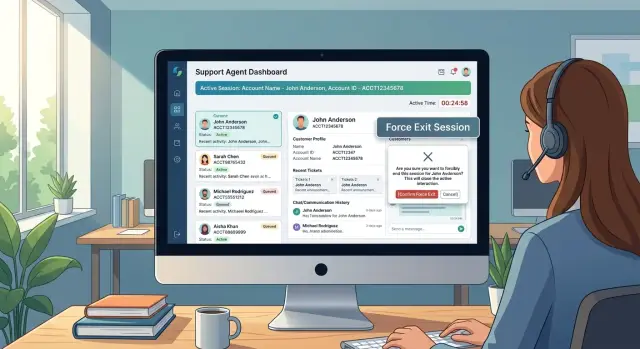
Table of Contents
What causes account mixups
Support work rarely moves in a straight line. An agent answers a chat, opens an admin panel, checks a billing note, then jumps back to a ticket two minutes later. The screen changes faster than the agent's attention.
The risk climbs when accounts look almost identical. Two customers might share a name, work at similar companies, or use email addresses that differ by one character. With several tabs open and the same layout on every page, the wrong account can feel right for a few seconds. That's enough time to change a plan, edit a setting, send a message, or touch billing on the wrong profile.
Most of these errors don't come from carelessness. They happen because the product lets people act before it makes account context obvious.
Pressure makes this worse. Support teams work fast and get interrupted all day. A new chat appears. A teammate asks a question. A customer replies while the agent is checking something else. When the agent returns, memory often fills the gap. Memory is a weak control.
Open tabs add another problem. One tab holds an old customer record, another shows a refund screen, and a third still carries an impersonated session from the last ticket. The agent thinks they're continuing one task, but they're really carrying leftover access from the previous one.
Treat this as a workflow and interface issue first. Training helps, but if the product lets agents switch quickly, keep long impersonation sessions open, and move between similar accounts without a clear reset, mistakes will keep happening.
What agents need to see on every screen
Agents switch between tickets, tabs, and chats all day. If identity details fade into the background, people start working from memory. That's when the wrong account gets updated, the wrong refund gets reviewed, or a private note lands in the wrong place.
Keep the customer name, email, and account ID together in one fixed area that stays visible on every screen. Don't split them across the page. If the name is in the header, the email sits in a side panel, and the ID lives in a settings tab, the agent has to rebuild context every time.
A clear banner at the top works better than a small label. Keep it visible during billing, orders, settings, and any support form the agent opens. Use plain text, strong contrast, and enough space that someone can't miss it with a quick glance.
Customer view and agent view should also look different right away. A tiny badge is easy to ignore. Change the header color, add a clear mode label, and make the layout slightly different so the switch feels obvious.
Keep the reason for access on screen for the whole session. If an agent entered the account to check a failed payment, that note should still be visible ten minutes later after two interruptions and one internal message.
In practice, a good layout keeps four things in view at all times: the customer's name, email, and account ID together; a persistent banner for any active customer session; a clearly different style for impersonation mode; and the stated reason for access until the session ends.
This removes guesswork. An agent should never need to ask, "Whose account am I in right now?"
Picture a common shift. Maya finishes helping Chris with a login issue and then opens Dana's billing case. If Dana's name, email, account ID, and the note "Impersonating to review invoice settings" stay visible on every page, Maya resets her attention in a second. If that context disappears, she has to rely on memory. That's where avoidable risk starts.
Keep impersonation windows short
Long impersonation sessions invite small mistakes. An agent handles one ticket, gets pulled into another, then returns to a screen that still has customer access open. That's how teams mix up names, orders, refunds, and account settings.
A short timer cuts that risk fast. Give the agent enough time to finish one clear task, then end the session. If they still need access, ask them to confirm again. That extra click can feel strict, but it prevents a lot of cleanup later.
Keep the timer in one fixed spot on the screen. Don't hide it in a menu or show it only near the end. Agents should always know how much time they have left. A simple countdown near the account name works better than a subtle warning people miss.
When time runs out, end impersonation automatically. Don't rely on agents to remember to close it. People work fast, tabs stay open, and interruptions happen all day. The product should assume memory will fail sometimes.
Match the limit to the task
Not every action needs the same window. Reading recent order history can allow a little more time than changing billing details.
For billing, refunds, and permission changes, two to three minutes is often enough. Basic account review or simple troubleshooting can stretch to about five minutes. Any action that changes money, access, or identity should require a fresh confirmation before the agent proceeds. And when the timer ends, it should end for real. Don't extend it silently.
Shorter limits make sense for sensitive actions because the cost of a wrong click is higher. If an agent is about to issue a refund or change user permissions, the system should pause and ask, "Do you still want to act as this customer?"
That pause matters. It breaks autopilot.
Some teams worry that re-confirmation slows support down. Usually it adds a few seconds and saves much bigger cleanup later. One mistaken refund or one wrong account change can erase hours of support time and damage trust.
End one session before the next begins
A support session should end as soon as a risky action is done. If an agent resets a password, changes billing details, or checks private data, the customer view should close right away. Leaving that view open for even another minute invites the wrong click.
This is where many teams slip. The task feels finished, but the browser still shows the last customer account. The agent answers a new ticket, opens another tab, or clicks back out of habit. That's how small mistakes turn into account confusion.
Send the agent back to their own workspace after every impersonation session. That can be the support inbox, the internal dashboard, or a neutral account search screen. The next thing they see should belong to them, not to the last customer.
A real exit means more than hiding the page. End the impersonation token as soon as the action is complete. Redirect the agent to an internal page outside the customer account. Reject old customer URLs after exit. Make them start a fresh session for the next customer.
The back button needs special care. If an agent can hit back and land on a customer page that still works, the exit isn't real. Block that path on the server side. Old tabs should fail cleanly and tell the agent to start again.
A fresh start for every account can feel a little slower. In practice, it saves time because agents spend less effort checking whether they're still in the right place. It also makes training simpler: one customer, one session, one clear exit.
Build the flow around one account at a time
Start with one rule: agents should enter an account only from the customer record tied to the ticket, call, or chat they're already handling. Don't let them jump in from a loose search result, a copied ID, or a browser tab left open from the last case. That one change removes a lot of avoidable confusion.
A clean flow usually works like this:
- The agent opens the customer record from the current conversation. The screen shows the customer name, account ID, and one more clear marker such as email or company name.
- Before entry, the system asks why the agent needs access. Keep the reason short and specific. "Check billing status" is better than "support."
- Show a full confirmation screen before impersonation starts. Use large text with the customer name, account ID, reason for entry, and a short warning that the agent is about to act inside a real account.
- Once inside, limit what the agent can do based on role. If a billing agent only needs invoices and payment status, don't show profile editing or security settings.
- When the session starts, write an audit log entry. Record who entered, when they entered, why they entered, what action they took, and when they left.
The confirmation screen matters more than many teams expect. A small modal with one "continue" button gets ignored. A full-page pause works better because it interrupts the habit of clicking through quickly.
Role limits matter too. Most support work doesn't need full customer access. If every agent gets the same broad view, someone will eventually change the wrong setting.
Audit logs should read like a short timeline, not a vague note. If a team lead reviews a refund, password reset, or address change later, they should see the start time, the exact action, and the exit time without guessing.
What this looks like during a shift
Maya starts her morning with a refund ticket from Chris Miller. A second later, another ticket lands from a different Chris Miller. Same name, different account, different problem. This is exactly where teams make expensive mistakes if the screen shows only a name and part of an email.
She opens the first record. The top banner doesn't just say "Chris Miller." It shows the full account ID, plan, and the last four digits of the order tied to the ticket. Maya can tell in one glance that she's in account 48291, not 48219. That small detail does more than another training memo.
The customer asks for a refund check on one charge. Maya starts a temporary access session, and a timer appears in the corner: 3:00. The limit is short on purpose. She does the one task she came to do, confirms the charge, and writes her note. The timer keeps the session focused instead of letting her drift into settings, billing history, or a second issue.
When she finishes, the system closes the session and sends her back to search. Maya can't leave the first account open "just in case" while she answers the next ticket. She has to search again, pick the second Chris Miller, and open a fresh session tied only to that account.
When the second account opens, the banner changes right away. The account ID is different. The order history is different. The note field is empty. If Maya tried to carry over the first refund details by habit, the mismatch would stand out before she submitted anything.
Busy shifts move fast. People get interrupted, tabs pile up, and names blur together. Good session design shouldn't depend on perfect memory.
Common design mistakes
Most mixups start with speed. An agent finishes one task, another ticket appears, and the old customer session is still open. One click later, the agent reads or changes the wrong account.
The most common failure is leaving one customer session open while the agent answers other tickets. When the system keeps the old context alive in the background, the agent carries that risk into every new reply. A safer default is simple: one active customer context at a time, with a clear end point.
Another common mistake is making the customer view look almost identical to the staff view. When both screens share the same layout, colors, and labels, tired agents stop noticing which mode they're in. The impersonated view should look different at a glance. A strong banner, a different background, and the customer name plus account ID near the action area help much more than a small note in the corner.
Some teams also let agents open several impersonated accounts at once. That sounds convenient, but it creates tab confusion quickly. Even careful people lose track when three similar accounts sit open side by side. Limit agents to one impersonated account per browser window, or block a new one until the current session ends.
The same rule applies after billing or access changes. If an agent updates a plan, resets access, or changes payment details, end the session immediately. Those actions affect money, security, and trust in a single move.
Test it before rollout
Run this check in a test environment that feels like a real support shift. Open one customer account, switch to another, then a third. If an agent needs even a moment to ask, "Whose account am I in?", the design still has a problem.
The account header should answer that question at a glance. Put the customer name, email, and account ID together in one fixed area. Hiding one field behind a click or splitting them across tabs makes mistakes more likely, especially late in the day when people are moving fast.
A short test catches most weak spots:
- Ask someone unfamiliar with the screen to identify the current account in one second.
- Check whether the name, email, and account ID stay visible for the full session.
- Start an impersonation session and wait for the timer to end. The session should stop on its own.
- Move from one customer to the next. The app should require a fresh start instead of carrying the old session forward.
- Review the logs and confirm that a manager can see who entered, when they entered, and why.
The timer is a good example. If the session only shows a warning and waits for the agent to click "end," many people will postpone it. End the session automatically, then return the agent to a neutral screen before they can open another customer account.
Audit records need the same care. "Support access" is too vague to help later. Ask for a short reason such as refund check, billing fix, or password issue. When a complaint comes in, managers need a clean trail, not guesswork.
One last test often catches the final gaps. Ask an agent to handle two simple mock tickets in a row while someone watches. If they hesitate, miss the account ID, or stay in the old session by accident, fix that first.
What to do next
Start with one support flow that can do real damage if an agent lands in the wrong account. Password resets, billing changes, and plan upgrades are better first targets than simple read-only checks. Pick one, tighten the session rules there, and get it working before you change the rest of the queue.
A quiet test isn't enough. Run the new flow during a busy shift, when agents are moving fast and interruptions are common. That's when weak session design breaks. Watch where people hesitate, where they click the wrong thing, and where the forced exit feels too slow or too easy to ignore.
Don't wait for a confirmed mixup before you learn from it. Near misses matter too. If an agent almost updates the wrong customer, opens the wrong account, or keeps an impersonation session open longer than intended, log it. Those moments show where the process still depends too much on memory.
Keep the team rules short enough that people can remember them under pressure. They should answer a few practical questions: when an agent may impersonate a customer, which tasks need extra confirmation, how long the session may stay open, when the agent must exit and re-verify, and what to do after a near miss. If the rules need a long meeting to explain, they're too complicated.
It also helps to name one owner for the rollout. That person should review logs, collect agent feedback, and make small fixes every few days for the first couple of weeks. Support teams rarely need a full rebuild. They usually need a few hard edges in the right places.
If you want an outside review, Oleg Sotnikov at oleg.is can help as a fractional CTO or advisor. He works with startups and smaller companies on internal tooling, support workflows, infrastructure, and practical automation changes that reduce mistakes without slowing the team to a crawl.
Pick the first risky flow, test it under real pressure, and measure the close calls. The next fix usually shows up there.
Frequently Asked Questions
How do support agents end up in the wrong account?
Most mixups happen when the product hides account context and leaves old access open too long. Agents switch between chats, tickets, tabs, and admin pages fast, so they fall back on memory and click the wrong profile.
What details should stay visible during a support session?
Keep the customer name, email, and account ID together in one fixed area on every screen. Add a clear banner for active customer access and make impersonation mode look different from the normal staff view.
Should impersonation sessions expire on their own?
Yes. End the session on a timer instead of asking agents to remember. A visible countdown keeps people aware of the risk and stops old customer access from hanging around in forgotten tabs.
How long should an impersonation session last?
Use the shortest window that fits one task. Billing, refunds, and permission changes often need only two or three minutes, while simple account review can stretch to about five.
What should happen after an agent changes billing, access, or passwords?
Close the customer session right after the risky action finishes. Send the agent back to their own workspace or a neutral search page, and block old customer URLs so the back button cannot reopen the session.
Should agents keep more than one customer account open at once?
No. One active customer context per browser window keeps the flow clear and cuts tab confusion. If an agent needs another account, make them end the current session first and start again.
Where should agents start an impersonation session from?
Start only from the customer record tied to the current ticket, chat, or call. Do not let agents jump in from a loose search result, a copied ID, or a tab left open from an earlier case.
What should the confirmation screen show before entry?
Show the full customer name, account ID, reason for access, and a plain warning that the agent is about to act inside a real account. A full page pause works better than a tiny modal because it breaks click-through habits.
What should we record in the audit log?
Log who entered, when they entered, why they entered, what they changed or viewed, and when they left. Ask for a short reason like refund check or billing fix so managers can review a clear timeline later.
How can we test if our support flow is safe enough?
Test it during a mock busy shift, not just in a calm demo. Ask someone to switch between similar accounts, wait for the timer to expire, try the back button, and confirm they can identify the current account in one second.


