PHP file storage libraries for local disks, S3, and moves
PHP file storage libraries help you keep uploads simple now and make later moves from shared hosting to VPS or S3 much less risky.
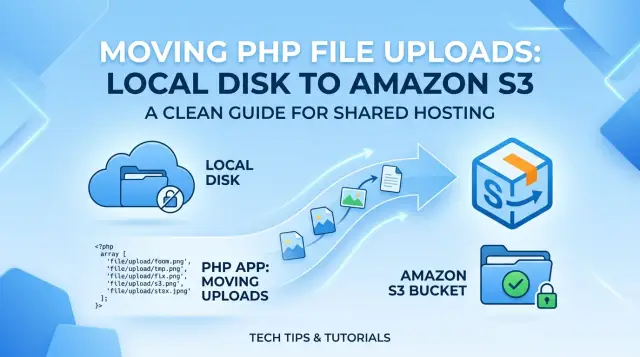
Table of Contents
Why file uploads get messy fast
File uploads look simple on day one. A form sends a file, PHP saves it, and the app moves on.
The mess starts when each new feature saves files in a slightly different place. Profile photos go into one folder, invoices into another, and support attachments into a third folder someone created in a hurry at 2 a.m. After a few months, nobody remembers which folders are safe to expose to the web and which ones should stay private.
Hardcoded paths make this worse. Code like /var/www/site/uploads works until the app leaves shared hosting, moves into Docker, or starts sending files to S3. Then small assumptions break all at once. A path that looked harmless in one server setup can block a whole migration later.
Public and private files also need different rules, but many apps treat them the same. A product image should be easy to serve in a browser. A contract, backup, or medical document should not sit in the same public folder just because it was faster that way. Once files mix together, permissions become harder to untangle.
The database often adds another layer of pain. Teams store full file paths instead of neutral metadata like a storage disk name, relative path, MIME type, and owner. That choice feels quick, but it ties the app to one server layout. When the hosting changes, old records point to places that no longer exist.
This is why PHP file storage libraries help even in small apps. They give you one place to decide where files go, who can read them, and how you switch storage later.
A rushed upload setup can stay cheap for a week and expensive for years. If you expect growth, separate storage rules early. It saves a lot of cleanup when your app finally outgrows shared hosting.
What a storage layer should do
A good storage layer keeps upload code boring. Your app should ask one place to save, read, delete, and move files, whether the file lives on a local disk today or in S3 six months from now.
That one interface matters more than people think. If controllers, cron jobs, and image handlers all build file paths by hand, every hosting change turns into cleanup work. If they all call the same storage layer, you can swap the driver and leave most of the app alone.
A useful storage layer usually does four simple jobs:
- It gives every part of the app the same way to store and fetch files.
- It hides the storage driver, so local disk and S3 look almost the same to your code.
- It keeps file names, folder rules, and visibility consistent.
- It makes tests and backups less fragile.
Consistency saves a lot of pain later. Pick one rule for naming files, one rule for building paths, and one rule for public versus private files. For example, user avatars might always go under avatars/{user-id}/, and invoices might always stay private under invoices/{year}/{month}/.
Without that discipline, apps grow strange habits fast. One upload ends up in /tmp, another in /public/uploads, and a third stores the full server path in the database. That works on shared hosting until you move servers and half the paths break.
Testing gets easier too. When the app talks to a storage layer instead of the raw filesystem, you can replace real disk writes with a fake disk in tests. You can check that a file would be stored in the right place without filling your machine with junk files.
Backups also get simpler. If the app always stores files through one layer and uses predictable paths, you can copy one disk or one bucket with confidence. That is the difference between a clean migration and a weekend spent fixing broken upload paths one by one.
Common PHP tools and where they fit
Most apps do not need a huge storage stack on day one. They need a clean way to save files now, then move from local disk to S3 later without rewriting half the code. That is why PHP file storage libraries deserve a little planning early.
Flysystem is often the best starting point. It gives you one API for common jobs like writing, reading, moving, deleting, and listing files. You can start on a local disk on shared hosting, then switch to S3 with far fewer code changes. If your app stores user uploads, exports, or generated documents, that flexibility saves time later.
AWS SDK for PHP fits a different job. Use it when you need direct access to S3 features that a general storage layer may not expose cleanly. That includes multipart uploads for large files, signed upload requests, custom metadata, bucket rules, and storage classes. It takes more setup, but it gives you full control over PHP uploads to S3.
Symfony Filesystem is smaller and more focused. It helps with local file work such as creating directories, copying files, renaming paths, cleaning temp folders, and checking whether a path exists. It is a good choice when files live on your server and you want less fragile code around local file operations. It does not try to act like a cloud adapter, so it works best as a helper.
If your app already runs on Laravel, use Laravel Storage first. It sits on top of Flysystem, so you get the same local disk and S3 flexibility with Laravel-style configuration and testing tools. For a Laravel project, this usually keeps the code simpler.
A practical way to choose:
- Use Flysystem when you want one storage API and may migrate later.
- Use the AWS SDK when S3 features are part of the app logic.
- Use Symfony Filesystem for local server file tasks.
- Use Laravel Storage when the app already uses Laravel.
Many teams mix these tools. A Laravel app might use Storage for everyday uploads, Symfony Filesystem for temp files, and the AWS SDK only for a large upload path. That is often easier than forcing one tool to do everything.
Set up uploads in small steps
A simple upload flow beats a clever one. Start with one folder on one disk, and keep it outside the public web root. That choice alone cuts down a lot of risk. People cannot guess a file path and open it in the browser, and you keep control over who can download what.
When a user uploads a file, do not trust the original filename. Browsers and users send messy names all the time: spaces, duplicate names, odd extensions, and sometimes plain junk. Generate your own filename instead. A UUID, a random string, or a date folder plus random token works well. Keep the original name only as metadata.
The database should know more about the file than the filesystem does. Store the generated path, original name, MIME type, size, owner, and upload time. If the file belongs to a record, save that relation too. Later, when you move from local storage to S3, you will update a storage path or disk name in one place instead of rewriting the whole app.
A small setup usually works best like this:
- Accept the upload and check size and allowed type.
- Save the file to a private uploads folder with a generated name.
- Write the file metadata to the database.
- Read and delete files only through one storage service class.
That storage service matters more than many teams expect. If every controller and job calls move_uploaded_file() or builds paths by hand, migration gets painful fast. One class with methods like put, get, delete, and url keeps the mess contained.
Wait before adding a second disk. Get the first flow stable, test deletes and replacements, and make sure backups work. Then add S3 or another disk behind the same service. If a small PHP app outgrows shared hosting six months later, this setup saves a lot of rework. You swap storage settings, not your whole upload system.
Plan for S3 before you need it
Most apps start on a local disk. That feels fine until the app grows, a second server appears, or shared hosting starts to fight you. The pain usually does not come from S3 itself. It comes from code that mixed storage details into every upload form, template, and controller.
A simple rule saves a lot of cleanup later: your app should ask for "store this file" or "give me a URL for this file," and nothing more. The controller should not know whether the file lives in /uploads, on another server, or in an S3 bucket.
Keep disk names, bucket names, and folder prefixes in config. Then you can change one setting instead of hunting through the codebase. If you switch from local storage to S3, you want that move to feel like a config change, not a rewrite.
Store relative paths in the database, not full server paths. Save something like avatars/user-42.jpg, not /home/account/public_html/uploads/avatars/user-42.jpg. Full paths tie your data to one machine and one hosting layout. Relative paths survive server moves much better.
The same rule applies to URLs. Do not build public file links by hand inside views. A view should receive a ready URL, or call one small helper that knows how to build it. Storage logic decides where the file lives. URL logic decides how users reach it. Those are two different jobs.
This usually means four small choices early on:
- put storage settings in one config file
- keep upload and delete code in one service or class
- save relative file paths in the database
- generate public URLs through one helper
Teams often skip this because local uploads seem too small to justify structure. That is a mistake. Even small apps outgrow shared hosting, change domains, add a CDN, or move private files off the web root. If you already use one storage layer, the move is boring. Boring is good.
Handle permissions and file safety
Treat every upload as untrusted, even when it comes from a signed-in user. One bad file, one loose folder rule, or one missing size check can turn a simple upload form into a support mess.
Start with a simple split: public files and private files. Public files are things like profile photos or brochure images. Private files are invoices, contracts, exports, and anything tied to one account. Keep that rule in your app, not in guesswork.
Public and private files
A small app usually needs only a few decisions:
- who can upload each file type
- who can read it later
- who can replace it
- who can delete it
- how long you keep the record
For example, avatars can be public, but billing documents should stay private and only the account owner plus admins should read them. If you move from local disk storage PHP to S3 later, that rule should stay the same. Your storage tool changes. Your access rules should not.
Check the file before you save it. Set a size limit by file type, and reject files that go past it. Check the extension, but do not stop there. Also check the actual MIME type with PHP tools such as finfo, because a renamed file can lie about what it is.
Stop risky files from running
If you store uploads on a local disk, keep them outside the public web folder when you can. If you must store them in a public path, block script execution in that directory. A fake image that contains PHP code should sit there as a dumb file, not run on your server.
File permissions matter too. Your app should write only where it needs to write. The web server should not get broad access to the whole project. Restrict delete rights even more. Deleting the wrong file hurts faster than failing to upload one.
Record every delete and replace action. Save who did it, when they did it, and which file changed. When a user says, "my document disappeared," that log saves time and arguments.
Good PHP file storage libraries make these rules easier to apply, but they do not make the choices for you. Decide the rules early, and migration gets much less painful later.
Example: a small app outgrows shared hosting
A small client portal often starts with the simplest setup: PHP app, shared hosting, and an uploads folder on the same disk. That works for a while. Then clients begin sending contracts, invoices, ID scans, and signed PDFs every day, and the storage graph climbs much faster than anyone expected.
The first pain is not speed. It is housekeeping. A folder that looked harmless at launch turns into tens of thousands of files, and the host's disk quota starts to bite. Nightly backups take longer, restore tests become annoying, and a normal deploy feels risky because one bad copy step can fill the last free gigabyte.
The team usually notices a second problem at the same time: file handling code sits everywhere. One controller writes to /uploads, another builds file paths by hand, and a cron job deletes old temp files with different rules. This is where PHP file storage libraries help. If the app reads and writes through one storage layer, the team can change the backend without rewriting half the codebase.
A practical move looks like this:
- Keep new uploads working as they do now
- Move older, rarely opened files to S3
- Store the file location in the database instead of hardcoding paths
- Leave the app logic mostly unchanged behind one storage interface
Users usually do not notice the migration. Recent files can stay on local disk for quick access, while older documents move to object storage in batches at night. The app still asks for a file in the same way. The storage layer decides whether it should read from local disk or S3.
That split also makes backups smaller. The database and app code stay in the main backup set, while cold files live outside the shared host. Deploys get safer because code releases no longer compete with years of uploaded documents.
This is a common point where a small business brings in outside help. A good fractional CTO will not start with a full rebuild. They will isolate file storage first, cut the risk, and move the heavy data without breaking the portal people use every day.
Mistakes that make migration harder
Most storage problems do not start during the move. They start months earlier, when the app treats files as an afterthought. Good PHP file storage libraries help, but they cannot clean up every shortcut once your app has real traffic.
A common mistake is saving absolute server paths in the database, like /home/account/public_html/uploads/avatar.jpg. That path only works on one machine. Move to a VPS, Docker, or S3, and those records break at once. Store a relative path or object name instead, then let the app decide where the file lives.
Another trap is treating a web URL like a file path. https://example.com/uploads/report.pdf is not the same as /var/www/uploads/report.pdf. Image tools, background jobs, and file checks usually need a real file handle or a storage adapter. When code mixes those up, migration turns into a giant search-and-replace job.
Image processing also causes trouble when it sits inside storage code. If one method uploads a file, resizes it, makes thumbnails, and saves everything in one place, you cannot move storage without touching image logic too. Keep those jobs separate. The app should know what to generate, and the storage layer should know where to put it.
Old files deserve a dry run before any move. Teams often test new uploads and forget the backlog. Then they discover that half the old records point to missing files, wrong folders, or names with odd casing. A small script that scans old records and checks each file can save hours of panic.
The hardest mess to clean up is inconsistency. If the admin panel writes files one way, the API uses another folder, and a cron job invents its own naming rule, migration gets slow and risky.
Watch for these signs:
- Different parts of the app build paths by hand
- Some code writes to local disk and some code writes by URL
- File names depend on the current server layout
- No one can explain how old uploads are stored
A simple rule helps: every upload should go through one storage service. That single choice makes shared hosting migration much less painful later.
Quick checks before you ship
Most upload bugs start with one loose end: files go to different places depending on who wrote the code. Fix that first. Your app should have one clear storage config that defines each disk, base folder, visibility rule, and path format.
That sounds small, but it changes everything later. If you ever move from shared hosting to a VPS, object storage, or a mixed setup, you only update one layer instead of chasing file paths across controllers, jobs, and templates.
A short pre-release check helps:
- Keep disk names and folder rules in one config file or one storage class, not scattered through the app.
- Route every file action through one service that saves, reads, moves, and deletes files the same way.
- Run tests against local storage and S3-compatible storage, even if production still uses a local disk today.
- Store private files outside public web folders and return them through app logic when a user has access.
- Test a migration on copied data first so you can check paths, permissions, and missing files without touching live uploads.
If you use PHP file storage libraries, this is where they earn their keep. The library should hide the disk details so your app code asks for "save avatar" or "fetch invoice" instead of building full paths by hand.
One small example: a team stores user uploads in /public/uploads, while reports go to /data/reports, and backup scripts ignore one of those folders. Everything seems fine on shared hosting. Then they try PHP uploads to S3 and learn half the files use absolute paths and half use relative ones. That cleanup job is slow, boring, and easy to get wrong.
Catch it before release. Open the app, upload a file, read it back, move it, delete it, and repeat the same flow with a second disk. If both runs behave the same, your next migration will hurt a lot less.
Next steps for your app
Start with the smallest storage setup you can explain in one minute. If your app only handles a modest number of uploads, a local disk plus one clear library is enough. Many teams add options too early and make simple work harder than it needs to be.
Pick the simplest tool that fits today's app, not the app you might have in two years. With PHP file storage libraries, boring usually wins. A thin storage layer that works on local disk today and can point to S3 later is often all you need.
Write down a few rules before more files pile up. Decide how you name files, where originals live, who can read them, and when old files get deleted. Keep that note short, but make it specific.
A good starting checklist looks like this:
- Keep uploads outside the public web root unless they must be public.
- Save file metadata in the database, not only in folder names.
- Use one path and naming pattern across every environment.
- Set retention rules for temp files, failed uploads, and user deletions.
- Test with large files and odd filenames, not just one small image.
Then run one small migration before growth forces a larger one. Move a non-critical file group to object storage, or change one feature to read through your storage layer instead of direct file paths. That small rehearsal will reveal permission issues, bad assumptions, and shared hosting limits while the risk is still low.
A common example is a small PHP app that starts with an uploads folder on shared hosting. Later, backups drag, permissions break after deploys, and bigger files fail without a clear reason. Teams that planned naming, access, and storage abstraction early can move to S3 or a new server with far less pain.
If you want a second opinion before that move, Oleg Sotnikov can review the setup as a Fractional CTO. That kind of review helps most when it happens early, while the storage rules are still easy to change.


