Phantom logins and the session mistakes behind them
Phantom logins often start with refresh tokens, weak device revocation, or shared browsers. This post explains why users get confused and how teams fix it.
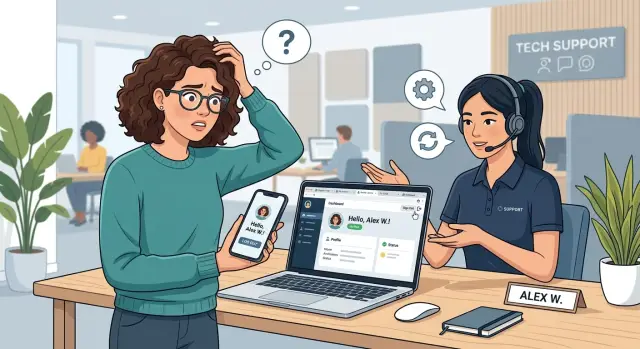
Table of Contents
Why users think they are still logged in
People judge login state by what they see. If they tap "Log out" in one tab, close the app, then open another page and still see their account, they assume logout failed.
That reaction is reasonable. Most users expect one clean result: either they are signed in or they are signed out. Real session behavior is often messier.
A common case starts with multiple tabs or devices. Someone signs out on their phone, but their laptop still has a live session. Or they log out in one browser tab while another tab still shows cached account data until the next auth check. To the user, it looks like the account came back on its own.
Refresh behavior makes this worse. The screen may look logged out for a moment, then a refresh token gets a new access token in the background and the account appears again. Most people read that as a serious bug, or proof that someone else still has access. Often, nobody broke in. The app just followed its own rules.
Support teams run into the same problem. A customer asks for a reset or says, "Please log out all devices," but support still sees one valid session in the admin tools. That can happen when revocation touches only some tokens, or when old sessions stay active until they expire. Support says the reset worked. The user says they are still signed in. Both may be right.
That gap between what people expect and what the system actually does is why phantom logins feel so alarming. The user sees an account return after logout, support sees a session that should be gone, and everyone jumps to compromise first. Sometimes it is a real security issue. Just as often, it is session behavior that no one explained clearly.
What a session really is
A session is the app's memory of a successful sign-in. It tells the app, "this person already proved who they are," so it does not ask for a password on every click.
That memory usually works in one of two ways. On the web, a browser often stores a cookie, which it sends back to the site automatically. An access token does a similar job, but the app usually manages it directly and sends it with each request. To users, both mean the same thing: "I'm logged in." To support and engineering, they are different.
Cookies usually stay inside one browser profile. If someone signs in with Chrome and then opens Firefox, that is often a separate session. Access tokens can live in a mobile app, a desktop app, or a single-page web app. That is why the same account can stay active in several places at once. A laptop browser, a phone app, and a tablet browser may all be signed in at the same time.
Refresh tokens sit behind the scenes. After sign-in, the app often gets a short-lived access token and a longer-lived refresh token. When the access token expires, the app uses the refresh token to request a new one. The user may never notice. They just keep using the app, which is exactly where phantom logins start to confuse people.
This also explains why logout does not always work the way users expect. Logging out in one browser tab may clear that tab's cookie, but it does not always affect the phone app or another browser on the same account. If the system does not track and revoke every refresh token, some sessions can keep renewing themselves.
Web and mobile apps often behave differently too. Browsers follow cookie rules and usually stop sending a cookie once it is removed. Mobile apps often store tokens inside the app and may try to refresh them in the background. So a user can look logged out on one device and still appear active on another, even though they think there is only one "login."
How refresh tokens create phantom logins
Many apps do not ask users to sign in every time an access token expires. They keep a refresh token in the browser or app, then use it to fetch a new access token in the background. To the user, nothing happened. To support, it can look like a login that refused to die.
This is where phantom logins come from. A short-lived access token may expire after a few minutes, but the app replaces it before the user notices. So a person thinks, "my session should be over by now," yet the next click opens the account as if nothing changed.
Logout often fails for the same reason. The user clicks "log out," the app clears one token, but a valid refresh token still sits in storage or in another tab. A page reload or API call pulls a fresh access token, and the user lands right back inside the account. From their point of view, the site ignored the logout button.
Browsers make this harder to spot because tabs do not refresh at the same time. One tab may still show an old signed-in state. Another tab may already have used the refresh token and renewed the session. If the user also has the same account open on a phone, each device may rotate tokens on its own schedule.
A simple case happens all the time: someone signs out on a laptop, closes the lid, then opens the same app later on their phone. The phone still has a valid refresh token, so it keeps working. When the laptop wakes up and the tab reloads, it may sync back into an active session. The user reports, "I logged out everywhere, but your app logged me back in."
Support teams often chase the wrong clue first. They check password changes, cookie expiry, or browser cache. The refresh token is often the real cause. If a product does not revoke that token on logout, expire it on schedule, and sync logout across tabs and devices, users will keep seeing phantom logins.
Where device revocation breaks down
Most users hear "log out everywhere" and expect every phone, laptop, and browser tab to lose access at once. Many systems do not work that way. They revoke one token record while the device still holds enough local state to look signed in.
A common mistake is treating one refresh token as the whole device session. Real apps often store more than that: an access token, a refresh token, a cookie, and a local "you are signed in" flag. If the backend blocks only one piece, the app can still open and look normal. Support sees phantom logins. Users see a broken logout button.
Timing adds another layer of confusion. Some apps check revocation only when they ask for a new access token or call a protected API. Until that check happens, the old session can keep working for a while. In a browser, an open tab may still show account data from memory, so the user thinks the account is fully active.
Offline devices make it worse. A phone with no connection cannot ask the server whether the session is still valid. It keeps the last state it had. If the user signed out everywhere from another device, that offline phone may still open the app later and look logged in until it reconnects and tries a server call.
When people revoke access, they usually expect four things to happen right away. Every device should lose new access. Every app should ask for sign-in again. Old tabs should stop showing account data after a refresh. The change should happen quickly.
A simple example: someone resets their password on a work laptop after losing a tablet. The admin revokes the current refresh token, but the tablet has an older token set and no network at that moment. Two days later it reconnects, opens the app, and still shows recent data for a short time. The user thinks the reset failed, and support starts chasing the wrong bug.
The fix is not glamorous, but it works. Track sessions at the device level, not just at the token level. When you revoke a device, block refresh, clear cookies where you can, force a fresh server check on sensitive screens, and make the app remove local signed-in state as soon as the server says the session is dead.
Shared browsers make the problem worse
A lot of phantom logins start on a device that several people use. Think of a family laptop, a front desk computer, or a shared tablet in a small office. If everyone opens the same browser profile, they also share the same cookies, saved sessions, and account hints.
That catches people off guard because a normal browser window keeps state for a long time. Many people think closing the tab, or even restarting the computer, clears everything. It usually does not. The browser can reopen with the same session cookies still active, and the app may refresh the session in the background.
Saved accounts add more confusion. A password manager or browser autofill can put the wrong email into the login form, and a saved account chooser can push someone back into the last account that used the site. Support then gets a ticket that sounds like a breach, even when the browser simply reused old state.
A familiar example looks like this: a parent signs in on the home PC, logs out, and walks away. Later, their teenager opens the same browser, clicks the first saved account, and lands on a screen that still looks partly signed in. The app may show the old profile photo, restore cached data, or use a refresh token that was never cleared. To the second person, it looks like the first account never logged out.
Before support guesses, they should ask a few direct questions. Does anyone else use this computer or browser profile? Did you log in with a saved account suggestion? Are you using a normal browser window instead of private mode? Did another person use this device earlier today? Those questions save time because they rule out the most ordinary cause first: one shared browser profile acting like one shared identity.
A simple example from a support ticket
A user signs out on a work computer before going home. Later that night, she opens the app on her phone and lands straight back in her account. She is sure she logged out, so her first thought is the obvious one: someone else got in.
Support checks the account and sees that the browser session on the work computer ended. That part looks normal. Then the user adds one more detail: a tablet at home still opens the app too, even after support resets the password.
That is the moment when phantom logins start to feel like account takeover, even when nobody else touched the account.
In a case like this, several things can be true at once. The office browser may have cleared its session cookie. The phone may still hold a valid refresh token and quietly ask for a new access token. The tablet may keep working because the app never forces a full sign-in check after the password reset.
From the user's side, the signals do not match. One device says logged out. Another still opens the account. A password reset changes nothing right away. That mismatch creates panic fast.
Support agents sometimes make it worse by saying "you are logged out everywhere" when the system only ended one session type. Shared browser sessions can add even more confusion. If the work computer is used by more than one person, the browser may still autofill the account or reopen a cached page. The user sees their name on screen and reads that as proof the session is still live, even if the server would reject the next real action.
The fix is usually much less dramatic than the report. Support needs to check which devices still have refresh tokens, whether device revocation reached them, and whether the app asks the server to recheck auth after logout or password reset. If that logic is loose, users get mixed messages, and mixed messages are what make phantom logins feel real.
How to check and fix it step by step
Start by mapping every place that can keep a user signed in. Many teams check the server and stop there. That misses the browser cookie, local storage, session storage, mobile app storage, and any refresh token cached by a library.
If one copy survives, the user can look logged out in one place and logged in somewhere else. That is how phantom logins start.
Next, define logout in plain language. Logging out on one device should end only that device session. Logging out everywhere should end every active session, every refresh token, and every remembered device tied to that account.
Then test the flow in a fixed order. List each place that stores session state on the client and on the server. Revoke or rotate refresh tokens when the user logs out, changes a password, or reports a lost device. Make the app check revocation before it renews access with a refresh token. Decide how device removal works, and make the result match the wording users see.
That sounds basic, but many teams skip the final step: testing across real devices. Log in on Chrome, Firefox, and a phone. Log out in one browser, then refresh the page in the others. Change the password and repeat the test. Remove a device and see what happens after the next token refresh.
A good result is simple. The logged-out device should fail on its next request and go back to sign-in. Devices that should stay active must keep working. Devices that should be removed must stop renewing access.
The common trap is easy to miss: the access token expires, but the app still has a working refresh token. The user thinks logout failed, support sees mixed signals, and engineering argues about whether the problem lives on the client or the server.
Write down the expected result for each action. That gives support something concrete to compare against. It also helps them tell the difference between an old page that has not refreshed yet and a session the system still accepts.
Common mistakes teams keep making
Teams often treat access token expiry as if it means the user is fully logged out. That sounds neat on paper, but it breaks in real use. If the app still holds a live refresh token, it can pull a new access token and open right back up.
The same mistake shows up after a password reset. Many teams change the password, end the current web session, and stop there. If they leave old refresh tokens alive on phones, tablets, or background browser tabs, those devices can quietly sign back in.
"Remember me" causes trouble too, mostly because teams leave the behavior vague. Users read it as "keep me signed in until I say otherwise." Support may think it means "extend this session for a few days." Engineering may tie it to refresh-token lifetime without explaining that choice clearly. When those three ideas collide, users think the system is broken.
Shared machines make everything worse. Office desktops, family laptops, and public computers still exist, and people still forget to sign out. If the app does not show a plain warning on shared devices, someone else can reopen the browser and step straight into an account.
Support teams also close tickets too early. They see the user logged out on one browser, mark the issue fixed, and move on. Then another device wakes up, sends a refresh request, and the problem returns.
A better habit is simple: expire access tokens, revoke refresh tokens when risk changes, spell out what "remember me" does, warn users on shared browsers, and wait until every device checks in again before closing the case. This work is boring, but it saves hours of support time and lines up much better with what users think "log out everywhere" should mean.
Quick checks before you close the ticket
A session ticket is not done when one browser tab shows a login screen. Phantom logins often survive in the places nobody checked: a second tab, a phone app, an old refresh token, or a shared laptop profile.
Before support closes the case, they should verify what the product actually did instead of relying on what they expected it to do. Users should be able to see active devices and remove them without opening a support ticket every time. "Log out everywhere" should revoke refresh tokens too, not just short-lived access tokens or browser cookies. Web, mobile, and desktop apps should follow the same session rule, or the product should explain the difference clearly.
It also helps when the app warns users that a session may stay visible briefly until the next token check, sync, or restart. Support should be able to confirm revocation in logs or an admin screen and tell the user exactly what changed.
Small mismatches cause most of the confusion. If the browser drops a cookie right away but the mobile app keeps using a refresh token until its next sync, the user sees two different states and assumes logout failed.
Shared browsers make this even harder. A person may sign out of your app but stay signed in to the browser profile, so the next visit signs them back in with no warning. On a family computer or office machine, support should ask who else uses that browser before blaming the user or the auth system.
The last check is simple: can support confirm the action without guessing? A good reply sounds like this: "We revoked all refresh tokens and removed three active sessions. Your phone app should ask you to sign in again after its next sync." "It should be fixed now" usually is not enough.
What to do next
Pick one rule for session behavior and write it down in plain English. Define what logout does, how timeout works, what happens after a password reset, and whether removing a device stops only future refreshes or also ends the current session right away. If product, engineering, and support give different answers, users will keep seeing phantom logins.
Then test that rule with real cases, not just one browser tab on one laptop. Use two browsers, a private window, a phone, and a second device. Log out in one place and refresh in another. Reset the password while an old tab is still open. Remove a device and see whether refresh tokens still create a new session a few minutes later.
Most session support issues hide in small gaps between what the team expects and what the app actually does. A stale tab, a shared browser session, or a refresh token that lives too long can make the user look logged out and logged in at the same time.
Support also needs a short script they can use without guessing. Ask whether the user is on a shared browser, public computer, or work device. Ask if they changed their password or removed a device recently. Check when the latest refresh token was issued and whether old sessions can still renew. Then tell the user the exact next step, such as full sign-out, browser restart, or signing in again on the device.
Keep that script short enough to fit in one internal note. A checklist that takes five minutes works better than a long policy nobody remembers.
If these tickets keep slowing your team down, Oleg Sotnikov at oleg.is can review the session design and support flow as a Fractional CTO or advisor. His background in production systems, software architecture, and lean operations is a practical fit for finding where logout rules, token rules, and support steps stop matching each other.


