Invoice OCR errors: where review still misses edge cases
Invoice OCR errors still slip through when vendors change layouts, scans get messy, and reviewers rush. Learn where fields break and how to catch them.
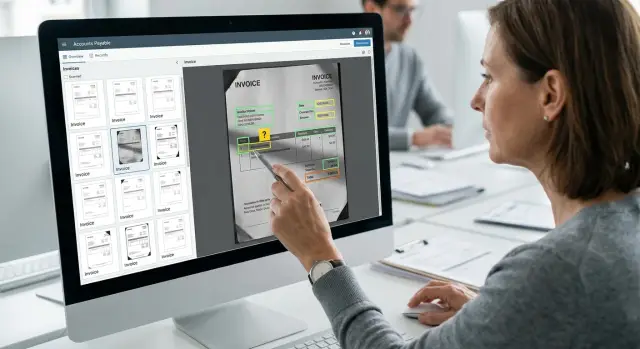
Table of Contents
Why invoices still slip through OCR and review
OCR can read text on a page. What it often misses is meaning.
An invoice might show two dates, three reference numbers, a subtotal, a freight charge, and a tax ID in roughly the same area. The text is visible, but the system still has to decide which value belongs in which field. Many extraction errors start there.
Invoices are full of lookalikes. A supplier account number can look like an invoice number. A service period can look like a due date. A tax ID can sit where the parser expects a PO number. On a familiar template, the software can get away with a rough guess. On a slightly unusual invoice, the same guess falls apart.
Human review does not always catch the problem. Reviewers often scan the vendor name and grand total, then approve the invoice if both look right. They can miss a wrong currency, a bad PO number, a shifted tax amount, or a line date that landed in the wrong field. Even careful people miss things when the queue is long and most invoices look routine.
One wrong field can cause more trouble than a full OCR failure. If OCR misses everything, the invoice stops and someone fixes it. If it gets most of the document right, the invoice can move forward with a hidden error. Matching fails, approval goes to the wrong person, or the ERP posts the amount under the wrong supplier record.
The damage builds quietly. Ten small misses in one day can mean ten follow-up emails, ten manual corrections, and ten chances to pay late or post bad data. None of those mistakes looks dramatic alone. Together, they turn a fast workflow into a cleanup job.
A simple example makes the point. A reviewer sees the total is correct and the supplier name looks normal, so they approve the invoice. Later, AP finds that OCR pulled the customer number into the invoice number field. The invoice fails duplicate checks, and someone has to untangle it by hand.
How layout drift breaks field extraction
Layout drift sounds minor, but it breaks extraction faster than many teams expect. The parser does not read an invoice like a person. It looks for labels and values in places it learned before. When a vendor changes the template, even a small shift can create errors that slip through review.
A common change is the invoice number moving to a new spot. Last month it sat in the top right corner. This month the vendor places it under the billing address or next to the purchase order number. If the rule still searches the old area, it may return nothing. Worse, it may grab the PO number and label it as the invoice number because the format looks close enough.
Totals break the same way. Many rules assume subtotal, tax, and total appear in a fixed order near the bottom. Then a vendor updates the layout and puts tax above subtotal, or adds a discount line between them. The extractor still reads by position, not by meaning. You end up with numbers that look reasonable but sit in the wrong fields.
Branding changes cause trouble too. A new logo, a payment banner, or a larger header can push labels several lines down the page. The words are still there, but not in the zones the system expects. Old extraction rules keep searching the wrong area and often pull the nearest number instead of the right one.
Review misses layout drift for a simple reason: the invoice still looks familiar. A reviewer recognizes the vendor, sees complete-looking data, and approves it. They may not notice that the system captured the invoice date from one line and the due date from another because both sat near the same header.
It helps to treat repeat vendors as living templates, not fixed ones. When the same supplier starts failing on one field, check whether the whole page shifted. If two or three fields change at once, layout drift is usually the cause.
Vendor habits that confuse the parser
Some of the hardest errors come from documents that look consistent to a person but change in small ways from one supplier to the next. Reviewers miss them too, especially when they process the same vendor every week and start trusting the pattern.
Dates are a classic problem. One supplier writes 03/04/2025, another writes 04/03/2025, and a third uses 2025.04.03. If the parser guesses instead of checking vendor history, it can swap month and day and still produce a valid-looking date. Human reviewers miss that kind of error because nothing looks obviously broken.
Credit notes create another trap. Some vendors use almost the same layout for invoices and credits, with only a small label near the top or a minus sign on the total. If the system reads the amount but misses the document type, finance gets a charge instead of a reversal.
Small habits, big extraction problems
Purchase order numbers often sit outside the invoice itself. A supplier may place the PO only in the email subject, the attachment name, or the email body. If the workflow checks only the PDF, that number never reaches matching.
Multi-page files break assumptions too. Page one may hold the supplier name and invoice number, while page two carries tax, shipping, or the final total. Some parsers treat pages almost like separate documents. A reviewer moving too quickly can confirm page one and miss the amount that changes on the last page.
Handwritten notes make things worse because they usually appear near the fields that matter most. Someone circles a tax line, writes "paid 50%" next to the balance, or adds a corrected amount in pen. OCR cannot reliably tell whether the note is a comment, a replacement value, or noise. The parser may grab the wrong number, and the reviewer may trust the typed value without noticing the handwriting.
A practical fix is to flag vendors, not just documents. Track who uses mixed date formats, who sends credits in invoice templates, and who splits details across pages. Reviewers catch more when they know a vendor's usual patterns before they open the file.
What low-quality scans do to the text
A clean PDF gives OCR a fair chance. A bad scan changes the page before the software reads a single word. The text may still look readable to a person, but the machine sees broken shapes, missing gaps, and lines that no longer sit where they should.
When someone feeds a page at a slight angle, the first damage often shows up in tables. Row lines tilt, column borders fade, and amounts jump into the wrong column. The parser may read a unit price as a line total or merge two rows because the grid no longer looks like a grid.
Shadows cause quieter mistakes. A gray band near the fold of the paper can hide a decimal point, turning 108.50 into 10850 or 108 50. Light gray backgrounds do the same. They lower contrast, so OCR starts guessing at small marks instead of reading them.
Compressed PDFs are another problem. Heavy compression blurs sharp edges, and some digits become lookalikes. An 8 can turn into a 3. A 6 can look like a 0. If that happens in tax, quantity, or total fields, the result can pass a quick human check because the number still seems plausible.
Cropped pages remove context. If a scanner cuts off the top right corner, the invoice number or date may vanish. A crop at the bottom can remove payment terms or the total due. Reviewers often focus on populated fields, so blanks caused by cropping can slip through when the rest of the page looks normal.
Stamps and signatures create a different kind of mess. They sit on top of printed totals, due dates, or bank details. OCR mixes ink from both layers and returns text that looks half printed, half handwritten.
A few warning signs usually mean the scan needs another pass:
- Totals with missing decimals or odd spaces
- Dates that change format on the same vendor's invoices
- Blank invoice numbers on pages that otherwise look complete
- Line items collapsed into one long row
Many extraction errors start here, not in the field rules. If the image is weak, check the source page first and the captured fields second.
How to build a review step that catches misses
A review step works best when it ignores most fields. If every invoice goes to a person for a full read, people get tired quickly and miss the same problems the system missed.
Start with the fields that can cause payment or posting mistakes: total, invoice date, vendor name, tax amount, PO number, and bank details. That short list should come from your own rework history, not from a generic template.
Then route only risky values to review. Totals, dates, and vendor names should go to a person when confidence drops, when two extracted fields disagree, or when the format looks unusual for that vendor. A clean invoice should pass with little or no human touch.
Reviewers should not have to hunt around the page. Show each extracted value next to the exact source snippet or image crop so they can compare the text in a few seconds.
Instead of asking for a full document check, ask narrow questions:
- Is the total 1,980.00 or 1,890.00?
- Does the vendor name match the header and tax ID?
- Is the date 03/04/2025 or 04/03/2025?
- Did the system pull the invoice number from the right label?
That keeps the task small and attention sharp. People are much better at confirming one doubtful field than rereading a whole page that mostly looks fine.
A common miss looks harmless. A vendor moves the invoice number from the top right to the middle of the page and changes "invoice date" to "bill date." The parser still returns something plausible, so a broad review lets it through. A focused check on the date and invoice number catches the problem before the data enters finance tools.
The last part is the feedback loop. When reviewers fix a value, save the correction with the invoice image, vendor name, and reason for the miss. Use those confirmed fixes to adjust rules, prompts, and vendor patterns. If the same error appears three times, the review step has already told you what to fix.
A realistic example from one AP inbox
A finance team gets a monthly invoice from the same courier company. For six months, the file looks almost identical. The logo sits in the top left, the invoice number stays near the top, tax appears in a small summary box, and the final total sits in the bottom right.
The OCR tool gets used to that pattern fast. So do the reviewers. After a while, people stop reading every field closely because the invoice usually arrives in the same shape with the same data in the same places.
Then one month, the vendor changes the template a little. They add a promotional banner across the top of the PDF, and that pushes the summary box down. The tax amount now appears where the total used to be, and the real total moves a bit lower.
The file still looks clean. Nothing looks damaged or suspicious. The vendor name is familiar, the purchase order matches, and the numbers look believable at a glance.
But the extractor still looks in the old spot for the total. It reads the tax amount, $184.20, and saves that as the invoice total. The real amount due is $2,026.20.
A reviewer opens the record, sees a vendor they trust, glances at the page, and clicks approve. That is how these errors slip through even when a person checks the result. Familiarity makes people faster, and fast reviews miss quiet changes.
The mistake does not show up right away. It appears later during reconciliation, when the payable in the system does not match the vendor statement or the bank movement. Now someone has to pull the original PDF, compare every amount by hand, fix the entry, and explain the mismatch.
This example is ordinary, which is why it matters. No one uploaded a broken scan. No one typed the wrong number. A regular vendor made a small layout change, and both the OCR tool and the reviewer followed an old habit.
One extra check could have caught it early. The system could compare subtotal, tax, and total, or flag invoices when a known vendor suddenly shifts field positions.
Where teams trust the system too much
The problem often starts with a precise-looking number. A confidence score of 96% feels safe, so the team moves on. But field type matters more than the score. If OCR reads the invoice date as the due date, or swaps net amount and tax, a high score does not protect you from a bad posting.
That is why some errors stay hidden in plain sight. Teams treat every extracted field the same, even though the risk is not the same. A wrong supplier name is annoying. A wrong bank detail, currency, or total creates real cleanup work.
Another mistake is reviewing the whole page instead of the few values most likely to fail. People scan a full invoice, see the logo, line items, and total, and assume the data looks fine. That review is slow, and it still misses small errors in dates, PO numbers, tax IDs, or payment terms.
The better habit is simpler. Check the fields that affect payment, tax, and matching first. Compare flagged values against the source image, not against neighboring fields. Review exceptions when they arrive, not at month end.
Vendor-specific problems also pile up because teams keep postponing them. One supplier always places the invoice number near a shipping reference. Another changes the footer every quarter. If nobody isolates those exceptions early, the same bad guesses repeat for weeks.
Template reuse causes a quieter failure. Two vendors may look similar, so someone maps them to one extraction pattern. It works in the common case, then breaks when one vendor moves the VAT line, changes the decimal format, or puts the total inside a boxed summary. Now the parser makes the same wrong choice every time, and reviewers trust it because it usually looks close enough.
Image cleanup gets skipped for the same reason. Most files look readable to a person, so no one bothers with rotation, contrast fixes, or background cleanup. Then a few faint scans, phone photos, or skewed PDFs slip through and contaminate the review queue.
If a team wants fewer misses, it should trust less and sort better. Review the risky fields first, split vendors that behave differently, and fix weak images before extraction starts.
A short checklist before data enters finance tools
A fast review step should catch the small misses that create big cleanup later. Most extraction errors are not dramatic. They look like one wrong digit in the invoice number, a flipped date, a missing currency, or a total that seems close enough until it reaches accounting.
Use the same checks every time. Consistency matters more than adding more people to the queue.
Verify the invoice number, invoice date, currency, and final total against the document image, not just the extracted text. Recalculate the math and confirm that subtotal, tax, fees, or discounts match the amount due. Match the vendor name to the supplier record. If the parser pulled a trading name, an old company name, or a partial header, stop and confirm it.
Check the document itself for missing pages, upside-down pages, and rotated or cropped scans that hide line items or totals. Search for duplicates before posting, including near matches where the vendor, amount, date range, and invoice number are almost the same.
These checks fail in boring ways. A scan can drop the last page where the total lives. A vendor can write invoice numbers with spaces on one file and hyphens on the next. A tax line can be read as part of the subtotal. That is how a clean-looking record slips through.
The math check is usually the fastest sanity test. If the extracted total says 1,280.00 but subtotal plus tax adds up to 1,208.00, stop and look at the image before the record moves on.
Duplicate control also needs more than an exact-match rule. Two copies of the same invoice may differ by one character because OCR read "I" as "1" or dropped a slash in the invoice number. If the vendor, amount, and timing are too close, hold it for review.
Bad data gets much harder to fix once it lands in finance tools. Five quick checks at the gate save more time than a long cleanup at month end.
What to do next if misses keep piling up
When invoice OCR errors keep showing up, stop treating them as random. Most teams already have a pattern. They just have not counted it yet.
Start with a simple log for two to four weeks. Track which fields fail most often, then group those failures by vendor. In most teams, a small set of repeat offenders shows up quickly: invoice number, total amount, tax, PO number, or due date.
That split matters because the fix depends on the cause. A blurry scan and a clean scan with the wrong field mapping are different problems, even if both end with a bad total in the finance system.
A basic triage table helps. Mark scan issues such as skewed pages, faint print, cut-off margins, and stamps over text. Mark mapping issues such as totals pulled from the wrong box, dates read in the wrong format, and header fields confused with line items. Mark vendor habits like unusual labels, multi-page totals, handwritten notes, or repeated reference numbers. Mark reviewer misses too, especially when the system flagged something and the queue still let it pass.
Do not rebuild the whole workflow at once. Pick one tighter review queue and test it first. For example, route only low-confidence invoices from the five noisiest vendors to a senior reviewer for one week. That kind of small test shows whether the problem sits in the model, the rules, or the handoff between them.
Then write simple rules for the worst templates first. If one vendor always puts the invoice number under "Reference" or prints the total twice, add a rule for that template before touching the rest of the stack. A few plain rules often remove more pain than a large model change.
If low-quality scans drive most of the misses, work upstream too. Ask vendors for cleaner PDFs, set minimum scan standards, or reject files that are too cropped or too faint to trust. Review cannot rescue every bad input.
If the issue spans extraction, review logic, and the way data moves into the rest of finance, an outside technical review can help. Oleg Sotnikov at oleg.is works with startups and small to mid-sized businesses on practical AI-driven workflows, infrastructure, and process fixes, which can be useful when the OCR problem is really part of a larger operations problem.
The next step is rarely "replace everything." It is usually a short list of failing fields, a vendor group with obvious patterns, and one controlled fix you can measure next week.
Frequently Asked Questions
Why does OCR miss fields even when the invoice looks clear?
Because OCR reads characters first and guesses meaning second. When an invoice shows several dates, reference numbers, and totals close together, the system can put the right text in the wrong field and still look correct at a glance.
What is layout drift on an invoice?
Layout drift means a vendor moved labels or values on the page. A small banner, a larger header, or a moved summary box can push the invoice number, tax, or total into a new spot, and old rules keep reading the old area.
Which fields should a reviewer check first?
Start with the fields that can cause payment or posting trouble: invoice number, invoice date, currency, total, tax, vendor name, PO number, and bank details. Keep the check narrow so reviewers confirm doubtful values instead of rereading the whole page.
Can a high confidence score still hide a bad extraction?
Yes. A high score only means the model feels sure about what it read, not that it chose the right field. It can read a due date clearly and still save it as the invoice date.
How do vendor habits create repeat OCR errors?
Suppliers format dates, credits, references, and totals in their own way. One vendor may use mixed date formats, another may hide the PO in the email, and another may split totals across pages, so the same parser guess fails again and again.
What scan problems hurt invoice OCR the most?
Skewed pages, shadows, heavy compression, cropped edges, stamps, and signatures cause a lot of misses. They blur digits, hide decimal points, and break tables, so check image quality before you blame the field rules.
How should I review a multi-page invoice?
Open every page and verify where the final amount lives. Many files put the supplier and invoice number on page one but move tax, shipping, or the final total to the last page, so a quick first-page review misses the real amount.
How do I catch duplicate invoices when OCR changes one character?
Compare more than the invoice number. If the vendor, amount, and date range almost match another record, hold it for review even when OCR changed one character, dropped a slash, or confused I with 1.
What should I log when invoice OCR errors keep repeating?
Keep a simple error log for two to four weeks. Track the wrong field, the vendor, the file quality, and what the reviewer changed, then group the misses so you can see whether scans, mapping, or vendor patterns cause most of the rework.
When should I fix the input, adjust rules, or ask for outside help?
Fix the source first when bad scans drive the problem, and tighten vendor rules when clean files still map fields wrong. If errors spread across extraction, review, and finance posting, an outside technical review from someone like Oleg Sotnikov can help you sort the workflow without replacing everything.


