Frontend state ownership: a simple map before UI sprawl
Frontend state ownership starts with a clear map. Learn where server, local, form, and URL state belong before components sprawl.
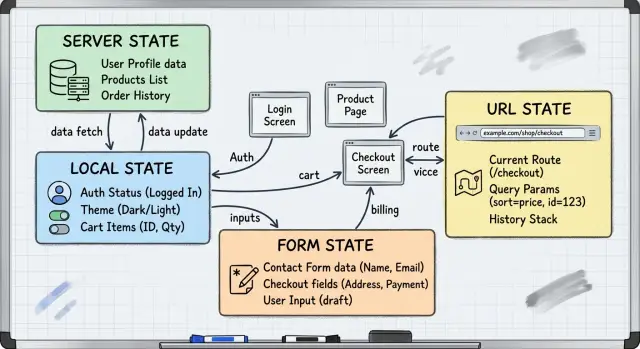
Table of Contents
Why state gets messy fast
State problems rarely start with one big mistake. They start with a small shortcut that feels harmless. A component keeps a copy of fetched data so it can sort it. Another stores the same data to show a badge. Then a form needs default values, so someone copies the record again.
A week later, the UI still works most of the time. That is what makes the problem hard to spot. The app now has three or four versions of the same truth, and each one updates on its own schedule.
This is where state ownership matters. If nobody decides who owns a piece of data, every component tries to help. It sounds practical, but it creates drift. One part reads fresh server data, another reads local state from five clicks ago, and a third reads form values the user has not saved yet.
The trouble gets worse when different kinds of state overlap. A filter may live in the URL, but someone also keeps it in component state for convenience. A form may start from server data, then keep its own edits, while the parent also tracks changes for a summary panel. One small change now triggers updates in too many places.
You usually notice it through odd symptoms:
- A reset button clears the form but not the list.
- The badge count changes, but the table does not.
- A refresh fixes the bug, then it comes back.
- Two tabs show different results for the same screen.
These bugs feel random because the stale copy is often hidden. The wrong value is not obviously wrong. It may be one render behind, or only wrong after a refetch, or only wrong when a user edits a field and changes a filter in the same session.
Teams often blame React, the store, or the data fetching library. Most of the time, the problem is simpler. The app has no map for where state should live, so data leaks across boundaries. Server state mixes with local UI state. Form edits mix with saved records. URL params mirror component values for no clear reason.
Once that happens, even small features get expensive. A tiny product change can touch five components, two hooks, and a store that should never have owned the data. The codebase does not look broken. It just feels harder every week.
The four kinds of state
Most frontend bugs start when different kinds of data end up in the same place. A simple rule helps: sort state by where it comes from and how long it should live.
Server state and local state
Server state is data your UI reads but does not truly own. It comes from an API, a database, or another backend source, and it can change without the current screen doing anything. A product list, account details, inventory counts, or order status all fit here.
Because this data lives outside the component, it usually needs fetching, caching, loading states, and refresh logic. Trouble starts when a component copies server data into local state for no clear reason. That is how stale values creep in and two parts of the screen start showing different answers.
Local state is much smaller. It drives one interaction or one screen: an open modal, a selected card, a sidebar toggle, or an expanded row. If only one part of the UI cares about it, keep it close to that part. A global store is usually too much for simple screen behavior.
Form state and URL state
Form state is draft state. It holds the values a person is typing, validation errors, touched inputs, and dirty fields. If a user edits a product name but has not saved yet, that draft belongs to the form, not to server state. Mixing those two often causes annoying bugs, like inputs resetting after a refetch.
URL state is for choices that should survive refreshes and be easy to share. Filters, tabs, sort order, page numbers, and search terms belong here. If someone copies the page address and sends it to a teammate, the view should open with the same context. If those settings only live in memory, that context disappears.
A simple product page shows the split clearly. The fetched products are server state. The open filter panel is local state. The edit dialog fields are form state. The selected category and page number are URL state.
Each type needs a different home. Server state belongs in your data fetching layer. Local state belongs near the component. Form state belongs in the form. URL state belongs in the address bar. It is a plain split, but it makes the code much easier to trust.
How to decide who owns data
Most state bugs start with one small mistake: data lives in the wrong place, then another component copies it "just for now." A week later, both copies drift apart. State ownership gets much easier when you ask a few blunt questions before you write the component tree.
Start with origin. Who creates the value first? If the backend creates it, the UI usually should not pretend it owns it. A product list from an API belongs to server state. If a user types into an input and that value exists only during editing, the form owns it. If a dropdown is open for two seconds and nobody else cares, keep that state local.
Then ask who can change it. If many screens can update the same data, you want one source, not several mirrors. A user profile that updates in a modal, a settings page, and a header menu should not live as separate local copies. Keep one owner and let other parts read from it.
A third question saves a lot of cleanup later: does this value need to survive a refresh? If yes, local component state is usually the wrong home. Search filters, sort order, active tab, and pagination often belong in the URL because users expect the page to come back in the same state when they reload, bookmark, or share it.
A simple test works well:
- If the server is the source of truth, keep it as server state.
- If the user is editing a draft, keep it in form state until save.
- If the value only affects one small UI detail, keep it local.
- If the page should restore or share it, put it in the URL.
- If two places truly need the same live value, lift it once and stop there.
That last point matters. Many teams lift state too early. They move a checkbox, dialog state, or temporary selection into a parent or global store because it feels safer. It usually makes the code harder to follow. Keep state as close as possible to the component that actually owns it. Lift it only when two parts need one shared source at the same time.
A good rule is simple: if removing a component would make the state meaningless, that component probably owns it. If the state still matters after the component disappears, another layer should own it.
Draw the map before you code
Open a blank doc or whiteboard and write down every piece of data visible on the screen. Use plain names: products, selected category, search text, page number, draft title, save error, modal open, sort order. This takes five minutes and often prevents days of cleanup.
Then tag each item with one owner. Most confusion starts when one value quietly lives in two places. You do not need anything fancy. A small list is enough: server state for backend data, local state for UI details, form state for unsaved input, and URL state for filters, paging, and view options that should survive refresh and back button use.
After that, write two notes beside each item: where it starts, and who can change it. "Product list" starts on the server, and refetching or a mutation can change it. "Search box text" might start from the URL, then the user can change it. "Edit form draft" starts from server data once, then the form owns it until save or reset.
That second note matters more than many teams think. If two parts of the UI can change the same value, you need one source of truth and a clear update path. If you skip this step, duplicate state appears fast: a filter copied into local state, the same filter mirrored in the URL, and a form seeded from stale cached data.
Be strict about what must survive refresh and back button use. If a user should be able to bookmark the current view or share it with a coworker, that state belongs in the URL. If losing it is fine, keep it local. Form drafts are a separate choice. Many teams keep them only in form state unless users truly need draft recovery.
Before you split the screen into components, remove duplicate copies on paper. One value should have one home. Components can read it, derive from it, or send updates upward, but they should not each keep their own version.
A simple map can be enough: "products = server, filters = URL, edit draft = form, modal open = local." That small step shapes the whole screen. You know where to fetch, where to reset, and which state should never be copied.
Example: product list with filters and edit form
A product list page is a good place to see state ownership in real life. One screen often tries to do five jobs at once: load products, filter them, paginate them, expand rows, and edit one item. If you do not assign each state to one clear owner, the page gets messy fast.
Use a simple map. Products come from the server. Search text and page number live in the URL. Expanded rows stay local to the page. Draft edits stay inside the form.
Picture a team building an admin page for a small shop. The page opens at ?q=chair&page=2. The app reads the URL, then requests products that match that search and page. That means the product list itself is server state, not local page state. If another user changes a product, or the backend updates stock, the server stays the source of truth.
The search box and page number belong in the URL because users expect them to survive refresh, back and forward clicks, and copy-paste. If someone sends that address to a coworker, the coworker should land on the same filtered list. That is a strong hint that this state should not sit in a component store.
Now look at row expansion. Maybe the user opens two product rows to see more details. That choice matters only on this page, during this visit, for this person. It does not need to survive a reload, and the server does not care about it. Keep it local to the page component.
Editing is different again. When the user opens a form for one product, the draft name, price, and description should stay inside the form state until they click Save. While they type, you do not want to mutate the list row, the cached product object, and a sidebar preview all at once. That creates duplicate state and small bugs that waste hours.
After Save, send the update, then fetch fresh server data. In most cases, that is cleaner than patching several copies by hand. The list updates through the response path you already trust. The form can close, the page keeps its URL filters, and the local expanded-row state can stay as it is.
This is the whole pattern on one screen: server data on the server path, shareable view state in the URL, temporary UI state in the page, and unsaved edits in the form.
Mistakes that create duplicate state
Duplicate state usually starts with a cautious decision that feels harmless. Someone copies API data into local state "just in case," and the app seems fine for a while. Then the server data updates, the copied version does not, and people start chasing bugs that only appear after a refresh, a refetch, or a second tab.
A product list page is a common example. The server already owns the list of products, prices, and stock counts. If a component copies that list into local state only to sort, filter, or tweak one row, you now have two sources of truth. One says a product is in stock. The other still shows yesterday's number.
Form drafts often go wrong in the other direction. Teams put every draft into a global store because they want to keep things accessible. Most of the time, that draft belongs to one screen and one user action. If the whole app can touch it, the draft can survive longer than it should, leak into another page, or get overwritten by unrelated code.
Shareable filters create another quiet problem when teams hide them outside the URL. If the current search, sort order, selected category, and page number only live in memory, users lose them on refresh. They also cannot send the exact view to a coworker. Filters that define what the page shows usually belong in the URL, not in a private store.
The mess gets worse when one value lives in two stores. A selected item ID might sit in the URL and also in Redux or Zustand. Now every change needs sync code, and sync code breaks more often than people admit. One missed update is enough for the sidebar, list, and details panel to disagree.
Teams also lift state higher than needed just to avoid passing props. That feels tidy at first, but it often turns a parent into a storage room for data it does not use. Later, a child needs the same value in a slightly different shape, so someone makes another copy. That is how a small shortcut turns into UI sprawl.
Good state ownership is mostly restraint. Pick one owner for each piece of data and make every other part of the app read from that owner. Server data stays with the server cache. Draft inputs stay with the form. Shareable view settings go in the URL. Small UI toggles stay local.
If you feel tempted to mirror data, stop and ask one plain question: what breaks if we keep only one copy? In most cases, the answer is "nothing," and that is the safer design.
Quick checks before you add another store
Most state bugs start with a reasonable shortcut. A team adds one more store for filters or an edit modal, and a month later nobody knows which value is current. Things get clearer when you ask a few plain questions before you save anything new.
If a value can be computed from data you already have, do not store it. A filtered count, a disabled button state, or a sorted list often belongs in render logic, not in a store. Derived state gets stale fast because someone updates the base data and forgets the copy.
Then check persistence. If users refresh the page, should this value still be there? Search filters, page number, and sort order often should survive, so the URL is a better home than component state. A hover flag or an open dropdown usually should disappear, so local UI state is enough.
Before you add a store, run through a short test. If another screen needs the same value, give it one shared owner instead of syncing copies. If people should be able to bookmark or share it, put it in the URL. If a form library already handles dirty fields, validation, and submit state, let it do that job. If the value comes from the server and other users can change it, treat the server as the owner. If the value is only a calculation based on existing data, compute it when you need it.
A product admin page makes this easier to see. The product list comes from the server. The current search query and selected category fit well in the URL because a teammate can open the same filtered view. The edit form owns its draft name and price until the user saves. The "12 matching products" label should not live anywhere permanent at all. It is just math.
Extra stores feel useful because they make values easy to reach. They also make bugs easy to create. When two places can update the same fact, one of them usually drifts.
If you are unsure, pick the narrowest owner that still matches user expectations. Most apps need less shared state than teams think.
What to do next
Pick one screen that already causes friction. A product list with filters, a settings page, or an edit form works well. Put the team in front of a whiteboard and mark every piece of data by where it should live.
Keep the labels simple. Data from the backend is server state. Temporary UI details are local state. Unsaved user input is form state. Anything a user may refresh, bookmark, or share belongs in URL state.
This exercise sounds basic, but it clears up a lot. Teams stop arguing about tools and start talking about ownership. That is usually the point where state ownership stops feeling abstract.
Write four short rules and keep them plain. Server state comes from the backend, so it needs fetching, caching, and refetching. Local state stays near the component when only that part of the page needs it. Form state tracks user edits before save. URL state holds filters, sort order, pagination, or the active tab when those choices should survive a refresh.
Then bring those rules into code review. Before anyone adds a store, context, or sync effect, ask: who owns this data first? Does the backend already own it? Should the state survive refresh or sharing? Is this only a draft until save? Do multiple parts of the page truly need it?
Those questions catch a surprising number of bad decisions early. They also make reviews faster because the team has a shared test instead of relying on personal preference.
If the app already feels tangled, an outside architecture review can help. Oleg Sotnikov at oleg.is works with startups as a Fractional CTO and advisor, and this kind of state audit is often much cheaper before another feature lands on top of the mess.
Start with one screen, one diagram, and four rules. That is often enough to stop the sprawl before it turns into a permanent tax on every feature.
Frequently Asked Questions
What does state ownership mean in frontend apps?
State ownership means one place owns each piece of data. Everyone else reads from that place or sends updates to it. That rule stops drift between copies.
How do I tell if data belongs to server state or local state?
Ask where the value starts and who can change it. If the backend creates it and other users can update it, keep it as server state. If one screen uses it for a short UI action, keep it local.
When should I store state in the URL?
Put it in the URL when users expect refresh, back button, bookmarks, or sharing to keep the same view. Search text, page number, sort order, and active tab often fit there.
Why should form state stay separate from server state?
Keep drafts in the form until save. If you mix draft edits with fetched data, refetches can reset inputs or show half-edited values in other parts of the screen.
Should I copy fetched API data into component state?
Usually, no. Copying fetched data into component state creates two truths, and one of them drifts. Read from your data layer, and only store local UI choices nearby.
When should I lift state up?
Lift state only when two parts of the UI need the same live value at the same time. If one component owns it and nobody else truly needs it, leave it there.
Do I need a global store for filters and modals?
Most of the time, no. Filters often belong in the URL, and modal open state often belongs near the component that renders the modal. Add a global store only when several distant parts truly share one live value.
What counts as derived state?
Derived state means you can calculate it from data you already have. A filtered count, a disabled button, or a sorted view often fits this pattern. Compute it when you render instead of storing another copy.
How do I map state before I build a screen?
Write down every value on the screen, then give each one owner. Mark where it starts and who can change it. That quick map exposes duplicate state before it reaches the code.
What should I fix first on a screen that already has messy state?
Start with one screen that already feels brittle. Remove copied server data first, move shareable filters into the URL, and keep drafts inside the form. Small cleanup on one page often clears a lot of bugs.


