File upload security rules for clean, safe storage
File upload security starts with clear size limits, safe naming, malware scans, retention rules, and a simple storage layout.
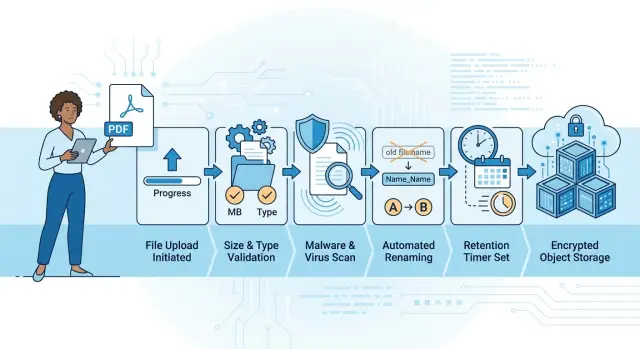
Table of Contents
Why uploads go bad so fast
Uploads look simple until real users touch them. A form built for PDFs soon gets phone photos, screenshots, ZIP files, huge videos, and exports from old office software. The gap between what you expect and what people send is where trouble starts.
Size becomes a problem fast. One large file can keep a worker busy for minutes, fill a temp folder, and push other requests into timeouts. If several people do it at once, disks fill quietly and the app slows down in ways that are hard to explain.
Names cause a different kind of mess. Users send files called "map scan final.jpg", "map scan final(1).jpg", and "final FINAL.jpg". They look harmless, but they can hide duplicates, odd characters, fake extensions, or path-like text that breaks logs and tools.
Small teams usually notice the damage late. Support tickets pile up. Someone cannot find the right customer document, another person downloads the wrong version, and a third asks why storage costs jumped. The files still exist, but nobody fully trusts them.
Cleanup usually fails for one reason: nobody owns it. Teams keep every upload "just in case", including failed imports, outdated scans, and test files from staging. A few months later, no one knows which files still matter, who uploaded them, or what they can safely delete.
That is why upload systems go bad so quickly. The mess usually starts with normal behavior, not an attack. People upload more, upload stranger files, and leave behind far more data than the first version of the feature planned for.
Decide what users may upload
Start with the job each file needs to do. That decision does more for file upload security than a long list of rules added later.
If users only need to send invoices, accept PDF. If they need profile photos, accept JPG, PNG, or WebP. Every extra file type adds risk, support work, and storage clutter.
A simple question helps: "What business action needs this file?" If you cannot answer that in one sentence, do not allow the upload yet. Random ZIP files, old office formats, executables, and design source files often slip in because nobody made a clear decision early.
Keep separate rules for each upload area. Avatars and product photos need one policy. Contracts, invoices, and reports need another. Archives should stay blocked unless a team truly needs bulk import or export. Internal admin uploads should have tighter access than public forms.
Do not leave these rules only in code. Write down who may upload, which file types they may use, where each file goes, and who can read it later. A customer support form and an internal finance panel should not share the same upload policy.
A small example makes the point. If a client portal collects identity documents, allow PDF and common image formats, send them to a private storage path for that customer, and block archives. If a marketing page lets users upload a logo, accept image formats only and store them in a separate location.
Loose upload rules create disorder fast. Clear rules keep storage cleaner, access easier to audit, and future changes much safer.
Set size and rate limits early
Good file upload security starts with boring limits. Skip them, and one user can send a 2 GB video to a form that only needed a PDF. Your app then burns CPU, memory, bandwidth, and storage before anyone notices.
Set a hard cap for each form instead of one global limit. A profile photo, an invoice, and a CAD file should not share the same rule. Small, clear limits also help users. People learn quickly when the form says what fits and rejects the wrong file right away.
A simple setup often works: profile photos at 5 MB, PDF documents at 10 to 20 MB, support attachments capped at three files per request, and bulk imports handled in a separate flow with separate limits. ZIP files are often best blocked unless the product truly needs them.
Rate limits matter just as much as file size. Cap how many files a user can send per minute, per hour, and per day. Cap files per request too. If you allow 50 files in one call, someone will try 50 large ones, and your workers will choke on them together.
Fail fast. Check request size before your app starts malware scanning, type detection, thumbnail generation, OCR, or database writes. Put the first gate at the edge, then repeat the checks in the app. The double check is cheap and saves a lot of pain.
Archive bombs need special treatment. A tiny compressed file can expand into something huge. If your product does not need archives, reject them. If it does, unpack them in an isolated process with strict limits on expanded size, file count, and runtime.
For paid plans or shared workspaces, track total storage per account. A user who uploads 1,000 small files can create the same mess as one giant upload. Write the limits down per form and enforce them before any expensive work begins.
Use safe names and stable IDs
A file name should never decide where a file lives or how your app finds it later. Generate your own ID for every upload and use that ID as the storage reference. That keeps two people from overwriting each other's files just because they both uploaded "invoice.pdf" on the same day.
The original name still matters, but it belongs in metadata. Save it for display, search, and download prompts. Do not use it as the storage path, database identifier, or public ID.
User-supplied names need cleanup before you store them. Remove control characters, trim spaces, collapse repeated dots, and cut very long names down to a reasonable length. Keep the cleaned display name readable, but plain. "march-invoice.pdf" is much easier to handle than a 240-character mess full of symbols your tools may parse in odd ways.
Browsers, mobile apps, and drag-and-drop tools may send folder hints or fake local paths. Ignore them. Your server should decide the full storage location from your own rules, not from whatever the client sends.
Extensions need the same treatment. If a file claims to be ".jpg" but your type check says it is a PDF, trust the detected type. Rename the stored object to match what you verified, then keep the user's original label in metadata if you still want to show it.
A plain record is often enough: a generated file ID, a cleaned original name, the detected MIME type, the stored extension, and the upload timestamp. That sounds boring, and that is the point. Boring upload rules are usually the ones that still work a year later.
Scan files and verify type
A file name tells you almost nothing. "invoice.pdf" can be a real PDF, a renamed executable, or a damaged archive. For file upload security, trust the file signature and the type your server detects, not the extension or the MIME type the browser reports.
When a file arrives, put it in a private temporary area and mark it as pending. Do not publish it, parse it, or send it into image resizing or document processing yet. First check whether its binary signature matches an allowed type, then run a malware scan.
If those checks disagree, stop the flow. A file that claims to be a JPEG but starts with ZIP headers should not move forward. Some mismatches come from harmless user mistakes, but your system should still treat them as suspicious until you reject them or review them.
Quarantine keeps the rest of storage cleaner. Store suspicious uploads in a separate location with tighter access rules, short retention, and no public access. That gives you room to inspect a problem without mixing bad files with accepted ones.
Some formats still need isolation after they pass a scan. PDFs, Office documents, archives, and media files can trigger parser bugs or hide nested content. Parse them in a separate worker or sandbox with hard limits for CPU, memory, and runtime. If that worker crashes or times out, reject the file and record why.
Keep an audit trail for every upload. Log the upload ID, the original name and stored object name, the detected type, extension, and signature result, the malware scan result and scanner version, and the final action: accepted, quarantined, or rejected.
Those records save time when support asks why a document vanished or why a file never became available. A plain, careful upload pipeline usually works better than a clever one that accepts first and checks later.
Keep object storage tidy
Object storage gets messy when teams use paths like a second database. They pack usernames, document status, and other changing details into the object name, then spend months cleaning it up. Keep paths boring, short, and predictable.
Split storage by environment first. Production, staging, and test uploads should never share the same bucket or top-level prefix. Do the same for public and private files. A public avatar and a signed contract should not live in the same area, even if the app uploads both.
A simple pattern works well: group objects by customer, feature, and date, then end with a stable file ID. That gives your team enough structure to find files, set rules, and archive old data without building a maze. If the path has seven levels and three special cases, someone will put files in the wrong place.
Keep the real metadata in your database. Store the original filename, file size, detected type, checksum, owner, scan status, and retention date there. The path should tell you where the file belongs, not carry all the business logic by itself.
A good example looks like this in plain terms: a private invoice for customer 482 uploaded in April goes into the private production area, under that customer and feature, with a generated ID as the final name. If the same customer uploads another invoice with the same original filename tomorrow, nothing collides and nothing gets confusing.
Define retention and deletion rules
If you do not decide how long files live, they stay forever. That gets expensive quickly, and it makes file upload security harder because old files pile up in places nobody checks.
Start with clear lifetimes for each file class. Temporary uploads for draft forms, failed imports, and files that never finish processing should expire quickly. For many products, 24 hours to 7 days is enough.
Business records need a different rule. Keep invoices, signed documents, or customer-submitted evidence only for the period your business, contract, or legal duties require. If nobody can explain why a file still exists after that date, delete it.
A simple schedule is usually enough. Temporary uploads can disappear after 24 hours. Failed processing jobs can go after 7 days. Abandoned multipart uploads can go after 1 day. Customer records should get a fixed retention date and a review rule.
Deletion needs a log. Store who requested the delete, who approved it if approval matters, when it happened, and which object ID you removed. Keep that record even after the file is gone.
Soft delete helps with user mistakes, but keep the recovery window short. Seven to 30 days is enough for most teams. After that, run a real purge from object storage, previews, cache copies, and search indexes.
Test both sides before launch. Restore a deleted file from backup and check that access rules still apply. Then test permanent purge and confirm the file, preview, and metadata all disappear. If your delete only removes the database row, the mess stays hidden until storage costs or a compliance request exposes it.
Build the upload flow step by step
A clean upload flow keeps bad files away from permanent storage and away from any job that reads them later. Do not let the browser choose the final path or write straight into a live bucket. Create a server-side upload ID first, tie it to the user and the intended purpose, and track its status from the first request.
One simple flow works well.
- The app asks the server for an upload ID. The server records the user, allowed file class, max size, and a status like "created".
- Before you accept the file, the server checks permission, declared size, and allowed type. If one check fails, stop there.
- Store the raw file in a private temporary area, such as a temp bucket or temp prefix. Keep it hidden from public access and from other services.
- Run malware scanning and file inspection there. Verify the real file type from the content, not just the extension, and block downstream jobs until checks finish.
- If the file passes, move it to the final location and mark it "ready". If it fails, mark it "rejected" and save a short reason.
Those statuses matter more than many teams expect. "Upload failed" tells support nothing. "Rejected: file too large" or "Rejected: malware detected" gives support a clear answer and saves time.
A small example helps. If a customer uploads a PDF for review, store it first under a temp path based on the upload ID, not the original filename. After scanning, move it to a final path based on stable IDs like customer ID and document ID. That keeps cleanup simple and reduces the chance of accidental exposure.
A real example with customer documents
A small SaaS that handles billing often needs two kinds of uploads: invoices from customers and identity files for account checks. Both are sensitive, but staff still need quick access when an account is active. This is where file upload security stops being theory and starts affecting daily work.
A clean setup starts with a private intake area. When a user uploads a file, the app does not place it straight into the main customer folder. It stores the file in an intake bucket with a short-lived record, a generated ID, and no public access. Sales staff cannot open it yet, and neither can the customer through a guessed URL.
A background worker then does the boring but necessary work. It scans the file for malware, checks that the real file type matches what the app allows, and replaces the original filename with a safe internal name such as an account ID plus a random token. If the file passes, the worker moves it into the long-term storage path for that customer and sets a retention date.
Access stays tied to account status. Sales staff can open documents for active accounts because they need them to close deals or handle renewals. If the account closes, or a trial expires, the app can hide temporary documents right away and delete them on schedule.
One simple policy often works: keep trial uploads for 30 days, keep invoices for the period finance needs, delete failed or unverified uploads within 24 hours, and log every view, download, and delete action.
That kind of flow keeps storage cleaner, limits exposure, and saves support teams from digging through old files that should have disappeared months ago.
Mistakes that keep coming back
Teams usually create upload problems by taking the fastest path first. A form accepts a file, the server saves it, and everyone moves on. Six months later, nobody knows which files are safe, which ones are private, or why the disk is full.
The first trap is trust. A file called "invoice.pdf" can be an executable or a script with a fake extension. Browsers also send MIME types that help with handling, but they do not prove what the file really is. Good file upload security starts with checking the actual file type on the server and treating user input as untrusted.
Another common mistake is saving everything on the app server disk and leaving it there forever. That works in early tests, then breaks backups, deployments, and scaling. If one server dies, files may disappear. If logs and uploads share the same disk, a burst of large uploads can hurt the whole app.
Using the original filename as the storage path causes trouble too. Users upload files with the same name every day. Some names contain spaces, odd characters, or path tricks. Keep the original name as metadata if you need it, but store the file under a stable internal ID.
A few other problems show up again and again. Temp uploads never get deleted after failed forms. Private documents sit in the same bucket or folder as public images. Old exports and scans stay around because nobody owns cleanup. Support teams cannot tell which file belongs to which record.
A simple example: a product team stores profile photos, signed contracts, and CSV exports in one place. Soon a public image rule exposes private files, and no one can apply one retention rule without breaking something else.
Split files by purpose, keep private and public storage separate, and apply retention rules to temporary files too. Temporary data turns into permanent clutter very quickly.
Quick checks before launch
Launch day is a bad time to learn that one upload can fill a disk, jam a scan queue, or sit forever in a temp folder. Test ugly cases on purpose. Try a file that is too large, too many uploads from one account, and a file that never finishes scanning. Your system should reject, pause, or expire those cases without human help.
A short prelaunch review saves a lot of cleanup later. Check that one bad upload cannot eat local disk space, object storage, or worker time. Check that support can search by upload ID and see owner, file status, scan result, and delete state. Check that you can remove one customer's files without touching anyone else's data. Check that access rules are plain: who can upload, who can view, and who can delete. Check that temp files expire on their own and failed uploads do not stay behind.
The support view matters more than teams expect. If a customer says, "I uploaded it an hour ago," support should find that file fast. A stable upload ID, timestamps, and a simple status trail such as received, scanning, ready, rejected, or deleted usually does the job.
Deletion needs the same care. If one customer leaves, you should know exactly where their files live, which derived files exist, and what logs prove deletion ran. If you cannot answer that in a minute, your storage layout is still too messy.
One small drill works well before launch: upload three files, reject one, delete one customer, then confirm every temp copy, preview, and object is gone where it should be.
Next steps for a system you can live with
A file upload system stays manageable when you write the rules down on one page, not ten. Keep that policy plain and specific: which file types you allow, the largest size you accept, how you rename files, how you assign stable IDs, and when you delete old uploads. If product, support, and engineering use the same short document, fewer exceptions turn into permanent mess.
Before launch, test the cases that usually cause trouble later. Upload a file that is too large. Upload a file with the wrong type and a fake extension. Send the same file twice. Interrupt an upload halfway through. Retry after a timeout and confirm the system does not create duplicates.
Those tests catch the boring failures that fill storage, confuse users, and create cleanup work for months.
After release, watch what real traffic does to your storage bill. Scans, photos, and repeated versions of the same document add up fast. Review bucket growth, failed malware scans, abandoned uploads, and whether retention jobs actually delete expired files on schedule. If the numbers drift early, fix the layout and rules before the backlog fills with edge cases.
If you want a second opinion on upload flows, storage layout, or cleanup jobs, Oleg Sotnikov at oleg.is works as a Fractional CTO and advisor on infrastructure and software architecture. That kind of review helps most when the system still feels small, because small upload problems rarely stay small for long.
Frequently Asked Questions
Why do uploads get messy so fast?
They usually fail from normal use, not from fancy attacks. People upload larger files, stranger formats, and more duplicates than the first version of the feature expected, and storage fills up before anyone owns cleanup.
Which file types should I allow?
Allow only the formats that match one clear business action. If a form only needs invoices, accept PDF; if it only needs photos, accept JPG, PNG, or WebP, and block ZIP files unless your product truly needs them.
How do I choose size and rate limits?
Set limits per form, not one rule for the whole app. A profile photo might need 5 MB, a document might need 10 to 20 MB, and you should also cap files per request and uploads per user over time.
Should I use the original filename as the storage path?
No. Generate your own file ID for storage and keep the original name only as metadata for display or search. Clean the user name before you save it so odd characters and fake paths do not cause trouble later.
Do I really need to scan and verify every upload?
Yes, if the file can touch your systems or your team later. Check the real file type from the content, put the upload in a private temp area first, and run malware scanning before you move it into long term storage.
Where should temporary uploads go?
Keep them in a private temp bucket or temp prefix with no public access. Let uploads stay there only until scanning and type checks finish, then move good files to their final location and delete rejected or abandoned ones fast.
How should I organize object storage?
Keep paths short and boring. Split production from staging, split public files from private ones, group by customer and feature, and store business details like owner, type, checksum, and retention date in your database instead of the object name.
How long should I keep uploaded files?
Give each file class its own lifetime. Draft uploads, failed imports, and unfinished uploads should expire quickly, while invoices or signed documents should stay only as long as your business or legal rules require.
What upload statuses should I track?
Use plain states such as created, scanning, ready, rejected, and deleted. That gives support a fast answer when a user says they uploaded a file and helps your team find where the process stopped.
What should I test before launch?
Try ugly cases on purpose. Upload a file that is too large, send too many files at once, interrupt an upload halfway through, reject one file, delete one customer, and confirm that temp copies, previews, and stored objects all end up where they should.