Cost guardrails for federated model stacks in practice
Cost guardrails for federated model stacks help teams cap spend by task, set fallback models, and stop one noisy workflow from draining the budget.
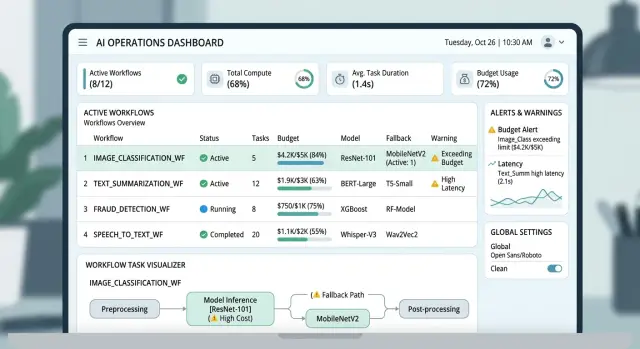
Table of Contents
Why costs jump without warning
Costs rarely spike because of one huge request. They jump when a normal workflow quietly turns into five or six model calls instead of one.
A support reply is a good example. The system might classify the message, pull context from a knowledge base, summarize the thread, draft a response, run a safety check, and rewrite the answer in the right tone. Each step looks cheap on its own. Together, they can multiply the bill fast.
The problem gets worse in federated stacks, where different models handle different jobs. One task might start on a small model, pass its output to a larger one, trigger an embedding call, and then call a reranker. If that chain runs thousands of times a day, monthly spend can move long before anyone notices.
Small failures add even more cost. A timeout, rate limit, or malformed response often triggers an automatic retry. That sounds harmless until retries stack across several steps. One user action becomes two or three full attempts, and each attempt calls the same services again.
Background work is another common leak. Users close the tab, leave the chat, or refresh the page, but the job keeps running. Retrieval, generation, evaluation, and logging still finish even though nobody will ever read the result. Teams usually catch this only after the invoice arrives.
Shared budgets make the issue harder to manage. One busy feature can eat the monthly allowance meant for the whole product. Then support, sales, or internal research gets squeezed by a workflow that happened to spike first.
That is why cost guardrails matter. The spend does not look dramatic in isolation. It shows up as a few extra retries, a longer prompt, a background worker that never stops, and a feature that suddenly gets popular. Then it lands all at once.
Map the workflows before setting limits
Cost limits fail when they sit on the wrong thing. A team says, "we spend too much on AI," but the bill usually comes from a small number of repeat actions, background jobs, or file-heavy requests.
Start with a plain inventory. Write down every task that sends anything to a model, even the ones that seem too small to matter. Chat replies, document summaries, spam checks, tagging, search rewrites, test generation, nightly reports, and retry loops all belong on the map.
Then split that map into two groups: tasks a person triggers and tasks the system runs on its own. User actions are easier to explain and cap. Scheduled jobs are the ones that quietly run all weekend and turn a normal month into an ugly one.
Frequency matters as much as model price. A cheap call that runs 200,000 times can hurt more than an expensive call used a few times a day. Mark the workflows that run most often, and mark the ones that can spike when traffic jumps.
For each task, note four things: what starts it, how often it runs, which model it calls, and how large the usual input is.
That last part is where teams miss the obvious. Long prompts, full chat history, PDFs, screenshots, audio files, and large code diffs push token and processing costs up fast. A support bot that attaches the last 30 messages to every reply can cost far more than the team expects.
The expensive part is often not the part people assume. A team may focus on the live chatbot, while the real drain is a background job that summarizes every ticket, runs again after each update, and scans attachments. That job may fire ten times more often than the chat flow.
Do not rely on averages alone. Mark the workflows with burst risk, such as imports, batch retries, and upload-driven jobs. Those are usually the first places where noisy workflow limits pay off.
When the map is done, you should be able to point to the few tasks that drive most of the spend. That gives you something concrete to cap instead of a vague promise to spend less.
Decide what each task is worth
Every workflow needs a price tag before it goes into production. If you skip that step, the loudest workflow usually gets the most money, even when it adds the least business value.
Start with one simple question: what is a single successful run worth to the business? A draft reply for a routine support ticket may be worth a few cents. A model run that checks a contract clause, flags fraud, or helps close a sale can justify a higher cap because the cost of a bad answer is higher.
Cheap, repetitive tasks need a hard ceiling. These jobs run all day and pile up fast: tagging tickets, summarizing short notes, cleaning text, routing messages, and basic search rewrites. If one run goes over its cap, stop it, switch to a smaller model, or skip the optional step.
Higher-value tasks deserve more room, but not a blank check. Give extra budget to workflows tied to revenue, legal risk, security, or churn. That does not mean using the biggest model every time. It means setting a higher limit because the upside or downside is real.
In practice, per-task AI budgets usually break down into four bands. Low-value, high-volume tasks get a very low per-run cap and a strict fallback. Mid-value tasks get a moderate cap and one retry at most. Revenue or risk-sensitive tasks get a higher cap and access to better models when they are needed. Experimental workflows get a sandbox budget that cannot spill into production spend.
Set two caps for each workflow, not one. A daily cap catches sudden spikes, like a buggy loop or a bad prompt release. A monthly cap stops slow budget creep.
The math should stay simple. If a workflow can run 30,000 times a day and you allow $0.02 per run, you already approved up to $600 a day. LLM cost control gets much easier when every task has that kind of plain limit written down before traffic hits.
Build downgrade paths before costs climb
A downgrade path tells the system what to do when quality drops or spend rises. Without one, teams often start with a strong model and leave it there. That works for a week. Then one noisy workflow starts chewing through the budget.
Begin with the cheapest model that can do the job well enough. For many tasks, that means classification, routing, short summaries, or simple rewrites run on a small model by default. Save larger models for work that actually needs long reasoning, tricky extraction, or careful writing.
The move to a more expensive model needs a clear trigger. Keep that trigger measurable. Escalate only when the first result fails a real check, such as missing required fields, a confidence score below your floor, broken output format, or a validator that catches factual or policy errors.
That rule matters more than the model list. If the check is vague, the system escalates too often and your cap means very little.
Spending thresholds should also push tasks in the other direction. If a workflow hits 70 or 80 percent of its daily budget, later requests should move to a smaller model, use a shorter context window, or skip nonessential steps like a second rewrite pass. The result may be rougher, but the user still gets an answer and one feature does not drain the month.
Sometimes no model fits the cap. Stop the task there and return a plain status like "needs human review" or "budget limit reached for automatic processing." That is better than letting retries and escalations run until the bill surprises you.
Simple model downgrade paths usually work best: small model first, larger model only after a failed check, smaller model again when spend crosses a threshold, then a hard stop when no safe option remains.
Set it up step by step
Most teams make this too complicated at first. You do not need a giant policy engine on day one. A few clear rules around model choice, retry limits, and stop conditions go a long way.
First, sort tasks by size before you send anything. Short prompts like tagging, routing, or basic summaries should go to the smallest model that clears your quality bar. A 30-word request rarely needs the same model you would use for contract review.
Next, check whether long context is actually necessary. Large context windows cost more, so reserve them for jobs like comparing several documents or answering questions from a full knowledge base. If the task only needs one paragraph or a small chunk, trim the input first and keep it on a cheaper model.
Then cap retries hard. Two or three tries are usually enough. If the model still fails, stop the run, mark it for review, and move on. Endless retry loops are one of the fastest ways to burn budget without getting better output.
Set token and time limits for every task type as well. If a workflow crosses either limit, cut it off. Do not let one bad input chew through half a day and a pile of tokens. If document extraction runs longer than 45 seconds or passes the token ceiling you set, end it and flag the file.
Finally, record why each request went where it went. Log the task name, model used, prompt size, retry count, and the rule that chose that model. When costs jump, you will see whether the problem came from larger inputs, a broken router, or a workflow that started calling the wrong model.
This does not require fancy tooling. If you are wiring these rules into an existing stack, a practical outside review can help. Oleg Sotnikov at oleg.is works with teams on AI routing, infrastructure, and cost controls, and this kind of setup usually matters more than another round of prompt tuning.
A simple example from a support team
A support inbox is a good place to see these guardrails in real life. Tickets arrive all day, the wording is messy, and one bad routing rule can send every message to the most expensive model.
Picture a team that gets 1,500 tickets a day. Most are routine: password resets, billing questions, shipping updates, duplicate requests, and plain spam. A cheap classifier handles the first pass and assigns each ticket a label, a confidence score, and a rough urgency level.
That first step does not need a top model. It only needs to answer two simple questions: what is this about, and does a human need to see it right now? If the model is confident, the ticket stays on the low-cost path.
Only the messy cases move up. A stronger model steps in when the wording is unclear, the customer sounds angry, or the ticket mentions money, outages, or account access.
The reply step is where teams often waste money. If the system drafts a response for every ticket, costs climb fast and agents still throw many drafts away. A stricter rule works better: draft a reply only when the model is very confident and the request is common.
A billing ticket that says, "I need my last invoice again" is usually safe for auto-drafting. A ticket that says, "You charged us twice and locked our account" should skip the draft and go straight to a human with a short summary.
Daily caps matter most during cleanup jobs. Say the team changes its categories and wants to reprocess 40,000 older tickets overnight. Without a cap, that batch can burn the week's budget before anyone notices. With a cap in place, the system pauses the bulk job after it hits the limit and resumes in the next cycle.
That one rule keeps a busy but low-priority workflow from draining the month. Support keeps moving, urgent cases still get attention, and the budget goes toward the tickets that need better reasoning.
Mistakes that drain the budget
Most teams do not lose money on one big mistake. They lose it through small defaults that nobody questions until the bill lands.
The most common one is sending every request to the most expensive model. That feels safe at first. It is also wasteful. A short classification task, a sentiment check, or a basic summary usually does not need your best model. If a workflow handles 50,000 small tasks a day, that default alone can turn a modest bill into a painful one.
Retries are the next leak. A model call fails, times out, or returns a bad format, so the system tries again. Then it tries again with the same prompt, the same large context, and the same expensive model. Without a hard cap, one broken workflow can burn through a monthly budget in a few hours. Two retries may make sense. Ten do not.
Context size is another quiet budget killer. Teams often send full chat history, full documents, or entire JSON blobs when the task only needs two fields. If the model only needs a ticket title and product name, do not send the last 40 messages. Long context costs money on every call, even when it adds nothing.
A few other patterns deserve attention. Night batch jobs often run out of sight and process far more data than daytime traffic. Shared queues can mix cheap tasks with expensive ones, which hides the real source of spend. One billing line for all model usage makes it hard to see which workflow is burning money. Automatic fallbacks can also backfire when they switch to a larger model instead of a cheaper one.
The reporting mistake is more basic than most teams expect. If finance sees one shared AI line item, nobody can tell whether support triage, document parsing, or a failed experiment caused the spike. Good cost control starts with separating spend by task, queue, and model.
Make waste visible. Once each workflow has its own budget, limits, and fallback path, the noisy ones stop draining the rest.
Quick checks before you ship
Before launch, test real prompts on the cheapest model you plan to use. Sample prompts often look clean. Production prompts do not. They are longer, messier, and full of copied text, OCR errors, and users asking five things at once.
That test tells you two things fast: whether the cheap model is good enough most of the time, and where it starts to miss. If it handles eight or nine out of ten real cases, keep it in the first slot. Save the expensive model for the prompts that truly need it.
Failure handling needs the same kind of hard limit. After three failed tries, the flow should stop, log the case, and hand it off or wait for review. If you let a task keep retrying across models, one bad input can turn into a pile of repeat calls in minutes.
Every workflow also needs a hard dollar cap, not just a warning. A warning tells you something went wrong after the money is gone. A cap stops the task while the damage is still small.
Logs usually show waste faster than dashboards do. Before release, check for two patterns: very large prompts and the same call firing more than once. Large prompts usually come from poor trimming. Repeat calls often come from retries, race conditions, or a front end that sends the same request twice.
Ownership matters too. Alerts need one clear owner, not a team alias and not a channel that everyone mutes. One person should get the alert, know the budget rules, and have the authority to pause the flow.
Stop rules should be just as clear as routing rules. If a cap, retry limit, or alert owner is still vague, fix that before release.
What to do next
Start with the workflow that burns money in bursts. For many teams, that is support triage, document summaries, or an agent that retries the same job three or four times. Put a hard cap on that single flow this week. Even a rough cap gives you a real boundary, and that is better than watching the bill drift upward.
Add one fallback before you tune prompts. Many teams do this in the wrong order. They trim tokens, rewrite instructions, and test small wording changes while one expensive path keeps firing in the background. If a task crosses its budget, send it to a cheaper model, shorten the context, or skip the extra reasoning step.
A simple weekly routine helps: check spend by task, find the workflow with the highest total cost, find the one with the most retries, set a budget that matches each task's real value, and test one fallback to confirm the result is still good enough.
This matters more than it seems. A support reply worth a few cents should not trigger a premium chain with long context, tools, and a second review pass. The same rule applies to internal jobs. If a tagging task gets the same result on a cheaper model, keep the expensive option for work that really needs it.
You do not need a giant redesign to get control. One cap, one fallback, and one weekly review can cut waste fast. After that, the pattern becomes easier to see.
If you want an outside review, Oleg Sotnikov at oleg.is advises startups and small teams on AI routing, infrastructure, and operating costs. A short review is often enough to catch hidden retries, weak routing rules, and fallback paths that look fine on paper but fail in production.
Frequently Asked Questions
Why do AI costs jump without warning?
Costs usually jump when one user action turns into several model calls, retries, and background jobs. A cheap step stays cheap on its own, but classification, retrieval, drafting, safety checks, and rewrites can stack fast.
What should I map before I set cost limits?
Start by writing down every workflow that calls a model, even small ones like tagging, routing, summaries, and retry loops. For each task, note what starts it, how often it runs, which model it uses, and how large the usual input is.
How do I set a budget for each task?
Put a simple dollar value on one successful run before you ship. Routine, high-volume tasks need a very low cap, while revenue, legal, security, or fraud checks can justify a higher limit.
When should a workflow move to a bigger model?
Use the larger model only when a real check fails on the cheaper one. Good triggers include low confidence, missing fields, broken format, or a validator that catches bad output.
What should happen when a workflow hits its budget?
Don’t let it keep spending until the invoice teaches the lesson. Move later requests to a smaller model, shorten the context, skip optional steps, or stop the task and send it to human review.
How many retries should I allow?
Keep retries tight. Two or three attempts usually cover normal failures; after that, stop the run, log it, and hand it off instead of repeating the same expensive call.
How do I reduce context costs without hurting results?
Trim the input to only what the task needs. If the model only needs a ticket title and product name, don’t send the full thread, full document, or huge JSON blob.
What should I log to catch waste early?
Log the task name, model, prompt size, retry count, and the rule that picked that path. Those fields show whether cost rose because inputs got bigger, retries stacked up, or the router picked the wrong model.
What mistakes drain the budget most often?
Teams often waste money by sending every request to the most expensive model, attaching too much context, and letting retries run too long. Night batch jobs and shared queues also hide spend until the bill lands.
What is the first step I should take this week?
Pick one noisy workflow and give it a hard cap and one fallback this week. Support triage, document summaries, and retry-heavy agents usually give you a fast win because they spike often and burn money in bursts.