Email provider outage plan for transactional products
An email provider outage plan keeps password resets, receipts, and sign-ins moving with queues, backup sending, app status, and simple checks.
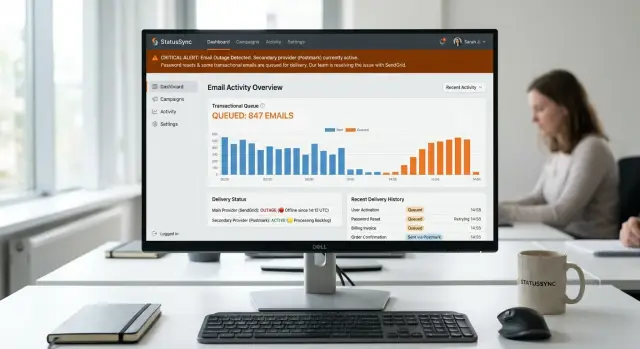
Table of Contents
What goes wrong when email stalls
Most teams notice the problem when password resets stop working. A user clicks "forgot password," waits, tries again, then decides the app is broken. They do not care whether the fault sits with your email vendor, DNS, or a template worker. They just want to get back in.
Magic links usually fail next, often at the worst time. A new customer tries to sign in before a demo. A teammate invites a client into a shared workspace. Nothing arrives, so the flow dies halfway through. Conversions drop before anyone on your team gets a clear alert.
The symptoms rarely point to one cause. On a Monday morning, one user cannot reset a password. Ten minutes later, a sales rep cannot send an invite to a prospect. By lunch, support has five tickets that all describe the same outage in different words. One says login is broken. Another says the invite system is down. A third says emails are disappearing.
Silence makes it worse. If the app says "email sent" while nothing leaves your system, users keep retrying. That creates duplicate requests, piles more jobs into the queue, and fills support with "I can't log in" messages. A mail delay starts to look like an auth bug.
The pattern is messy but familiar. Users think their password no longer works. New accounts never finish setup. Invites expire before anyone opens them. Support resends messages by hand and adds more noise.
That confusion wastes time. Engineers inspect login code while the real fault sits outside the app. Support asks people to check spam even when no message was delivered at all. Every delayed reset, invite, or verification email chips away at trust.
If login, onboarding, or account recovery depends on email, then email is part of product uptime. It is not a side system.
Decide which messages come first
When email slows down or stops, every message should not compete for the same spot in line. Some emails keep people inside the product. Others can wait for hours without much damage. Sort them before you need to.
Start with account access. Password resets belong at the front because people request them when they are already blocked. Sign in links and one time codes belong in the same group. These messages expire fast, and a late email can be just as bad as no email.
Account invites also deserve high priority, especially in products where one person invites coworkers into a shared workspace. If the invite lands too late, setup stalls. The new user asks for another invite, which creates more mail and more confusion.
A simple order works well:
- Priority 1: password resets, magic links, one time codes, account invites
- Priority 2: order confirmations, receipts, billing alerts, security notices
- Priority 3: product updates, digests, newsletters, promos
Receipts and order confirmations should go out soon after access related mail. People expect proof that a payment or order worked. A delay here creates support tickets, chargeback anxiety, and sometimes duplicate purchases because users think the first attempt failed.
Low priority mail should wait until service recovers. Promotional campaigns, nurture sequences, and non urgent product updates do not deserve bandwidth during an outage. Sending promo mail while password resets are stuck looks careless.
Match your priorities to how long each message stays useful. A reset link may expire in 15 minutes. A receipt still helps an hour later. A weekly newsletter can wait until tomorrow.
When you set these rules ahead of time, the team does not have to argue in the middle of an incident. The system sends the messages users need most, and everything else waits.
Queue every message
Many mail outage plans fail at the same point: the app tries to send email during the user request. If the provider is slow or down, the whole flow slows down with it. Password resets, receipts, and signup emails can all stall at once.
A queue fixes that. When the app needs to send a message, it should first write a job to a queue or database table, then return control to the user right away. A worker can send the message a moment later in the background.
That small change keeps the app responsive. A customer can submit a password reset form and see a clear confirmation screen in a second, even if the mail provider starts timing out behind the scenes.
What the queue should store
Keep the message details and the delivery state in one place. That makes retries safer and gives support one record to inspect when something goes wrong.
A queued message usually needs five things:
- the recipient address
- the template or message type
- the data needed to render the message
- the current status, such as queued, sent, failed, or delayed
- the attempt count and the last error
Store enough detail to resend the exact same message without asking the app to rebuild it from scratch. If you change a template later, old queued jobs should still match what the user triggered at that time.
The queue also gives you a safe holding area when a provider starts failing. Instead of dropping messages or blocking user actions, you can pause sending, mark jobs as delayed, and keep them ready for retry.
One simple rule helps: user actions create message records, and workers send them. Keep those jobs out of the same request.
Direct sending feels simpler at first. It stays simple right up until the first outage. After that, the queue looks less like extra plumbing and more like the part that kept the app calm while one vendor had a bad day.
Retry on a second vendor
A second vendor only helps if your app switches quickly and keeps one clean record for each message. If the primary service starts timing out or returning temporary errors, wait a little, then move the message to the backup before a password reset request goes stale.
Keep the first retry window short. For transactional mail, a long delay feels broken. A common pattern is to retry the first vendor once or twice over 30 to 90 seconds for temporary problems such as timeouts, rate limits, or server errors. If the same pattern keeps showing up, send the next attempt through the backup.
Do not switch because of one odd failure. Vendors have brief hiccups. Switch when you see a cluster of signs, such as:
- repeated 4xx errors or timeouts in a short window
- a sharp jump in retryable failures for the same message type
- accepted API calls with no delivery events coming back
- internal checks that show the provider is slow or unavailable
Track one delivery record from start to finish. Give each email an internal message ID, then attach every vendor attempt to that same record. Store the status, timestamps, provider responses, and final outcome together.
That record prevents double sends. Before the backup vendor sends anything, the worker should check whether the first vendor already delivered the message or whether the user already completed the action. This matters most for password resets, magic links, and one time codes, where two valid emails can confuse people fast.
Picture a reset request at 9:02. The first vendor times out twice in 45 seconds. The queue marks the primary path unhealthy, sends the same message through vendor two, and records that vendor two owns the live attempt. If a delayed webhook from vendor one arrives later, the system sees the shared message ID and ignores it.
Do not rush traffic back to the first vendor either. Hold it there until your checks look normal for a steady period, then return gradually. Many teams skip this and turn a short outage into a noisy hour.
Show users what's happening
A quiet failure frustrates people more than a slow one. If a reset email does not arrive, users start guessing. They try again, switch inboxes, or assume your login is broken.
Show the problem where it matters most: the login screen, the password reset form, and any page that asks the user to confirm an email action. A small banner is enough. It should say that email is delayed, that the request still went through, and how long users may need to wait.
Keep the message plain. "Reset emails are delayed right now. New requests may take up to 10 minutes." That works better than a vague error or a spinner that never ends. If the delay affects only some messages, say that too.
After a user requests a reset, show the current status on the confirmation screen and give them a real next step. Tell them when to check spam, when to wait, and when they can resend. People stay calmer when the product gives them a timeline.
A resend button helps, but only if you control it. Add a short delay, such as 60 seconds, and show a countdown. Without that pause, stressed users hammer the button, create duplicates, and make the queue harder to manage. If your system already switched to a backup vendor, say so in simple terms instead of pretending nothing changed.
Support needs the same view. When a user opens chat or sends a ticket, the agent should see whether email is healthy, delayed, or using another vendor. They should also see the last send attempt and the next retry time. Then they can answer clearly instead of telling the user to "try again" five times.
Good status text does four things. It confirms the request was received, explains the delay in plain language, shows when resend becomes available, and gives support the same facts the user sees.
That thin layer of visibility cuts a lot of repeat requests during a password reset outage.
A simple outage flow from start to finish
A solid outage flow feels boring to the user, and that is exactly what you want. At 8:05, someone taps "Forgot password" and expects help right away. Your app should accept the request, create the reset token, and write the email job to the queue immediately.
That queue write matters more than the first send attempt. If the message is safe in the queue, the app can keep moving even when the first provider slows down or stops answering. The user gets a response from your app, not silence.
A simple timeline looks like this:
- 8:05 - The user requests a password reset, and the app stores the token and the email job.
- 8:05:03 - The app shows a short note such as "We're sending your reset email now."
- 8:05:08 - The first provider times out after a short wait, so the worker marks that attempt as failed.
- 8:05:09 - The worker sends the same job to the backup vendor, which accepts it.
- 8:05:15 - The user receives the email and resets the password without doing anything twice.
The note inside the app is easy to overlook during planning, but it saves a lot of support pain. Without it, people guess. They click again, request three more reset emails, or assume the product is broken.
If the backup vendor sends the message, the app can quietly update the note to something like "Email sent. It may take a minute to arrive." If both providers fail, say that too. Tell the user you are still trying, or ask them to retry in a few minutes. Clear words beat a spinner every time.
One more detail keeps this clean: use one job ID for the whole attempt. That helps the system retry safely and lowers the chance of duplicate reset emails if the first provider responds late.
Accept the request, queue it fast, fail over quickly, and keep the user informed while the system does its work.
Mistakes teams make under pressure
Pressure pushes teams toward the fastest fix, and that often creates a second outage. During a mail incident, the product still accepts user actions. Password resets, magic links, receipts, and account alerts keep piling up.
The first mistake is sending email straight from the user request. It looks simple, but it turns one slow provider into a broken screen. A user asks for a password reset, the app waits on the provider, and the user clicks again because nothing seems to happen. Now the team has duplicate requests, confused users, and support tickets.
The safer pattern is straightforward. Store the request, place the message in a queue, and answer the user right away with a clear status. Let the worker handle delivery without blocking the reset flow.
Another common mistake is retrying too fast. When teams see failures, they often cut retry delays to a few seconds and hammer the same provider again and again. That adds load to an already failing service, pushes you into rate limits, and floods the logs with noise.
A calmer approach works better:
- space retries with backoff
- stop after a fixed number of attempts
- switch vendors only after clear failure rules
- record every attempt under the same message ID
The second vendor introduces its own trap. Teams add failover but forget deduplication. Then both vendors deliver the same password reset email, or the old retry lands after the backup already succeeded. Users click the wrong link, support gets pulled in, and trust drops fast. Every message needs one stable ID, one delivery record, and rules that mark late attempts as duplicates.
Silence makes the outage worse
Some teams hide the problem because they do not want to alarm users. That backfires. If the app says nothing, people keep pressing the reset button, ask for more codes, and assume the site is broken.
Say what is happening in plain language. Tell users the email may take a few minutes, show whether a request is already pending, and stop repeated clicks from creating fresh sends. A little honesty cuts noise and gives the team room to fix the real issue.
Test it before you go live
A plan on paper is not enough. Before you trust it, break the main email provider on purpose in a test environment and watch what your product does next.
That one drill tells you more than a week of discussion. You can see whether the queue keeps new messages safe, whether retries start at the right time, and whether people can still move through urgent flows like sign in verification or password reset.
Test the failure, not just the happy path
Turn off the primary provider completely for one test run. Do not fake a soft delay if your real risk is a hard outage.
Watch each step in order. The app should accept the request, place the message in the queue, try the main vendor, fail cleanly, and then retry with the backup based on your rules. Log each step with a clear timestamp so the team can trace one message from request to delivery.
Check the user side too. The right screens should show plain status text when mail is delayed. A person who asks for a password reset should not sit there guessing whether the message is lost or still on the way.
One problem shows up often here: both vendors send the same message. Test for that on purpose. Use one request, follow one message ID, and confirm the backup sends only when the first vendor truly fails.
Make sure recovery is boring
When the main service comes back, the queue should drain in a clean, steady way. It should not dump hours of old mail all at once, and it should not leave messages stuck in a retry loop.
A short checklist helps:
- fail the main provider and trace one message end to end
- trigger a password reset and confirm the app shows useful status
- verify that only one email arrives after failover
- restore service and watch the queue empty normally
- name one incident owner who follows the runbook and makes the calls
That last point matters more than teams admit. During an outage, one person should own the decisions, status updates, and the runbook so everyone else can fix the actual problem.
Next steps for your team
Start with a list of every email your product sends when something matters. Password resets, login codes, receipts, billing warnings, invite emails, and security alerts do not belong in the same bucket as newsletters or product tips.
Rank them by user pain and business risk. Ask one plain question: if this message fails, what breaks for the user in the next 10 minutes? That gives you a better priority order than gut feeling.
You also need visible queue states. If support opens a user record, they should see whether an email is queued, sent, delayed, retried on a second vendor, or failed after all retries. Product teams need that same view when they review incidents, or they will guess instead of fix.
A short action list is enough to get moving:
- write down your main transactional email flows and put them in order
- add readable queue states in your admin tools or support panel
- define when the system switches to a backup vendor
- run one monthly outage drill and keep notes on what slowed people down
Keep the drill small. For 20 minutes, disable your main provider in staging or another safe test environment and watch what happens. Check whether password reset emails wait in the queue, whether failover starts on time, and whether the app shows users a clear status instead of leaving them stuck.
This exercise exposes rough spots quickly. Support may not know what queued status means. Engineers may notice retries take too long. Product may find that the reset screen says nothing useful when mail is delayed.
If your team wants an outside review, Oleg Sotnikov at oleg.is advises startups and small businesses on product architecture, infrastructure, and practical AI adoption. That kind of review can help when you need an outage plan that a small team can actually build, run, and maintain.
Do the first pass this week, even if it is rough. A ranked flow list, readable statuses, and one drill will prevent more user pain than another month of good intentions.
Frequently Asked Questions
Which emails should go first during an outage?
Put password resets, magic links, one time codes, and invites first. Send receipts, billing alerts, and security notices next. Hold newsletters, promos, and digests until service looks normal again.
Should the app send email during the user request?
No. Write a job to a queue or database table, return a status screen at once, and let a worker send the email in the background. That keeps login, signup, and checkout flows responsive even when the provider slows down.
What should the email queue store?
Save the recipient, message type or template, the data or rendered content needed to resend the exact message, the current status, the attempt count, and the last error. Keep all attempts under one record so support and engineers can see what happened without guessing.
When should we switch to a backup email vendor?
Retry the first provider once or twice over about 30 to 90 seconds for timeouts, rate limits, or server errors. If the same errors keep showing up or delivery events stop coming back, send the next attempt through the second vendor.
How do we prevent duplicate reset emails?
Give every email one internal message ID and attach both vendor attempts to that same record. Before the backup sends, check whether the first vendor already delivered the message or whether the user already finished the action.
What should users see when email is delayed?
Show a short note on the reset, login, or confirmation screen. Tell people the request went through, email is delayed, and how long they may need to wait. That stops repeat clicks and cuts support noise.
Should we offer a resend button?
Yes, but control it. Add a short cooldown, such as 60 seconds, and show a countdown. Without a pause, stressed users keep tapping resend and create duplicate jobs.
What should support see during an email outage?
Support should see whether email is queued, delayed, sent, retried on another vendor, or failed. They also need the last attempt time, the last error, and the next retry time so they can answer with facts instead of asking users to try again.
How should we test the outage plan before launch?
Break the primary provider on purpose in staging or another safe test setup. Then trace one password reset from request to delivery, confirm the app shows status text, confirm only one email arrives, and watch recovery so the queue drains at a steady pace.
When should we move traffic back to the main provider?
Wait until your checks stay normal for a while, not just one or two successful sends. Move traffic back gradually and watch delays, failures, and webhook lag. If you switch too early, you can turn a short outage into another round of retries.


