Data movement security review for startups: map it first
A data movement security review starts by mapping where files, prompts, logs, and exports go, so your team can spot real risk before picking tools.
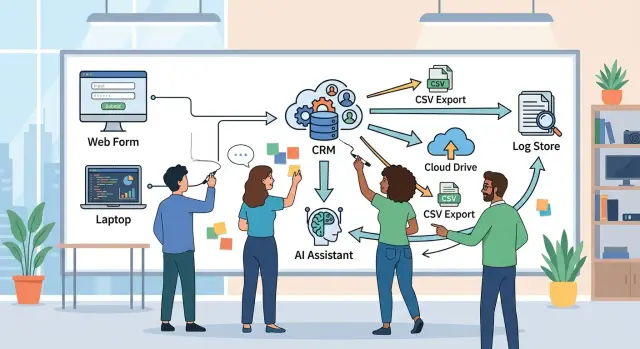
Table of Contents
Why security reviews get stuck
Security reviews slow down when teams start with vendor checklists instead of one real record. People compare SSO, regions, and compliance badges before they answer a simpler question: where does one customer file go after someone uploads it?
That gap matters because risk rarely sits in the first tool alone. It shows up in the quiet copies around it: a CSV sent by email, a sync into a warehouse, a screenshot in chat, a debug log, a browser download, or a "temporary" spreadsheet that hangs around for months.
Startups feel this more because ownership is split. Product thinks about the app, security checks access, support handles attachments, and finance pulls exports. Each team sees one piece, so nobody notices that files, prompts, logs, and exports may all contain the same names, account details, or contract terms.
AI adds another layer. A team may ask whether an assistant keeps prompt history, but miss what went into the prompt in the first place: a bug report, a customer document, pasted SQL, or part of an internal ticket. If that same material later appears in logs or exports, one quick task creates several places where data can leak.
That is why vendor debates go in circles. Two tools can look similar on paper, yet the real risk can be very different. One team strips sensitive fields before upload and blocks local downloads. Another pastes raw data, leaves logging on, and exports results to a shared drive.
A security review gets unstuck when someone draws the path on one page. It does not need to look polished. A rough map of where data starts, where it gets copied, who can view it, and where it ends by the end of the day usually tells you more than an hour of arguing about tools.
Once people can see the path, the conversation changes fast. The risky part often is not the vendor. It is the handoff nobody counted.
What to put on the map
Start with the full route, not the app inventory. A good map shows where data begins, where it pauses, who touches it, and where it leaves the company.
Put every starting point on the page. That usually means website forms, inbound email, chat messages, uploaded files, shared drives, CRM records, and support tickets. If a customer can type it, attach it, or forward it, it belongs on the map.
Then mark every handoff. People matter, but so do scripts, APIs, browser extensions, automation tools, and outside vendors. If a support agent copies text from a ticket into an AI tool, that is a handoff. If a script moves an attachment from email to cloud storage, that is another.
At each stop, label a few basics:
- where data enters
- where it sits
- who or what can read it
- where copies appear
- how it leaves
Temporary storage causes more trouble than teams expect. Local downloads on a laptop, browser cache, staging buckets, test databases, and files dropped into a shared folder all count. People forget them because they feel short-lived, but short-lived data can still leak.
Exports need special attention too. Backups, scheduled reports, spreadsheet extracts, and CSV dumps often travel farther than the original record. A sales report might start in the CRM, land in an analyst's Downloads folder, get emailed to a contractor, and end up in a finance drive. That is four more places to review.
For example, a customer sends a support request with a screenshot. The screenshot lands in email, syncs into the help desk, gets copied into chat for engineering, moves into a bug tracker, and later appears in a weekly report. If you only review the help desk, you miss most of the path.
When the map is done, you should see starts, stops, side copies, and exits in one view. If you cannot point to every copy, the map is still too neat.
Why prompts and logs belong on the same map
A startup can lock down its main app and still leak data through side paths. That happens when a team maps the database, the SaaS app, and the AI tool, but ignores what gets typed into prompts, written to logs, or downloaded as exports.
Those side paths often hold the same sensitive details as the source system. A prompt can include a customer name, email, support note, contract text, or an internal ticket. If someone pastes that into an AI tool, the data has already moved, even before anyone saves a file.
Logs create another copy, and teams forget that fast. An API log may keep request bodies. An error tracker may capture a failed payload. A server log may record file names, user IDs, and stack traces that mention private records. None of that looks dramatic on its own, but it adds up.
Exports make the problem worse because they create fresh copies outside the place where access rules started. A CSV downloaded for finance, a support transcript sent by email, or a JSON dump pulled for debugging can sit on laptops, shared drives, or inboxes long after the original record changed or was deleted.
Picture a simple workflow. A support agent copies a ticket into an AI assistant to draft a reply. The ticket includes the user's name, email, and a screenshot file name. The request times out once, so the error tool stores the body. Later, the agent exports the conversation for review. One ticket now exists in four places, not one.
That is why prompts and logs belong on the same map. They are part of the same data path.
When teams use one view, they ask better questions:
- What exact fields leave the source system?
- Which tool keeps a copy, even during errors?
- Who can read that copy later?
- When does each copy get deleted?
A good review tracks the original record and every byproduct around it. That is where many startup risks hide.
Start with one real workflow
Pick one workflow that already happens every day. A sales lead is a strong place to begin because it moves fast and touches several tools. Someone fills out a web form, the lead lands in a CRM, a rep posts details in team chat, and then a file or pasted text may go into an AI tool to draft a reply or summary. That single path often tells you more than a broad review of every app in the company.
Write the flow in the order people actually do it. Use real tool names and real actions. Skip policy language for now. Put down the plain steps: submit form, create record, notify rep, open attachment, download file, paste notes into AI, send summary, export report. If a step feels minor, keep it. Small handoffs are where data spreads without anyone noticing.
A useful first map answers four things: where the record starts, who can view or edit it at each step, who can forward, download, or export it, and where it leaves your main tools.
That last point matters more than most teams expect. A lead may begin inside tools you already trust, then leave them within minutes. A rep downloads a PDF from the CRM to a laptop. Another person copies customer text into an AI assistant. Someone pastes the AI answer into chat. Later, the team exports a CSV for a weekly sales review. Each move creates another copy, another permission set, and another place to forget.
Keep the first map narrow. Follow one lead from first contact to one concrete outcome, such as a reply sent to the prospect or a note handed to sales. If the team handles attachments, mark the exact moment someone opens or saves the file. If they use AI, note what text they paste, who can see the prompt, and whether the output gets saved back to the CRM or shared elsewhere.
Many startups skip this because it feels too basic. It is not. Things get clearer once the team can point to one real record and say, "It went here, then here, then here, and these five people could touch it."
How to draw the path
Start with one real workflow, not the whole company. Pick something small that already handles customer or employee data, like a sales lead form, a support ticket with attachments, or a job application sent to a shared inbox. A narrow map is easier to finish, and finished maps are the ones that help.
Write the process in the order it happens. Put the first system on the left and the final destination on the right. Then fill in every stop between them, even if the step feels boring or temporary.
A one-page map is usually enough:
- Name the starting point, such as a web form, email inbox, chat tool, or uploaded file.
- Add each handoff in sequence, including API calls, manual downloads, exports, and copy-paste into another tool.
- Mark the final destination, like a CRM record, payroll system, cloud folder, or local laptop.
- Label who owns each step, whether that is sales, support, HR, engineering, or an outside vendor.
- Note how long the data stays in each place, even if the answer is "unknown".
Use arrows for every move. One arrow can mean an automatic sync. Another can mean a person downloads a CSV and uploads it somewhere else. Copy-paste counts too. Teams often ignore manual moves because they feel informal, but those moves create some of the messiest risk.
Circle any point where the data crosses a boundary. A new vendor, a personal device, a contractor laptop, a shared drive, a spreadsheet, or an exported report all deserve a mark. Those jumps are where access rules change, logs get thin, and data tends to stay longer than anyone planned.
A simple example helps. A customer uploads a document through a form. The file lands in your app, then moves to cloud storage, then an AI tool reads part of it through an API, then someone copies the summary into a ticket, and later exports the ticket to a spreadsheet for a weekly review. That is five stops already, and most teams only remember two.
If a box or arrow feels vague, keep it on the map and label it "needs answer." Gaps matter. They show you where to ask better questions before you approve the process or the tool.
Questions to ask at each handoff
A handoff is where risk often grows. Data leaves one tool with one set of rules, then lands in another with different defaults, different permissions, and a different trail of copies. Startups miss this because each move looks harmless on its own.
Ask whether the next tool needs the whole record or just part of it. In many cases, a tool needs one field, a short summary, or a masked ID. If an AI assistant only needs the text of a support request, do not send the customer file, internal notes, and account history with it.
Then check who can access the data after it moves. A record that only two people could see in your app might become visible to a full support team, an outside vendor, or a workspace admin once it lands somewhere else. Access often gets wider after a handoff, not smaller.
A short checklist keeps reviews honest:
- Which exact fields does this step need?
- Who can see the data in the next tool, including vendor staff?
- Does the tool store prompts, files, outputs, or logs by default?
- Can someone export or download the data without approval?
- If you delete the source, where do the copies remain?
Defaults deserve extra suspicion. Many teams check the main feature and skip retention settings. That is a mistake, especially with AI prompt logging risk. A single action can create several records at once: the prompt, the uploaded file, the response, and a debug log.
Exports need the same attention. If staff can pull a CSV to a laptop or email a report to themselves, your map now includes inboxes, local drives, and whatever backup those devices use. That may be fine, but it should be a choice, not an accident.
Deletion closes the loop. If a founder pastes a production error into an AI coding tool and later removes it from the source system, the copied prompt may still sit in chat history or logs. The safest review asks one plain question at every handoff: when this data moves, what new copies appear, and who controls them?
Where teams miss risk
Most leaks do not start with a dramatic breach. They start with a shortcut that felt harmless on a busy day. A team copies a few customer records into a test file, sends a CSV to a contractor, or drops screenshots into chat so someone can debug faster.
Test data is one of the most common blind spots. People call it "sample data," but it often includes real names, emails, invoices, support messages, or medical notes with only a few fields removed. Once that file enters a staging app, a local folder, or a bug report, the clean boundary between production and testing is gone.
Copies spread just as fast through shared inboxes and team chat. One support thread gets forwarded to sales, then pasted into an internal channel, then attached to a ticket. Nobody planned a risky handoff, but now the same customer details live in four places with four different access rules.
Debugging creates another quiet problem. Logs often catch more than errors. They can store prompts, API tokens, raw responses, attachment names, signed URLs, and chunks of uploaded files. If your team uses AI tools, this matters even more. The prompt, the file, and the log usually belong on the same map because one bug report can expose all three.
A simple example: a product manager exports failed onboarding records to CSV, sends the file to an engineer, and the engineer runs a quick script on a laptop. The script writes verbose logs, the CSV stays in Downloads, and the logs go to a shared monitoring tool. The task takes 20 minutes. The cleanup never happens.
Watch the usual trouble spots: personal laptops that keep old exports for months, one-off helper scripts nobody reviews after the first use, monitoring tools that ingest full request payloads, chat threads where people paste prompts or customer text, and inbox rules that auto-forward attachments to outside systems.
Small scripts are especially easy to miss. A founder or early engineer writes one to sync files, clean data, or call an API, and it keeps running long after that person leaves. During a review, those leftovers matter as much as the tools you pay for, because forgotten automation still moves real data every day.
Quick checks before you approve a tool
Most bad tool approvals fail on defaults, not on the sales demo. Before anyone says yes, trace one real record from the moment a person enters it to the moment every copy should disappear. If your team cannot explain that path in plain language, stop there.
Follow a single file, prompt, or customer record through normal use. Start with one realistic case, like a support agent uploading a PDF, copying a few lines into an AI prompt, then exporting the answer into a ticket. That simple action often creates more copies than people expect.
Use a short approval pass:
- Follow one record across entry, storage, prompts, logs, exports, backups, and deletion.
- Open the admin settings and check default logging, retention, export, and audit options.
- Limit who can paste customer data, secrets, or contracts into prompts.
- Turn off syncs, webhooks, and backups your team does not use.
- Assign one person to review workflow changes before they go live.
Default settings deserve extra attention. Many tools keep prompt history, activity logs, file previews, and export archives unless someone changes the settings. A team may think it deleted a customer note while the prompt text still sits in logs for 30 or 90 days.
Permissions matter just as much. If everyone can paste production data into any prompt box, mistakes will happen. Keep the rule simple: only approved roles can use sensitive data in prompts, and only in approved workspaces. Small teams usually do better with a short written rule than a long policy nobody reads.
Unused connections should go first. Old webhooks, automatic syncs, and nightly backups create copies that nobody watches. They also make deletion requests messy, because the original record is gone but the duplicates stay behind.
One owner should review changes to the workflow. A new bot, a fresh CRM sync, or an export to a spreadsheet can change the whole data path in one afternoon. If nobody owns that review, the map goes stale fast.
If a tool makes these checks hard, that is your answer. Approval can wait.
What to do next
Start with the handoff that leaks the most data or creates the most confusion. That is often a shared inbox, a support tool, a sales call recorder, or an AI workflow that copies prompts and files into several services. Fix that path first.
Most teams do not need a long policy deck. They need a few rules people can remember during a normal workday. Write them in plain language, keep them short, and make one person own each rule:
- Say which data can go into prompts and which data must stay out.
- Decide how long logs stay, who can read them, and when they are deleted.
- Set one approved path for file uploads and one for exports.
- Record each SaaS handoff that stores customer data outside your main system.
Then repeat the same exercise in the parts of the company that move data in different ways. Finance sends reports and exports. Support collects screenshots, account details, and chat history. Hiring brings in resumes and interview notes. Product work creates test data, bug reports, and analytics dumps. Each area has its own weak spots, and they rarely show up on the first map.
Keep the review small enough to finish. One real workflow each week beats a giant project that sits in a doc for two months. If a tool needs an exception, write down why. If nobody owns a handoff, assign an owner before the next upload or export happens.
If you want a second pair of eyes before you approve a tool or change a workflow, Oleg Sotnikov at oleg.is does this kind of Fractional CTO review for startups and small teams. It works best when your team already has one workflow on paper and needs practical help making it safer without turning the process into a paper exercise.
Frequently Asked Questions
Why should I map one real record before I compare tools?
Start with one real record because it shows the actual path. A checklist tells you what a vendor says it can do, but a real file or ticket shows where your team copies data, who reads it, and where extra copies appear.
What belongs on the first data movement map?
Put the full route on one page: where data starts, every stop it makes, who touches it, where copies show up, and where it leaves your company. Include manual moves like copy-paste, downloads, email forwards, and chat posts, not just app-to-app syncs.
Do prompts and logs really count in a security review?
Yes. The moment someone pastes customer text into a prompt or a tool writes request data to logs, you have another copy. Treat prompts, logs, exports, and files as part of the same path or you will miss where data can leak.
What workflow should a startup map first?
Pick something your team does every day and keep it small. A sales lead, a support ticket with an attachment, or a job application works well because one record usually moves through several tools fast.
How detailed should the map be?
Write the steps in the order people do them and use real tool names. If someone downloads a PDF, pastes notes into an AI tool, or exports a CSV, add that step even if it feels minor.
What should I ask at each handoff?
Ask what exact fields the next step needs, who can read them there, whether the tool keeps prompts or logs, and where deletion stops. If the next tool only needs a summary, do not send the whole record.
Where do startups usually miss risk?
Teams usually miss test files, shared inboxes, chat threads, debug logs, and one-off scripts. Those shortcuts spread data fast because people treat them as temporary and stop tracking them.
Why do exports create so much risk?
Exports often create the messiest copies because they leave the place where your access rules started. A CSV on a laptop, an emailed report, or a spreadsheet in a shared drive can stay around long after the source record changes or disappears.
What quick checks should I do before I approve a tool?
Follow one realistic case from entry to deletion, then open the admin settings and check logging, retention, export, backups, and permissions. If the tool makes that review hard or keeps extra copies by default, wait before you approve it.
Who should own the map after we finish it?
Give one person clear ownership and ask them to review every workflow change. The map goes stale fast when nobody updates it after a new bot, sync, export, or AI step enters the process.


