Data import mapping screen to cut custom import work
A data import mapping screen lets customers match columns, spot row errors early, and fix bad data before your team writes one-off scripts.
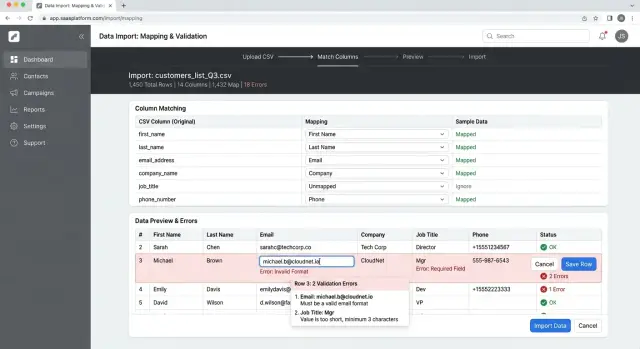
Table of Contents
Why imports keep turning into one-off work
Most imports fail before your code even matters. Customers send files that mean the same thing but label columns in different ways: "Email," "Work Email," "Primary email," or a blank header someone forgot to name. If your product expects one fixed layout, every spreadsheet turns into a special case.
That is when imports stop being a normal product feature and become support work. A customer uploads a CSV, gets a vague error, and asks for help. Support can usually see that the file is off, but they cannot remap columns or fix row-level rules inside the product, so the problem moves to engineering.
Teams also catch bad data too late. They validate after the import starts, or after some rows already hit the database. One wrong date format, one missing required field, or a country name where a country code should be can break hundreds of rows at once. Now the team is not just importing data. They are cleaning up a partial failure.
Engineering often answers with a quick patch. Someone writes a script to rename columns, trim spaces, split full names, or skip broken rows. It works for one customer and one file. Then the next file arrives with the same fields in a different order, slightly different names, or one extra column, and the script breaks again.
A mapping screen stops that cycle earlier. Users can match columns, preview problems, and fix rows before the import touches live data. Without that step, your product trains customers to ask for exceptions, and your team keeps paying for the same problem in support time, engineering time, and risky manual fixes.
What a good import screen needs
A useful import screen reduces confusion before the first row goes in. Users should see right away which fields are required and which ones they can leave blank. If "Email" is required but "Company phone" is optional, say that next to the field. Do not wait until the last step.
Names matter more than many teams expect. Customers do not think in database labels. They think in the spreadsheet terms they already use. If they know a field as "SKU" or "Customer ID," use that language on the screen. Internal names like "external_ref" or "account_identifier" slow people down and lead to bad matches.
Users should also be able to skip columns they do not need. Real files are messy. They include notes, old flags, empty spacer columns, and comments that should never enter the system. If the screen nudges people to map everything, they start guessing. That is how bad imports happen.
Repeat work should stay gone. When a supplier sends the same spreadsheet every week, users should not rebuild the mapping from scratch each time. Saved mappings make repeat uploads faster and remove many requests for custom import scripts.
A few small details make the whole flow easier. Show sample values under each detected column so users can tell similar fields apart. Keep labels plain. Make the skip option obvious. Keep the page calm.
When users can spot required fields, match columns with familiar names, ignore junk data, and reuse old mappings, many "special import" requests never reach engineering.
How the mapping flow should work
The screen should start helping as soon as the user uploads a file. Read the headers immediately and suggest matches instead of making people map every column by hand. If the file includes headers like "SKU," "Item Name," or "Cost," the app should guess the closest fields and let the user adjust them.
Put the source column and the target field side by side. Users should be able to accept a suggestion, change it, or skip the column. Required fields should stand out, and missing ones should be flagged at once. If the file has no product name or no price, say that before the user moves on.
Preview matters. After users map columns, show a few real rows using the mapped product fields, not the raw spreadsheet order. People catch mistakes faster when they can see that "Cost" went into "Retail price" or that a date column turned into plain text.
A supplier sheet makes this obvious. Imagine a file with columns called "Product," "UPC," "Qty," and "Cost USD." The app might suggest Product name, Barcode, Stock quantity, and Price. If "Qty" gets mapped to Price by mistake, the preview should make that error look wrong immediately.
The flow should also block bad imports early. If a required field is missing, if two source columns map to the same target, or if a column type does not fit, show that before import. Short messages work best: "Price is missing" or "Barcode has text that is too long."
End with a simple confirmation step. Show the selected mappings, skipped columns, row count, and warnings in one place. When users click import, they should feel sure about what will happen.
How to preview errors before import
A good importer catches obvious problems before it reads every row. Start with file checks: accept the right file type, reject files that are too large, and show the row count right away so users know they uploaded the right file.
Then scan the data and mark the rows that need attention. Most failures come from the same small set of issues: empty required fields, bad dates, broken email formats, numbers stored as text, or values outside the allowed list.
Do not dump every issue into one wall of red text. Group repeated errors together. If 214 rows are missing "SKU," say that once and let users open the list. People fix patterns much faster when they can see that one mistake repeats across many rows.
Line numbers matter more than fancy wording. Show the exact row number from the uploaded file, not an internal record number. If users open the spreadsheet and row 118 is broken, they should find row 118 without guessing.
Separate blocking errors from warnings. Errors should stop the import because the row cannot be trusted. Warnings can allow the import, but users should review them. Clean rows should move forward without noise, and a simple summary count should show the scope of the problem right away.
A small preview table helps a lot. Show a few bad rows, the original value, and a short note that explains what to fix. "Date must use YYYY-MM-DD" is enough. Long explanations slow people down.
If a supplier uploads a 12,000-row CSV and 600 rows use "N/A" in the price column, users should see one grouped error, the affected line numbers, and a sample of those rows. That saves support time and avoids another cleanup script for a file users could fix themselves.
How users should fix bad rows
People give up on imports when every bad row sends them back to Excel. If the app finds a problem, it should let them fix it right there.
The fastest pattern feels like a spreadsheet. Users click a bad cell, type the new value, and see the row update without opening a separate form for every edit. Small fixes should take seconds.
When the same problem appears in dozens of rows, one-by-one editing gets old fast. Bulk actions help here. Users should be able to replace "N/A" with blank, change "US" to "United States," or apply the same date format across selected rows. That cuts a lot of pointless work.
Rechecking should happen as soon as a value changes. If a user fixes an email, date, or required field, the error state for that row should clear right away or show the next issue. Waiting until the full import runs again makes the screen feel slow and uncertain.
Keep the original value visible next to the edited one. People need that context, especially when they are working through supplier files or old exports with messy data. Even a small "original" note can help them avoid turning one mistake into another.
Users also need a simple sense of progress. Show how many rows still have errors, how many are ready to import, and let people filter to broken rows or jump to the next issue. They should never wonder whether they are almost done or only halfway there.
Imports often take longer than people expect, so save progress automatically. Keep mappings, row edits, and dismissed warnings so users can leave and come back later. If someone spends 20 minutes cleaning a file and loses that work after closing the tab, they will ask for manual help next time.
A supplier file makes the value clear. Ten rows have bad SKUs, 60 rows use the wrong tax code, and three rows are missing prices. Inline edits fix the SKUs, one bulk action fixes the tax code, and the system rechecks each row as it changes. That is far cheaper than asking engineering to write another one-off script.
What to save for repeat imports
The system should remember more than the last file. If a customer uploads the same report every week, they should not map 18 columns again from scratch. Save mappings per customer, account, or workspace so each team sees its own setup.
That matters even more when two customers use the same column name for different meanings. One team may treat "Code" as SKU, while another uses it as an internal ID. Separate saved mappings prevent quiet mistakes and reduce support requests.
Validation rules should live in one place, not inside each import template. If price must be numeric, if email must be unique, or if a required field cannot be blank, keep that rule in a shared rule set every import uses. Then your team updates the rule once, and all saved mappings follow it.
Import history also helps more than teams expect. Each run should record the file name, date, user, mapping used, row count, passed rows, failed rows, and a short error summary. When someone says, "This import worked last month," your team can check what changed instead of guessing.
Users should also be able to rerun a saved mapping with a new file. That is what removes a lot of custom script work. A supplier sends a fresh CSV, the user picks the saved template, reviews any new errors, and imports again in a minute or two.
One extra detail is worth keeping: save a sample of the original column names with the mapping. If the next file changes "Phone" to "Mobile Number," the system can warn the user before the import starts. That small check catches format drift early.
A simple example with a supplier spreadsheet
Picture a small shop adding a new supplier. The supplier sends a CSV file with column names that do not match the shop's system. Instead of "SKU," the sheet says "Item code." The price column is messy too. Some rows use 12,50 and others use 12.50. A few products have no category at all.
A good import flow fixes most of this before anyone asks engineering for help. The user maps "Item code" to SKU, matches the price column to Price, and connects the rest of the file to the right fields. A preview of real rows makes the setup easy to verify. If the first five rows look wrong, the mapping is wrong.
Then the screen validates the file before import. It can spot blank category cells, mark price values it cannot read, and show the exact rows with problems. That matters because users do not need a vague "import failed" message. They can see that row 18 has no category, row 42 has a broken price, and row 57 has both.
The fix should happen in the same flow. The user might set a default category for empty cells, correct two bad prices, and rerun the check. If the system can safely convert both comma and dot decimals, it should do that once and show the result in the preview. If a value is still unclear, the row stays blocked until the user edits it.
Now compare that with the usual fallback. Without this kind of CSV import UX, someone writes another parser for one supplier's file. A month later, a different supplier sends a slightly different sheet, and the cycle starts again.
When users can map columns, preview errors, and fix rows themselves, engineering spends less time on spreadsheet cleanup and more time on the product.
Mistakes that create more script work
When import tools go wrong, support gets tickets, engineers get CSV samples, and temporary fixes turn into code nobody wants to own. The UI should absorb most of that pain.
One common mistake is treating column names like passwords. Real files rarely match your field names exactly. People export from old systems, rename headers, or add spaces. If your importer accepts only "first_name" and rejects "First Name," your team will keep adding parser rules by hand.
Another mistake is saving error checks for the final click. Users map ten columns, start the import, and only then learn that 84 rows have empty IDs and 19 dates use the wrong format. That feels broken. Show row errors during preview, next to the data, before anything runs.
Dates need extra care. Teams often say, "We'll clean them later," then end up writing messy logic for "03/04/24," "3-4-2024," and "April 3." Pick a format, tell users what you expect, and flag everything else early. Late cleanup sounds easy until two customers mean two different things by the same date.
The most expensive mistake is making people start over after one bad row. If row 212 fails, users should fix row 212, not remap the whole file. Keep their mappings, keep their progress, and let them rerun only the rows that changed.
If your importer keeps creating script work, the signs are usually obvious:
- Support asks engineering to "just patch this file"
- Engineers keep folders full of customer CSV samples
- The same header aliases get added by hand
- Teams fix dates and phone numbers in code after upload
- One bad row blocks the whole import
That pattern becomes habit fast. A customer sends a strange spreadsheet, somebody patches it in code, and now that odd format is part of the product forever. This is usually a product design problem, not a parsing problem.
A quick checklist before you ship
Run one dry test with a person who has never seen the tool. Give them a real file, stay quiet, and watch where they pause. If they need help on the first import, your team will end up doing that help again and again.
The feature should let people recover from mistakes without starting over. That is the difference between a real product feature and a hidden services task.
A first-time user should be able to upload a file, match columns, review issues, and finish the import alone. Required fields should stand out immediately. The preview should clearly separate rows that will import from rows that will fail, with counts and plain-language reasons. Users should be able to fix a batch of bad rows inside the app, and field names should make sense to non-technical people. "Customer email" is clear. "contact_email_primary" is not.
Support is a useful test too. Ask someone from support or sales to explain the flow out loud in about a minute. If they need a long script, the screen has too many branches or too many odd terms.
One more test helps a lot: try a messy spreadsheet. Use swapped headers, blank cells, extra columns, and mixed date formats. Clean files make any import flow look good. Bad files show whether your error preview and row validation actually remove custom script work or simply push it to support.
What to do next
Do not try to handle every import format in version one. Pick the two import jobs customers use most and make those work well first. In many products, that means one supplier spreadsheet and one export from an older system.
Use messy files when you test. A clean sample sheet hides the real problems. Sit with a few users while they map columns, read the error preview, and fix broken rows. You will usually find the same issues quickly: unclear field names, mixed date formats, duplicate records, and required columns users do not notice until the end.
After launch, watch the work that still lands on support and engineering. A good mapping flow should reduce one-off fixes done by hand. If people still email spreadsheets to support, or your developers keep writing custom import scripts, the flow is not finished.
A small scorecard helps:
- import success rate on the first try
- support tickets about failed imports
- manual row fixes done by staff
- requests for special handling or script work
- time from upload to completed import
These numbers show where the friction is. If users fail before mapping, the upload step is weak. If they fail after preview, your validation messages are probably too vague. If the same column mappings repeat, save them and make reuse easier.
It also helps to review the backend plan before the patch scripts pile up. Many teams keep adding import logic until the code turns brittle and nobody wants to touch it six months later. A better path is usually to tighten the mapping flow, make validation rules clearer, and decide which cases belong in the product and which ones really need manual help.
If import work keeps turning into custom code, this is the kind of product and backend review Oleg Sotnikov focuses on through oleg.is. A short Fractional CTO or advisor review can help a team replace recurring import patches with a cleaner, more predictable flow.
Frequently Asked Questions
Why do CSV imports turn into support work so often?
Because most files do not match one fixed layout. Customers use different headers, extra columns, blank names, and mixed formats, so a simple upload turns into support triage and then engineering patch work.
What should users see first on a mapping screen?
Show required fields, detected columns, and suggested matches right away. Users should see what the system expects before they start guessing, and they should spot missing fields before any data goes into the database.
Should I make users map every column?
No. Let users skip columns they do not need. Real spreadsheets often include notes, spacer columns, and old flags, and forcing a match pushes people to map junk into real fields.
When should validation happen?
Validate before import, not after rows start writing. Check file type, size, required fields, duplicate target mappings, and obvious format problems as soon as you can so users fix issues early.
What makes an import preview actually useful?
A good preview shows real rows with the mapped product fields, not raw spreadsheet order. That makes bad matches obvious fast, like sending Qty into Price or treating a date as plain text.
How should the app show import errors?
Group repeated problems and show exact file row numbers. Separate blocking errors from warnings, then show a few sample rows with the original value and a short fix note so users know what to change.
Should users fix bad rows in the app or go back to Excel?
Let them fix rows inside the app. Inline edits, bulk replace, and instant rechecks save a lot of time, and users stop bouncing back to Excel for every small correction.
What should we save for repeat imports?
Save mappings by customer, account, or workspace, along with import history and a sample of the original headers. That makes repeat uploads fast and helps you catch header changes before they cause bad imports.
When do we still need custom import scripts?
Use custom code only for cases that truly fall outside the product rules. If the same request shows up again and again, build it into the mapping, preview, or validation flow instead of adding another one-off parser.
What should I test before shipping an import tool?
Test with messy real files, not clean samples. Watch a new user upload, map columns, review errors, and fix rows without help, then track first-try success rate, support tickets, and requests for manual fixes after launch.


