Data deletion workflow: track every customer data copy
Build a data deletion workflow that maps live systems, backups, exports, and vendor tools so you can answer customer requests with clear proof.
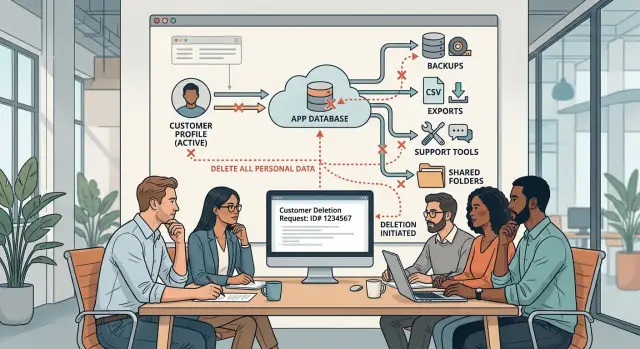
Table of Contents
Why simple deletion answers fail
Most deletion mistakes start with one bad assumption: if the account row is gone, the customer is gone too. That is rarely true.
Customer data spreads. A person can appear in the app database, error logs, support inboxes, billing notes, analytics tools, and a CSV file someone downloaded months ago. A team checks the main product, sees no visible profile, and replies "deleted" too soon. Then the same customer shows up later in a backup restore, a shared drive, or an old export used for reporting.
The usual trouble spots are easy to recognize once you look for them:
- live product data
- logs and monitoring records
- support emails and attachments
- CSV or spreadsheet exports
- backups and snapshots
Backups are the most common blind spot. They exist to preserve older copies of data, so they often keep records after the main system changes. If you delete a record today, last week's backup may still contain it until that backup expires. If nobody explains that clearly, the answer sounds complete when it isn't.
Exports are messier because they spread quietly. Someone on sales pulls a CSV. A support agent saves screenshots to a folder. A founder downloads a user list before a board meeting and forgets it on a laptop. None of those copies live inside the product, but they still count when a customer asks for deletion.
Small teams run into this more than they expect. People move fast, use simple tools, and store files wherever work gets done. That's normal. The problem starts when the deletion request process covers only the app and ignores everything around it.
Language matters too. "We deleted your account" does not mean the same thing as "we removed your data from active systems, and remaining copies will age out under backup retention." The first line sounds final. The second line is honest.
A good data deletion workflow starts with a map, not a button. You need to know where customer data can land, who can create extra copies, and which systems clean themselves up only after a set retention period. Without that map, a fast yes is just a guess. Guesses get expensive when an old copy shows up later.
Where customer data usually hides
Deleting one record in the main app database rarely finishes the job. Most teams know where live customer data sits, but they forget the copies made for support, reporting, recovery, or convenience.
The first places are obvious: your production database and file storage. If your app stores profiles in PostgreSQL and uploads in object storage, both count. Avatars, contracts, chat attachments, generated PDFs, and cached files often live outside the main table where the user account sits.
Then come the business tools around the app. Support desks keep ticket history. Billing systems keep invoices, names, email addresses, and payment metadata. Email platforms store contact lists, message logs, and campaign segments. A deleted account can still appear in a refund thread or an old onboarding sequence.
Analytics and operations tools often capture more than people expect. Product analytics may log user IDs, emails, IP addresses, or event properties. Error tracking can capture request payloads, form values, and stack traces tied to a customer session. Admin tools create another quiet copy. If a staff dashboard lets someone export a user record or paste details into notes, that information now exists somewhere else too.
Copies people forget
Exports are a common trap. Teams generate CSV reports for finance, send spreadsheets to customer success, or drop reports into a shared drive. Once that file leaves the app, your normal deletion request process won't touch it unless you mapped it first.
Backups, snapshots, and disaster recovery systems need special handling. You usually should not edit old backups one by one. Instead, you need clear retention rules, a way to stop restored deleted data from coming back into production, and an honest answer for how long a deleted record may still exist in recovery media.
Test systems are often the messiest part. Developers copy production data into staging, keep local database dumps, or save sample payloads to debug an issue. Those copies can sit on laptops, temporary servers, or old containers long after the customer left.
A small SaaS team might remove a user from the app in minutes and still keep that same person's data in six more places. That's why customer data mapping has to include every tool, every export, and every recovery copy, not just the app your users can see.
How to map every copy
Start with systems, not teams. People forget. Systems leave traces.
If you want a data deletion workflow that holds up under pressure, make a plain list of every place customer data can enter, live, or leave.
Start with the full data path
Most teams begin with the app database and stop too early. Keep going. Add your payment tool, support inbox, CRM, analytics tool, email platform, file storage, logs, backups, and any reporting tool that pulls customer records into its own store.
Then look for copies that staff create by hand. A support agent might export a CSV to answer a billing question. A salesperson might keep leads in a spreadsheet. An engineer might copy production data into a staging environment. These copies matter because customers do not care which team saved the file. They asked you to delete their data.
A short worksheet is enough:
- system or storage location
- what customer data it keeps
- who owns it
- how data gets there
- how long it stays there
Capture the facts that matter
For each system, write down the exact data it holds. Be specific. "Customer info" is too vague. Write "email address, billing name, invoice ID, support attachments, IP logs," or whatever is actually stored.
You also need to know what kind of action each system supports. Some systems allow full deletion. Some only allow anonymization. Some rely on timed expiry. Some need a manual vendor ticket. Those differences shape the real deletion request process.
Ownership matters too. If nobody owns a system, nobody will follow through when a request comes in. Every data store, export path, and vendor tool needs a person responsible for checking it.
Build the deletion workflow step by step
Treat each request like a small incident, not a quick support task. If one person deletes a row in the app and stops there, the team can miss exports, support files, or backup copies that still hold the same customer data.
Start with identity and scope. Make sure the requester is the account owner or an approved contact, then define what they want removed. Some people want an account closed. Some want one workspace erased. Some want every profile, invoice, attachment, and support thread tied to their name.
A simple order works well:
- Freeze new copies first. Stop scheduled exports, pause manual data pulls, and tell the team not to create fresh spreadsheets or test dumps for that customer while the case is open.
- Remove live data next. Delete or anonymize records in the product database, admin tools, logs used for normal operations, and any app storage users can still reach.
- Send tasks to every place outside the main app. That usually includes backups, analytics tools, payment or support vendors, file shares, and internal folders. Some systems allow full deletion right away. Others only allow expiry after a retention window.
- Write down dates, owners, and limits. If backups stay for 30 days, note that. If a vendor needs a manual ticket, assign one person and set a due date.
- Close the request only after you check the map. Compare finished tasks against the customer data mapping list, not against memory.
This does not require a heavy tool. A shared table often works: system name, data type, action needed, owner, date sent, date done, and any retention rule. Small teams can keep this in the same place they track incidents or support work.
One more rule helps: give one person ownership of the whole request from start to finish. When nobody owns the flow, teams assume somebody else handled the backup job or the vendor ticket. That's how "deleted" data lingers for months.
A data deletion workflow works only when the team can show what they did, who did it, and what still sits in timed retention. That gives support, legal, and engineering the same version of the truth.
A simple example from a small SaaS team
A small SaaS team gets a deletion request from a former customer. She canceled her subscription, then emailed support and asked the company to erase her profile data. The team assumes it will take a few minutes.
A developer starts in the app. He deletes the customer account, removes uploaded files, and clears session records so the user cannot sign back in with old tokens. That covers the main product data, and many teams stop there.
But support checks the inbox before anyone closes the ticket. The customer sent two billing questions a month earlier, so the help desk still holds her email address, full name, and screenshots from inside the app. Those screenshots show project names and a partial invoice number. The team cannot say the data is gone while those tickets still sit in the queue.
Finance finds another copy. Every week, someone exports subscription data to a CSV file for a quick revenue check and drops it into a shared folder. Last Friday's file still includes the customer's email, plan, and payment status. Nobody thought about that export during the first pass because it lives outside the product.
This is where a data deletion workflow earns its keep. It turns one vague task into a short list of checks with an owner and a clear action:
- app account, files, and sessions - delete now
- support tickets and screenshots - redact personal details or delete attachments
- finance export in the shared folder - remove the row or delete the file if nobody needs it
- backups - record the retention period and note what the team will do if old data is restored
The backup step matters because most teams cannot edit backup archives one record at a time. A sensible approach is to remove the customer from live systems first, document how long backups last, and make sure any restore process includes a second deletion pass. That answer is honest. Saying "we deleted everything" when backups still contain the data is not.
The team closes the request only after each copy has a status. One person confirms the app deletion. Support confirms the inbox cleanup. Finance confirms the export is gone. Then the team logs the backup retention note in the case record.
That is what removes false confidence. The request is complete because every known copy has a decision, not because the first delete button worked.
Mistakes that create false confidence
Most deletion failures start with a clean dashboard and a messy reality. A record disappears from the app, support closes the ticket, and the team assumes the work is done. Meanwhile, old copies still sit in places nobody checked.
Backups cause this all the time. Teams often treat them as invisible because nobody opens them during normal work. But a backup is still a copy of customer data. If you cannot remove one person from a backup set, say that plainly and match your answer to the backup retention schedule. "Deleted from production" is not the same as "gone everywhere."
Exports are another common miss. Staff download CSV files for reports, save them to laptops or shared folders, and forget them. Months later, the app is clean but an old file still has names, emails, invoices, or notes. These files are easy to ignore because they live outside the product, yet they count just as much when someone asks for deletion.
Teams also get into trouble when they mix deletion requests with retention rules or legal holds. Some records must stay for tax, fraud review, security logs, or contract reasons. In that case, the team should stop using the data for normal work, restrict access, and record why it stays. If a legal hold applies, say that clearly. Do not mark the request as fully completed when part of the data must remain.
Vendors get left out for a simple reason: another team owns the contract. Engineering may check the app, while finance or operations manages the billing tool, email platform, support desk, or analytics service. The customer does not care who owns the vendor relationship. If the vendor has the data, your team still has to account for it.
Before anyone closes the request, keep written proof of each check:
- which systems the team reviewed
- whether backups still contain the data and when they expire
- whether staff searched for old exports and removed them
- which vendors confirmed deletion or retention limits
- which records stayed in place, and why
A ticket marked "done" without notes is just a guess. Written proof forces people to slow down, check every copy, and give an answer they can defend later.
Quick checks before you mark it done
Before you close a request, test the work the way a skeptical customer would. A data deletion workflow is only real if someone on your team can explain, in plain language, where the data went, what you deleted, and what still remains for a set time.
A simple rule helps: if nobody can walk through the full path from app database to logs, exports, backups, and vendor tools, you do not have a finished map. You have a partial memory.
Use this short review before you mark any request complete:
- Ask one person to trace the customer record across every system without asking around. If they stop at "I think" or "maybe," the map still has gaps.
- Check that each system on the map has a named owner and a clear action. Delete, anonymize, suppress, and wait for scheduled expiry are not the same thing.
- Look beyond the app itself. Teams often forget CSV exports in shared drives, analyst downloads on laptops, support attachments, and one off files sent to partners.
- Write down backup rules in plain words. State how long backups live, whether you delete inside backups, and what happens if you restore an old snapshot.
- Read the support reply before it goes out. Support should answer follow up questions with facts, not guesses or legal sounding filler.
The backup point trips up a lot of small teams. You may not remove one user from every historical backup, and that can be fine if your policy says backups are sealed, access is limited, and old copies expire on schedule. The mistake is pretending the data is fully gone when it can still reappear during a restore.
Exports create a different problem. They spread fast and leave weak paper trails. A product database may be clean while three spreadsheets still sit in email, cloud storage, or a sales ops folder. If the team did not search for those copies, the request is not done.
Support also needs a short internal answer sheet. It should cover five things: what was deleted now, what was anonymized, what remains in backups, when those backups expire, and who reviews edge cases. That small step saves time and stops sloppy replies.
If you want one final test, ask a new team member to read the record and explain the case back to you. If they can do that in two minutes, the process is probably solid.
What to do next
Start small. Open one document and list every place a customer record can land: your main database, logs, support inbox, exports, analytics tools, file storage, and backups. The first draft will miss things. That's fine. A rough map is better than false confidence.
Update that map every time your team adds a tool, changes a sync, or creates a new export. The format matters less than the habit. For most teams, a plain table with system name, data stored, retention, delete method, and owner is enough.
Then turn your data deletion workflow into a short runbook people can follow on a busy day:
- who receives the request and checks identity
- which systems the team checks first, second, and third
- what the team deletes right away and what must wait for backup retention to expire
- how the team records completion, delays, and exceptions
Keep that runbook short. If it takes ten pages to explain, people will skip steps and fill gaps from memory.
Set up one practice run every quarter. Pick a real customer path, or create a test account, then follow the full process from request intake to final recordkeeping. Time it. Write down where the team hesitates. Those pauses usually point to the copies nobody owns clearly.
If your stack spans too many tools, old vendors, manual exports, and several backup layers, a fresh review helps. Internal teams usually know the current app well, but they forget the script someone wrote two years ago or the archive a finance tool still keeps.
If you need that kind of review, Oleg Sotnikov at oleg.is helps startups and small businesses sort out architecture, data flows, backup handling, and messy operational processes as a Fractional CTO. That kind of outside help makes sense when the problem is not one bug, but a system that grew faster than the process around it.
The next step is simple: make the first map, test one request, fix what breaks, and repeat after every major change. Teams that do this regularly answer deletion requests with proof instead of guesswork.
Frequently Asked Questions
Is deleting the account enough?
No. Deleting the account row only removes one copy. You still need to check files, logs, support tickets, billing tools, analytics, exports, and backups.
Where should we look besides the main database?
Start with every place data can enter, live, or leave: the app database, file storage, support inbox, billing system, email platform, logs, analytics, shared folders, and backups. Then ask where staff make manual copies, because those usually slip through.
Do backups still count after we delete live data?
Yes. A backup still holds older copies until it expires. Most teams do not edit backups one record at a time, so delete the live data now, document the retention period, and make sure a restore triggers another deletion pass.
What should we tell a customer about backups?
Say exactly what changed. Tell them you removed data from active systems, explain what remains in backup retention, and state when those copies age out.
How do we map every copy without buying a big tool?
Use a simple table. For each system, record what data it stores, who owns it, how it gets there, how long it stays, and whether you delete it, anonymize it, or wait for expiry.
Who should own a deletion request?
Give one person ownership from start to finish. That person checks the map, sends vendor tasks, tracks dates, and makes sure nobody assumes someone else handled the missing pieces.
What do we do with old CSV exports and spreadsheets?
Treat exports like real data stores, not throwaway files. Search shared drives, laptops, inboxes, and finance folders, then remove the row or delete the file if nobody still needs it.
Can we close the request if some records must stay?
No. If tax rules, fraud review, security logs, or a legal hold require you to keep some data, say that plainly. Restrict access, stop normal use, record why it stays, and do not mark the request fully complete.
How do we stop deleted data from coming back after a restore?
Build that step into your runbook. When you restore an older snapshot, check it for records people asked you to delete and remove them again before normal work resumes.
How can we tell if a deletion request is really done?
Ask someone who did not work the case to explain it back from the notes. If they can say what you deleted, what you anonymized, what still sits in backups, and when those backups expire, your record is probably ready to close.


