Customer-safe debug views for support teams at scale
Learn how customer-safe debug views help support teams trace errors, inspect job history, and solve cases faster without exposing production data.
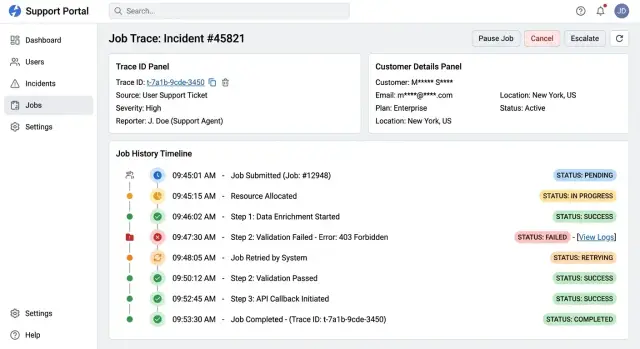
Table of Contents
Why support gets stuck without safe debug views
Support teams usually end up with two bad choices. They either wait for an engineer to inspect production, or they use raw internal tools that were never built for customer work.
Waiting slows everything down. A support agent asks for help, an engineer switches context, then asks for more details because the ticket is missing the right ID, timestamp, or error state. One simple customer question can turn into several back-and-forth messages before anyone even finds the problem.
Opening raw tools is faster, but riskier. Dashboards, logs, and database views often show far too much: full email addresses, payment details, tokens, internal notes, and unfiltered event payloads. Even careful teams make mistakes when sensitive data sits right in front of them.
Lack of context makes all of this worse. Support does not need every field in a table or every line in a log. They need plain answers to plain questions. Did the signup email go out? Did the background job fail? Has this customer hit the same problem before? Is this a known issue or a one-off?
When those answers are hard to find, tickets drag on. Customers repeat themselves. Support asks engineering for screenshots or log snippets. Engineering replies with technical language that support then has to translate. The delay looks small on one ticket, but across hundreds of tickets it adds up quickly.
A safe debug view closes that gap. A good support screen gives agents enough facts to act without exposing raw production data. It might show a masked email, current status, recent job results, a trace ID, and a short failure reason. In many cases, that is enough to explain the issue, retry the right step, or send the case to engineering with the right context the first time.
That changes daily work in a very practical way. Support stops working blind. Engineering stops acting like a human lookup tool.
Start with the questions support must answer
These screens work only if they answer real support questions. If support still has to ask engineering for the basics, the screen is just decoration.
Start with ticket history, chat logs, and call notes. You usually see patterns fast. The same questions come up again and again:
- Did the user finish the action or stop halfway?
- What status is the account, order, or job in right now?
- Did the system send the email, webhook, or retry?
- When did the problem start?
- Can support fix it now, or does engineering need to take over?
That last question deserves extra attention. Some cases belong with support. They can resend an email, confirm a status, or explain the next step. Other cases need engineering, like a broken worker, a stuck queue, or a bad deploy. Draw that line early. It saves time and keeps support from guessing.
For each common case, write down the few facts support needs to see. Keep it specific. If a signup email failed, support may need the account status, whether the email job ran, the last error in plain language, and the time of the last retry. They do not need the full email body, secret tokens, raw request payloads, or private profile data.
A simple filter works well: if a field does not change the next action, remove it. Support screens get messy when teams dump everything from production into one page. That slows people down and raises the chance of exposing something private.
Before anyone designs the screen, map each case in four short parts: the question support asks, the facts support needs, the action support can take, and the point where engineering takes over. A smaller, sharper view almost always beats a giant admin page that tries to answer everything at once.
Show only safe fields on the screen
A support screen should answer "what happened?" without exposing customer data. If the first thing on the page is a full profile, raw JSON, or an API token, the screen is doing too much.
Mask personal details everywhere they appear. Names, emails, phone numbers, addresses, session IDs, and tokens should never show in full on the default view. Support usually does not need "[email protected]" to do the job. "a***@example.com" is enough to confirm they are looking at the right record.
Stable IDs do more work than personal details. A customer ID, workspace ID, order ID, job ID, and trace ID let support follow one issue across tools without seeing private data. IDs also avoid confusion when two customers share a name or use similar email addresses.
Keep raw payloads out of the main screen. Show a short summary instead: status, event time, error code, retry count, last completed step, and related IDs. If support truly needs more context, give them a restricted drill-down that logs access. Engineers can have a deeper view. Support should get the safe version first.
Copying details matters more than many teams expect. Let support copy redacted facts with one click so they can paste them into a ticket or send them to engineering without cleanup. A useful copied summary might look like this:
- Customer ID: 48291
- Signup job: job_9c1f
- Email: a***@example.com
- Error: SMTP 550
- Last retry: 10:42 UTC
That saves time and avoids the common mistake of pasting secrets into chat.
Track access to anything sensitive. Log who opened the view, when they opened it, and which record they checked. If someone later asks for broader access, you can look at real usage instead of guessing.
Add trace links that follow one issue
Support loses time when one customer action breaks into several separate records. A signup can start in the web app, call an API, queue an email job, and end with an error in a worker. If those records do not share one trace ID, the team has to piece the story together by hand.
Create that ID at the first user action. If a customer clicks "Sign up" or "Pay", your app should create the trace ID right there and pass it through every step after that. Keep it short, easy to copy, and easy to search in logs, support screens, and alerts.
The support view should show the same trace ID on the ticket, the original request, the worker job, and the error event. That gives agents one path to follow instead of several places to search.
A simple trace chain usually includes the internal case, the request that started the action, the background job that continued it, and the error record if the action failed. Each step should show three plain facts: when it started, when it finished, and what state it is in now. States like "queued," "running," "done," and "failed" are enough for most teams. Exact times matter because they show where the delay happened.
Take a failed signup email. Support opens the ticket and sees the trace ID. The request finished at 10:02:11, the email job started at 10:02:12, retried twice, and failed at 10:03:01 with a provider timeout. That is a clear story, and support can explain it without opening raw production data.
Broken links in the chain need clear labels. If the request exists but the worker job is missing, say "job not found." If retention removed the error event, say that too. Blank space makes people think the tool failed when the real issue is missing data.
When support can follow one issue from start to finish on one screen, they answer faster and escalate less often. Small teams feel that difference right away.
Keep job history easy to read
A messy job log wastes support time. When one screen mixes queued jobs, retries, user clicks, and system noise, people stop trusting it. A clean history should answer one question fast: what happened, in what order, and what needs attention now?
Put every event on one timeline with the newest or oldest order chosen once and kept the same everywhere. Most teams do better with oldest first because support can read the story from start to finish without mentally jumping backward.
Each row should show the job name, start time, finish time, status, and retry count. If a job waited in a queue or paused before retrying, show that delay next to the attempt count. Support should not open three panels to learn that an email job failed, waited 10 minutes, retried twice, and then succeeded.
Failures need a short human reason, not a raw stack trace. "Email provider timeout" or "Customer record missing verified address" is enough for most cases. Keep the deeper technical details behind an internal layer, but keep the support view plain.
Separate what the customer did from what the system did afterward. A signup click, password reset request, or plan change should look different from background work like sending emails, syncing billing, or updating search indexes. That split helps support see whether the issue started with user input or with a later job.
A simple timeline format works well:
- 10:02:14 - Customer requested password reset
- 10:02:15 - Email job queued
- 10:12:15 - Retry 1 after provider timeout
- 10:22:15 - Retry 2 after provider timeout
- 10:22:18 - Final result: sent
Keep history long enough for real support habits, not ideal ones. If customers often report a missing email two weeks later, a 48-hour log is not enough. In practice, longer retention with redacted fields helps more than a clever interface.
Build the first version step by step
Most teams try to design a full internal console on day one. That usually slows them down. Start with one support case that shows up every week and takes too long to check by hand, such as a background job that never finishes or a billing event that looks stuck.
Start with one case
Write down the path of that case from start to finish. Which event starts it? Which service touches it? Which IDs does support need? Where does the final status live? Keep the map short and plain. If support cannot follow the path on paper, they will not follow it on a screen.
Then pick only the fields that answer the ticket. A good first screen often needs the current status, timestamps for each step, one trace ID, a short note about the last error, and customer details reduced to safe fragments like a masked email or the last four digits of an order number.
That is enough for many cases. Skip raw payloads, full personal details, secrets, and free-form logs. If support needs those to solve the issue, the screen is still too close to production.
Test it on old tickets
Build one simple page, not a full admin area. Put the status at the top, the event history in time order under it, and the trace reference where support can copy it quickly. If the issue crosses more than one service, make that trace reference the spine of the page so support can follow one case without guessing.
Next, pull ten or twenty real tickets from the last month. Ask support to work through them with the new screen. Watch where they stop, what they still ask engineering for, and which labels confuse them. Small wording changes often help more than extra filters.
Before wider access, tighten permissions. Give the screen only to the people who need it, log every view, and keep support access separate from engineering access. Teams often leave this for later and regret it. A good first version is small, readable, and a little boring. That is usually a good sign.
A simple case: a failed signup email
A customer says the signup form worked, but no email arrived. Support does not need direct access to production to check this. With a safe debug view, they open the account record and look at one trace that ties the signup event to the email job.
The screen shows the basics first: signup time, account status, email delivery status, and a masked address like "m***@example.com." That is enough to confirm whether the customer entered the address they expect without exposing the full value.
From there, support follows the trace ID. They can see that the signup request created an email job, the mail service accepted it, and the system tried one retry a few minutes later. The job history ends with a final bounce from the mail provider.
Each outcome points to a different next step. If the job never started, the issue may be in the app or queue. If the provider accepted the message and later bounced it, support can stop blaming the signup flow and focus on delivery.
The masked address helps again. The customer says they signed up with "maria.santos@..." and the screen shows "m***.s*****@..." Support can confirm the pattern matches without reading the full address back to the customer. That tiny detail cuts a surprising amount of back-and-forth.
Now the case moves quickly. Support can tell the customer the account was created, the email job ran, and the provider returned a bounce after a retry. They can ask the customer to check the address, try a resend, or switch to another inbox if needed.
Nobody had to open raw logs. Nobody had to interrupt an engineer just to inspect production. Engineering gets involved only if the trace shows the system failed before the email ever left.
Mistakes that create risk or slow support
Bad support tools usually fail in one of two ways: they expose too much, or they hide the facts people need. Good debug views sit in the middle. They give support enough context to act quickly without turning the screen into a copy of production.
A common mistake is dumping raw logs into the support view. That feels useful at first, but raw logs often carry tokens, payloads, headers, email addresses, or internal notes that support should never see. They are noisy too. A support agent looking into one failed action should not have to scan 500 mixed events to find one timeout.
Another mistake is building one giant page with every field from the database. People stop trusting screens like that because they cannot tell what matters. Put the fields that explain the issue first, and leave internal-only details out of the tool.
The teams that move fastest usually get a few basics right. They keep timestamps visible so support can tell whether a job is stuck or simply still running. They show retry counts and final status because one failure looks very different from eight failures. They use one stable ID across systems, or they show the mapping clearly when that is not possible. They keep the screen read-only so small fixes do not turn into hidden data changes. And they avoid mixing customer-facing labels with internal names. If one screen says "signup" and another says "user_create_v2," confusion starts fast.
A good rule is simple: if a field helps explain what happened, show it in a safe form. If it invites accidental change, leaks private data, or adds noise, leave it out. Support usually moves faster with a clear trail than with full access.
Quick checks before launch
Launch day is a bad time to learn that support still cannot answer the tickets people send most. Test the screen against your top ticket types first. Pick five real cases, remove customer names, and ask a support rep to solve them using only the new view.
If they still need engineering for basic facts like "Did the job run?" or "Which account did this touch?" the screen is not ready. The whole point is to cut the first round of back-and-forth.
Run a short checklist before you ship:
- Can support answer the most common ticket questions from one screen or one clear trace path?
- Do masked fields stay masked in exports, copied text, print views, and screenshots?
- Can a new team member read the history and explain what happened in under a minute?
- Does one trace follow the issue across API calls, background workers, and scheduled jobs?
- Do engineers still have a separate, audited route to raw data when they truly need it?
The masking test catches more teams than you might expect. A field may look hidden on the page but leak in a CSV export, an error tooltip, or browser autofill. Support tools get shared quickly during live incidents, so if masking fails in one place, the whole safety model has a hole in it.
Job history needs the same kind of pressure test. Ask someone new to the team to open one record and tell you three things: what started the flow, where it failed, and whether the system retried it. If they cannot answer quickly, the log is too noisy or the labels are too vague.
Keep the line between support access and engineering access very clear. Support should get safe context, trace links, and readable history. Engineering can have deeper access through tighter controls, approvals, and audit logs. Mixing those two paths usually creates risk first and speed problems right after.
What to do next
Once the first screen is live, watch the tickets that still bounce back to engineers. Those tickets show where support still lacks safe context. Maybe they cannot tell whether an email job ran, which state blocked a login, or whether a webhook reached your system. Pick the pattern that shows up most often and add that next.
Do not build five more views at once. One extra flow is enough if it removes a common handoff. A good second step is often one narrow path, such as signup, billing retry, or import status. Small additions keep the tool clear and make access rules easier to test.
Training matters as much as the screen. Give support a few real cases, a short note for each field, and a plain rule for when to escalate. If a redacted value still confuses people, rename it. If a trace link sends them through three screens, shorten that path.
A simple review loop works well:
- Collect 10 recent tickets that still needed engineering help.
- Mark what support could not confirm on their own.
- Add the missing safe field, trace step, or job event.
- Test the change with two or three real cases.
Then look at whether the new view changes daily work. Saving even one engineer interruption a day adds up fast. If nobody uses the screen, it is probably too noisy or too vague.
Keep the notes short and close to the work. A one-page guide with real examples usually beats a long internal manual that nobody opens. Support should know what each status means, what they can safely tell a customer, and when they should stop and ask for help.
If you want an outside review, Oleg at oleg.is can look at the data model, access rules, and support workflow. That fits well with his Fractional CTO and startup advisory work, especially for teams trying to tighten internal tools without exposing production data.
Frequently Asked Questions
What is a customer-safe debug view?
A customer-safe debug view gives support the facts they need to answer a ticket without opening raw production tools. It should show status, timing, recent job results, a trace ID, and a short error note while hiding private data like full emails, tokens, and raw payloads.
What should the default support screen show?
Start with the current status, the time the issue started, the latest system result, and one ID that ties the whole flow together. Add a short timeline and a masked customer detail so support can confirm they opened the right record fast.
Which fields should I mask?
Mask anything that exposes a person or gives access to a system. Show redacted emails, phone numbers, addresses, session IDs, tokens, and payment details by default, and let stable internal IDs do most of the work.
Why should I use one trace ID across systems?
One trace ID lets support follow a single customer action from the app to the API, queue, worker, and error record without guessing. When every step shares the same ID, agents stop piecing the story together by hand and send cleaner escalations to engineering.
Should support see raw logs or payloads?
No, keep raw logs and payloads out of the support view. Give support a plain summary like failed after 2 retries or provider timeout, and reserve deeper data for engineers behind tighter access and audit logs.
What makes a job history easy to read?
Keep it simple and consistent. Show each event in time order with the job name, start time, finish time, current status, retry count, and a short human reason for any failure so support can explain what happened in seconds.
When should support hand a case to engineering?
Draw the handoff line early. Let support handle cases where they can confirm status, resend a step, or explain the next action, and send the case to engineering when the trace shows a broken worker, missing record, stuck queue, or deploy issue.
Should the support view stay read-only?
Yes, keep the screen read-only for support. That lowers risk, keeps the audit trail clean, and stops quick fixes from turning into hidden data changes that nobody can explain later.
How do I build the first version without overbuilding?
Pick one ticket type that shows up often and wastes time, then build one small page for that flow. Use only the fields that change the next action, test the screen on old tickets, and ignore everything that feels like a mini admin console.
How should I test the screen before and after launch?
Test with real tickets, not a demo record. Ask support to solve ten or twenty recent cases using only the new screen, watch where they still ask engineering for help, and fix the labels, missing fields, or broken trace steps that slow them down.


