CSV export performance without slowing live traffic
Learn how to plan batching, snapshots, queues, and download expiry so CSV export performance improves without slowing orders or admin work.
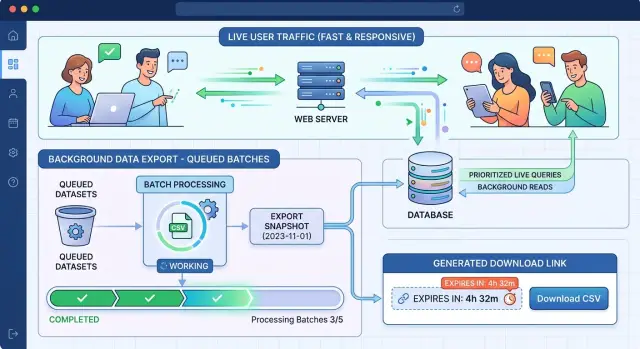
Table of Contents
What goes wrong during a big export
CSV exports start causing trouble when one request tries to do everything at once. The app asks the database for a huge set of rows, turns them into a file, and keeps the web request open until the job finishes. It sounds simple. On a busy system, it slows everything down.
Volume is the first problem. When an export pulls too many rows in one shot, the database has to sort, join, and send a lot of data at once. CPU climbs, memory grows, and disk reads spike. If the app also formats the file row by row, the app server gets dragged into it too.
The next problem is competition. Exports do not run alone. They compete with checkout requests, search queries, dashboard refreshes, and admin work. A sales team can click "Export" right when customers are placing orders. Users do not care that a report is running. They notice that pages that used to load in half a second now take three seconds.
Consistency is the third problem. If records change while the export runs, the file can mix old and new data. One row shows an earlier order status, the next row shows a later update, and totals stop matching. Support teams then have to explain why the CSV does not match what users saw in the product.
Large exports can also hold locks longer than expected, fill caches with report data nobody will reuse, and push disk usage high enough to affect unrelated work. That is why exports need their own path. Treat them like background jobs, not like ordinary page requests.
Decide which exports need special handling
Not every export needs the same flow. A file with 500 rows can usually finish right away. A full history dump with 8 million rows should not hit the database in the same way, especially during busy hours.
Start with a cheap row count or estimate before you build the file. You do not always need a perfect number. An estimate is often enough to decide whether the request can stay inline or should move to a queue.
That split matters more than most later tuning. Small exports should feel immediate. Large exports should move to the background, where they can finish without tying up the page.
A simple rule works well. Run the export immediately when the result set is small and the query is light. Send it to the queue when the row count, date range, or number of joins crosses your limit. Treat full history exports as async by default. Give admins and internal tools the same limits as everyone else, or they will become your biggest source of load.
Scheduled reports need their own lane too. They are predictable, so you can run them during quieter hours and reuse the file when several people need the same report. Manual exports behave differently. They usually arrive in bursts, right after someone changes filters or selects a wide date range.
Pick one cutoff and document it in plain language. For example, anything under 25,000 rows runs right away, while anything larger goes to the queue. The exact number depends on your system, but the rule should be easy for the team to remember and easy for users to understand.
If a finance user exports last week's transactions, the app can return the file right away. If they ask for seven years across all accounts, queue the job, notify them when it is ready, and keep live traffic out of the way.
Build the export flow step by step
A good export flow keeps the page request short and moves the heavy work out of the browser round trip.
Start by saving the request exactly as the user made it. Store the filters, sort order, selected columns, timezone, and user ID. When the user comes back later, you can rebuild the same file instead of guessing what they asked for.
Then create an export job record. Keep it boring. Store who asked for the export, the saved filters, the current status, the file location or temporary filename, and the timestamps for start, finish, and expiry.
After that, hand the job to a worker. The worker should read data in fixed batches, often 1,000 or 5,000 rows at a time depending on the table size and query cost. Small, steady reads usually work better than one giant query that holds resources for too long.
As each batch finishes, write it straight to a temporary file. Do not keep the whole CSV in memory. Write the header once, then append rows batch by batch until the file is complete. If the job fails halfway through, mark it as failed and remove the partial file.
The user experience gets much better with this model. A support manager exporting all orders from the last 90 days should see a clear status like queued, running, or ready, not a tab that hangs for two minutes.
When the last batch finishes, mark the job ready, save the final file size and row count, and show the download in the UI. A simple status refresh is enough. The page stays fast, the export keeps moving, and the user knows what is happening.
Use snapshots to keep the file stable
An export should match the data as it looked when the user clicked "Export", not whatever changed over the next ten minutes. Without a stable view, rows can shift between batches. Records get skipped, duplicated, or pulled into the wrong page.
Save a cutoff time when you create the job. Every batch should use that same cutoff, not the current time when the batch starts. In practice, that often means a filter like "created before cutoff_time" plus a fixed sort order, usually by a unique ID.
This matters more than many query tweaks. It gives every worker the same view of the result set, even while the app keeps accepting writes.
If your database supports snapshot reads or repeatable read transactions, use them for exports. A true snapshot keeps later inserts, updates, and deletes out of the file. The result stays consistent from the first row to the last.
If a full snapshot costs too much, read from a replica when you can. That reduces pressure on the primary database. Even then, keep the cutoff time. A replica without a fixed cutoff can still shift between batches.
Paging needs extra care. Offset pagination is one of the easiest ways to lose or duplicate rows during a long export. Cursor based batching with a fixed order is safer. Fetch rows where the ID is greater than the last seen ID while keeping the original cutoff filter.
Busy apps can hide this bug for weeks. Then one large export lands during a burst of writes, and the file no longer matches what the user expected. Freezing the result set when the job starts prevents that mess.
Queue exports so users do not wait on the page
If a large export runs inside the web request, the user waits, the app keeps connections open, and everybody else pays for it. A queue fixes that.
The page only needs to create the export job, save the filters, and pass the work to a background worker. The app can answer quickly with a status screen instead of keeping one request alive for minutes.
Users do not need much detail. Four status labels are usually enough:
- queued
- running
- ready
- failed
Those labels cut support questions more than teams expect. If the file is ready, show the download button. If it failed, show a short reason and let the user try again.
Do not let every export run at once. Set a limit on concurrent jobs, both globally and per account if needed. Two or three workers are often enough for heavy exports while the rest of the app stays responsive.
Retries matter too, but full restarts waste time. Save progress after each batch so a worker can retry a small failed step, like a dropped database connection or a temporary storage error, without rebuilding the whole file from row one.
Cancellation is worth adding early. People click export twice, change filters, or leave the page. Let them cancel queued jobs immediately, and let running jobs stop cleanly after the current batch finishes.
A plain job record usually stores everything you need: export type, filters, current batch, file path, row count, and any error message. That is enough for the UI to stay honest and for workers to recover from minor failures without guesswork.
Batch the work so the database can breathe
A large export should behave like a drip, not a fire hose. Asking the database for everything at once forces live traffic to compete with the export for CPU, memory, and disk reads.
Read data in small, predictable chunks. In practice, that often means fetching 1,000 or 5,000 rows at a time, writing them to the CSV, and moving on. Predictable chunking keeps memory flat and makes failures easier to recover from.
The sort order matters too. Use a field that already has a useful index, such as an auto incrementing ID or a properly indexed created_at column. That gives the database a simple path through the table. Random sorts and heavy offset paging usually get slower as the export grows.
Keep the batch size steady when you first launch. Many teams start tuning too early. Pick one size, test it under normal traffic, and watch how long each batch takes.
A few measurements tell you most of what you need to know: query time per batch, CPU and read load on the database, queue time for normal user requests, and total export time from first row to final file.
If query time starts rising, reduce the batch size first. Smaller reads usually hurt less than pushing through with a giant batch. If 5,000 rows per query causes slower page loads during business hours, drop to 1,000 and test again.
Short pauses between batches can help, but only when the database needs relief. A pause of 100 to 300 milliseconds can smooth load on a busy system. On a quiet system, pauses only make users wait longer.
This is where teams usually win or lose. Slow, steady reads are less dramatic, but they keep the app usable while the export finishes in the background.
Set download expiry and cleanup rules
Export files should not live forever. Old files waste storage, increase privacy risk, and confuse users when they download a report that no longer matches the product.
Give each file a short lifetime. For many products, 24 hours is enough. If the export includes sensitive customer data, a few hours is often better.
Store the expiry time with the export job itself, next to the file path, owner, creation time, and status. Then the app can decide whether to show the download button or ask the user to generate a fresh file.
Most teams only need a few rules. Save an expires_at value when the job finishes. Stop offering the download after that time passes. Run a scheduled cleanup task to delete expired files. Either remove old job records or mark them as expired. If the file is stale, generate a new one.
Run cleanup on a schedule that matches your traffic. A busy app may clean every hour. A smaller app may do it once a day. What matters is consistency. If cleanup depends on manual work, storage fills up and forgotten files stick around for months.
Avoid permanent download URLs. People paste them into chats, drop them into tickets, and reopen them long after access should end. Short lived download links tied to the job and user reduce that risk.
Freshness matters as much as storage. If someone exported orders in the morning and tries to reuse that file late in the day, the numbers may already be wrong. In that case, tell them the file expired or went stale and generate a new one.
Good cleanup does more than save disk space. It keeps the export system simple and stops old files from becoming another thing your team has to manage.
A simple example from a busy app
Noon is often the worst time to export a full year of orders. A store manager needs a CSV for finance, while customers are checking out and staff are searching for recent purchases. If the app builds that file inside the page request, everybody feels the slowdown.
A better flow starts by saving the manager's filters. The app stores the date range, order states, store selection, and chosen columns, then creates an export job and places it in a queue. The manager gets a quick message that the file is being prepared and can get back to work instead of staring at a spinner.
A background worker handles the heavy part. It reads from a database snapshot, not from changing live rows. That matters more than many teams expect. If a refund, cancellation, or address edit happens during the export, the file still reflects one stable moment.
The worker reads 5,000 rows at a time and appends each batch to the CSV. That pace is usually gentle enough for the database. Memory stays predictable, long queries are less likely, and the app can still serve checkout and search without feeling stuck.
This is what a healthy export flow looks like in practice. Users do not care that a queue, a worker, and a snapshot sit behind the button. They care that the export finishes and the rest of the app still feels normal.
When the file is ready, store it for a limited time, then delete it automatically. That gives the manager time to download it without turning old exports into a permanent archive.
Mistakes that create slowdowns
The fastest way to hurt performance is to build the file inside the web request. One user clicks Export, the app opens a long database query, formats thousands of rows, writes a file, and keeps the request alive the whole time. That ties up app workers and database connections while everyone else is still trying to use the product.
Another common mistake is scanning the same full table again and again for each batch. If every step starts with a fresh table scan, the database does far more work than necessary. Large exports then compete directly with live traffic, and response times climb for users who are not exporting anything.
Teams also get into trouble when they treat exports like a free, unlimited action. If one person can start ten exports in a row and twenty more users do the same, the queue fills with duplicate work. Rate limits, per user caps, and basic deduplication prevent a lot of pain.
Old files create a quieter problem. If you keep every export forever, storage grows, cleanup gets harder, and people keep downloading stale data days or weeks later. Most users need the file once, not as a permanent archive.
Failed jobs need attention too. When a job crashes halfway through and the system blindly retries it, you can end up with multiple copies of the same export running at once. That wastes CPU, database time, and storage. Give each export a clear status, track retries, and block duplicate reruns unless the earlier job is cancelled or marked failed.
A few warning signs usually appear before things get bad:
- export requests stay open for minutes
- database read load spikes during business hours
- users create the same export more than once
- storage fills with old CSV files
- failed jobs keep coming back without a clear reason
If these problems sound familiar, fix them early. Export code looks harmless until real traffic hits it.
Quick checks before you ship
An export can look fine in a quiet test environment and still break under real traffic. Test it while the app handles normal requests, background jobs, and the usual mix of reads and writes. If the export only works when the system is calm, it is not ready.
Use your largest real dataset, not a tiny sample that finishes in a few seconds. A file with 5,000 rows tells you very little about what happens at 500,000 or 5 million. If production data varies a lot by customer, test the biggest account you can safely copy into a non production environment.
Track a small set of numbers every time you run the test: total export runtime, time spent waiting in the queue, database load during each batch, final file size, and success rate across repeat runs.
Those numbers show you where the pain is. A long runtime may be fine if the queue stays short and live requests stay fast. A short export is still a problem if it spikes CPU, holds locks too long, or pushes other jobs behind it.
Do one boring check that teams often skip. Make sure expiry and cleanup really run. Generate files, wait past the expiry window, and confirm that the app removes both the download link and the stored file. Old exports pile up faster than most teams expect, especially when users retry failed jobs.
Support staff also need a clear view of each export job. They should be able to see who started it, when it started, whether it is queued or running, how large the file is, and why it failed. That one screen saves a lot of guesswork when someone says, "My export never arrived."
Next steps for your team
Start with one export. Pick the report that puts the most pressure on your database today, not the one that feels easiest to rebuild. One painful export will give you real numbers quickly, and those numbers make the next decisions easier.
Before you add more export types, decide which ones must finish right away and which ones can run in the background. Teams often delay that decision too long. Then they end up with a messy mix of slow page loads, timeout errors, and support tickets from users who think the app is broken.
Keep the plan simple. Name the export that causes the biggest slowdown. Mark each export as instant or queued. Set queue limits so a few heavy jobs cannot crowd out everything else. Define when files expire and when cleanup runs.
Write those rules down in plain language. Product, support, and engineering should all know what happens when a user clicks Export, how long a file stays available, and when the system asks the user to try again later.
If traffic keeps growing, get a design review before the export path turns into a daily problem. It is much cheaper to fix the flow early than to untangle a slow app after users start feeling it every day.
If your team needs a second opinion, Oleg Sotnikov at oleg.is advises startups and small businesses on architecture, infrastructure, and AI driven development. A short review of your export flow is often enough to catch expensive mistakes before they show up in production.
Frequently Asked Questions
Why do big CSV exports slow down the app?
Large exports pull a lot of rows, hold a web request open, and make the database compete with normal user actions like checkout, search, and dashboards. That raises CPU, memory, and disk reads at the worst time.
Move heavy exports to background jobs so the page returns fast and the work finishes outside the browser request.
When should I queue an export instead of running it right away?
Run it inline only when the result is small and the query is cheap. Queue it when the row count, date range, or join count gets large.
A simple rule helps. For example, send anything over 25,000 rows to the queue and treat full-history exports as async every time.
What is the simplest safe export flow?
Save the exact request first, including filters, sort order, columns, timezone, and user ID. Then create an export job record, hand it to a worker, and let the worker write the CSV in batches to a temporary file.
When the worker finishes, mark the job ready and show the download in the UI.
How do I keep the CSV consistent while data changes?
Use a fixed cutoff from the moment the user clicks Export. Every batch should read with that same cutoff and the same sort order.
If your database supports snapshot reads or repeatable read transactions, use them. That keeps later inserts and updates out of the file.
Why should I avoid offset pagination for large exports?
Offset paging can skip rows or duplicate them when new records arrive during a long export. The farther the export goes, the more fragile it gets.
Cursor-style batching works better. Read rows in a fixed order, usually by a unique indexed ID, and fetch the next batch from the last seen value.
What batch size should I start with?
Start with a steady batch size like 1,000 or 5,000 rows. That keeps memory flat and makes retries easier.
If page load times rise or batch queries slow down, shrink the batch first. Small, predictable reads usually hurt less than one large pull.
Should I run exports from a read replica?
Yes, if your replica stays close enough to the primary and your export can tolerate that setup. Reading from a replica cuts pressure on live writes.
Still keep a fixed cutoff time. A replica alone does not stop rows from shifting between batches.
What status messages should users see?
Most products only need four states: queued, running, ready, and failed. Users do not need a long technical explanation.
Show a download button when the file is ready. If the job fails, show a short reason and let the user try again.
How long should I keep generated CSV files?
Keep export files for a short time, often 24 hours or less. If the file contains sensitive customer data, a few hours makes more sense.
Save an expires_at value, hide the download after that time, and delete the file on a schedule so storage and privacy risk do not grow.
What should I test before I ship a new export system?
Teams usually get into trouble when they build files inside the web request, allow too many exports at once, retry failed jobs without tracking progress, or keep old files forever. Duplicate exports from the same user also waste a lot of work.
Test with real production-sized data while normal traffic runs. Watch export runtime, queue wait time, database load, file size, and whether cleanup actually removes expired files.


