Connection pooling settings to fix before traffic spikes
Use connection pooling settings based on real traffic patterns to tune pool size, wait time, and query limits before slowdowns hit users.
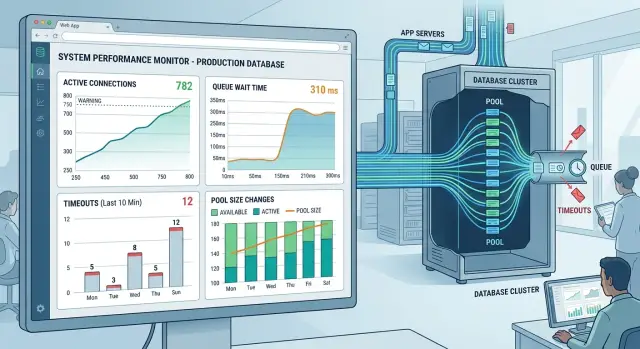
Table of Contents
What goes wrong when traffic rises
Default pool values often look fine in staging because staging rarely behaves like production. A small burst of real users changes the pattern fast. More requests arrive at once, each request waits a bit longer, and soon the app runs out of free database connections.
That is why connection pooling settings fail under load even when the database still has spare capacity. The trouble usually starts in the app layer. Threads or workers queue up, request times stretch, and one slow minute turns into a backlog.
When the pool is full, new requests keep coming. They wait for a free connection, then wait longer because earlier requests already filled the line. If retries kick in, the app adds even more pressure and the queue grows again.
Users usually see the symptoms before the team sees the cause. Pages load slowly. Checkout or login takes several seconds. Some actions fail with timeout errors, then work on the second try. That makes the issue feel random even though the pattern is pretty simple.
The same signs tend to show up together: response times jump even for simple pages, error rates rise during short bursts, retries increase total database work, and CPU may stay normal while request queues grow.
That last part trips people up. Teams often blame the database because users see database errors, but the real problem sits between the app and the database. A pool that is too small creates waiting. A pool that is too large can hurt too, because too many active queries compete for the same database resources.
You can usually tell the difference by watching where time disappears. If requests spend most of their time waiting for a connection, the bottleneck is pool behavior. If they get a connection quickly but queries run slowly, the bottleneck is query speed or database load.
Pool size should come from real workload patterns, not defaults copied from a framework guide. Good timeout choices and sensible query limits keep short spikes from turning into an outage.
The settings to check first
Connection pooling settings control how many requests reach the database at once, how long each request can wait, and when old connections should be replaced. Defaults often look harmless in testing, then fail when real users arrive in bursts.
Pool size is the number of database connections your app can keep open and reuse. Think of it as the number of checkout lanes between your app and the database. Too small, and requests line up even when the database still has room. Too large, and your app floods the database with work it cannot finish quickly.
Start with four settings: pool size, wait timeout, idle timeout, and max lifetime.
Pool size is how many open connections the app may use at once. Wait timeout is how long a request waits for a free connection before the app gives up. Idle timeout is how long an unused connection can sit before the pool closes it. Max lifetime is how long a connection can live before the pool replaces it.
Wait timeout affects the user experience fast. If it is too long, requests hang and pile up, which makes the whole service feel stuck. If it is too short, the app drops requests during brief bursts that the pool could have absorbed. In many cases, a small timeout works better than a huge one because it fails fast and shows you the bottleneck.
Idle timeout and max lifetime solve a quieter problem. Databases, proxies, and networks do not like old connections that sit around forever. Idle timeout clears out connections nobody uses. Max lifetime rotates connections before they go stale, hit server-side limits, or carry hidden issues for hours.
Query limits sit above the pool. The pool controls access to the database. Query limits control how much work each request can demand after it gets in. If one page load fires 25 queries, a bigger pool will not save you for long. Cap query count where you can, watch for repeated queries, and stop very long queries with a clear limit.
Teams running lean infrastructure learn this quickly. A small, well-tuned pool with sane timeouts often beats a huge pool with no limits. More connections do not fix slow queries, chatty endpoints, or heavy transactions. They just let those problems happen in parallel.
Measure the real workload
Most bad connection pooling settings start with a guess. Teams copy a default pool size, run a quick test, and assume the database will cope when traffic jumps. That usually works right up to the first busy hour.
Start with numbers from a normal busy period. Not a quiet Tuesday morning, and not a lab test with perfect requests. Use logs, metrics, and database stats from times when real users, background jobs, and scheduled tasks all hit the system together.
A few numbers matter more than the rest: average request rate and short peak rate, how long each query keeps a connection occupied, how many job workers and scheduled tasks touch the database, and the split between reads and writes.
Connection hold time is the one teams miss most often. A request can finish in 300 ms, but the database connection may only stay busy for 40 ms. The reverse can happen too. One slow report query can hold a connection for several seconds and block everything behind it. If you do not measure connection hold time, database pool size becomes guesswork.
Background work often hides the real load. Imports, email batches, cache warmers, sync jobs, and admin reports all compete for the same pool if you let them. A system that looks fine under web traffic alone can fail as soon as those jobs start at the top of the hour.
Read and write traffic behave differently too. Reads are often short and parallel. Writes can trigger locks, longer transactions, and retries. If your app mixes both in one pool, you need to know the balance before you change timeouts or query limits.
A simple example makes this clear. Say your app handles 25 requests per second on average, spikes to 70 for two minutes, and runs eight worker jobs every minute. If most web queries use a connection for 20 to 50 ms, the pool may stay healthy. If one reporting task holds six connections for four seconds each, traffic spike database load will look far worse than the request count suggests.
Use real busy periods, measure what actually touches the database, and tune from there. Defaults are cheap guesses. Production traffic is not.
Tune the pool step by step
Most teams change the pool too much, too fast, then wonder why the app still slows down. A better approach is boring on purpose. Start with today's traffic, look at today's errors, and move one setting at a time.
Begin with the numbers you already have. Check how many requests hit the app during a normal hour, how many database connections stay busy, and what errors appear when load rises. If users already see timeout errors or slow page loads, that gives you a better starting point than any default connection pooling settings.
Small changes are easier to trust. If your pool size is 20, do not jump straight to 100. Move it to 25 or 30, then watch what happens.
After each change, pay close attention to queue wait time. That is the time a request spends waiting for a free database connection. If queue wait drops and database CPU stays calm, the change helped. If queue wait barely moves but database load climbs hard, you probably added too many connections.
Lowering the pool can help too. Bigger is not always better. If the database starts thrashing under heavy concurrency, fewer active connections can produce steadier response times.
A practical test cycle is simple:
- Record current traffic, errors, and queue wait.
- Change pool size by a small amount.
- Test during a realistic busy period.
- Compare latency, error rate, and database load.
- Keep the change only if those numbers improve.
Set a sensible connection lifetime as well. Long-lived connections can go stale, especially behind proxies, failovers, or network devices that silently drop idle sessions. Recycling them on a schedule helps keep the pool clean. Many teams start with a moderate lifetime, then shorten or extend it based on disconnects and reconnect churn.
Run these tests during a real busy window, not at 10 a.m. on a quiet Tuesday. Use the kind of traffic your app actually gets: the same query mix, the same background jobs, and the same cache behavior. A store during a sale, a SaaS app after a product launch, and an internal tool at payroll time all stress the database in different ways.
If you change two or three settings at once, you lose the thread. One change, one test, one result.
Set timeouts and query limits that fit real traffic
A traffic spike hurts most when requests sit in line for too long. If an app waits 20 or 30 seconds for a free database connection, the user already thinks the page is broken. Set a short wait timeout for getting a connection from the pool, then fail fast and handle it cleanly.
For many user-facing requests, a wait of a few hundred milliseconds to about one or two seconds is more reasonable than the usual long default. That sounds strict, but it protects the rest of the system. One slow queue should not trap every new request behind it.
Query limits need the same logic. A user will tolerate a short pause, but not a report that runs for 45 seconds while checkout, login, or search fights for the same pool. Put long reports, exports, and admin jobs on a separate queue, a separate worker, or even a separate pool if your stack allows it. Normal traffic should keep moving.
The timeouts also need to agree with each other. If your app gives up after two seconds, but the database still runs the query for 30, you waste connections on work nobody needs anymore. If the database kills queries first, but the app retries right away, you create a burst of fresh load at the worst moment. Good connection pooling settings work as a set, not as isolated numbers.
A simple order helps:
- Set a short connection wait timeout in the app.
- Set a query execution limit below what users will tolerate.
- Give reports and batch jobs stricter controls or separate capacity.
- Allow one careful retry with a small delay, not a retry loop.
That last point matters more than teams expect. Retries can save a request when a brief lock or network hiccup hits. They can also turn a small slowdown into a full outage. Leave room for one retry with jitter, then stop.
If you want a rough starting point, keep user request timeouts short, keep query limits shorter than user patience, and make background work wait its turn. Then test those numbers against real traffic spike database load, not an empty staging system.
A simple traffic spike example
A lunch rush exposes database problems fast. Picture an online sandwich store that gets a steady trickle of orders all morning, then sees a sharp jump from 11:45 to 1:15. At 11:30, the app handles 15 requests a minute. At noon, it jumps to 140.
Each order request checks the menu, saves the cart, creates the order, and updates stock. None of those queries are huge, but they stack up when hundreds of people tap "Place order" within a few minutes.
When the pool is too small
Say the app uses a database pool size of 10 because that was the default in an old service. On a calm morning, nobody notices. During lunch, those 10 connections stay busy all the time.
New requests cannot talk to the database yet, so they wait in a request queue. A customer taps once, waits four seconds, taps again, and now the app has even more work to do. The web servers look alive, but the line keeps getting longer.
The pattern is familiar: page loads slow down at the same time, checkout requests pile up in memory, retry traffic makes the spike worse, and some users give up before the app answers.
When the pool is too large
Now swing too far the other way. The team raises the pool to 200 and feels safer because the queue shrinks. For a few minutes, it looks better.
Then the database starts choking. It has to manage too many active connections, too many open transactions, and too many queries competing for CPU and disk. Response time climbs again, but now the database itself is the bottleneck.
A more sensible setup might be a pool of 30 to 40, with a short wait timeout such as 150 to 250 milliseconds and a hard cap on slow queries. That gives the app enough room for a normal lunch rush without letting every web request hit the database at once.
The trade-off is simple. A smaller pool protects the database but rejects overload sooner. A larger pool absorbs short bursts but can drag the whole system down if the spike lasts. Good connection pooling settings sit in the middle, based on how long your real queries run and how many orders your app can finish at the same time.
Mistakes teams repeat
One common mistake is copying production numbers from a tiny staging setup and assuming they will hold up. Staging often has less data, fewer app instances, almost no background work, and far less messy user behavior. A pool that looks calm there can jam fast in production.
Teams also raise database pool size the moment requests start waiting. That feels logical, but it can make things worse. If the database can only handle a certain number of active queries before CPU, memory, or disk starts choking, a bigger pool just helps more slow work pile up at once.
Bad connection pooling settings often hide a query problem, not a pool problem. If one report takes eight seconds, or an API call runs the same query 20 times, the pool will look busy even when the real issue sits in SQL or application code. Opening more connections will not fix that.
Long timeouts cause another quiet failure. They make errors show up later, which can look nicer on a dashboard, but users still wait and workers still stay blocked. A shorter timeout usually tells the truth sooner, and that gives you a cleaner signal when something is wrong.
Teams miss shared load all the time. User traffic is only part of it. Cron jobs, queue workers, admin dashboards, imports, exports, and one-off scripts often hit the same database at the same time.
A simple example: an app handles 40 web requests at lunch, which seems fine in testing. In production, a scheduled sync starts, two workers begin processing email jobs, and someone in support opens a heavy admin page. Suddenly the pool looks too small, but the real miss was capacity planning across every source of traffic.
The safer approach is not glamorous, which is probably why teams skip it. Count every process that opens connections, check how many queries stay active during busy periods, and fix the slow queries before you touch pool limits. Then change one setting at a time and watch what the database does, not just what the app reports.
A release checklist
A release can look fine in staging and still fail in the first busy hour. With connection pooling settings, the safest habit is to compare the same few numbers before the release and again after real users hit the app. One chart is never enough. Pool pressure, query speed, and database health move together.
Before release, check the baseline during your busiest normal period.
- Look at pool usage when traffic is actually high. If the pool already stays close to full, even a modest spike can push requests into a queue.
- Measure how long requests wait for a free connection. The average matters, but the worst waits matter more because users feel those first.
- Scan application logs for timeout errors from the last few days. Small, occasional failures often turn into a flood after deployment.
Write those numbers down. Memory is unreliable, and teams often convince themselves that things were "about the same" when they were not.
After release, give the system enough time to see real traffic, then compare the same checks in the same order.
- Count slow queries after each change to pool size, timeout, or query limit. If wait time drops but slow queries go up, you moved the problem to the database.
- Read database CPU and memory together, not one at a time. High CPU with stable memory often points to heavy query work. Rising memory with many open connections can mean the pool is too large.
A small example shows why this matters. Say average wait time falls from 90 ms to 20 ms after you raise the database pool size. That looks like a win. But if slow queries double and CPU sits near 95%, the release still made the system less safe under load.
If you already use dashboards and log search, keep this checklist visible during rollout. A short review 15 minutes after release and another one at peak time catches most pool problems before users start filing tickets.
What to do next
Before the next busy period, decide which numbers you want to protect. Pick a maximum queue wait, a maximum error rate, a slow query threshold, and a response time users can still live with. If those limits stay vague, connection pooling settings turn into guesswork.
A short note is enough:
- Queue wait under 100 ms.
- Error rate under 1%.
- p95 query time under 300 ms.
- Response time close to normal under load.
After that, run one small test before real traffic arrives. Do not save this for launch day, a billing cycle, or a promo campaign. Replay a normal user flow, raise traffic in steps, and watch which number moves first.
That detail matters. Sometimes the database pool size is too small, so requests wait in line. Other times the pool looks fine, but queries slow down, locks pile up, or the database burns CPU. If you know which failure shows up first, you can fix the right thing instead of raising limits blindly.
Set alerts now, not after the next incident. Track queue wait, connection errors, and slow queries at a minimum. Early alerts give you time to reduce load, roll back a bad release, or cap background jobs before users start seeing errors.
If the pool and the database still fight each other after basic tuning, treat it as a system problem. Check transaction length, missing indexes, retry storms, and jobs that open too many connections at once. A larger pool can hide the issue for a few hours, then make the database fail harder.
Sometimes a second pair of eyes saves a lot of time. Oleg Sotnikov at oleg.is does Fractional CTO and startup advisory work, including architecture reviews and infrastructure tuning. If your pool settings look reasonable on paper but still break under real traffic, a focused review can usually spot what the graphs alone miss.
Frequently Asked Questions
What usually causes connection pool problems during traffic spikes?
Traffic bursts often fill the app's connection pool before the database runs out of raw capacity. Requests then wait for a free connection, queues grow, and retries add even more load.
That is why pages slow down while database CPU may still look normal. The app spends time waiting, not doing useful work.
How can I tell if my pool is too small?
Watch queue wait time first. If requests spend a lot of time waiting for a free connection, your pool likely sits below what the workload needs.
Users often notice slow logins, slow checkout, and timeout errors that disappear on the second try. That pattern usually points to pool pressure, not random failures.
Can my pool be too large?
Yes. A huge pool lets too many queries hit the database at the same time, and the database can slow down hard under that pressure.
You may see queue wait improve for a moment, then query time, CPU, and lock contention rise. More connections do not fix slow SQL or heavy transactions.
Which pool settings should I check first?
Start with pool size, wait timeout, idle timeout, and max lifetime. Those settings control how many requests reach the database, how long they wait, and when the pool recycles old connections.
Then check query count and query time per request. If one endpoint fires too many queries, pool tuning will only hide the problem for a while.
What is a reasonable wait timeout?
For most user-facing requests, keep connection wait short. A few hundred milliseconds up to about one or two seconds usually protects the app better than a very long wait.
If you let requests sit in line for 20 or 30 seconds, users already think the page broke. A short timeout fails sooner and keeps the backlog smaller.
How should I choose the right pool size?
Measure real busy periods, not quiet staging tests. Use logs and metrics from times when users, workers, cron jobs, and admin tasks all hit the database together.
Focus on request rate, short peaks, connection hold time, and how many processes open connections. Hold time matters a lot because a short web request can still keep a database connection busy for much longer than you expect.
Should web traffic and background jobs share one pool?
Usually no. Background jobs can crowd out web traffic and make the app feel broken during busy periods.
Put reports, exports, imports, and other long jobs on separate workers or separate pool capacity when your stack allows it. That keeps login, checkout, and search moving.
Do retries help when the pool runs out of connections?
One careful retry can help with a brief lock or network hiccup. More than that often turns a slowdown into an outage because every failed request comes back and asks for more work.
Use a small delay with jitter and stop after one retry. If the pool already sits under pressure, a retry loop makes the line longer.
Should I tune the pool first or fix slow queries first?
Fix slow queries and chatty endpoints first if they hold connections too long. A bigger pool will just let those problems happen in parallel.
After that, change pool size in small steps and test during a real busy window. Move one setting at a time so you can trust what changed.
What should I watch after I change pool settings or ship a release?
Compare the same numbers before and after release: queue wait, timeout errors, slow queries, database CPU, memory, and connection count. One chart will not tell the full story.
If queue wait drops but slow queries and CPU jump, the release did not really help. You moved the bottleneck from the app to the database.


