Cloudflare R2 vs S3 for growing product file storage
Cloudflare R2 vs S3 for product file storage: compare egress costs, tool support, and migration work before moving a growing bucket.
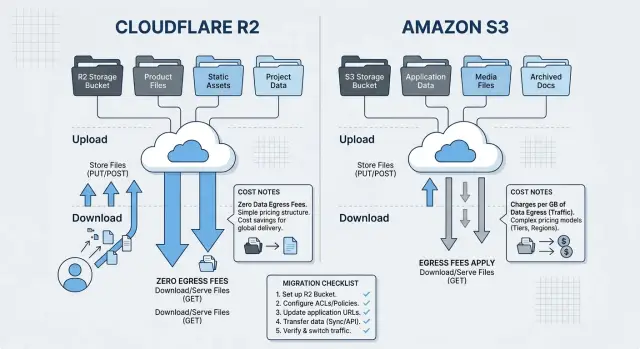
Table of Contents
Why this choice gets expensive later
A bucket is easy to create. Moving it six months later is not.
By then, your app may store file URLs in a database, cache rules may depend on one provider, and background jobs may assume one set of API behaviors. Copying the files is often the simple part. The hard part is everything wrapped around them: signed URLs, access rules, CDN caching, lifecycle policies, logs, backups, and the small scripts nobody wants to touch. If customers already rely on those files every day, you may need to run the old and new buckets side by side during the move. That overlap can raise costs before it saves anything.
Storage price alone rarely decides the outcome. A lower price per GB looks good on a pricing page, but many teams spend more on transfer, requests, and engineering time than on raw storage. One week of developer work can wipe out months of small storage savings.
Egress charges also climb faster than many teams expect. The monthly bill usually jumps when users download the same files again and again, large assets like videos or ZIP files leave storage often, assets are served across many regions, or other systems keep reading objects for backups, analytics, or AI jobs. Private files with signed URLs can add more noise too, especially when those links refresh often.
That is why Cloudflare R2 vs S3 is not just a storage-price question. It is a product behavior question. You need to know how files move through the app, who reads them, how often they change, and which tools touch them after upload.
A team with small private attachments may care most about SDK support and an existing AWS setup. A product that serves lots of public downloads may care much more about egress. Those are different cost shapes, even if both teams store the same number of terabytes.
If you choose from a vendor comparison page, you miss the part that usually gets expensive later. Choose from actual usage, traffic, and the migration work your team will have to do.
What actually changes between R2 and S3
Both R2 and S3 store files as objects inside buckets. Your app still uploads a file, gives it a name, adds metadata, and reads it back later. On paper, that sounds like an easy swap.
The trouble starts in the API layer around that storage. R2 is S3-compatible, but compatible does not mean identical. Some apps work after a config change. Others break in small, annoying places because the code assumed AWS-specific behavior.
A common example is how the app talks to storage. If your code uses the AWS SDK for simple reads and writes, the move may stay small. If it depends on AWS IAM patterns, bucket policies, region logic, event wiring, or other AWS services around S3, the work grows fast.
Signed URLs often expose the first mismatch. Both services support temporary upload and download links, but endpoints, signing setup, and client assumptions can differ. If your frontend expects one URL shape and your backend signs another, users stop seeing files and start seeing failed uploads.
Multipart uploads matter too. Large files usually rely on multipart logic for speed and safer retries. That part may still work, but teams often run into edge cases in part limits, checksum handling, retry flow, or cleanup for abandoned uploads. Those bugs never stay inside the storage layer. They show up as support tickets and strange bills.
Lifecycle rules, versioning, and delete behavior need the same level of attention. A move can change how old objects expire, how overwritten files are retained, or how cleanup jobs behave. That matters more than it sounds. If your app creates temporary exports, report snapshots, or user-generated previews, a small mismatch in retention can leave stale files behind or delete data sooner than expected.
The storage model stays familiar. The operational details do not always match.
How egress shapes the monthly bill
Storage rarely hurts on its own. Downloads do.
A bucket with a modest storage bill can get expensive once files start leaving the provider all day. That outbound traffic usually comes from a few places: customer downloads in the web or mobile app, CDN cache misses that pull files from the bucket, exports sent to customers or partners, workers that resize images or scan files, and backup or sync jobs that copy objects somewhere else.
User downloads and internal service reads look similar on an invoice, but they behave differently. User traffic often spikes after a launch, a campaign, or a new feature. Internal reads are quieter and easier to miss. A background worker that pulls the same object thousands of times a day can cost more than your customers do.
So split traffic by path, not just by total GB. If your app serves files through a CDN, most users may never touch the bucket directly. If processing jobs run in another cloud or region, those reads can turn into a steady stream of egress even when customer traffic looks normal.
This is often where the math changes. R2 removes egress fees for data leaving the bucket, so a busy file storage setup with lots of downloads can drop in cost quickly. S3 can still look fine when the bucket stores plenty of data but users download very little, or when most reads stay close to AWS services and do not create much outbound transfer.
A simple contrast makes the point. An archive bucket that stores 15 TB of old reports and serves 300 GB a month usually lives or dies on storage price, request counts, and tooling fit. A bucket that stores 5 TB of app assets but serves 25 TB a month is a traffic problem first. In the second case, egress can dominate the bill.
Teams often miss this because they compare storage rates first. A better check is a 30-day traffic split: customer downloads, CDN origin pulls, and service-to-service reads. Once you have that, the cheaper option usually stops being a guess.
Check your tooling before you switch
Most storage moves fail in the glue code, not in the bucket itself. With R2 and S3, the API looks close enough that teams often assume their tools will keep working. Some will. Some will fail in quiet, annoying ways.
Check every place where your team reads, writes, copies, signs, scans, resizes, or reports on files. The storage layer is rarely just your main app. It is also cron jobs, one-off admin scripts, backup tasks, and small workers nobody touched for a year.
A short audit usually finds trouble in four places:
- SDK calls inside the app, background jobs, and mobile backends
- CLI scripts used in CI, cron, and support workflows
- Presigned upload and download flows, including CORS settings
- Processing workers for images, video, PDFs, and virus scans
Presigned URLs need extra care. A bucket move can change endpoint rules, headers, or signing details. If customers upload large files directly from the browser, test the full path with real file sizes, not a tiny sample. Do the same for downloads, especially if your app sets custom filenames or short expiry times.
Processing jobs need their own review. An image worker may depend on object metadata, naming rules, or event timing. A document pipeline may expect a file to appear in one region first and then trigger OCR or previews. When those assumptions change, the failure mode is messy: missing thumbnails, stuck conversions, or support tickets from users who swear the file uploaded fine.
Do not skip the boring parts. Backup jobs, retention rules, access logs, alerts, and usage reports catch mistakes early. If finance, support, or security teams rely on those reports, make sure the same data still arrives in a format they can use.
One practical test beats a long meeting: upload a real file, process it, download it with a signed link, restore it from backup, and check the logs. If that chain works, the move is much safer.
How to estimate migration work
Migration effort depends less on total terabytes and more on how your app uses the bucket every day. A bucket with 30 TB of archive files can be easy to move. A bucket with 40 million tiny images, frequent updates, and expiring signed downloads is usually not.
Start with a plain inventory. You need the real bucket size, the object count, and the rough mix of file types. Images, video, backups, generated reports, and user uploads behave differently, especially if some files change often and others never change.
A short checklist helps here:
- Total storage used
- Total object count
- Average and largest file sizes
- File groups by purpose, such as uploads, exports, and backups
- Current rules for versioning, retention, and deletion
Then map every action that touches storage. Teams often count uploads and downloads, then forget deletes, background jobs, thumbnail generation, presigned URL flows, multipart uploads, and lifecycle rules. If you are comparing Cloudflare R2 vs S3, that map matters because the bucket is rarely just a passive file dump.
Run a small copy test before you estimate the full move. Pick a sample that looks like production, not a clean demo folder. Copy it, verify checksums, and open a few files through the app. That test tells you more than a spreadsheet will. It also exposes naming issues, metadata gaps, permission mistakes, and stale references in your database.
Then measure three clocks: how long a full sync takes, how long the final cutover window needs to be, and how long rollback would take if the app starts reading the wrong files or misses new uploads. Those numbers shape the real plan, not just the migration script.
A simple example helps. If your app stores product images and user exports, you may need one long background sync and then a short freeze where you stop new writes, copy the last changes, switch reads to the new bucket, and test a few live paths. If your app writes files all day, that freeze plan matters even more.
Write the freeze plan in plain steps. Include who pauses writes, who runs the final sync, who checks checksums, who tests the app, and what triggers rollback. Good plans feel boring on paper. That is usually a good sign.
A realistic example
Imagine a SaaS app for client reporting. Customers upload logos, CSV files, PDFs, and screenshots. The app also creates export files every day, and the support team sends download links when customers ask for old reports or account data.
The bucket already holds 2.5 TB. The app adds about 120 GB of new files each week, mostly uploads and generated exports. That growth is manageable at first, but the traffic pattern matters more than raw storage size.
Most users do three things with those files. They open previews inside the app, they download full exports at the end of the month, and they share links with coworkers. Support adds more traffic because every ticket about "send me that file again" creates another download.
If the app runs mostly on AWS, staying on S3 can still make sense. The team may already use S3 events, IAM policies, lifecycle rules, and backup jobs built around the AWS stack. In that case, storage cost is only part of the bill. The saved engineering time may beat the monthly savings from moving.
If outbound traffic is high, R2 starts to look better. Say the app stores 2.5 TB but sends out 12 TB each month through exports, previews, and shared links. That is where egress can hurt. In a Cloudflare R2 vs S3 decision, heavy public downloads often push the math toward R2 faster than people expect.
A split setup is often the least risky choice. Keep files in S3 if they feed AWS jobs, private processing, or existing compliance rules. Move public downloads, customer exports, or shared assets to R2 if those files create most of the bandwidth bill.
That usually leaves teams with three real options:
- Stay on S3 if AWS integrations save developer time every week.
- Move to R2 if customer-facing downloads create most of your monthly traffic.
- Split storage if one bucket does two different jobs and only one of them is expensive.
One detail trips teams up: previews are easy to ignore because each request is small. But thousands of preview loads across dashboards, support screens, and shared pages add up fast. A bucket move pays off sooner when traffic is broad and repetitive, not only when a few large exports leave the system.
If your app looks like this, do not ask only where files sit. Ask who downloads them, how often, and which parts of the app break if the storage API changes.
Mistakes teams make during a bucket move
Most teams start with the storage price line and stop there. That is how they miss the cost that actually grows: traffic. A bucket full of product images, backups, exports, or user uploads may look cheap at rest, then become expensive once apps, users, and background jobs start pulling files all day.
Another common mistake is assuming S3-compatible means identical. It usually means close enough for basic reads and writes. It does not mean every lifecycle rule, event flow, IAM pattern, presigned URL edge case, admin script, or multipart upload behavior matches what you already run. Small gaps become annoying fast when they hide inside billing jobs, cleanup tasks, or support tools nobody touched for a year.
Delete behavior deserves its own test. Teams often copy the data first and plan cleanup later. Then they find out that retention rules, lifecycle expiration, object versioning, or bulk delete scripts do not behave the same way. That can leave orphaned files behind or, worse, remove files you still need.
A short test plan catches most of this:
- Upload, overwrite, and delete the same file several times.
- Run lifecycle and retention jobs on a small test bucket.
- Verify checksums after transfer, not just object counts.
- Test old admin scripts and one-off maintenance tools.
- Write down a rollback step before production cutover.
Checksums and rollback steps are boring, but skipping them is expensive. Object counts can match while file contents do not. A rollback plan also needs more than "switch it back." Keep the old bucket live, freeze risky writes during cutover, and decide who can trigger the fallback.
One small example says a lot. A team migrates customer exports over a weekend. The app works on Monday, but the nightly cleanup job fails because it relies on an old script with AWS-specific assumptions. By Friday, storage grows, stale files pile up, and support starts hearing that deleted exports still appear in dashboards. The move looked done. It was not.
Quick checks before you decide
Pricing tables can push teams into a move too early. Three months of real bucket data gives you a much better answer than a weekend estimate. Look at total storage growth, how fast new files pile up, and whether older files still get downloaded often.
Download behavior matters just as much as raw storage size. If users upload files and rarely fetch them again, egress may not change the bill much. If customers download reports, videos, exports, or shared assets every day, the gap between Cloudflare R2 vs S3 can get large fast.
A short checklist keeps the decision honest:
- Compare bucket size month by month for the last three months. You want the growth rate, not just today's total.
- Count file reads, shared links, and customer downloads. Internal jobs matter too, especially if they pull the same files again and again.
- Write down every tool that assumes S3 behavior. Backups, media jobs, signed URLs, IAM rules, lifecycle jobs, and vendor integrations can all add work.
- Set a cutover risk limit before anyone starts. Some teams can handle a dual-write period and careful rollback. Others need a simple move with almost no downtime.
- Put the savings next to the migration cost. If the move saves $150 a month but costs a week of engineering time, waiting may be the better call.
Third-party dependencies often decide the whole thing. A storage switch looks easy until one billing export, one image processor, or one customer workflow breaks because it expects S3-specific behavior. That does not mean you should avoid moving. It means you should count compatibility work before you promise a date.
Timing matters more than most teams admit. If your bucket is still small, the savings may be real but too small to justify the disruption right now. If your product already serves large downloads at scale, a move can pay back quickly. Pick the option that matches current usage, your team's risk tolerance, and the next six months of growth.
What to do next
A week of real numbers will tell you more than another month of debate. Before you choose between Cloudflare R2 and S3, measure what your bucket actually does in production: how many objects you write, how often users read them, how much data leaves storage, and when traffic spikes hit.
Track one full week, not one busy afternoon. If your product has weekday patterns, weekend downloads, backups, or batch jobs, a short sample can fool you. Keep the measurement simple and consistent so you can compare options without guessing.
After that, put three plans on one page:
- Stay plan: keep the current bucket, clean up waste, and estimate the next 6 to 12 months of cost.
- Move plan: migrate fully, including engineering time, testing time, and the temporary double-storage period.
- Hybrid plan: keep some files where they are and move only the traffic that drives most of the bandwidth bill.
This comparison usually makes the decision clearer. Teams often focus on storage price per GB and miss the bigger cost in downloads, app changes, cache behavior, or ops time. A hybrid setup is sometimes less elegant on paper, but cheaper and safer in practice.
Do not touch production data until the cutover plan is written down. Decide who copies the data, how you verify object counts and checksums, when you freeze writes, how you handle rollback, and what success looks like in the first 24 hours. If nobody owns those steps, the migration will drift and users will find the bugs for you.
If the trade-offs still look messy, get a second opinion before the move. Oleg Sotnikov at oleg.is works with startups and small businesses as a Fractional CTO, helping teams review architecture choices, reduce cloud waste, and avoid migrations that cost more than they save.
A small review now can save weeks of rework later.


