Cloudflare cache tags for SaaS dashboards without full purges
Cloudflare cache tags for SaaS dashboards let you purge one tenant's stale pages fast, keep other customers warm, and avoid blunt full edge flushes.
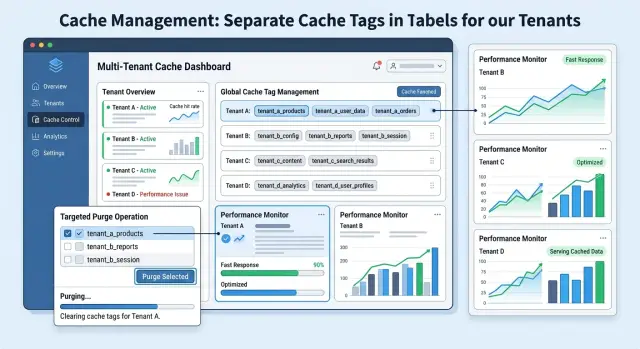
Table of Contents
Why full purges upset every customer
A full cache purge feels clean. You click once, everything clears, and the next request pulls fresh data.
In a SaaS dashboard, that shortcut often creates a bigger problem than the one you were trying to fix.
When you purge the whole edge, you do not clear stale content for one tenant. You throw away warm cache for every tenant at the same time. Pages that were fast a minute ago now have to rebuild from origin, tenant by tenant and route by route.
Users notice fast. A dashboard that usually opens right away starts to drag. Charts appear late. Navigation feels sticky. People assume something broke, even when the data is technically correct.
The slowdown does not stay with the customer who made the change. One admin updates a logo, a billing rule, or an account setting, and unrelated accounts pay the price. A company in another region with different data and no recent changes still gets the same cold cache experience.
That is where teams get caught off guard. They think they cleared one problem page, but they actually created a burst of extra work for origin and a slower product for everyone. If traffic is high, the effect spreads quickly because many users request the same uncached pages at once.
Support usually hears it first. Customers do not say, "your cache was purged." They say the dashboard suddenly feels slow, reports take forever, or the app seems off today. Those complaints are annoying to debug because the system may look normal again by the time someone checks the graphs.
A billing dashboard makes the problem obvious. If one tenant changes an invoice setting, only that tenant's billing pages need fresh content. Flushing every cached dashboard, report, and summary page means hundreds or thousands of unrelated requests now start from zero. There is no reason to make everyone wait.
What cache tags do
Cache tags are labels attached to cached responses. They let your app tell Cloudflare what a response belongs to before Cloudflare stores it at the edge.
That small change gives you much better control over invalidation. Instead of purging an entire zone, you can remove only the cached pages that share a tag. One customer gets fresh data, and everyone else keeps warm cache.
In a SaaS dashboard, tags usually follow the shape of the data. A billing overview for tenant 42 might carry tags like tenant:42, page:billing, and invoice:8841.
That gives you options. If one invoice changes, purge the invoice tag. If the whole billing area changes for one account, purge the tenant and billing tags together. If a design update affects every billing page, target the page type without touching other screens.
This is why cache tags work so well in multi-tenant caching. You stop treating the cache like one big pile. You group it the same way you group your data.
A simple tagging model is usually enough:
- tag by tenant for customer specific data
- tag by page area when many URLs depend on the same source
- tag by object when one record can change on its own
With that setup, unaffected tenants keep their cached pages, support gets fewer "why is the app slow today?" messages, and origin avoids a sudden spike in requests.
Choose tags that match your data
The hard part is not purging. It is naming things clearly.
Start with the tenant. A format like tenant:123 is easy to search, easy to log, and hard to misread. If customer 123 says their dashboard still shows old numbers, that single tag gives you a clean target.
Then add tags for the data shown on the page. A billing area might use invoice:9842, report:monthly-revenue, or settings:billing. That gives you two useful scopes: everything for one tenant, or one object that changed.
You usually need both. Tenant tags answer "clear all cached views for this customer." Object tags answer "clear only the pages tied to this record."
A common pattern looks like this:
tenant:123for content tied to one accountinvoice:9842for an invoice detail view or anything else built from that invoicereport:q2-mrrfor a generated reportsettings:billingfor billing settings pages or panels
Keep names short and boring. That is a compliment.
If one team writes tenant:123 and another writes customer-123, purges will miss pages and nobody will enjoy finding out why. Pick one format, document it, and stick to it. The same rule applies to object tags. Use singular or plural, not both. Decide whether IDs are numeric, slug based, or UUID based. Small naming drift turns cache invalidation into guesswork.
It also helps to define ownership. Be clear about who sets each tag and when. The dashboard renderer might attach tenant:123 to every cached response, while the billing service adds invoice tags on invoice pages. When a report job finishes, that job should trigger the purge for the report tag.
If a tag name needs a meeting to explain it, it is too clever.
Decide what should bypass cache
Some responses should never sit at the edge. If a number on screen can change in seconds, cache will cause more pain than speed.
A user who just paid an invoice should not refresh and still see the old balance. Live balances, usage counters, seat limits, one time login links, password reset tokens, and short lived signed URLs should come straight from origin. The same goes for anything tied to one person's active session.
What you do want to cache is the calm part of the page. The frame around a dashboard often stays the same for hours. Logos, CSS, JavaScript bundles, icons, and help text are easy wins. Some reports are fine to cache too, as long as users accept a short delay. A sales summary that refreshes every 10 minutes is usually fine. An account balance is not.
That split matters more than most teams expect. Cache the page shell, then fetch fresh account data separately. Users get a fast first paint without freezing the numbers that matter.
A simple rule works well:
- cache static assets and shared layout files
- cache reports only when a short delay is acceptable
- bypass cache for balances, tokens, and session bound responses
- treat signed in API data as private unless you have proved otherwise
Public and signed in data need a hard boundary. Public status pages, docs, or pricing pages can sit in cache with broad rules. User dashboards, team settings, billing details, and admin screens need tighter handling. If two tenants can ever get different output for the same URL, do not cache that response unless your cache key intentionally includes tenant and user context.
Check the ugly paths too. Error pages often slip into cache by accident, and one bad upstream moment then turns into a long support day. Redirects can cause trouble around login and logout flows. Review 301, 302, 401, 403, and 500 responses and make sure they send the cache behavior you actually want.
If the wrong cached response could confuse a user or expose the wrong data for even 30 seconds, bypass cache.
Purge one tenant step by step
A tenant purge only works when you decide ahead of time which cached items belong to that tenant. The goal is simple: clear stale data for one account and leave everyone else alone.
Start from the write action, not from the cache layer. If a user changes a billing plan, updates a team name, or edits a project, list every page and API response that can show that data. Include the obvious page, but also side panels, summary cards, search results, exports, and recent activity widgets. Most bad purges happen because one small cached response gets forgotten.
A sane flow looks like this:
- Give the tenant a shared tag such as
tenant:acmeand attach it to every cached page and API response that contains tenant data. - Add narrower object tags for records that appear in several places, such as
invoice:8432orproject:991. - Return both tags when one screen mixes tenant data with record data.
- Finish the database write first, then send the purge by tag.
- Log the purge request every time.
Object tags save you from broad purges later. A single invoice can show up on the invoice page, the dashboard total, the overdue list, and an admin search view. If all those responses share the same object tag, one purge clears the stale copies without touching unrelated data from the same tenant.
Timing matters. If you purge before the write finishes, the next request can refill the cache with old data. The better order is simple: commit the change, publish any events you need, then purge the matching tags.
Support also needs a clear trail when a customer says, "I changed this, but my dashboard still looked wrong." Log enough detail to trace the event:
- tenant ID
- tags sent in the purge
- user or service that triggered it
- time and result from Cloudflare
- request or trace ID
Keep those logs easy to search. When a purge fails, retry after a short delay and mark the failure clearly. Silent purge failures waste time because the app looks fine in one browser and stale in another.
A billing dashboard example
Billing is a good example because one small change often affects several views.
Say tenant 42 opens an invoice and changes its status from "pending" to "paid." That single action changes more than the invoice detail page. The invoice list must update, any dashboard totals built from that invoice may change, and an export page should stop serving the old version.
A clean tagging plan keeps the blast radius small:
- the invoice list for tenant 42 carries
tenant:42 - the invoice detail page carries
tenant:42andinvoice:9182 - the export for that invoice carries
tenant:42andinvoice:9182
When the user clicks save, the app updates the database and then purges the tags tied to that change. In this case, it purges tenant:42 and invoice:9182, not the entire cache.
That gives you the behavior you actually want. The next request for tenant 42 gets fresh content for the invoice list, the detail page, and the export. Cloudflare fetches only those pages again. Everyone else keeps getting cached responses.
Tenant 77 does not care that tenant 42 paid an invoice. Their dashboard should stay fast. Their reports should stay warm. A full purge throws that away and adds origin traffic for no good reason.
This matters even more on busy billing systems. If dozens of tenants update invoices every minute and every change clears the whole edge, you trade a small data update for a wave of slow page loads across the product. That is a bad deal.
Mistakes that cause wrong purges
Most bad purges come from ordinary mistakes: names that are too broad, purge calls sent at the wrong time, or cached responses nobody remembered existed.
The easiest mistake is lazy tag naming. If you reuse one tag for many tenants, one customer action can wipe cache for everyone else. A tag like account:dashboard looks tidy at first, then becomes a problem when thousands of tenants share it. Put tenant identity in the tag, and reserve shared tags for content that is truly shared.
Another common miss sits behind the page, not on it. A dashboard may look like one screen, but it often pulls data from several API responses. If you purge the HTML and forget the cached API result for invoices, usage, or alerts, the page reloads with old numbers. Users blame the dashboard, even though the stale data came from an endpoint you forgot to purge.
Timing causes quiet bugs too. If your app sends a purge before the database write commits, Cloudflare can fetch the old record again and cache it. The user refreshes, sees stale data, and assumes the update failed. Purge after the write finishes.
Personalized fragments need extra care. If you cache user specific pieces such as plan status, recent activity, or account warnings under a shared tenant tag, you can leak the wrong version to the wrong person. Keep that content out of shared cache, or tag it at a narrower level.
Background jobs also break cache more often than teams expect. A nightly sync, webhook worker, or billing recalculation can change tenant data without touching the code path that normally sends a purge. The database is fresh, the cache is not. Every update path needs the same purge rule, including jobs that run hours later.
Before rollout, check a few boring things:
- each tenant has its own tag namespace
- every cached API response that feeds the page is accounted for
- purges run only after writes finish
- user specific content stays out of shared cache tags
- workers, cron jobs, and webhook handlers follow the same purge rules
If a purge feels unpredictable, trace one tenant update from write to render. You will usually find one missing tag or one purge sent a little too early.
Quick checks before rollout
Start with a test tenant, not live customers. Change one small record, like a widget title or a billing line, then reload the dashboard for that tenant and for another tenant side by side.
Only the changed tenant should miss cache and rebuild. The other tenant should keep serving warm pages. If both tenants miss, your tags are too broad and a normal update will feel like a mini outage.
A short test run catches most bad setups:
- edit one record in the test tenant and confirm the page updates only there
- open the same page for another tenant and confirm it still returns as a cache HIT
- watch response time during the purge and on the first reload after it
- check your error rate while testing, even if the change looks small
- review the purge log and make sure it shows which tenant and which tags were cleared
Watch behavior, not only correctness. A page can show fresh data and still be too slow because the purge removed more than you expected. If cache status flips from HIT to MISS for unrelated tenants, stop and tighten the tag pattern before rollout.
Then test a noisy case. Run a bulk import for one tenant and watch what happens when many records change at once. You want a short burst of misses for that tenant, followed by a quick return to normal. Other tenants should stay steady.
After that, force a failed update. Send invalid data or stop the write before it finishes. Your app should purge only after a successful write. If it clears cache on a failed update, users get the worst combination: a slower page and still stale data.
Support needs a basic view of recent purge events too. They should be able to see the tenant ID, time, reason, and trigger source without asking engineering to dig through logs.
What to do next
Start with one part of the product where stale data hurts trust but the data model is still easy to map. A billing page, usage chart, or team settings screen is a better first target than the entire dashboard. Small scope keeps the first rollout boring, and boring is exactly what you want when cache rules can affect every tenant.
Write the tag plan next to the cache rule. If a response gets tenant:42 and area:billing, document that in the same place the rule lives. When someone changes the endpoint later, they should see the purge contract immediately.
For the first rollout, keep it tight:
- cache one dashboard area with a small tag set
- trigger a purge from the exact event that changes the data
- track purge failures, cache miss spikes, and origin load for a few days
- keep a manual fallback so support or engineering can purge one tenant without touching everyone else
It also helps to give one person or one team ownership of the purge logic for the pilot. When ownership gets fuzzy, cache rules drift fast.
If you want a second set of eyes on tenant cache design or purge flows, Oleg Sotnikov at oleg.is reviews this kind of architecture as part of his Fractional CTO and startup advisory work. That tends to help most when a team already has caching in production and wants fewer surprises, not a bigger system.
Frequently Asked Questions
What problem do cache tags solve in a SaaS dashboard?
They let you clear only the cached pages tied to one tenant, page area, or record. That keeps warm cache for everyone else and avoids a product-wide slowdown after one small change.
Should I ever use a full cache purge?
Use a full purge only for changes that truly affect every cached response, like a global asset problem or a site-wide template issue. For normal tenant updates, a full purge wastes cache and makes unrelated customers wait.
How should I name cache tags?
Start with simple names like tenant:42, invoice:9182, and page:billing. Pick one format, document it, and keep it boring so your team can search, log, and purge without guessing.
Do I need both tenant tags and object tags?
Yes. A tenant tag clears all cached views for one account, and an object tag clears only the screens tied to one record. Using both gives you a wider purge when you need it and a narrow one when you do not.
What should bypass cache completely?
Skip edge cache for anything that changes in seconds or belongs to one active user. Balances, tokens, signed URLs, and session-bound responses should come from origin so users do not see old or wrong data.
When should my app send the purge request?
Purge after the database write finishes. If you purge too early, the next request can refill the cache with old data and make it look like the update failed.
Do I need to purge cached API responses too?
Yes, if those endpoints feed the dashboard. Purging only the page HTML will not help if a cached API response still returns old numbers.
How do I test tenant-specific purges before rollout?
Use a test tenant and change one small record. Then compare that tenant with another tenant side by side; only the changed one should miss cache, while the other should stay warm and fast.
Can cache tags cause cross-tenant data leaks?
It can if you cache personalized data under shared tags or shared cache rules. Keep user-specific fragments out of shared cache, or include the right tenant and user context in the cache setup.
What should I log for purge events?
Log the tenant ID, the tags you purged, when the purge ran, who or what triggered it, and Cloudflare's result. That gives support a fast way to check whether stale data came from a missed purge or a failed one.


