CLI assistants vs IDE assistants for backend teams
CLI assistants vs IDE assistants shape how backend teams control changes, keep context, review code, and track work in production repos.
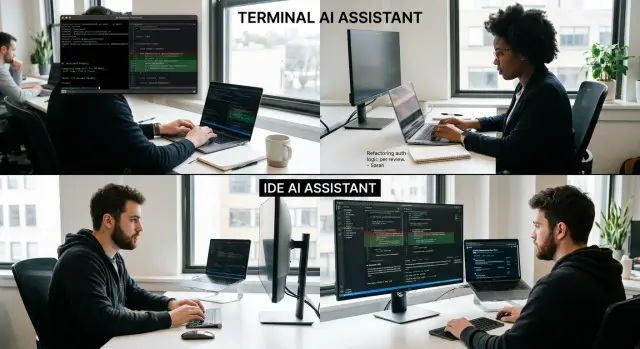
Table of Contents
Why this choice matters in daily backend work
Backend teams rarely change one file and call it done. A small fix often touches application code, a migration, an environment setting, a test, and a deploy script. That is why the choice between CLI assistants and IDE assistants affects more than comfort. It changes how a team moves a patch from idea to merge.
When an assistant edits a backend repo, the team needs a clear record. Who ran what command? Which files changed? Why did the tool touch a config file when the ticket was about a slow query? If those answers are fuzzy, review slows down. A fast suggestion helps less when two engineers spend an hour untangling it.
Production work leaves little room for guesswork. A backend change can break startup scripts, raise cloud costs, or open a quiet security hole. A toy project might absorb that. A live service usually will not.
The tools that work best for backend teams do a few simple things well. They let people edit code, config, tests, and scripts in one flow. They leave a readable trail of commands and file changes. They make review easy in Git, not just inside one editor. And they cut down on surprise edits before deployment.
This is why teams split after a short trial. One engineer likes the speed of staying in the editor. Another cares more about repeatable commands and clean diffs. Both concerns are valid. The better fit is usually the one that makes changes easier to inspect, test, and explain under normal team pressure.
If your repo is busy and your service has uptime goals, the difference shows up fast. You feel it in review time, incident risk, and how confident people are when they press deploy.
How CLI and IDE assistants differ
Backend work usually starts in one of two places: the repo or the file in front of you. A CLI assistant starts in the terminal, inside the repo, where your branches, tests, scripts, and service folders already live. That feels natural for many backend developers.
An IDE assistant starts with the file you open and the code around it. It sees the function, imports, errors, and symbols your editor can resolve right away. That is often faster when you are fixing one handler, updating a query, or cleaning up a small patch.
The real gap is less about model quality and more about where each tool begins. In the terminal, it is easy to search across services, inspect config files, run a test command, or follow a request path through API code, a worker, and a migration. In an editor, it is easy to make local edits, jump to a definition, rename something safely, and stay focused on one part of the code.
That difference matters more in large repos than in small ones. If a task touches Docker files, CI jobs, environment settings, and application code, a CLI tool often feels more direct. If the task is "fix this bug in this file" or "refactor this method without breaking types," the IDE usually feels smoother.
Your Git habits shape the experience too. Teams that live in branches, commit often, run tests from the shell, and review diffs in small chunks tend to like CLI assistants sooner. Teams that spend most of the day in the editor, rely on inline warnings, and move through code with shortcuts usually warm up to IDE assistants first.
Many backend teams end up using both. The CLI helps with repo-wide tasks. The IDE helps finish local edits cleanly.
Control over files, commands, and environment
For backend teams, trouble starts when an assistant moves beyond code completion and begins touching the repo, the shell, and local settings. At that point, this stops being a style choice and starts affecting safety.
File access is the first thing to check. Some tools only work with open files or the current editor context. Others can scan and edit large parts of the repo, including migrations, Docker files, CI config, and generated code. That sounds useful until the tool edits a lockfile, changes a migration, or rewrites a deployment script you never meant to touch.
A simple rule helps. Decide what the tool may edit without asking, what it may edit after approval, and what it must never touch. Most teams should treat schema migrations, infrastructure config, and environment files with more care than route handlers or tests.
Command execution needs the same kind of guardrails. A tool that can run tests, linters, seed scripts, or database tasks can save time. It can also do damage quickly.
A practical split is straightforward:
- Let the assistant run safe, repeatable checks such as unit tests, type checks, and formatting.
- Require a person to run migrations against shared databases.
- Require a person to run deploy scripts or anything that changes cloud resources.
- Log every command with its full text, working directory, and exit result.
The difference between visible commands and one-click actions matters more than it seems. In a CLI flow, you usually see the exact command, flags, and output. In many IDE flows, a button hides some of that detail. That feels convenient at first, but it becomes a problem when a test passes locally and nobody knows what the tool actually ran.
Secrets need the same level of care. Watch how the assistant behaves around .env files, API tokens, and local credentials. Check whether it reads ignored files, sends secret values into prompts, or writes them into logs. If your team runs production work through Docker, GitLab runners, or Kubernetes, hidden access to environment data is a bad trade.
The safest setup is usually the one with the fewest surprises. You want to see every file change, every command, and every place a secret might leak.
How they handle context in a busy repo
Backend repos get messy fast. One API change can touch code, tests, docs, and config. This is where the biggest difference appears.
IDE assistants usually do best with local context. If you have the handler open, plus the service and test beside it, they can move quickly and suggest clean edits. That feels smooth for small tasks.
The problem starts when the repo is wide. A real service might spread one feature across api/, internal/, migrations/, deploy/, and docs/. If the assistant mostly watches the current file and a few open tabs, it can miss the config flag that turns the feature on, the old test fixture, or the doc note that is now wrong.
CLI assistants are often better at stitching those pieces together because they can search the repo first and edit second. They can trace one name or field through handlers, tests, config templates, and markdown in one session. That matters when a change is not hard, just scattered.
A tool keeps its footing in a busy repo if it can track where the request enters the code, which tests prove the behavior, which config files change runtime behavior, whether docs still match the code, and whether a file is generated or hand-written.
Earlier decisions matter too. Teams rarely make a change in one shot. You might decide to keep a response field for backward compatibility, rename only the internal variable, and leave the public API alone. CLI workflows often hold onto that thread better because the session includes search results, diffs, and prior edits. In many IDE workflows, that decision can fade once you jump to another file or start a fresh prompt.
Generated code is where weak context handling becomes obvious. A good assistant notices that a file came from OpenAPI, protobuf, or another generator and points you back to the source file. A bad one edits the generated file directly, and the next build wipes out the fix.
Old docs create a similar trap. Busy repos keep README notes, runbooks, and copied examples that nobody updated. If an assistant treats every document as current truth, it can repeat old behavior with confidence. Better tools compare docs with code and show the mismatch instead of guessing.
For teams shipping real services, repo-wide context usually beats editor-local convenience. If the assistant can show where it looked, keep earlier choices in view, and avoid touching generated files, it will make fewer blind edits.
Audit trail and review flow
For backend teams, the chat experience matters less than the record it leaves behind. When an assistant edits a migration, changes an auth check, and runs tests, reviewers need to see what changed, why it changed, and what happened after.
This is another place where CLI tools often have the edge. They sit closer to the repo and the shell, so teams can keep prompts, diffs, and command logs near the code. That makes the review trail easier to search, share, and revisit after a release.
IDE assistants can still help, but part of the story often stays inside a local chat panel. That works for one developer moving fast. It works less well when another engineer opens the branch two days later and cannot tell whether a change came from a clear request, a guessed edit, or a long hidden chat.
Review also breaks down when the assistant rewrites too much at once. A small commit that fixes one query, adds one test, and shows one benchmark is easy to review. A giant assistant patch that mixes refactors, renamed files, config edits, and test changes turns review into guesswork.
A simple standard helps: each meaningful diff should trace back to a reason. If the assistant adds an index, the pull request should mention the slow query. If it changes retry logic, reviewers should see the failing case or the production symptom that triggered the edit.
A good team routine is boring on purpose:
- Save prompt summaries and command output with the branch or pull request.
- Split behavior changes, refactors, and formatting into separate commits.
- Keep assistant edits small enough that a reviewer can read them in one pass.
- Ask reviewers to match each larger change to a bug, test, or ticket.
- Push back on pull requests that look like one large assistant dump.
Readable pull requests matter more than assistant speed. If a reviewer can scan the diff, rerun the same commands, and understand the reason for each change, the tool is helping. If not, the team is just moving the confusion around.
A real example: patching a slow API
A common backend problem starts small. One customer reports that a single endpoint times out, while the same route still works for everyone else.
Say the endpoint pulls order history for a customer with far more data than usual. The fix ends up touching three places: the query code, a couple of tests, and one config value for the request timeout or query limit.
In that situation, a CLI assistant often helps first because the work is not just "edit this function." You usually need to inspect logs, reproduce the issue, run the slow query, and check whether the patch changes runtime behavior.
A typical sequence looks like this:
- Pull recent logs for the failing endpoint.
- Find the slow query and compare timings.
- Patch the query and run the focused test file.
- Run lint, integration tests, and a quick benchmark.
That flow helps because every step leaves a trail in shell history, test output, and commit diffs. A teammate can review what you ran, what failed, and what changed.
The IDE assistant usually shines a little later. Once you know the endpoint times out because one query loads too much data, the IDE can speed up the edit itself. It can suggest a tighter query, update the nearby unit test, and fix a mock that broke after the change. That is faster than jumping between files by hand.
Still, the IDE view can hide part of the story. A reviewer may see the code diff but miss the exact commands used to reproduce the timeout, the before-and-after timings, or the config check that showed the patch was safe.
A practical split works well. Use the CLI assistant for investigation and verification. Use the IDE assistant for the local edit loop where you are reshaping query code and adjusting tests.
In this example, the final patch might do three plain things: limit selected columns, add a safer pagination clause, and raise one timeout value slightly so large customer accounts stop failing during peak load. That is a normal backend fix. The difference is how clearly your tool shows the path from bug report to merged change.
If your team ships real services and rotates on-call duty, that clarity usually beats slightly faster autocomplete.
How to test both in one repo
Use one small backend task with a clear finish line. A good test case is a slow endpoint, a flaky test, or a missing validation rule. Pick something that touches real code, but not a week-long feature.
Write the acceptance checks before you start. That might mean one endpoint stays under 200 ms in local testing, all existing tests pass, one new test covers the fix, and the diff does not change unrelated files. If the target is fuzzy, your comparison will be fuzzy too.
For a fair trial, keep everything else the same. Use the same repo, the same branch rules, the same model if possible, and the same engineer. Then do the task twice: once with the CLI tool as the main interface, and once with the IDE tool.
A simple process works well:
- Start from the same commit for both runs.
- Use the same written task prompt both times.
- Stop the clock only when the code is ready for review.
- Save prompts, shell commands, test output, and reviewer notes.
Do not judge the result by speed alone. Fast code that creates a messy diff often costs more later. A backend team should look at what changed, how easy it was to review, and whether the tool stayed inside the intended area.
One useful example is the slow API patch. In the CLI run, record every command the tool suggests or executes, including test runs and grep searches. In the IDE run, note where the assistant guessed context correctly and where you had to point it back to the right files.
Then compare the two runs with the same reviewer. Look at diff size, how many files changed, test results, whether the new tests make sense, time to the first working patch, time to review-ready code, and review comments around safety, missing context, and cleanup.
If your team uses pull requests or GitLab merge requests, keep both outputs in the same review format. The better tool is usually the one that produces a smaller, cleaner patch with fewer review comments, not the one that looked smarter while you worked.
Common mistakes teams make
Teams get into trouble when they treat an assistant like an autopilot instead of a tool with limits. The failures are usually simple: too much context, oversized diffs, and review steps nobody can reconstruct a week later.
One common mistake is feeding the whole repo into a session for a tiny fix. If a timeout in one API handler needs work, the assistant does not need old migrations, frontend files, and every test helper. Extra context often makes the output worse. It can copy patterns from the wrong place and edit files that had nothing to do with the bug.
Another mistake is merging a big diff because it "looks fine." Backend teams pay for that later. A small patch turns into edits across config, logging, tests, and shared code, and nobody reads each file closely. If your team would push back on that diff from a human engineer, push back on it here too.
A tighter loop helps:
- Keep each request narrow.
- Ask for one change set at a time.
- Read every touched file.
- Run normal tests before review.
Teams also create a process mess when prompts stay in private chats that nobody else can revisit. Then the code survives, but the request behind it disappears. During review, a teammate sees the patch but not the instruction, constraint, or tradeoff that shaped it. CLI tools often make this easier to track because prompts, commands, diffs, and test output can live closer to Git history and pull requests. An IDE assistant can work too, but only if the team saves that context somewhere shared.
Teams also pick one winner too early. That sounds tidy, but it rarely matches real backend work. Some engineers move faster in the editor for small refactors. Others need shell access, logs, containers, and Git in the same flow. Forcing one tool on every task and every person usually creates friction instead of better code.
A better rule is simple: match the tool to the job, and keep the review standard the same.
A quick checklist before you choose
Pick the tool that creates the least surprise under pressure. In backend work, the difference shows up fast when a service is failing, a migration needs extra care, or a reviewer asks, "What exactly changed and why?"
A flashy demo matters less than boring daily behavior. You want a tool that stays inside clear boundaries, leaves a visible trail, and works with the branch and pull request habits your team already uses.
Check whether you can limit file access per task. If you ask for a small API fix, the tool should stay out of unrelated configs, migrations, and deployment files unless you allow it. Check what reviewers can see later. Diffs are the minimum. Commands, prompts, and generated edits help a reviewer understand intent, catch risky steps, and approve faster.
Check whether the tool matches your branch flow. If your team works in short-lived branches with pull requests, the tool should support that cleanly instead of pushing people into side paths or hidden local changes. Check repeatability too. A new teammate should be able to rerun the same steps tomorrow and get close to the same result, especially for bug fixes, tests, and small refactors.
One small test tells you a lot. Ask the tool to change one endpoint, add one test, and update one note for the reviewer. If it touches extra files, hides steps, or makes the review messy, that friction will show up every week.
Teams often miss the human part. A tool can write decent code and still slow the backend workflow if nobody trusts the trail it leaves behind. When the process is clear, review gets easier, handoffs get cleaner, and fixes do not depend on one person remembering what happened.
What to do next
Pick one real service and run a short trial with one team. Two weeks is usually enough to see the pattern. Choose work that matters but will not put production at risk, like a small API endpoint, a background job, or a routine refactor in a busy backend repo.
Write a few rules before anyone starts, and keep them easy to enforce:
- Every AI-made change needs tests or a clear reason why tests did not change.
- The tool can suggest commits, but a developer writes the final commit message.
- The team records prompts that led to non-trivial code changes.
- Every trial branch needs a rollback plan.
- Reviewers can reject changes for poor traceability, even if the code works.
Then measure the part that actually costs your team time. Typing speed is the least interesting number. Track how long reviews take, how often reviewers ask for missing context, how many changes need cleanup before merge, and whether engineers trust the output enough to use it again.
This is where the choice gets practical. If one tool writes code fast but leaves a messy review trail, it will slow the team down later. A slower tool can still win if it makes commits clearer, keeps command history visible, and gives reviewers less guesswork.
A small scorecard helps. Rate each tool on four things: control, context handling, audit trail, and review flow. After the trial, keep the one that cuts review effort and lowers merge friction. Drop the one that only makes the first draft faster.
If your team wants outside help setting up that kind of workflow, Oleg Sotnikov at oleg.is advises startups and smaller companies on AI-augmented development, infrastructure, and fractional CTO work. The useful part is not the tooling alone. It is putting clear review rules and operational guardrails around it.
Start small, keep the rules strict, and judge the result by what reaches main cleanly.
Frequently Asked Questions
Which assistant should a backend team try first?
Start with the tool that fits your normal backend flow. If your team works from the terminal, runs tests from the shell, and reviews small Git diffs, try a CLI assistant first. If most work starts in one file and stays inside the editor, start with an IDE assistant.
When does a CLI assistant make more sense?
Use a CLI assistant when the task spreads across the repo. It works well for changes that touch code, tests, config, scripts, or docs, especially when you need to search widely, run commands, and keep a clear record of what happened.
When does an IDE assistant fit better?
An IDE assistant fits small, local edits. It shines when you fix one handler, refactor one method, update nearby tests, or follow types and symbols without leaving the editor.
Can one team use both tools together?
Yes, and many teams get the best result that way. Let the CLI assistant help with investigation and verification, then use the IDE assistant for the tight edit loop where you clean up code and tests.
How do we keep the assistant from editing the wrong files?
Set hard boundaries before anyone starts. Allow normal code and test edits by default, require approval for config and migration changes, and block deploy files or shared infrastructure unless a person asks for that work on purpose.
Should the assistant run commands on its own?
Let the tool run safe checks like unit tests, type checks, and formatting. Keep migrations against shared databases, deploy scripts, and cloud changes in human hands so nobody guesses what ran or changed.
How should we handle secrets and environment files?
Keep secrets out of the assistant’s reach as much as you can. Watch how it handles .env files, ignored files, and logs, and make sure it never copies tokens or credentials into prompts, output, or saved history.
What makes an AI-made backend patch easy to review?
A reviewer should see the diff, the reason for the change, and the commands that proved it works. Small commits, saved prompt summaries, and visible test output make review faster than one large patch with hidden steps.
How can we compare CLI and IDE assistants fairly?
Run the same task twice from the same commit with the same prompt and the same engineer. Then compare diff size, files touched, time to review-ready code, test results, and how many review comments each run creates.
What mistakes cause the most trouble with these tools?
Teams usually fail when they give the tool too much context, accept huge diffs, or hide prompts in private chats. Keep requests narrow, read every changed file, save the trail somewhere shared, and hold AI edits to the same review bar as human edits.


