CDN invalidation rules for docs, dashboards, and assets
CDN invalidation rules help docs, dashboards, and app files stay fresh. Learn how to pick purge patterns and cache keys without wasting cache.
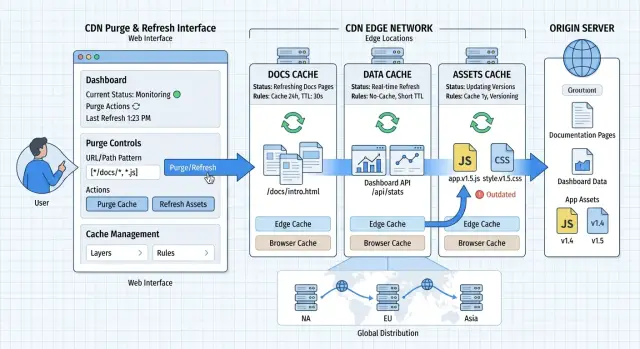
Table of Contents
What goes stale and why
After a release, users can end up with a mixed version of your site. One cached page shows the new copy, another still shows the old menu. The app loads fresh HTML, then pulls an older JavaScript file from cache. Nothing changed for the team, but the user sees a product that feels half updated.
That confusion spreads quickly. A docs page can mention a button that no longer exists. A dashboard can keep an old total or old chart settings for a few minutes, which makes people question the data. When app files and page markup stop matching, the problem gets worse: broken layouts, missing styles, login loops, or a blank screen.
Docs, dashboards, and app assets age at different speeds. Docs pages change when you edit or publish content, so they usually handle longer cache times well. Dashboard responses depend on the user, recent events, and permissions, so they need tighter rules. App files like JavaScript, CSS, fonts, and images should not change in place at all. When they do, stale copies cause the most visible bugs.
Many teams answer this with a full purge after every release. It feels safe, but it is expensive. Broad purges throw away healthy cache, send more traffic back to origin, slow down the first wave of requests, and can raise CDN and compute costs. They also cover up the real issue, which is often weak cache grouping or noisy cache keys.
The goal is simple. Users should get fresh content where something changed, and everyone else should keep getting fast cached responses. Purge the smallest set that changed. Keep user specific dashboard data separate from public pages. Let versioned assets stay cached for a long time. Once that split is clear, pages stay current without throwing away cache that still works.
Split your site into cache groups
Most stale content problems start when everything sits under one cache policy. Docs, dashboards, app files, HTML pages, and API responses do not change at the same pace, so they should not share the same rules.
Start with docs. Group them by section, locale, or version, depending on how people browse them. If your English API docs change today, you should purge that slice only, not every guide, changelog page, and translated page.
Dashboards need a different approach. Treat them as data views, not as static pages that can sit in cache for hours. The outer page can stay in cache briefly, but the numbers inside usually come from APIs, user state, or both. In practice, that often means caching the HTML lightly and handling the data layer with shorter TTLs or no shared cache at all.
Built app files belong in their own group. JavaScript, CSS, fonts, and image bundles should stay separate from HTML shells and API responses. Those files usually change only on deploy, so they can stay in cache for a long time if you version them. The HTML changes more often because it points users to the newest asset set.
For most teams, a useful split is small and easy to remember: docs pages by section, locale, and version; dashboard HTML with short cache times; dashboard and app APIs with their own rules; versioned app assets with long cache times; and rarely changed files such as icons or brand images.
Write this down before you touch purge settings. A small table is enough. Note which group changes daily, which changes only on release, who owns it, and what purge pattern applies. That one step makes later decisions much easier, and it keeps you from reaching for the worst fix of all: purging the whole CDN every time one page changes.
Choose cache keys before purge rules
Good invalidation starts with one question: which parts of the request actually change the page a user sees? Every extra value in the cache key creates another cached copy. That makes purges harder and lowers your hit rate.
Most teams only need a small set of request parts in the cache key:
- path and host
- language or region, if the content really changes
- a few query parameters such as
page,sort, orformat - auth state for signed in areas
Everything else needs proof. If a cookie, header, or query parameter does not change the response, keep it out of the cache key. Common troublemakers include tracking parameters, session IDs, experiment cookies, timestamps, and random headers that change on almost every visit.
A docs page is a good example. If /docs/setup stays the same for everyone in English, do not vary the cache on user cookies or marketing parameters. Cache it by path, host, and maybe language. Then one purge clears the right object instead of leaving hidden variants behind.
Dashboards need different rules. A signed in page often changes by user, team, or role. That is usually a bad fit for shared CDN caching. In many cases, the safer choice is to bypass shared cache for the HTML and cache only static files or small public API responses. If you do cache signed in content, vary on the smallest stable signal, such as auth state or account scope, not every cookie the browser sends.
Headers need the same discipline. Keep Accept-Language if it changes content. Keep a device header only if you really ship different markup. Do not add headers just because they are available.
This is where many releases go wrong. Teams write purge patterns first, then discover the CDN stored ten versions of the same page because the cache key included too much noise. Oleg Sotnikov sees this often when reviewing startup stacks: public marketing pages, docs, and dashboards all share one loose rule, and nobody can tell which cached variant users still hit.
Pick the cache key first. Purge rules get much simpler after that.
Set purge patterns in a clear order
Most cache problems start with one bad habit: treating every file the same. It works much better when you split assets, HTML, docs, and dashboards into separate groups and give each one its own release flow.
A practical rollout usually goes like this:
- Put a version in every app asset filename. JavaScript, CSS, fonts, and image bundles should change name on each build, such as
app.a41c9.js. When files work this way, you almost never need to purge them. - Purge docs by path. If editors update one guide under
/docs/billing/, purge that section or page, not the whole docs area. - Purge HTML when the page layout, navigation, or copy changes. The HTML points users to the newest asset versions, so this step matters more than people expect.
- Give dashboards short freshness windows instead of constant purges. A screen that shows recent numbers can use a TTL of 30 to 120 seconds, which keeps data fresh without wiping cache all day.
- Test one release path before you apply the rules everywhere. One clean path beats ten guessed rules.
That order matters. Once assets are versioned, most later changes only need an HTML purge. That lowers risk and saves a lot of origin traffic.
Docs need a lighter touch. Editors usually change a page, a subsection, or a product area, so path purges fit better than full site clears. If a template change affects all docs pages, then purge the HTML for the whole docs section once.
Dashboards are where teams often get too aggressive. They purge on every update, then wonder why performance drops. In most cases, a short cache lifetime is enough. If the page shows user specific data, cache the shared shell briefly and fetch the changing numbers separately.
A small SaaS team can test this in one afternoon. Release a build with hashed assets, change one docs page, update one landing page headline, and load a live dashboard. If each change refreshes only the right content, the rules are ready for wider use.
Use versioned assets to avoid broad purges
The cleanest way to keep static files fresh is to change the filename every time the file changes. If your app ships app.8f3a1c.js instead of app.js, the CDN can cache it for a long time, and users still get the new file on the next release.
This removes the need for large purges. In a healthy setup, you purge the HTML that points to the asset, not the asset itself. The browser requests the updated page, sees a new JS or CSS filename, and fetches that new file right away.
The pattern is straightforward: add a content hash or clear version string to JS and CSS filenames, keep long cache times for those files, purge the HTML documents after release, and leave the old asset files online for a while.
That last step matters more than many teams expect. Some users still have an older HTML page open in another tab, or a stale edge node may serve that page for a few minutes. If the old CSS or JS file disappears the moment you deploy, those users get broken pages. Keep previous asset versions available long enough for older pages to keep working.
A dashboard is a good example. You deploy a new build, the HTML now references dashboard.41ac9e.js, and you purge the dashboard page. New visitors get the fresh HTML and the new file. People with an older tab can still load dashboard.18b2f0.js until their page refreshes.
Your build process has to do its part. It must update file references on every deploy, even for small CSS changes. If the filename stays the same when the content changes, the cache key stops helping and the CDN may keep serving the wrong file.
If you run docs, dashboards, or app shells behind one CDN, this approach cuts risk quickly. Cache HTML carefully, cache versioned assets aggressively, and avoid broad asset purges unless something really went wrong.
A simple example from a real release
A small SaaS team usually has three very different things behind one CDN: public docs, marketing pages, and the logged in app. If they treat all of them the same, they either serve stale pages or throw away too much cache on every update.
Picture a release on Tuesday afternoon. An editor updates the billing docs and adds a new changelog entry. At the same time, the product team ships a new app build for users inside the dashboard.
This release touches three cache groups, and each one needs different handling. The docs HTML gets a selective purge. If the editor changed pages under /docs/billing/, purge that section and the changelog page, then leave the rest of the docs alone. The dashboard data does not need constant manual purges. Give those API responses a short cache time, such as 30 or 60 seconds, so charts and counters refresh quickly without constant invalidation. The app bundles ship with versioned filenames, such as app.3f2a91.js and styles.3f2a91.css, so the CDN can keep them in cache for a long time because the next release will use different filenames.
So one release does not trigger one giant purge. It triggers a small docs purge, no manual purge for dashboard JSON, and zero purge for static assets.
Cache keys still matter here. If the dashboard changes by account, role, or region, the cache key must include that context. Otherwise one customer may see another customer's cached view, or everyone gets a miss because the cache varies on things that do not matter.
This setup is common in real product teams, especially small teams that want fast releases without babysitting infrastructure. The safest pattern is boring on purpose: purge only the section that changed, let short lived dashboard responses expire on their own, and make every app asset release use a new filename. That keeps pages fresh and preserves the cache where it still helps.
Mistakes that waste cache or leave stale pages
A lot of cache trouble starts with one habit: purging everything after every deploy. It feels safe, but it wipes out healthy cache, pushes traffic back to origin, and can make a fast site slow for the next few minutes or longer. Remove only what changed.
Another common mistake sits in the cache keys. If you include random query parameters like tracking tags, session hints, or one off debug values, you split one page into many cache entries. The CDN stores dozens of copies of the same response, and your hit rate drops for no good reason. Keep cache keys tight and based on things that really change the output.
Dashboard pages cause a different problem. Teams sometimes cache user specific screens at the edge because the HTML looks expensive to generate. That can leak the wrong state, show stale counts, or even expose private data if the rules are sloppy. For dashboard caching, cache shared API responses or static assets, not personalized full pages unless you have strict variation rules by user, role, or account.
Docs often break in quieter ways. A purge pattern that clears only /docs/getting-started but ignores locale or version can leave old copies alive under paths like /en/docs/v2/getting-started or /fr/docs/latest/getting-started. Readers then see mismatched navigation, old examples, or a page title from the new release with body text from the last one. Purge rules should match the real URL structure, not only the path you happened to test first.
Old assets also need a little patience. After a release, some users still have an older HTML file or service worker for a short time. If you delete old JS or CSS files right away, those users get broken pages instead of a clean update. Versioned assets work best when you keep the previous files around long enough for traffic to move over.
Most bad cache behavior is self inflicted. Narrow purges, clean cache keys, careful handling of dashboard pages, and slower cleanup of old assets usually fix it without adding new tools.
Quick checks before and after release
A release is not done when the deploy finishes. The next 10 minutes tell you whether the cache rules worked or whether users are still getting old pages, old numbers, or a broken app shell.
Before release
Pick a few URLs and save them before you deploy. Use real pages that changed, not random samples. If your docs have locales, open one changed page in each locale you touched. Teams often purge the English page and forget the translated copy.
For dashboards, choose one screen with recent activity. You want something easy to verify, like a total that changed today or a new entry that should already appear. If the page loads fast but shows yesterday's numbers, the cache is too sticky.
Write down a short rollback plan before you push. Keep it boring and specific: which purge you will run, which asset version you will restore, and who will watch origin traffic if cache hit rate drops hard.
After release
Run the same checks in the same order so you can spot problems quickly:
- Open one changed docs page per locale and confirm the new copy, date, or heading appears.
- Load the dashboard and check that recent numbers or latest records show up without a manual refresh.
- Inspect the app shell and confirm it references the new asset filenames or version strings.
- Watch cache hit rate and origin traffic for a few minutes after the deploy.
- If something looks wrong, use the rollback plan instead of guessing under pressure.
The app shell check matters more than people think. A page can look fine at first, then fail because it still points to an old JavaScript or CSS file. Open developer tools, inspect the loaded assets, and make sure the names match the release you just shipped.
Traffic graphs tell the other half of the story. If cache hit rate falls off a cliff and origin requests jump, you probably purged too broadly. If hit rate stays high but users still report old content, the purge was too narrow or the cache rules ignored a path, locale, or query pattern.
A small team can do all of this in a few minutes. One person checks docs, one checks the dashboard, and one watches metrics. That simple habit catches most cache rule problems before users file tickets.
Next steps for a safer cache setup
Most teams get better results when they stop treating caching like a pile of exceptions. Write one plain cache map for the whole site and keep it somewhere the team actually checks. Split it into three groups: docs pages, dashboard routes, and static assets. For each group, note the cache key, TTL, and the exact event that should trigger a purge.
Keep the map short. If a rule takes a paragraph to explain, it will probably break during a rushed release. Good cache rules are boring on purpose. The team should be able to look at a route and know where it belongs in a few seconds.
The next move is simple: make purge steps part of the deploy routine. If your release process already knows which files or routes changed, it should also know which purge command to run. That removes guesswork and cuts the common habit of clearing far too much just to feel safe.
A short checklist is usually enough. Update the cache map when you add a new route type. Keep purge commands in the same repo as the app or docs. Log each purge so stale page reports have a trail. Test one rollback path before release day gets messy.
Versioned assets should stay out of broad purges whenever possible. If filenames change on each release, the CDN can keep old files cached while new pages request the new versions. That is faster, cheaper, and less fragile than wiping large parts of the cache.
Old rules need cleanup too. Put a review on the calendar every few months and remove leftovers from past launches, migrations, and one time fixes. Those old rules often cause more trouble than the original problem.
If your team keeps fighting stale content, overpurging, or dashboard pages that never feel fresh enough, a short architecture review can help. Oleg Sotnikov does this kind of Fractional CTO work across app architecture, infrastructure, and lean delivery, and he often spots whether the issue sits in the CDN, the deploy flow, or the asset strategy. In many cases, one focused review is cheaper than another month of cache guesswork.
Frequently Asked Questions
Do I need to purge the whole CDN after every release?
No. Purge the smallest slice that changed. A full purge throws away healthy cache, sends traffic back to origin, and often slows the site right after deploy.
What should I purge when I update docs?
Purge the changed page or section, plus any HTML that now points to new content. If your docs use locales or versions, match those paths too so old copies do not stay alive under another URL.
Should I cache dashboard pages at the CDN?
Usually no for personalized pages. Keep shared assets in CDN cache, keep the HTML fresh for a short time or bypass shared cache, and fetch user data with short TTLs or private caching rules.
Why do users get new HTML but old JavaScript or CSS?
That happens when the page HTML updates first but the browser or CDN still serves an older asset file. Fix it by giving every JS and CSS file a new filename on each build and purging the HTML after release.
How should I version app assets?
Put a content hash or clear release version in the filename, like app.8f3a1c.js. Then keep those files in cache for a long time and purge the HTML that references them.
What should I include in the cache key?
Start with path and host. Add language, region, or a small set of query parameters only when they truly change the response. For signed-in areas, vary on the smallest stable signal, such as account scope or auth state.
Which query parameters and headers should I leave out?
Ignore anything that does not change the page. Tracking tags, timestamps, debug values, random headers, and most cookies often create extra cache entries without improving freshness.
What TTL should I use for dashboard data?
For many dashboards, 30 to 120 seconds works well. That keeps numbers reasonably fresh without forcing constant purges or pushing every request back to origin.
How long should I keep old asset files after a release?
Keep them long enough for older pages and tabs to keep working after deploy. If you delete old files right away, people with stale HTML or a service worker may hit broken pages.
What should I verify right after deployment?
Check one changed docs page, one live dashboard screen, and the app shell that loads your new assets. Then watch cache hit rate and origin traffic for a few minutes. If hit rate drops hard, you likely purged too much. If users still see old content, your purge missed a path, locale, or cache variant.


