CDN failover pages that keep your site useful in outages
CDN failover pages let your site show a clear fallback, cached content, and next steps during origin trouble instead of a blank error page.
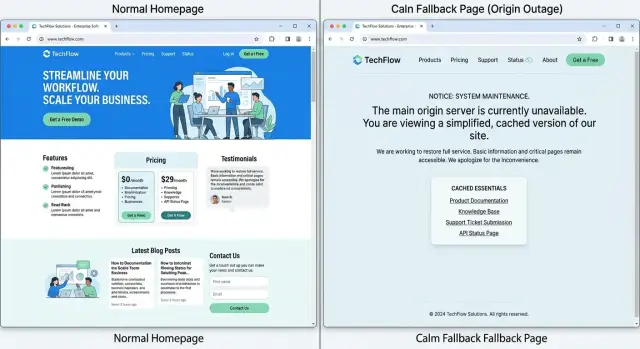
Table of Contents
What breaks during a partial outage
A partial outage is messy. To a visitor, the site does not look fully down. It looks unreliable.
The home page might load from cache, but search returns nothing. A product page may open, yet prices or stock never appear. Login can fail while blog posts still work. The header and footer show up, but the main content area spins, times out, or throws a server error.
That mismatch confuses people fast. If everything failed at once, most visitors would understand the site is down and try again later. When only parts fail, they keep clicking, retrying, and wondering if the problem is on their side.
A blank error page makes that worse. It gives no direction, no reassurance, and no next step. People cannot tell whether they should wait, refresh, contact support, or leave. Even a limited page is better if it tells the truth and still lets them do something useful.
A good degraded page should answer a few basic questions: what still works, what is temporarily unavailable, where to find essentials such as contact details or core product information, and when to try again.
Partial failures rarely hit every part of the stack at the same time. A database can stall while cached HTML still loads. An API can fail while images, docs, and static pages remain available. The origin may break checkout, account actions, or live search while simple read-only content still reaches the browser.
That is where CDN failover pages help. They do not pretend the app is healthy. They keep the site useful when the dynamic parts stop working.
The goal is simple: avoid the dead end. If the full experience is unavailable, serve an honest reduced version instead. Let people read the basics, understand the issue, and take one clear action. That is much better than a white screen, a vague 500 error, or a spinner that never stops.
What people need when the origin fails
When the origin goes down, most visitors do not need the full site. They need a plain answer, a few working pages, and one clear way forward. If they get a blank error page, they assume everything is broken and leave.
Start with an honest message. Say what still works, what does not, and when you will post the next update. A line like "Checkout is down. Help pages and contact details still work. Next update in 15 minutes" does more than a generic 500 error ever will.
Keep the fallback page useful, not decorative. People often arrive with a simple task: check pricing, find setup steps, get account help, or contact a human. A failover page should keep those basics available from cache so the site can still answer common questions.
In most cases, that means showing a short status message in plain language, support details or hours, basic navigation to a few cached pages, a timestamp for the latest update, and one next step such as "email support."
Cached essentials remove friction at the worst moment. If someone can still read pricing, open docs, or find billing help, the outage feels limited instead of total. People stop refreshing. Support gets fewer repeat messages. Trust drops less.
One next action is enough. Do not send people into a maze of broken menus. If login is down, point them to account help. If a product page cannot load, keep a cached summary and a contact option. If booking fails on a consulting site, show service basics and an email address so the conversation can still start.
This is where many teams overbuild. You do not need a mini version of the whole site. You need the pages that answer the most common questions and lower panic. A small, honest fallback often helps more than a polished outage screen.
Choose the essentials first
When the origin starts timing out, people do not need your whole site. They need the few pages that help them finish a task, understand the problem, or reach support. If you try to preserve everything, the fallback usually turns into a messy half-working copy.
Pick the pages that still help during trouble. For many sites, that means the homepage, a product or service summary, pricing, login help, docs, FAQ, support contact details, and a plain status message. For a SaaS app, a read-only help page often matters more than the full dashboard. For a store, shipping, returns, and order support matter more than recommendation carousels.
Then split content into two groups. One group is safe to show slightly stale. The other is risky because old data can confuse people. Public help articles, product descriptions, setup guides, and policy pages are usually fine to cache. Personalized dashboards, stock counts, account balances, and delivery times usually are not.
A simple filter works well:
- Keep pages that answer urgent questions.
- Cache content that is public and changes slowly.
- Remove blocks that depend on live APIs.
- Never cache private or account-specific data.
- Show a fallback fast when waiting longer adds no real value.
That last point matters more than many teams expect. A page that hangs for 12 seconds feels broken even if it finally loads. A simpler fallback shown after 2 or 3 seconds often gives people a better experience because it is honest and usable. If the live page cannot load quickly, stop pretending it might recover in time.
Think in tasks, not templates. Someone arriving during an outage usually wants one of four things: confirm service status, find a workaround, contact support, or get basic product information. If your CDN can keep those paths alive with cached fallback content, the site still does its job.
How to set it up
Start with the failures your visitors cannot recover from on their own. Good failover triggers usually include origin timeouts, connection failures, and server errors such as 502, 503, and 504. Do not trigger fallback for normal 404 pages, bad logins, or broken form input. Those need normal application handling.
A simple setup works better than a clever one.
First, pick the trigger errors. Your CDN should swap to the fallback only when the origin is clearly unavailable or too unhealthy to answer. If the rule is too broad, you will hide real app errors and make debugging harder.
Next, build one small static page at the edge. Keep it plain HTML with minimal CSS and maybe a small logo. It should load fast, explain that the site has a temporary issue, and show what still works right now.
Then pre-cache the pages people need most. For many sites, that means the homepage, pricing or product summary, help content, contact details, and a few basic images or stylesheets. If those assets are not already cached when the outage starts, the fallback page can look broken even if the CDN rule works.
After that, strip out anything dynamic. Remove forms, search boxes, logins, carts, account actions, and live data widgets from the fallback experience. A contact form that appears to work but never reaches the origin is worse than no form at all.
Finally, test the switch on purpose. Force the origin to return a 503, block it for a moment in a safe environment, or use a staging domain that mimics failure. Then check what users actually see, how fast the CDN responds, and whether cached pages stay readable on mobile and desktop.
Keep the fallback small enough that you can review it in a few minutes before each release. Teams with lean infrastructure often do this better because they treat outage behavior as part of the product, not an afterthought. A good target is a page that answers three questions fast: what is happening, what still works, and how people can reach you.
Write a clear degraded response
People forgive an outage faster than a vague message. If the origin is down, say that the site has a problem in plain English. "Our main app is unavailable right now" is better than "We are experiencing a temporary issue."
Then tell users what still works. If docs load from cache, say so. If pricing, contact details, or a read-only account view still respond through the CDN, name each one. Users do not want promises first. They want to know whether they can finish one small task.
A good degraded page answers four questions fast:
- What is broken right now
- What still works from cache or failover
- What users should try next
- When they should stop retrying and come back later
Keep the tone calm and direct. Do not apologize for three paragraphs. Do not guess at the cause unless you know it. "Checkout is offline, but product pages and support contact info still work" builds more trust than "Some services may be affected."
Next steps should be specific. Tell people to refresh only if that can help. If the site supports a cached read-only mode, say, "You can still view saved orders, but you cannot place a new one." If email or phone support still works, put that information on the failover page itself. During an outage, users should not have to hunt for another page that may fail too.
Small wording choices matter. "Payments are paused" is clearer than "Transaction processing may be degraded." "Search works, account changes do not" gives users enough to act on. Clear limits lower frustration because people stop guessing.
When failover pages do this well, the site still feels managed. People see the boundary, pick the next step, and move on instead of staring at a blank error page.
A simple example
During an afternoon sale, one store lost its checkout backend for about 40 minutes. Product and category pages still had value, but the payment flow could not reach the origin, so buyers hit errors right when they tried to pay.
The team did not send everyone to a dead end. They let cached category pages and product pages stay online through the CDN, so people could keep browsing, compare options, and save items for later. If every page had failed at once, the store would have lost far more visits.
On checkout routes, they served a short fallback page instead of a generic error. It told customers what still worked and what did not. It also answered the first two questions people ask when money is involved: "Was I charged?" and "What should I do next?"
The fallback page kept a few basics live:
- Current shipping regions and delivery estimates
- Support email and phone details
- A clear note that payment attempts were not complete
- A warning not to submit the same payment twice
That warning saved real pain. When people retry payment again and again, stores often end up with duplicate authorizations, more support tickets, and angry buyers who no longer trust the site.
Because browsing still worked, shoppers kept moving through cached content instead of leaving at the first error. Some added items to wish lists. Some checked shipping before deciding to return later. Support also had fewer confused messages because the failover page answered the basics up front.
When the team restored checkout, they had not lost every session. Sales still took a hit, but the site stayed useful and calm under pressure. That is what good failover pages do. They do not pretend nothing broke. They protect trust while you fix the part that did.
Mistakes that make failover pages useless
A failover page only helps if people can still do something useful. Too many teams swap in a generic 500 page and call it a backup plan. It is not. It is a dead end with a different background color.
The worst version says almost nothing. Users do not know if the site is down for everyone, if their order went through, or if they should try again later. A short honest message works better: say that part of the service is unavailable, name what still works, and tell people what not to retry right now.
Another common mistake is caching the wrong pages. If your CDN stores account screens, carts, dashboards, or anything with personal details, you can leak private data or show old information that looks current. That creates a bigger problem than the outage itself. Cache only safe public content and a small set of essentials, such as status text, support details, product basics, or a read-only help page.
Some teams try to hide the outage so the site looks normal. Users notice anyway. They click around, hit random errors, and lose trust faster because nobody told them what changed. Clear wording works better than fake normal.
Where failover pages usually break
A degraded page should remove anything that depends on the origin. If the page still shows broken search, dead form submits, or buttons that lead to checkout, you are sending people into a maze. Disable those paths. Keep only actions that still work.
A short check helps:
- Remove forms that need live writes.
- Hide account-only actions.
- Keep support and status details visible.
- Show read-only content that stays accurate.
Mobile gets ignored more often than teams admit. During an outage, many users arrive on a phone over a weak connection. Heavy scripts, large images, and fancy layouts make a bad moment worse. Keep the failover page light, plain, and fast.
Good failover pages tell the truth, protect private data, and leave one or two working paths instead of a screen full of broken promises.
Test before the next incident
Schedule a short test window and turn the origin off on purpose. Do not guess. A failover page that looked fine in staging can break in production for boring reasons: a missing asset, a stale cache rule, or a support button that points to a dead backend.
A simple dry run tells you whether your failover pages still do the one job that matters during trouble: give people something useful right away.
What to verify
- Pull the origin offline for a few minutes and watch what users actually get in a real browser.
- Check load time from more than one region. A fallback that feels fast near your office can crawl somewhere else.
- Read every line on the page out loud. You will catch vague wording, broken dates, and messages that sound calmer than the situation really is.
- Open the cached pages and confirm the information is current enough to help. Product details from last week may be fine. Pricing, stock, or support hours may not.
- Test your support path. Make sure the status text, backup contact option, email address, or phone number still works when the main app does not.
Keep the test small and boring. One person can disable origin traffic, another can check pages from a phone and a laptop, and a third can verify support messages. That usually takes less than 30 minutes.
Be strict about the words on the page. "We are having trouble" is better than a generic error, but it still leaves people guessing. Say what still works, what does not, and what they should do next. If account actions are down but docs, order status, or contact details still load, say that plainly.
Cached fallback content also needs an expiry rule that matches reality. A homepage cached for a day may be fine. A billing page cached for a day can cause real trouble. Check each page with that in mind.
Teams that practice this once every few months usually find small gaps before users do.
What to do next
Pick one page people can rely on when everything else is shaky: a plain failover page with a short status message, a clear note about what still works, and one action to take next. People forgive limits faster than silence.
Start small. Most teams do not need a giant outage kit on day one. One fallback page and two or three cached essentials are enough to make a bad hour feel manageable.
A simple starter set usually includes:
- A failover page with current status and expected limits
- One cached help page, such as contact details or support steps
- One cached business page, such as pricing, a product overview, or docs people check before they buy or troubleshoot
Then write the rules down. Decide what triggers the fallback, who can change the message, who approves it if approval is needed, and who turns normal traffic back on. If nobody owns those steps, failover pages tend to rot until the next incident proves it.
Keep the message plain. Say the origin is having trouble. Say what still works. Say what does not. Add a time for the next update only if your team can keep that promise.
After each outage, spend 20 minutes on a short review. Check what users asked for most, what the cache failed to serve, and where the wording caused confusion. Then trim the plan. Remove pages nobody used. Add the one thing people kept looking for.
If your team is stuck between overbuilding and doing nothing, outside help can be useful. Oleg Sotnikov at oleg.is works as a Fractional CTO and infrastructure advisor, and this kind of practical failover planning fits that work well.
A simple plan that works beats a perfect plan nobody updates.
Frequently Asked Questions
What is a CDN failover page?
A CDN failover page is a small static page your CDN serves when your origin stops responding. It tells visitors what broke, what still works from cache, and what to do next instead of showing a blank error screen.
When should failover turn on?
Trigger it for failures people cannot fix on their own, like origin timeouts, connection errors, and 502, 503, or 504 responses. Do not use it for normal 404 pages, bad passwords, or form mistakes, because your app should handle those cases.
Which pages should I cache for an outage?
Start with the pages people need most during trouble: a homepage, pricing or product summary, docs, contact details, and basic support help. Pick public pages that still answer common questions even if the app cannot load.
What should I never cache on a failover page?
Keep private or fast-changing data out of cache. That includes account pages, carts, stock counts, balances, live delivery dates, and anything personal, because old or exposed data creates a bigger mess than the outage.
How quickly should the fallback page appear?
Show the fallback fast. If the live page still hangs after a couple of seconds, most people already think the site broke. A simple honest page in 2 to 3 seconds usually feels better than waiting 10 seconds for a maybe.
What should the outage message say?
Say what is down, what still works, and one next step. A line like Checkout is down. Docs and contact details still work. Next update in 15 minutes. gives people a clear answer without making them guess.
Should I keep forms and login on the failover page?
No. Remove anything that needs a live write to the origin, such as forms, login, checkout, account changes, and live search. If a button looks active but fails after the click, people lose trust fast.
How do I test failover before a real incident?
Run a short drill and take the origin offline on purpose in a safe window. Then open the site on a phone and a laptop, check load time from more than one region, and confirm that every support path and cached page still works.
Can a failover page reduce support load during an outage?
Yes, they often do. When visitors can still read pricing, docs, shipping info, or support details, they stop refreshing and send fewer confused messages. The outage still hurts, but it feels limited instead of total.
Do I need a full backup version of my site?
No. Most teams only need one plain failover page and a few cached essentials. A small setup you review and test often beats a large backup site that nobody updates.


