Cache invalidation rules for admin-heavy apps that stop stale screens
Cache invalidation rules help teams map admin actions to the right cache clears, so support sees fresh screens instead of chasing stale-data bugs.
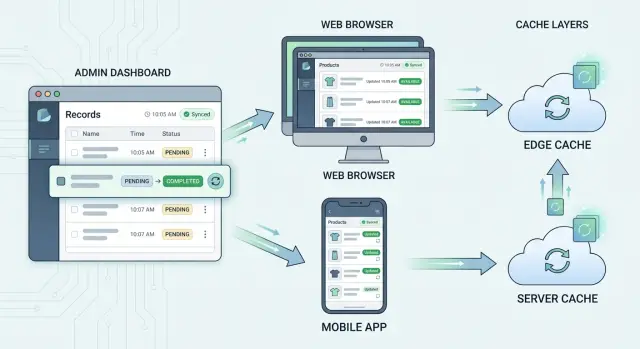
Table of Contents
Why stale screens waste support time
Stale screens waste time because they make one record look like two different truths.
An admin changes a customer's plan from "trial" to "paid." The edit form shows the new value after save, but the customer list still says "trial," and the billing summary keeps the old status for a few more minutes. To support, that does not look like a cache issue. It looks like broken logic.
Most of the time, the save worked. The database has the new value. The stale screen comes from admin panel caching, an old API response, or a page that never fetched fresh data after the update. Users cannot see that difference, so they report a bug that feels serious and hard to pin down.
The "saved successfully" message often makes this worse. People read it as a promise that every screen now matches the new state. When the next page still shows the old value, support starts checking permissions, validation rules, sync jobs, and recent releases. An engineer can lose an hour in logs before anyone asks the simpler question: did this action clear every cache that depends on that record?
Stale screens also trigger bad follow-up actions. Admins repeat the edit. They open a second tab to compare pages. They tell a customer one thing, then see another value themselves. Support may file separate tickets for billing, search, and reporting even though one stale response caused all of them.
The cost goes beyond wasted time. Teams stop trusting their own checks. If one customer record can look right on the detail page and wrong on the list view, every mismatch starts to feel like a real product failure.
That is why written cache invalidation rules matter. A simple cache busting map tells the team which screens, counts, and derived views must refresh after each admin action. Support gets a short verification step instead of a long hunt through logs and screenshots. Engineers fix the real gap once instead of patching each stale screen as a separate bug.
Where old data hides
Old data rarely lives in one place. In admin-heavy apps, one screen can pull from browser state, an API cache, a search index, and a read replica at the same time. That is why stale screen bugs feel random even when the app is behaving exactly as built.
A common mistake is to check only the database. The admin changes a record, the write succeeds, and everyone assumes the work is done. Then support opens the same item in another screen and sees the old value because that screen reads from a different layer.
Start by listing every place a value can stay alive after an edit. That usually includes browser storage such as localStorage or saved drafts, in-app state such as React state or route caches, edge and server caches such as CDN responses or Redis, query caches in the frontend or API layer, and delayed systems such as background jobs, search indexes, queues, or read replicas.
Each layer needs its own refresh rule. A browser cache may need a forced refetch after save. A CDN may need a tag purge. A search index may need a reindex job. A replica may simply need a few seconds to catch up.
Take a simple example. An admin changes a user's plan from Basic to Pro. The profile page may show Pro right away because it reads the write database. The customer list may still show Basic because the table uses a cached query. Search may still return the old plan because the index update runs in a queue. Billing may look right, while support still sees the wrong badge in one tab because the browser kept older state in memory.
This is where clear cache invalidation rules help. You are not just saying "clear the cache." You are saying which action touches which data source, which screens depend on it, and how each cache should refresh.
If you map these layers early, support gets a much shorter checklist. Instead of chasing a phantom bug, they can ask a better question: which layer is this screen reading from, and has that layer caught up yet?
Map each admin action to affected data
Start with the action itself. "Approve vendor," "refund order," and "disable user" are better starting points than "vendor page" or "orders screen." Screen names are too broad. They hide what actually changed.
For each action, write down the exact record that changes first. That is the source of truth. If an admin disables one user, the user record changes. Then ask the next question: which other screens read that record, directly or indirectly?
A practical map usually needs five pieces of information: the admin action, the records that change, the lists and detail pages that read that data, the derived values affected by the change, and the expected update speed for each screen.
That third line matters more than teams expect. Support often sees the detail page update while a list still shows old data. Engineering checks the record, everything looks fine, and the bug seems to disappear. The stale data was sitting in a list cache, a search index, or a badge count.
Counts and badges deserve their own line in the map. If an admin marks a ticket as resolved, the ticket changes, but so do open-ticket counts, team queues, dashboard widgets, and maybe unread badges. Permissions matter too. If an admin changes a role, user menus, visible rows, and search results can all change even when the record itself looks almost the same.
Keep direct changes separate from derived values. Direct changes are fields written by the action itself, such as status, owner, or published date. Derived values come later from rules or queries, such as active users, items needing review, or weekly top sellers. They usually have different cache rules because they come from different systems.
A short example makes this easier. Say an admin bans a seller. The direct change is the seller status. The affected views may include the seller profile, seller list, marketplace search, product detail pages, payout queue, fraud dashboard, and any count that shows active sellers. If banned sellers should disappear from search in under 10 seconds but payout reports can lag for 5 minutes, write that down.
That last part saves time. Good cache invalidation rules are not only about what to clear. They also define how fresh each screen needs to be. Once that is written down, support knows when a stale screen is a bug and when it is normal delay.
Write invalidation rules in a way people can use
Stale screens get easier to handle once the rules live in one place. Many teams keep cache behavior scattered across handlers, jobs, and frontend state. That is why support sees a wrong screen, engineering says "works for me," and nobody trusts the app.
Start with the write actions, not the screens. A screen can read from many places, but a write action usually has a clear owner and a clear effect.
A simple table is enough. For each write, capture the changed data, the screens that read it, the cache layer involved, and the invalidation rule. For example, "admin edits user role" might affect the user list, user detail page, permissions summary, and any session-based menu that hides or shows actions. Put every one of those reads in the table, even if the screen only shows a small badge. Small fields cause a surprising number of stale screen bugs.
Then mark which cache layer each screen uses: browser memory, local storage, CDN, server response cache, query cache, rendered HTML, or a report snapshot. If you skip this step, the rule stays too vague to debug.
Once you see the write and the readers together, choose the simplest response for each cache layer. In most cases you only need four choices: bust the cache now, refresh it in the background, bump a version number so old entries no longer match, or allow a short wait if the screen is not urgent.
My bias is simple: if support staff or admins need the screen right after a change, bust it or version it. Do not make them wait 60 seconds and call that acceptable.
Test the rule like support would
Do not test with one account in one browser tab. That hides timing problems.
Use two accounts and real delay. Have account A make the admin change. Keep account B open on an affected screen. Then check what B sees after 1 second, 5 seconds, and after a manual refresh. Write down the exact result. If B still sees old data, you now know which layer kept it.
A short note beside each rule helps: "role change busts query cache, bumps permissions version, forces menu refresh on next request." That is enough detail for engineers, QA, and support to talk about the same behavior without guessing.
If the table feels boring, good. Boring rules save hours of support debugging.
One admin change, many stale screens
Picture a store manager opening the admin panel and changing one product from $49 to $39. It looks like a tiny edit. In practice, one save can affect half a dozen screens, and if only one of them updates, support starts hearing that the app is "wrong" even when the database is fine.
Take a product called "Trail Running Shoes." The manager edits the price and clicks save. The product page must refresh because it shows the direct price. That part is obvious.
The less obvious part is everything else that reuses the same product data. If the shoes appear on a category page, that page now has stale data too. If search results show the product card with its price, search caches must refresh as well. If the store has promo blocks such as "Sale picks" or featured lists on the home page, those blocks may also need an update if they pull the same item.
A simple cache busting map for this change might include the product page cache, category pages where the product appears, search results that show the product card, promo blocks and featured lists that include the product, and cart totals for carts that already contain this item.
That last rule matters. You do not need to recalculate every cart in the system. You only need to refresh carts where this product is already present. Anything more creates extra load for no user benefit.
Now imagine what support sees if you miss one path. The product page shows $39, but search still shows $49. A shopper clicks through and thinks the site changed the price by mistake. Or the category page updates, but a featured "Top deals" block still shows the old amount. Support logs a pricing bug, QA tries to reproduce it, and everyone wastes time chasing a cache problem.
This is why cache invalidation rules should follow data reuse, not screen names alone. One admin action does not map to one page. It maps to every place that reads the changed fields.
For a price update, the changed field is not only "product." It also affects summaries, rankings, discount displays, and totals. If your team writes that map down before bugs appear, stale screen bugs drop fast because each save has a clear list of caches to refresh.
Mistakes that create phantom bugs
Most phantom bugs start with a partial fix. An admin changes a product, user, price, or status, and the app clears one cache layer but leaves the others alone. The detail page updates, yet the list page still shows old data. A dashboard counter stays wrong. Search results lag behind. Support opens a bug because the screen looks broken, even though the database is fine.
The most common mistake is thinking in pages instead of data. One edit can affect far more than the record itself. If an admin disables a user, you may need to refresh the user profile, team member lists, permission summaries, billing counts, audit views, and any cached API response that includes that user. If you only clear the profile cache, the app still looks inconsistent.
Lists and counters cause more trouble than detail views. Teams often remember to invalidate the item page and forget the places that aggregate data. That is how you get a project page with the new title, while the sidebar, search dropdown, and total active projects box still show the old one. Users call it random. Support calls it flaky. It is usually a missing invalidation path.
Long TTLs make this worse right after admin edits. Long cache lifetimes are fine for mostly static content, but they are a bad fit for screens that staff update all day. If the app depends on time alone to clean things up, stale screen bugs will keep showing up in short bursts after every admin change. In admin-heavy systems, cache invalidation rules should react to the write, not wait for the clock.
Background jobs add another layer of confusion. An edit may save at once, but search indexes, reports, exports, recommendation feeds, or analytics snapshots often rebuild later in a queue. If that queue slows down or fails, the app shows a mix of old and new data. People then blame caching when the real problem is an async rebuild that never finished.
A few habits cut this down fast:
- Clear every cache touched by the same piece of data, not just the page where the edit happened.
- Include lists, counters, badges, search results, and derived reports in the same map.
- Shorten or bypass TTL-based caching for screens that admins edit often.
- Log each invalidation event with the object changed, related cache keys, and queued rebuild jobs.
Logs matter more than many teams expect. When support reports a stale screen, you want to check whether the app fired the invalidation, which keys it removed, and whether any rebuild job ran. Without that trail, engineers guess. With it, they can tell the difference between a cache miss, a missing invalidation, and a stuck queue in a few minutes.
Quick checks before support files a bug
Support can save a lot of time by ruling out stale data before opening an engineering ticket. Good cache invalidation rules help, but a fast triage routine catches most false alarms in a few minutes.
Start with timing. Ask what the admin changed and when they changed it. A report that says "the status is wrong" is weak. A report that says "the admin changed order #1842 from pending to shipped at 10:14, and the customer page still showed pending at 10:18" gives the team something they can trace.
Then check what type of screen looks wrong. List pages and detail pages often use different caches. If the order detail page shows the new value but the orders list does not, the app may have updated the record cache and missed the list cache. That is a much smaller problem than "the whole system is broken."
A quick comparison across users helps. Ask two people to open the same item on different devices or browsers. Check whether both see the stale value or only one does. Compare the list page and the detail page for the same record. Look at any delayed jobs or rebuild tasks tied to that admin action. Then try a hard refresh to see whether the screen updates right away.
Those checks narrow the cause quickly. If one user sees the new data on a phone but not on a laptop, browser cache is a likely suspect. If both users see old data on the list page but the detail page is correct, the list cache probably missed a bust. If nothing updates until a background job finishes, the issue may be in the queue rather than the page itself.
A small example makes this easier. An admin changes a product price from 49 to 39. The product page shows 39 right away. The category page still shows 49 for ten minutes. Support should not file "price update failed." They should file "product detail updated, category list stayed stale after admin edit, hard refresh did not fix it, category rebuild job ran late."
That level of detail helps engineers fix the real gap instead of chasing a phantom bug. It also shows whether your admin panel caching rules are too broad, too narrow, or tied to a delayed rebuild that needs better monitoring.
What to do next
Stop treating stale screens like random glitches. Turn them into something your team can trace.
Start with the write side. Every admin change should leave a small audit trail with the person who made the change, the time, and the record they touched. When support gets a ticket that says "the page did not update," they should be able to answer three basic questions in under a minute: who changed it, what changed, and when.
Then make cache invalidation rules visible in logs. Do not settle for a vague "cache cleared" message. Log the rule name, the event that triggered it, and the cache tags or keys that got removed. If an admin action finishes and no invalidation rule fires, that is not a mystery. It is a missing rule.
A short checklist helps:
- Store admin write events with user ID, timestamp, action name, and affected record IDs.
- Log the invalidation rule that fired for each write.
- Measure the delay between the write and the moment each screen shows fresh data.
- Review the admin actions that cause the most edits at least once a month.
That timing data matters more than many teams think. A screen that updates in 2 seconds feels fine. A screen that updates in 45 seconds creates repeat edits, confused support tickets, and fake bug reports. Track the screens that support checks most often, not only the screens engineers care about.
A monthly review keeps the map honest. Admin flows change, fields get added, and old assumptions stick around long after the product moves on. Pick the top five admin actions by volume and confirm that each one still clears every screen it should. That is usually where stale screen bugs hide.
If your app has heavy admin activity, lots of write paths, or old caching logic that nobody fully trusts, this is the kind of systems work Oleg Sotnikov focuses on through oleg.is. As a Fractional CTO and startup advisor, he helps teams map write paths, tighten cache invalidation rules, and reduce support noise without forcing a full rewrite.
The best result is simple: support sees a stale page, checks the logs, and knows whether the problem is a missing bust, a slow refresh, or a real bug.
Frequently Asked Questions
Why does a screen still show old data after an admin saves a change?
Most often, the save worked and the database has the new value. One of the read paths stayed old, such as browser state, a query cache, a CDN response, a Redis entry, a search index, or a read replica.
Which cache layers should we check first?
Start with the screen that looks wrong and ask where it reads from. In many apps, the fastest checks are browser state, frontend query cache, server cache, search index, and any async job tied to that write.
Do we need a cache invalidation rule for every admin action?
Yes. Write rules around actions like "refund order" or "disable user," not around page names. That keeps the rule tied to the data that changed and makes it easier to trace.
What is the difference between direct changes and derived values?
Direct changes are fields the admin wrote, like status, price, or role. Derived values come from queries or rules, like counts, badges, reports, search results, or dashboard widgets, and they often need their own refresh path.
How fresh should admin screens be after a change?
Admin and support screens should refresh right away or on the next request after the write. If a screen can lag, write down the allowed delay so support knows whether they see a bug or normal catch-up.
Why do list pages stay stale when the detail page looks correct?
That usually means the detail page reads the latest record, while the list uses a cached query, a snapshot, or a search index. Fixing only the item page leaves the app looking inconsistent.
How should support verify a stale-data issue before filing a bug?
Support should capture the record ID, what changed, who changed it, and the exact time. Then compare the detail page and list page, try another browser or device, check related jobs, and note whether a hard refresh fixes it.
Are long TTLs a bad fit for admin-heavy apps?
Usually not for screens that staff edit all day. Time-based expiry alone creates short bursts of wrong data after every write, so write-triggered invalidation works better for admin-heavy flows.
How do background jobs affect stale screens?
If a queue updates search, reports, exports, or recommendations, the save can finish before those views catch up. When support sees a mix of old and new data, check whether the rebuild job ran, how long it took, and whether it failed.
What should we log for each admin write?
Log the admin action, user ID, timestamp, affected record IDs, the invalidation rule that fired, the cache tags or keys removed, and any rebuild jobs you queued. With that trail, engineers can tell whether they have a missing rule, a missed bust, or a slow async path.


