Browser file processing vs server uploads for sensitive data
Compare browser file processing vs server uploads for sensitive data, with clear tradeoffs in privacy, speed, device limits, and support work.
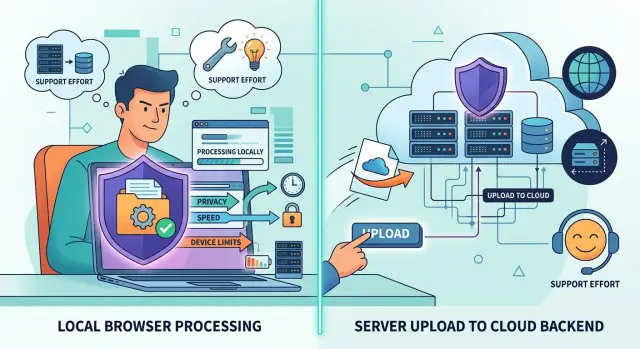
Table of Contents
Why this choice gets tricky
Some files need more care than others. A vacation photo is one thing. A passport scan, tax form, medical record, or signed contract with an address and bank details is different.
When people upload files like these, they do not just expect the app to work. They expect you to handle the file in a way that feels safe, predictable, and easy to understand. That is why browser file processing vs server uploads gets complicated so quickly.
With browser-side processing, the user's device does the first part of the work inside the browser. The file might never leave the device, or the app might send only the final result. With server uploads, the file goes to your system first, and your app reads it, converts it, stores it, or sends it to other services.
That sounds like a technical detail, but users notice the difference. If you say "we never upload your document," trust usually goes up. If you send the file to your servers, people start wondering about storage, leaks, staff access, backups, and third-party tools. For sensitive file uploads, those concerns are normal.
Privacy, speed, and support rarely point in the same direction. Browser processing can lower privacy risk and reduce server costs. Server handling gives you more control and steadier results. Weak phones, old laptops, and odd browsers can make client side file processing fail in messy ways. Support teams often prefer one predictable server flow over a long list of device-specific problems.
A simple example shows the tradeoff. A user uploads an ID photo on an old phone with low memory. Browser processing protects privacy, but the tab might freeze or crash. A server upload might finish faster for that person, but now you need to protect, store, and possibly delete a highly sensitive file.
That tension shapes the whole decision. You are not only choosing where code runs. You are deciding how much risk your team takes on, what users believe about your product, and what kind of failures your team will spend time fixing.
What browser-side processing means
Browser-side processing means the file gets its first treatment on the user's device before your server sees anything. The browser can open the file, read its contents, resize an image, blur part of it, remove background clutter, or encrypt it locally. For sensitive file uploads, that changes the risk right away because the raw file may never leave the device.
A common example is an ID photo. The page can crop the image, reduce its size, hide the document number, and upload only the cleaned version. In a stricter setup, the browser encrypts the file first, and your server stores unreadable data unless a later step decrypts it.
This does not always mean "nothing gets uploaded." Some flows still send extracted text, metadata, a thumbnail, or a processed copy after the browser finishes. That detail matters. If the browser extracts a name and birth date and then sends that text to your server, you still handle sensitive data. You just handle less of it.
The tradeoff is simple: every device has limits. Large PDFs, high-resolution images, and video clips use memory fast. Older phones slow down. Tabs reload. Long tasks make the page feel broken even when it is still working. Heavy work such as OCR or strong encryption can also heat up a phone and drain its battery.
Network quality changes the picture too. On a weak connection, local processing can help because the user uploads a smaller file after compression or redaction. But if the browser must download large scripts or models first, an unstable connection can make the whole experience worse. That is why browser file processing vs server uploads is not just a privacy choice. The user's device and network often decide what feels practical.
What server uploads mean
With this model, the file leaves the user's device right away. Your backend receives it, checks it, and decides what happens next.
In most systems, the server verifies the file type and size, checks for malware or tampering, parses the contents, creates previews or extracts text, stores the original and any processed output, and then passes the result to other systems or staff when needed.
Teams often choose this setup because the server is one controlled environment. You choose the operating system, libraries, memory limits, security tools, and processing rules. Every file moves through the same code path, which cuts down on browser quirks and device differences.
That control helps when the work is heavy or the rules are strict. A low-end phone may struggle with a large PDF, image cleanup, or document parsing. A server usually handles those jobs more predictably, and support teams can reproduce problems without guessing what happened on the user's device.
The downside is responsibility. Once you accept sensitive file uploads, you need to protect them in transit and at rest, limit who can open them, decide how long to keep them, and make deletion real rather than cosmetic. Logs need the same level of care. A debug log that captures filenames, extracted text, or user IDs can create a second privacy problem.
Server workflows also make shared rules easier to enforce. If every ID document must pass the same fraud checks, naming rules, retention policy, and approval steps, one backend is easier to govern than many browsers doing different work. Audits are usually clearer too because one team can show where files landed, who accessed them, and when the system removed them.
For many companies, server side file handling feels safer because it is familiar and centralized. That feeling is only justified when storage, permissions, logging, and retention rules are as solid as the processing code.
How privacy changes
Privacy changes the moment you decide where the raw file gets read. In browser file processing vs server uploads, the browser usually exposes less data because the file can stay on the user's device. If a tax form, ID scan, or medical PDF never leaves the laptop, you remove a large part of the risk around transit, storage, backups, and internal access.
That does not make the browser private by default. A sloppy web app can still leak data through cached files, debug logs, crash reports, browser extensions, or monitoring tools that capture too much detail. If you preview a document in the page, save it in local storage, and send a full stack trace to an error tool, you can wipe out most of the privacy gain.
The number of people and systems that can touch the data also changes. With local processing, the raw file usually stays with the user, the browser, and the code running in that tab. With server uploads, the file can move through your network edge, app servers, background jobs, storage buckets, backups, logs, and support tools. More systems usually means more access rules and more cleanup later.
This is why sensitive file uploads often look safer in the browser first. Fewer copies exist. Fewer people can open them. You also avoid the awkward question of why you kept a file for weeks when you only needed it for a few seconds.
Still, policy can force some work onto the backend. Some teams need server side file handling because they must scan uploads for malware, keep an audit trail, apply legal holds, or run checks in a controlled environment. Some compliance programs also require centralized records even when local processing looks safer on paper.
A practical rule works well here: keep raw files local when you can, send only the result when that is enough, and treat browser code with the same care you would give server code. Privacy improves only when the rest of the app stays disciplined.
How speed and cost change
Speed depends on where the work happens and what kind of device the person uses. A 2 MB PDF on a new laptop often feels instant in the browser. The same task on an older phone can feel slow, heat the device, and lock the tab for a few seconds.
Large files change the math fast. If someone uploads a 200 MB scan over weak mobile data, the network delay may take far longer than the parsing or redaction step itself. In that case, browser processing can feel faster because the user skips a long upload before anything useful happens.
That advantage disappears when local CPU time gets heavy. OCR, video conversion, big image compression, or document comparison can push weak devices too hard. Users do not care whether the bottleneck is CPU or bandwidth. They just see a frozen tab, battery drain, or a spinner that never ends.
On the server, performance is easier to predict. You can run the same code on known hardware, queue large jobs, and retry failures. That usually gives steadier results for large files, but users may still hit slow uploads, timeouts, or long waits before the server finishes.
Cost shifts in a very direct way. Browser-side processing moves part of the compute bill to the user's device. Server uploads put more of the bill on you through bandwidth, storage, parsing, scanning, conversion, OCR, retries, and extra capacity during traffic spikes.
Small files at low volume rarely change the budget much. Sensitive file uploads at scale do. A team that handles thousands of images or PDFs each day feels storage and compute costs quickly, especially when files stay around longer than planned.
The cheaper option on paper is not always the faster one in real use. Browser file processing vs server uploads usually comes down to where delays hurt less. If your users mostly have modern laptops and modest file sizes, local processing can feel fast and reduce server spend. If they rely on older phones, unstable networks, or very large files, server handling often produces a smoother experience even with higher infrastructure costs.
Where devices and support hit limits
A design that works perfectly on a new laptop can fail on a three-year-old phone almost at once. Large PDFs, photos, or ZIP files can push mobile browsers over their memory cap, especially when the page also renders previews, checks file contents, or keeps several files in memory at the same time.
Phones create another problem: the browser may pause or kill background tabs. If a user switches apps to copy a code, answer a message, or take another photo, client side file processing may stop halfway through. Server uploads can fail too, but they usually recover better because the server can keep state after the tab wakes up again.
Support teams feel this pain quickly. A customer says "it froze at 82%" on an older Samsung phone with low storage, weak signal, and battery saver turned on. Your team may have none of those conditions in the office, so the bug looks random. With server side file handling, support often has more to inspect because logs, upload sessions, and partial files live in one place.
Retries also work differently depending on the model. Browser-side retries often restart the whole job after a refresh or crash. Server uploads can resume in chunks if you built that flow. Browser progress bars can be misleading because they may show local processing rather than actual transfer. Server progress bars usually track received bytes, which is easier to explain.
Accessibility gets overlooked in this debate. A spinner and a vague "Upload failed" message are not enough. People need plain text that says what happened, what they can try next, and whether the file left the device at all. Screen reader users need clear status updates, not silent animations.
If your users rely on older phones, managed work laptops, or unstable networks, test there first. That is where browser file processing vs server uploads stops being a theory and turns into a support ticket.
How to choose step by step
Teams often start this debate with architecture diagrams. That is backwards. Start with the files themselves, because a 2 MB PDF and a 500 MB video create completely different limits.
Make a short map for each file flow. Note the file type, the usual size, and the worst-case size. Then mark which parts must stay on the user's device and which parts must reach your backend for storage, review, or compliance.
A short checklist keeps the decision grounded:
- List every file type you accept, plus average and worst-case sizes.
- Mark any data that cannot leave the device, even briefly.
- Mark what the backend must receive to finish the task.
- Test the full flow on an older phone, an older laptop, and a weak connection.
- Decide what happens if upload, processing, or saving fails halfway through.
That last point matters more than many teams expect. If a user selects four files and the third one fails, do you keep the first two, ask for a retry, or make them start over? If local processing crashes after 90 seconds, can the app recover, or does the user lose the work?
After that, choose a model for each flow, not for the whole product. Browser first works well when privacy rules are strict and the work is light enough for ordinary devices. Server first makes sense when files are large, processing is heavy, or you need one consistent result across browsers. A hybrid split often works best: process or redact sensitive parts on the device, then upload only the result.
A small team can save a lot of pain by running this test before launch. If the flow works on weak hardware, survives retries, and handles failure without confusing users, you probably picked the right model.
A simple example with ID documents
Customer ID verification is a good test case. A person opens an account, takes a photo of a passport or driver's license, and sends it for review. It sounds simple, but the upload model changes the privacy risk, the user experience, and the amount of support work your team has to handle.
In a browser-first version, the page does some work before anything leaves the device. It can detect document edges, crop out the table or car seat in the background, blur fields you do not need, and check whether the image is sharp enough. If the workflow needs extra protection, the browser can encrypt the file before upload so your server never sees a readable image without a separate decryption step.
That approach fits teams that want to collect as little data as possible. If you only need the name, birth date, and document number, you may not need the full raw photo with every corner, reflection, and background detail. Users also tend to feel better when the app cleans the image first instead of sending everything as-is.
In a server-first version, the full image goes to your backend right away. The server stores the original file, runs OCR and fraud checks, and keeps the image for manual review or audit. If a reviewer needs to inspect glare, tampering, or a mismatch between the selfie and the document, they can return to the original file instead of guessing from a cropped copy.
That is often the safer operational choice for regulated work. Support staff can recheck edge cases, and compliance teams can answer disputes with the exact file the customer submitted. The tradeoff is plain enough: you now hold more sensitive data for longer, and you need tighter access rules, retention limits, logging, and storage controls.
Many teams end up with a hybrid path. The browser checks quality, removes obvious background clutter, and encrypts the upload. The server stores the full image only when rules require audit history or when an automated check fails and a person needs to review it. For routine passes, the system can keep only the extracted fields and a short-lived encrypted copy.
For ID documents, that middle ground often feels more honest. You reduce unnecessary exposure, but you still keep enough evidence to handle disputes, fraud reviews, and compliance checks without rebuilding the whole process later.
Mistakes teams make
Teams often get stuck on browser file processing vs server uploads because they sort files into only two buckets: "private" and "not private." Real files differ in both risk and weight. A tax form, a profile photo, and a 600 MB video should not go through the same flow.
That shortcut leads to bad product decisions. You either overbuild a strict path for harmless files, or you push heavy, sensitive files into a flow that weak devices cannot handle.
Another mistake is assuming local processing is private by default. It is often more private, but not automatically safe. Shared computers, browser extensions, crash reports, local caches, and accidental screen exposure can still create problems. If your app reads files in the browser, you still need clear rules for what gets stored, what leaves the device, and what never should.
Teams also miss device limits because they test on new laptops and recent phones. Large PDFs can freeze a browser tab. Image conversion can eat memory. A slow phone can take so long that users think the app is broken and try the upload again.
Security work gets pushed too late as well. Malware scanning, retention rules, audit logs, and deletion logic should not wait until launch week. If files touch your servers at all, even briefly, you need to decide how long you keep them, who can access them, and how you remove them.
One more mistake shows up when browser features fail. Some users block scripts, use locked-down work devices, or run browsers with limited file APIs. If the local path breaks, they still need a safe way to finish the task. A small server upload option, a reduced file size path, or a manual review flow can save the experience.
Quick checks before launch
A launch can look fine on a fast laptop and still fail for real users. Test the messy cases before you ship, especially when files may contain passports, tax forms, or medical records.
Start with a plain question: what leaves the device, and why? If the browser reads the file, resizes it, or extracts text before upload, write down what stays local and what your server receives. That answer should be short, specific, and easy for users to understand.
Then test the largest file that should work on a weak phone. Use an older Android device if you have one, switch to mobile data, and try with low free storage. A file size that feels small on a developer laptop can lock up a cheap phone or crash a browser tab.
If files reach your server, check access the way a skeptical admin would. Which staff roles can open the file? How long do you keep it? Do backups copy it too? Teams often protect the main app and forget about admin panels, debug tools, and shared storage.
Failed uploads need a calm recovery path. Tell users whether they should retry, reduce file size, switch browsers, or come back later. If a long form sits next to the upload, save their progress so one bad file does not wipe everything.
Support also needs a short intake list before anyone escalates a bug: device model and operating system, browser name and version, file type and file size, the exact error message or screenshot, and whether the file stayed local or reached the server.
These checks sound basic, but they settle most browser file processing vs server uploads debates quickly. Once you test real devices, real file sizes, and real failure paths, the better choice usually becomes obvious.
What to do next
Pick one real workflow and test both paths before you make a rule for every upload. Use something small but sensitive, like ID verification, signed forms, or medical intake files. A short trial tells you more than a long debate, especially when edge cases start showing up.
Get product, engineering, security, and support into the same 30-minute review. Product can explain where users drop off. Engineering can measure browser and server limits. Security can check exposure and retention risk. Support can point out the errors users will actually report.
During that review, agree on a few plain rules: what data stays in the browser and what reaches your servers, when you delete files and temporary copies, how you handle failed uploads and retries, what users see when their device cannot complete the task, and who makes the final call when privacy and convenience conflict.
Write those rules on one page, not in a long policy deck. If a new engineer or support agent cannot understand them in five minutes, they are too vague.
A short pilot matters because both models usually look fine in demos. The trouble starts on weak phones, shared office laptops, slow networks, and older browsers. One week of testing with real files and real users can save months of cleanup.
If your team wants a second opinion, it can help to talk to someone who has made these tradeoffs in production. Oleg Sotnikov at oleg.is advises startups and smaller companies on product architecture, infrastructure, and practical AI adoption, and this sort of upload decision sits right in that overlap.
Frequently Asked Questions
Which is better for sensitive files: browser processing or server uploads?
Start with browser processing when the file is very sensitive and the work is light enough for normal devices. Pick server uploads when files are large, the checks are heavy, or your team needs one controlled flow for review and audits.
Many teams land on a hybrid setup because it cuts privacy risk without making support harder than it needs to be.
Does browser-side processing mean nothing gets uploaded?
No. The browser may still send extracted text, metadata, a thumbnail, or a cleaned copy after it finishes local work.
That is why you should tell users exactly what leaves the device instead of saying only that you process files locally.
When should I keep the raw file on the user’s device?
Keep the raw file local when you do not need the full original to finish the job. That fits flows like cropping an ID photo, removing background clutter, or redacting fields before upload.
If you only need the result, there is little reason to collect the untouched file and take on the storage risk.
When do server uploads make more sense?
Server uploads make more sense when the file is large, the work is heavy, or a person may need to review the original later. OCR, fraud checks, malware scanning, manual review, and strict audit trails usually push teams toward the backend.
This also helps when your users rely on older phones or locked-down work devices that struggle with local processing.
Will browser processing feel faster for users?
Sometimes, yes. Local processing can feel quicker when the network is slow because the user uploads less data after the browser compresses or redacts the file.
That speed gain disappears on weak phones. Heavy OCR, encryption, or image work can freeze the tab and drain the battery, so test on the devices your users actually have.
What usually breaks on phones during file processing?
Memory limits cause a lot of trouble. Large PDFs and photos can crash the tab, and mobile browsers may stop the job when the user switches apps or turns on battery saver.
Low storage and poor signal make recovery worse. If you expect mobile use, keep jobs small and give users a fallback path.
How should we handle failed uploads?
Show a clear message that says what failed and whether the file reached your server. Then save the rest of the form so one bad upload does not erase everything.
If you can, let users retry without starting over. That matters even more when they upload several files and only one fails.
What privacy mistakes do teams make with sensitive uploads?
Teams often leak data through previews, debug logs, crash reports, admin tools, and backups even when the main flow looks safe. They also keep files longer than the task requires.
Local processing helps only when the rest of the app stays disciplined. Short retention and tight access rules matter just as much as where the code runs.
Is a hybrid upload model worth it?
Usually, yes. A hybrid flow lets the browser crop, blur, compress, or encrypt the file first, while the server handles storage, review, or compliance only when needed.
That gives you a practical middle ground. You collect less raw data, but you still keep enough control for edge cases and disputes.
How do I choose the right upload model before launch?
Map one real file flow before launch. Write down the file type, normal and worst-case size, what must stay on the device, and what your backend truly needs.
After that, test on an older phone, an older laptop, and a weak connection. If the flow survives those checks without confusing users, you likely chose the right model. If you want an outside view, an experienced CTO can review the tradeoffs before you lock the design in.


