Background uploads on mobile that survive bad networks
Background uploads on mobile need to survive app closes, weak signal, and network switches. Learn pause, resume, and safe retry rules.
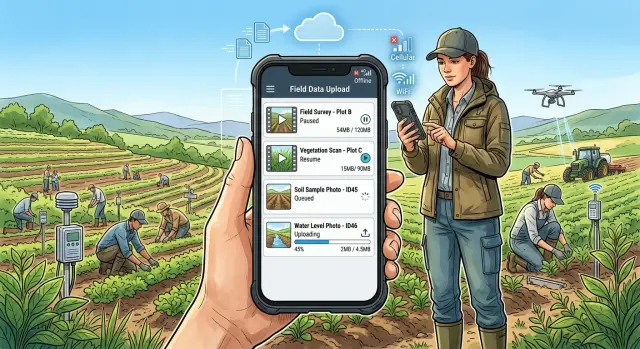
Table of Contents
Why field uploads fail in real life
A field worker rarely stands in one place with full signal and time to wait. They take photos in a basement, on a roadside, inside a warehouse, or out near a job site where the connection drops in and out. The app may show "uploading," but the network is already weak enough to stall the transfer.
Video makes the problem worse. A photo might finish fast, but a short clip can take minutes on mobile data. If the worker records several clips in a row, the queue grows before the first file even finishes. That feels fine on office Wi-Fi. It breaks down in the field.
People also use their phones while uploads run. They lock the screen, answer a call, open maps for directions, or switch to a messaging app. On many phones, that changes how much time the app gets in the background. Some devices slow the work. Some pause it. Some stop it without making the reason obvious to the person holding the phone.
Memory pressure adds another failure point. If the phone is low on memory, the system may restart the app while files are still in progress. Older devices do this more often, but newer phones do it too when the user jumps between camera, maps, and other heavy apps. If the upload state lives only in memory, the app forgets what already finished and what still needs to go.
The human cost is bigger than the technical one. When progress disappears, workers do not think, "the transfer session failed." They think the app lost their proof of work. That can mean taking the same photos again, climbing back to the same location, or asking a customer to repeat a step they already completed.
That is why background uploads on mobile need more than a spinner and a progress bar. In media-heavy field work, bad networks, app restarts, and normal phone use are not edge cases. They are the job.
What users need to feel safe
With background uploads on mobile, trust starts before the upload finishes. A field worker wants one simple answer: "Did the app keep my work?" If the screen locks or the signal drops, the app needs to say yes in a way people can see.
Show local save first. The moment someone records a video or adds photos, mark each file as saved on the device. That message matters because it removes the fear of doing the same job twice. If an upload stalls, they know the file is still there.
The queue should stay visible and plain. Each item needs a clear state: saved, waiting, uploading, paused, uploaded, or failed. Vague labels make people nervous. "Waiting for Wi-Fi" or "No signal" is much better than a spinner with no explanation.
Control helps too. Let people pause one file or the whole queue. That sounds small, but it matches real work. Someone may stop a 300 MB video so three photos and a signed form can go out first.
When they tap resume, the app should continue from the saved file. Do not ask them to find the photo again, re-record a clip, or reopen the form. If they already did the work, the app should respect that.
Each file also needs its own context. Notes, job IDs, timestamps, checklists, and form answers should stay attached to that file even if the phone goes offline, the app moves to the background, or the upload continues hours later. A photo without its note is often useless.
A simple example shows why this matters. A site inspector snaps six photos, adds a short note to each one, and then walks into a basement with weak coverage. If the app shows "saved on this phone" and keeps every note tied to the right image, the inspector keeps moving. If the app loses the notes or asks for the files again, trust disappears fast.
People can work with bad networks. They stop trusting a field app when it makes them wonder whether their evidence, notes, and forms still exist.
Build the upload flow step by step
Start before the first byte leaves the phone. When a user picks a photo or records a video, the app should save the file locally with its metadata right away. That includes who captured it, when, where, and which job or report it belongs to. If the network drops a second later, the work is still there.
Each upload also needs its own stable ID. Do not tie it to a screen state or a temporary memory object. Use one ID that stays the same across app restarts, retries, and background uploads on mobile. That single choice prevents a lot of duplicate files, missing attachments, and confused status messages.
A simple flow looks like this:
- Save the file and metadata to local storage.
- Create the upload record with a stable ID and status.
- Start the upload in small parts if the file is large.
- Mark progress only after the server confirms each part.
- Resume later from the last confirmed part.
Chunking matters most for video, long audio notes, and batches of high resolution photos. If a worker uploads a 400 MB inspection video and the connection cuts out at 92 percent, restarting from zero feels broken. Split the file into chunks, send them one by one, and keep the confirmed offset after every successful chunk. Small chunks make retries cheaper and faster.
Store progress in durable local storage, not only in memory. If the app closes, the phone restarts, or the operating system clears the screen from memory, the upload record should still show the last good point. On the next launch, the app can check the server, verify the uploaded chunks, and continue.
This is where many field app media uploads go wrong. Teams often build a nice progress bar first and the recovery logic later. That order causes pain in real use. Build recovery first. The progress bar can be simple, but resume behavior must be exact.
One realistic test: a technician records photos, starts a video upload, walks into an area with weak signal, switches from Wi-Fi to mobile data, and opens another app. If your flow saves work before upload starts and resumes from the last confirmed chunk, the user barely notices the interruption. That is the standard to aim for.
Handle app closes and background limits
Phones do not treat background work kindly. If a field worker locks the screen, switches apps, loses battery, or gets a call, the upload may pause or stop. That is normal behavior on mobile, not a rare edge case.
For background uploads on mobile, the safe default is simple: assume the app can disappear at any moment. If you build around that assumption, users lose far less work.
The queue has to live on the device, not only in memory. When a worker captures five photos and two videos, the app should save enough state to continue later even after a restart. If that state vanishes when the app closes, the user pays for it with time, battery, and frustration.
A small local record for each job usually includes:
- the file path or local asset ID
- the upload status
- how many bytes the app already sent
- the server upload session or temporary file ID
- the last error, if one happened
When the app opens again, it should scan that queue and resume unfinished jobs on its own. Users should not need to remember what failed. A field technician may take evidence in a basement with weak signal, put the phone away, and reopen it 40 minutes later in the van. The app should pick up where it left off, not start from zero.
Sometimes the phone will not allow the upload to continue until the app returns to the foreground. Say that clearly. A short message like "Upload paused. Keep the app open to finish this video" is plain and useful. Silence makes people think the file is still moving when it is not.
Do not mark a file as done when the progress bar reaches 100%. Mark it done only after the server confirms it stored the file and attached it to the right record. Until then, keep the item in a pending state.
That last step prevents a common mess: the app shows success, the worker leaves the site, and the back office later finds an empty report. A server confirmation closes that gap.
Decide what happens when the network changes
Field work rarely happens on a stable connection. A technician can start a video upload on site Wi-Fi, walk to the truck, lose signal for 30 seconds, then switch to cellular. If the app treats each change like a fresh start, people lose time and trust fast.
When the signal drops, the app should pause in a predictable way. Do not keep spinning the progress bar as if nothing happened. Mark the upload as paused, keep the bytes already sent, and wait for a usable connection. That sounds simple, but it saves real work when someone just spent five minutes recording damage photos or a long inspection clip.
Switching networks needs care. Moving from Wi-Fi to cellular, or from one weak tower to another, can break the upload session. The safest approach is to send files in chunks and confirm each chunk before moving on. Then the app can resume from the last confirmed point instead of starting the whole file again.
Large files need stricter rules on mobile data. Most people accept sending a few photos over cellular. A 900 MB video is different. Let teams choose a default such as "photos on any network, videos on Wi-Fi only" or "ask before using cellular for files over 100 MB." If your app decides this without asking, users will notice when their data bill does.
Weak connections need slower retries, not constant hammering. If the app retries every few seconds on a bad signal, it burns battery and keeps the radio busy without making progress. A short backoff works better: wait 15 seconds, then 30, then 1 minute, then 2 minutes. Reset that timer once the network looks stable again.
Status text has to stay clear the whole time. One upload should never show "uploading," "retrying," and "failed" in different places. Pick one status model and use it everywhere.
A simple set usually works well:
- Uploading
- Paused - no signal
- Paused - waiting for Wi-Fi
- Retrying in 2 min
- Failed - tap to retry
That clarity matters more than fancy animations. In background uploads on mobile, users mostly want one answer: "Is my evidence safe, and will it finish later?"
If the answer is yes, they keep working. If the answer looks fuzzy, they take duplicate photos, leave the app open, or stop trusting the upload at all.
A day in the field with photo and video evidence
An inspector spends the morning at three sites after a storm. By lunch, she has captured 20 photos and two short videos for one report. She works fast, often with one hand, so the app cannot ask her to stop and babysit uploads.
After every photo or video, the app saves the file to local storage before it moves her to the next task. It also creates an upload record right away. That small step matters more than most teams think. If the app closes, the phone locks, or she switches to maps, her evidence is still on the device and still in the queue.
The screen should show plain states she can trust:
- Saved on device
- Uploading 6 of 22
- Paused - no signal
- Waiting for WiFi
- Uploaded
Midway through the trip back, she gets on a train. The signal drops while one video is only half uploaded. A weak upload flow treats that as a failure and makes her start again later. A better one keeps the local file, stores the upload progress, and pauses cleanly when the network disappears.
When the train reaches the depot, the phone joins WiFi. The queue wakes up and checks each item. Files that finished earlier stay finished. The half-sent video resumes from the last confirmed chunk instead of starting from zero. The remaining photos upload in order, without jumping around or creating second copies.
This is where background uploads on mobile either feel calm or feel broken. The user should never wonder, "Did I lose that video?" She should see that the app remembered every file and knows what to do next.
The manager later opens the case and gets the full set: 20 photos, two videos, correct timestamps, no gaps, no duplicate files. The inspector does not need to resend anything, and nobody has to sort out a messy report at the end of the day.
Mistakes that lose user work
Teams lose trust fast when an app drops photos or videos after a long day in the field. In background uploads on mobile, the worst bugs often look small in code and expensive in real life.
One common mistake starts before the upload itself. The app begins sending a file while the phone still writes it to storage. That can leave you with a partial image, a broken video, or a checksum mismatch that appears only on weak devices. Save the file first, confirm its size and path, then create the upload job.
Another mistake comes from tying upload state to the screen instead of the job. A user opens a report, taps upload, then locks the phone or switches apps. If your progress bar lives only in that screen, the job can vanish with it. The upload needs its own record in local storage, with status, bytes sent, retry count, and file location. The screen should read that record, not own it.
Deleting the local file too early causes damage that users cannot fix. Some teams remove the file as soon as the request starts, or after the first success response from one endpoint. That is risky. Keep the file until the server confirms the final object is stored and attached to the right report. If a field app media uploads large video evidence, one bad reconnect can force the user to shoot it again.
Retries cause another mess when the app keeps trying forever and says nothing. People assume the upload finished, leave the site, and learn later that the app kept failing in the background. Show a clear state such as paused, waiting for network, or needs attention. When network change upload behavior matters, say what the app will do on Wi-Fi, mobile data, or no signal.
The most fragile design puts form submission and media upload in one step. Then one failed video blocks the whole report. Split them. Save the form data first, queue media as separate jobs, and let the report show which files still need work. That also makes pause and resume uploads much safer.
A simple test catches many of these mistakes: take three photos, add a video, switch networks twice, close the app, reopen it, and check whether every file still has a clear status. If any item disappears, users will notice before your team does.
Quick checks before release
Most upload bugs hide until a real phone loses signal, locks the screen, or switches networks at the worst moment. A short test run on one device is not enough. Use a large photo set or a long video, then try to break the flow on purpose.
For background uploads on mobile, the pass mark is simple: the user should not need to start over, guess what happened, or wonder whether a file made it.
- Turn on airplane mode during a large upload. The app should stop cleanly, keep the bytes already sent if your backend supports it, and show a clear paused or waiting state instead of "failed" right away.
- Lock the phone while the queue is active. After a few minutes, unlock it and confirm the upload either kept going in the background or resumed on its own without making a second copy.
- Close the app after part of a file has uploaded, then open it again. The queue should rebuild from saved state, not forget progress, and not leave the user with a stuck spinner.
- Move from cellular to Wi-Fi in the middle of one file. Watch for duplicate chunks, corrupted media, or a transfer that restarts from zero when it did not need to.
- Send two files that share the same filename, such as IMG_0001.jpg from different days. The server should treat them as separate files unless you explicitly match them by content or upload ID.
Watch the small details while you run these tests. Progress should move in a believable way. Errors should use plain language. Retry should retry the right file, not the whole batch.
One extra habit saves a lot of pain: repeat the same tests with poor battery, low storage, and a crowded queue. Field app media uploads often fail because several small limits pile up at once. If pause and resume uploads still work under that stress, you are much closer to a release people can trust.
Next steps for a safer rollout
A safer rollout starts with a small written plan. Before you ship, define every state an upload can enter and what the app does next. If users cannot tell whether a file is safe, they assume it is gone.
- queued
- uploading
- paused
- done
- failed
Those labels sound simple, but each needs a rule. "Queued" should mean the file is saved locally and waiting its turn. "Paused" should have a reason behind it, such as a user tap, no network, or a background limit from the phone.
Retry rules need the same level of care. Short outages, timeouts, and brief network switches should usually retry on their own. Problems like an expired login, a rejected file, or missing local data should stop and ask for a tap, because the app cannot fix those alone.
Test with real files from the field. A few tiny sample photos will not tell you much. Use the same photo and video sizes your team actually sends, then check pause and resume uploads while moving between Wi-Fi, mobile data, and weak signal areas.
A realistic test looks boring, which is exactly what you want. Take 20 photos, record two long videos, lock the phone, walk outside, lose signal for a minute, and come back. The app should keep clear status, avoid duplicate uploads, and finish without asking the user to repeat work.
It also helps to log every state change on both the phone and server. When something goes wrong, you want to know whether the file never left the device, got uploaded twice, or finished but never showed as done.
If your team needs help sorting that out, Oleg Sotnikov can review the mobile flow, server-side handling, and infrastructure choices as part of Fractional CTO support. That kind of review often catches the expensive mistakes early, especially in media-heavy apps where one broken retry rule can waste hours of field work.
Ship only when the behavior feels boring, predictable, and hard to break. That is what users trust.


